
Core Concepts
Querri is a conversational AI agent for data analysis. To get the most out of it, it helps to understand how it works behind the scenes.
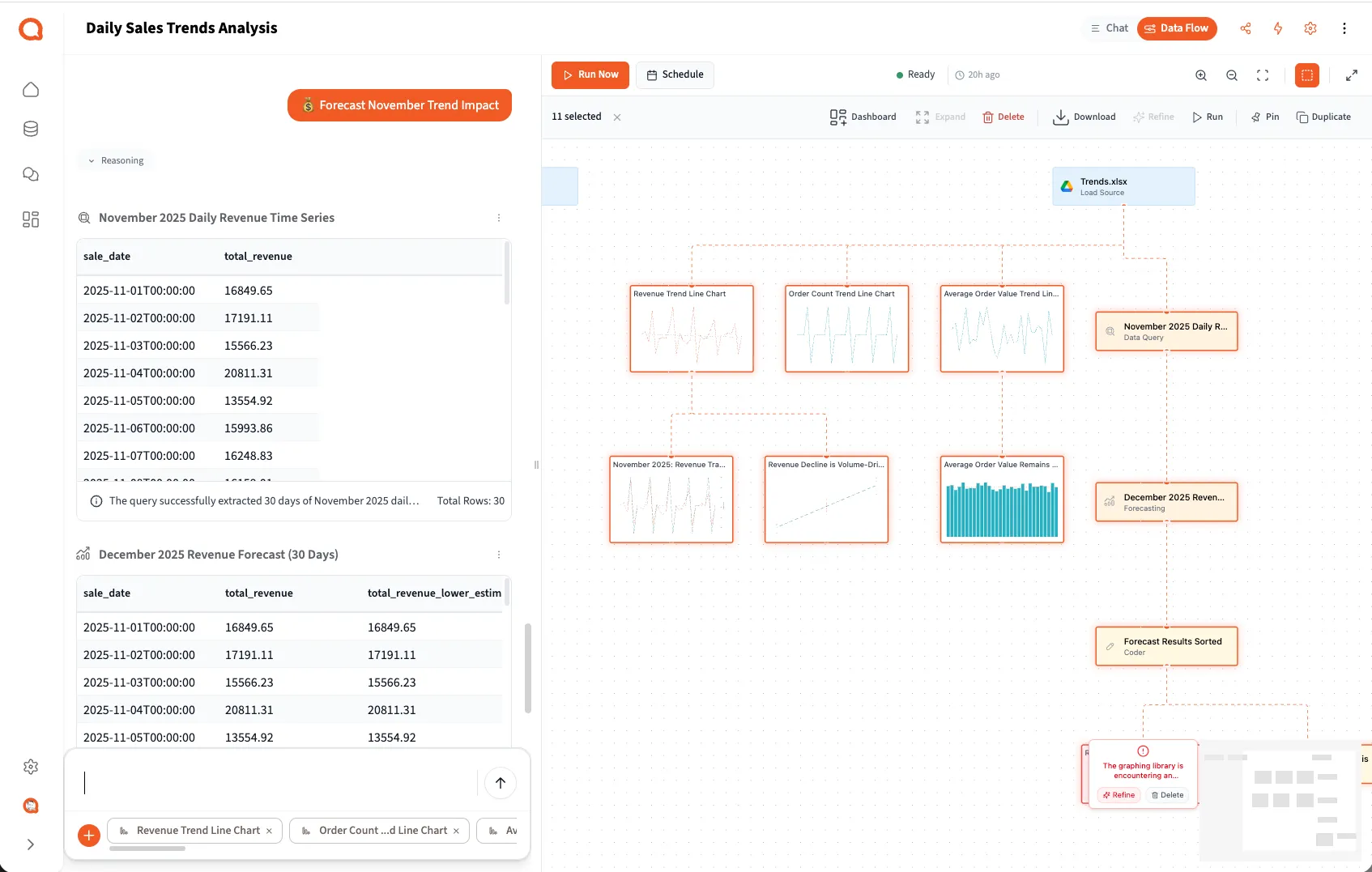
The AI Agent
Section titled “The AI Agent”At the heart of Querri is an intelligent AI agent that orchestrates your entire analysis workflow.
How It Works
Section titled “How It Works”When you ask a question, the agent:
- Sets a Goal - Translates your request into a specific analytical objective
- Reasons About the Problem - Figures out what data and steps are needed
- Finds Data - Searches your Library for relevant sources
- Investigates - Examines loaded data to understand its structure
- Creates a Plan - Designs a sequence of steps to achieve the goal
- Executes - Runs the steps and presents results
- Responds - Explains what it found and asks clarifying questions
Turns and Conversations
Section titled “Turns and Conversations”The agent works in turns (up to 30 per conversation). Each turn represents one cycle of thinking and action.
You don’t need to worry about how the agent works internally—it handles all the technical details automatically based on what you’re asking for.
Projects
Section titled “Projects”Projects are containers for your analysis work. Each project is:
- Self-contained - Has its own data, steps, and results
- Persistent - Automatically saved as you work
- Shareable - Can be shared with team members
- Conversational - Built through natural language chat
When you start a new chat, you’re creating a new project. The project captures:
- Your conversation with the agent
- All data sources you’ve loaded
- Every step the agent creates
- All results and visualizations
Steps are individual operations that make up your analysis. The agent automatically creates steps based on your questions.
Types of Steps
Section titled “Types of Steps”Source Loading
- Load data from your Library into the project
- Example: “Customer Data (1,245 rows × 12 columns)”
Transformations
- Filter, aggregate, or join data using SQL
- Example: “Filter to 2024 transactions”
- Example: “Aggregate revenue by month”
Visualizations
- Create interactive or static charts
- Example: “Revenue trends line chart”
Advanced Analysis
- Statistical calculations, forecasts, or specialized analytics
- Example: “3-month revenue forecast”
Step Execution
Section titled “Step Execution”Steps execute sequentially:
- Agent creates a plan (a list of steps to run)
- Steps execute in order in the background
- Each step can reference data from previous steps
- Results stream back to you in real-time
Step Status
Section titled “Step Status”Each step has a status:
- Pending - Waiting to execute
- Running - Currently executing
- Complete - Finished successfully
- Error - Failed with an error message
Data Tables
Section titled “Data Tables”When steps produce tabular data, you’ll see it in an interactive data table viewer.
Features
Section titled “Features”- Efficient Storage - Data stored efficiently for fast access
- Type-Aware - Automatically detects numbers, dates, text, and more
- Interactive - Scroll, sort, and explore in the UI
- Scalable - Works with large datasets through streaming
- Rich Metadata - Includes column types, row counts, and summaries
When You’ll See Tables
Section titled “When You’ll See Tables”- When you load a data source
- After transformations
- In step results
- As input to visualizations
The Library
Section titled “The Library”The Library is your central data catalog. It stores all your data sources in one place.
What’s in the Library
Section titled “What’s in the Library”- Uploaded Files - CSVs, Excel files, JSON, Parquet
- Connected Integrations - Database connections, APIs, cloud storage
- Processed Sources - Each source is ready for immediate analysis
Source Metadata
Section titled “Source Metadata”Every source in your Library includes:
- Name and Description - What the data is
- Preview - Column names and data types
- Size - Row and column counts
- Origin - Where the data comes from
- Last Updated - When the data was refreshed
Using the Library
Section titled “Using the Library”The agent automatically searches your Library when you need data:
- “Analyze my sales data” → Agent finds and loads sales sources
- You can also request specific sources by name
- Once loaded into a project, data stays available for that analysis
What the Agent Can Do
Section titled “What the Agent Can Do”The agent has a wide range of capabilities it uses automatically based on your questions.
Finding and Loading Data
Section titled “Finding and Loading Data”When you need data:
- Searches your Library for relevant sources
- Loads the most relevant data (typically 1-3 sources to stay focused)
- Understands source descriptions and metadata to find the right match
Investigating Data
Section titled “Investigating Data”To help you understand your data:
- Provides column statistics (min, max, average, unique values)
- Examines data structure and relationships
- Identifies data types and formats automatically
- Helps make informed decisions about next steps
Transforming Data
Section titled “Transforming Data”For data manipulation:
- Filters and selects specific rows and columns
- Aggregates and groups data (sums, averages, counts)
- Joins multiple datasets together
- Creates calculated fields and derived metrics
- Sorts and ranks results
Creating Visualizations
Section titled “Creating Visualizations”For charts and graphs:
- Interactive charts you can explore and zoom
- Multiple chart types: lines, bars, scatter, pie, heatmaps, and more
- Professional styling with consistent colors
- Customizable titles, labels, legends, and axes
Advanced Analytics
Section titled “Advanced Analytics”For deeper insights:
- Time series forecasting with automatic model selection and confidence intervals
- Statistical analysis and correlations
- Pivot tables for multi-dimensional summaries
- Geospatial analysis for location-based data
- Network analysis for relationships and connections
Data Quality
Section titled “Data Quality”For cleaning and preparation:
- Removes duplicates based on your criteria
- Handles missing values (fill, forward-fill, or remove)
- Standardizes formats for dates, numbers, and text
- Converts data types as needed
Exporting and Sharing
Section titled “Exporting and Sharing”For deliverables:
- Formatted Excel files with professional styling and multiple sheets
- CSV exports for data portability
- Dashboards combining multiple visualizations (4-12 widgets)
- Inline highlights showing key insights
How Data Flows
Section titled “How Data Flows”Understanding the data flow helps you see how everything connects:
1. You ask a question ↓2. Agent searches your Library ↓3. Data loaded into project ↓4. Agent examines data structure ↓5. Agent creates analysis plan ↓6. Steps execute in the background: • Transformations create new datasets • Visualizations create charts • Analysis generates insights ↓7. Results stream back to you ↓8. You ask follow-up questions (back to step 1)Multi-Turn Conversations
Section titled “Multi-Turn Conversations”Querri excels at multi-turn conversations. The agent remembers:
- Your original goal - What you’re trying to accomplish
- Previous steps - Data and visualizations already created
- Current context - Which results are in focus
- Chat history - Recent questions and answers
This memory allows you to:
- Build incrementally: “Now filter that to California”
- Reference previous work: “Use the aggregated data from step 3”
- Refine outputs: “Make that chart bigger”
Goals and Deliverables
Section titled “Goals and Deliverables”When the agent sets a goal, it’s committing to deliver specific outputs:
- “Create 3 charts showing sales by region, trends, and top products”
- “Generate a forecast for next quarter”
- “Export a formatted Excel report”
The agent tracks:
- What’s been delivered - Charts and analyses completed
- What’s remaining - Deliverables still needed
- Progress - How close to completing the goal
If you ask for something new, that becomes a new deliverable—even if similar work was done before.
Permissions and Sharing
Section titled “Permissions and Sharing”Querri provides fine-grained access control:
- Projects - Control who can view or edit
- Dashboards - Share with specific users or teams
- Sources - Restrict access to sensitive data
- Organization-level - Admin controls
Best Practices
Section titled “Best Practices”Work Incrementally
Section titled “Work Incrementally”Let the agent build your analysis step by step:
- ✅ “Show sales” → “Filter to 2024” → “Create a chart”
- ❌ “Filter 2024 sales and create a monthly trend chart with forecasts”
Check the Steps
Section titled “Check the Steps”Review what the agent creates:
- Understand the transformations
- Verify chart configurations
- Catch errors early
Be Specific When Needed
Section titled “Be Specific When Needed”If the agent asks for clarification, provide details:
- “Use the order_date column, not ship_date”
- “I want daily aggregation, not monthly”
Trust the Selectivity
Section titled “Trust the Selectivity”When loading data, less is more:
- The agent typically loads 1-3 sources intentionally
- This keeps analysis focused and fast
- You can always load more later
What’s Next?
Section titled “What’s Next?”Now that you understand the core concepts:
- Quick Start Guide - Try it yourself
- Prompting Guide - Write effective questions
- Using the Chat Interface - Master the conversation flow