Skip to content

Library Overview

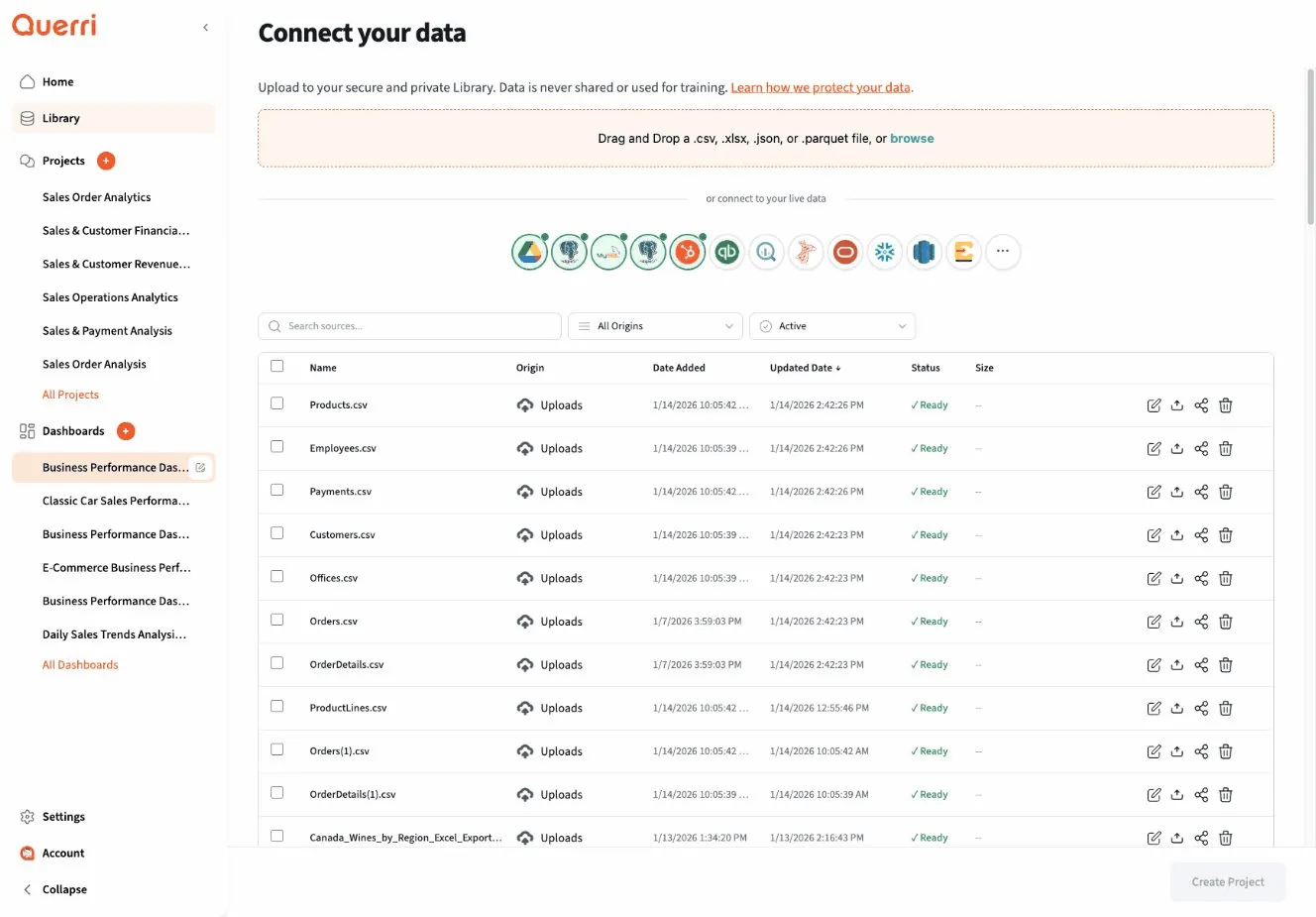
The Querri Library is your central data repository where all your uploaded files and connected data sources live. Think of it as your data hub - a single place to manage, organize, and access all the data you use across your projects and dashboards.

The Library is Querri’s data management system that:

  • Stores all your uploaded files (CSV, Excel, JSON, etc.)
  • Manages data source connections (databases, APIs, cloud storage)
  • Provides quick access to data across projects
  • Tracks data lineage and usage
  • Maintains version history of your data
  • Enables data sharing across your organization

Access the Library by navigating to the /library route in your Querri workspace, or click “Library” in the main navigation menu.

Instead of uploading the same file to multiple projects or reconnecting to the same database repeatedly, the Library provides:

Single source of truth:

Without Library:
Project 1 → Upload customers.csv
Project 2 → Upload customers.csv (again)
Project 3 → Upload customers.csv (again)
Result: Multiple copies, hard to keep in sync
With Library:
customers.csv in Library → Used by Projects 1, 2, 3
Result: Single file, always up-to-date, easy to manage

Reusability:

  • Upload once, use everywhere
  • Configure connection once, access from any project
  • Share data across teams without duplication

Consistency:

  • Everyone uses the same data
  • No confusion about which version is current
  • Changes propagate to all projects using the data

The Library helps you stay organized as your data grows:

Easy to find:

  • Search by name, type, or tag
  • Browse by category or folder
  • Filter by date or usage
  • See recently used sources

Clear structure:

  • Organize into folders
  • Tag for categorization
  • Add descriptions and metadata
  • Track relationships between sources

Maintain control over your data:

Access management:

  • Control who can view or edit sources
  • Share with specific teams or individuals
  • Audit who’s using what data
  • Track data access patterns

Version control:

  • Keep history of file uploads
  • Revert to previous versions if needed
  • Compare versions
  • Note changes and updates

Data quality:

  • Add data validation rules
  • Set refresh schedules
  • Monitor data freshness
  • Track data lineage

Access the Library in several ways:

Main Navigation:

  1. Click “Library” in the top navigation bar
  2. Or navigate to /library directly

From Projects:

  1. In any project step that needs data
  2. Click “Add Data Source”
  3. Select “From Library”
  4. Browse or search for your data

From Dashboards:

  1. When configuring a widget
  2. Choose data source
  3. Select “Library”
  4. Pick your data

Library View

When you open the Library, you’ll see:

Quick Stats:

┌─────────────────────────────────────┐
│ Library Overview │
│ │
│ Total Sources: 156 │
│ Files: 89 │
│ Connections: 67 │
│ Used in Projects: 142 │
│ Last Updated: 2 minutes ago │
└─────────────────────────────────────┘

Recent Sources:

  • Files and connections you accessed recently
  • Quick access to frequently used data
  • See what your team is using

Favorites:

  • Sources you’ve starred
  • Your most important data
  • Quick access to critical sources

Browse by Type:

  • All sources
  • Files only
  • Connections only
  • Shared with me
  • My sources

The Library manages two main types of data sources:

Uploaded files that are stored in Querri:

Supported Formats:

  • CSV (Comma-Separated Values)
  • Excel (.xlsx, .xls)
  • JSON (JavaScript Object Notation)
  • Parquet (columnar storage)
  • TSV (Tab-Separated Values)
  • XML (structured data)
  • Text (.txt, delimited files)

File Details:

File: customer_data.csv
Type: CSV file
Size: 2.5 MB
Rows: 15,234
Columns: 12
Uploaded: Jan 15, 2024
Last Modified: Jan 15, 2024
Used in: 5 projects

Benefits:

  • No external dependencies
  • Fast access
  • Version history maintained
  • Easy to share
  • Works offline (for downloaded files)

Live connections to external data sources:

Supported Connectors:

Databases:

  • PostgreSQL
  • MySQL
  • SQL Server
  • Oracle
  • SQLite
  • MongoDB
  • Amazon Redshift
  • Google BigQuery
  • Snowflake

Cloud Storage:

  • Amazon S3
  • Google Cloud Storage
  • Azure Blob Storage
  • Dropbox
  • Google Drive

APIs:

  • REST APIs
  • GraphQL
  • Custom webhooks

SaaS Platforms:

  • Salesforce
  • HubSpot
  • Google Analytics
  • Stripe
  • Shopify

Connection Details:

Connection: Production Database
Type: PostgreSQL
Host: db.company.com
Database: analytics
Tables: 47
Last Synced: 2 minutes ago
Status: Connected ✓
Used in: 12 projects

Benefits:

  • Always current data
  • No manual uploads needed
  • Single source of truth
  • Automatic refresh
  • Large datasets supported

The Library provides flexible organization options:

Create a hierarchical structure:

Library/
├── Sales/
│ ├── Daily Reports/
│ ├── Monthly Summaries/
│ └── Customer Data/
├── Marketing/
│ ├── Campaigns/
│ ├── Analytics/
│ └── Lead Data/
├── Finance/
│ ├── Invoices/
│ ├── Expenses/
│ └── Budget/
└── Operations/
├── Inventory/
├── Shipping/
└── Performance/

Add flexible categorization:

customer_data.csv
Tags: #sales #customers #pii #weekly #csv
Tagging benefits:
- Search by tag
- Multiple categories per file
- Easy filtering
- Cross-folder organization

Add rich information to sources:

Standard Metadata:

  • Name
  • Description
  • Type
  • Owner
  • Created date
  • Modified date
  • Size

Custom Metadata:

  • Data steward
  • Update frequency
  • Data quality score
  • Business glossary terms
  • Compliance flags
  • Cost center
  • Project associations

Example:

File: Q1_2024_Sales.csv
Standard Info:
Name: Q1 2024 Sales Data
Type: CSV
Size: 5.2 MB
Owner: Sales Analytics Team
Created: Jan 1, 2024
Modified: Mar 31, 2024
Custom Metadata:
Data Steward: John Doe
Update Frequency: Quarterly
Contains PII: Yes
Retention Period: 7 years
Cost Center: Sales-001
Quality Score: 95%

Leverage Library data in your projects:

Step 1: In your project, add a data source

1. Click "Add Step"
2. Choose "Load Data"
3. Select "From Library"

Step 2: Browse or search

Search: "customer"
Or browse by folder: Sales → Customer Data

Step 3: Select and configure

Source: customer_data.csv
Options:
☑ Load all columns
☐ Filter rows
☐ Sample data (use subset)
Click "Add to Project"

Step 4: Use in your analysis

The data is now available in your project
All transformations reference the Library source
If the source updates, you can refresh your project

Choose how to use Library data:

Live Connection:

Project → Library Source (live)
Always current data
Refreshes automatically
Reflects latest changes
Best for:
- Real-time dashboards
- Current operational data
- Frequently updated sources

Snapshot:

Project → Library Source (snapshot at time T)
Fixed point in time
Doesn't change
Historical reference
Best for:
- Historical analysis
- Reproducible reports
- Compliance/audit
- Month-end snapshots

Control how data updates:

Manual Refresh:

  • You control when data updates
  • Click “Refresh” button
  • Good for analysis that shouldn’t change

Automatic Refresh:

  • Data updates on schedule
  • Hourly, daily, weekly, etc.
  • Good for dashboards and monitoring

On Demand:

  • Data loads fresh each time project runs
  • Always latest from Library
  • Good for one-time analysis

Use clear, consistent names:

Good Names:

customer_data_2024_q1.csv
sales_daily_2024-01-15.xlsx
production_database_connection
marketing_analytics_api

Poor Names:

data.csv
file1.xlsx
db
connection

Naming Template:

[Topic]_[Type]_[Date/Version].[ext]
Examples:
sales_transactions_2024-01.csv
customer_master_v2.xlsx
inventory_snapshot_2024-q1.parquet

Document your sources:

Minimum Documentation:

  • What the data contains
  • Where it comes from
  • How often it updates
  • Who owns it
  • How to use it

Example:

Name: Customer Master Data
Description:
Complete customer database including contact info, purchase
history, and preferences. Updated nightly at 2 AM from the
production database.
Columns:
- customer_id: Unique identifier (primary key)
- email: Customer email address
- name: Full name
- created_at: Account creation date
- total_purchases: Lifetime purchase amount
- last_purchase: Date of most recent order
Update Schedule: Daily at 2:00 AM EST
Owner: Customer Analytics Team
Contact: analytics@company.com
Data Classification: Internal - Contains PII

Protect sensitive data:

Data Classification:

  • Public
  • Internal
  • Confidential
  • Restricted

PII Handling:

  • Mark sources containing PII
  • Restrict access appropriately
  • Enable audit logging
  • Set retention policies

Compliance:

  • GDPR requirements
  • CCPA requirements
  • Industry-specific regulations
  • Company policies

Ready to use the Library? Here’s a quick start:

  1. Navigate to Library: Go to /library
  2. Upload your first file: Click “Upload File”
  3. Add a description: Help others understand the data
  4. Organize: Create folders or add tags
  5. Share: Give your team access
  6. Use in projects: Reference from your analyses
  7. Maintain: Keep data fresh and organized

The Library is your foundation for organized, efficient data work in Querri!