
Using the Chat Interface
The chat interface is the primary way you interact with Querri. Instead of clicking through menus or writing code, you simply ask questions in natural language and the AI does the work.
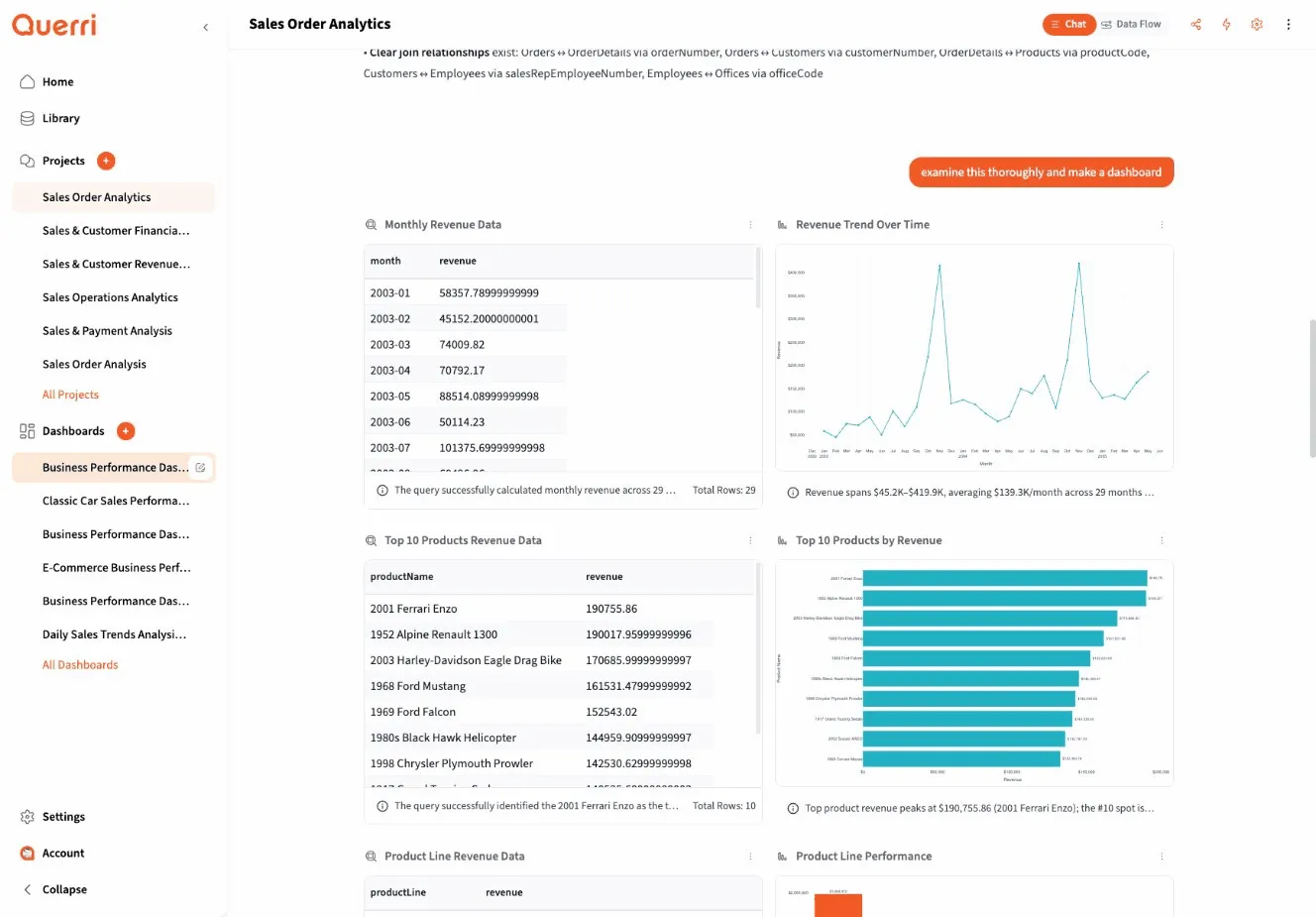
Starting a Conversation
Section titled “Starting a Conversation”To begin working with data:
- Navigate to the chat interface (usually the home page or a “New Project” button)
- Type your question in the message box at the bottom
- Press Enter or click Send
That’s it. Querri will process your question and start generating the analysis steps needed to answer it.
Your First Message
Section titled “Your First Message”Your first message typically tells Querri what you want to analyze:
- “Analyze my sales data from Q4”
- “Show me customer trends”
- “Help me understand this revenue dataset”
If you haven’t uploaded data yet, Querri will prompt you to add a data source before proceeding.
Types of Questions You Can Ask
Section titled “Types of Questions You Can Ask”Querri understands a wide variety of analytical questions:
Data Exploration
Section titled “Data Exploration”- “What columns are in this dataset?”
- “Show me the first 100 rows”
- “How many records do I have?”
- “What’s the date range of this data?”
Filtering and Selection
Section titled “Filtering and Selection”- “Show only transactions from 2024”
- “Filter to customers in California”
- “Give me rows where revenue exceeds $1000”
Aggregation and Summary
Section titled “Aggregation and Summary”- “What’s the total revenue by month?”
- “Calculate average order value by product category”
- “Count customers grouped by region”
Visualization
Section titled “Visualization”- “Create a bar chart of sales by region”
- “Show me a line chart of monthly trends”
- “Plot the correlation between price and units sold”
Data Cleaning
Section titled “Data Cleaning”- “Remove duplicate rows”
- “Fill in missing values for the price column”
- “Standardize the date format”
Advanced Analysis
Section titled “Advanced Analysis”- “Forecast next quarter’s revenue”
- “Find correlations in this dataset”
- “Identify outliers in customer spending”
How AI Responds and Creates Steps
Section titled “How AI Responds and Creates Steps”When you send a message, here’s what happens:
- AI analyzes your question to understand what you’re asking
- Generates one or more steps to accomplish the task
- Executes each step sequentially
- Displays results as tables, charts, or text
You’ll see steps appear in the project view as the AI works. Each step shows:
- What operation it’s performing
- Its current status (running, success, error)
- The results it produced
Reading Step Results
Section titled “Reading Step Results”Steps can produce different types of results:
- Tables (QDF): Interactive data viewers showing rows and columns
- Charts: Visual representations of your data
- Text insights: Summaries, statistics, or explanations
Look at each step’s output to verify the AI is on the right track.
Following Up and Refining
Section titled “Following Up and Refining”The real power of chat-based analysis is the ability to have a conversation:
Building on Previous Steps
Section titled “Building on Previous Steps”You can reference earlier results:
- “Now filter that to just premium customers”
- “Create a chart from those results”
- “Show me the top 10 from that analysis”
The AI remembers context from earlier in the conversation.
Asking for Modifications
Section titled “Asking for Modifications”If the result isn’t quite right:
- “Make that chart a line chart instead”
- “Sort by revenue descending”
- “Include one more column in that table”
Exploring Different Angles
Section titled “Exploring Different Angles”Pivot your analysis naturally:
- “What if we look at it by region instead?”
- “How does this compare to last year?”
- “Break that down by product category”
Understanding AI Suggestions
Section titled “Understanding AI Suggestions”Sometimes the AI will:
Ask for Clarification
Section titled “Ask for Clarification”If your question is ambiguous:
- “Which date column should I use—order_date or ship_date?”
- “Did you want daily, weekly, or monthly aggregation?”
Provide the additional detail to help the AI proceed correctly.
Offer Alternatives
Section titled “Offer Alternatives”The AI might suggest related analyses:
- “I can also show you growth rates if that’s helpful”
- “Would you like me to break this down by customer segment?”
You can accept these suggestions or continue with your original plan.
Explain Limitations
Section titled “Explain Limitations”If something isn’t possible:
- “This dataset doesn’t include geographic information for that analysis”
- “I need more historical data to create a meaningful forecast”
The AI will help you understand what’s feasible with your current data.
Tips for Effective Chat Interaction
Section titled “Tips for Effective Chat Interaction”Be Conversational
Section titled “Be Conversational”You don’t need to use formal language or SQL-like syntax. Talk naturally:
- “Show me what’s going on with revenue this year”
- “I want to see if marketing spend correlates with sales”
Start Broad, Then Narrow
Section titled “Start Broad, Then Narrow”Begin with a general question, then refine:
- “Analyze customer behavior”
- “Focus on repeat customers”
- “Show me their purchase frequency over time”
One Task at a Time
Section titled “One Task at a Time”While the AI can handle complex multi-step requests, breaking them up often works better:
- Instead of: “Filter to 2024, aggregate by month, create a chart, and forecast next quarter”
- Try: “Filter to 2024” → “Aggregate by month” → “Create a chart” → “Forecast next quarter”
Check Results Along the Way
Section titled “Check Results Along the Way”Review each step’s output before moving forward. This helps catch issues early and ensures you’re getting what you need.
Example Conversation
Section titled “Example Conversation”Here’s what a typical chat session might look like:
You: “Analyze my sales data” AI creates step to load and preview the data
You: “Show me total revenue by month for 2024” AI filters to 2024, aggregates by month, displays table
You: “Make that a line chart” AI creates visualization
You: “What were the top 3 months?” AI sorts and filters to top 3
You: “Now forecast the next 3 months” AI generates forecast and shows predicted values
This back-and-forth conversation feels natural and keeps you in control of the analysis.
Next Steps
Section titled “Next Steps”- Learn prompting best practices to get better results
- Understand how to work with data sources
- Explore what types of results and visualizations you can create