
Skip to content

Managing Projects

Projects are the containers for your analytical work in Querri. Each project represents a complete conversation, including all steps, data, and results. This guide covers how to manage your projects effectively.
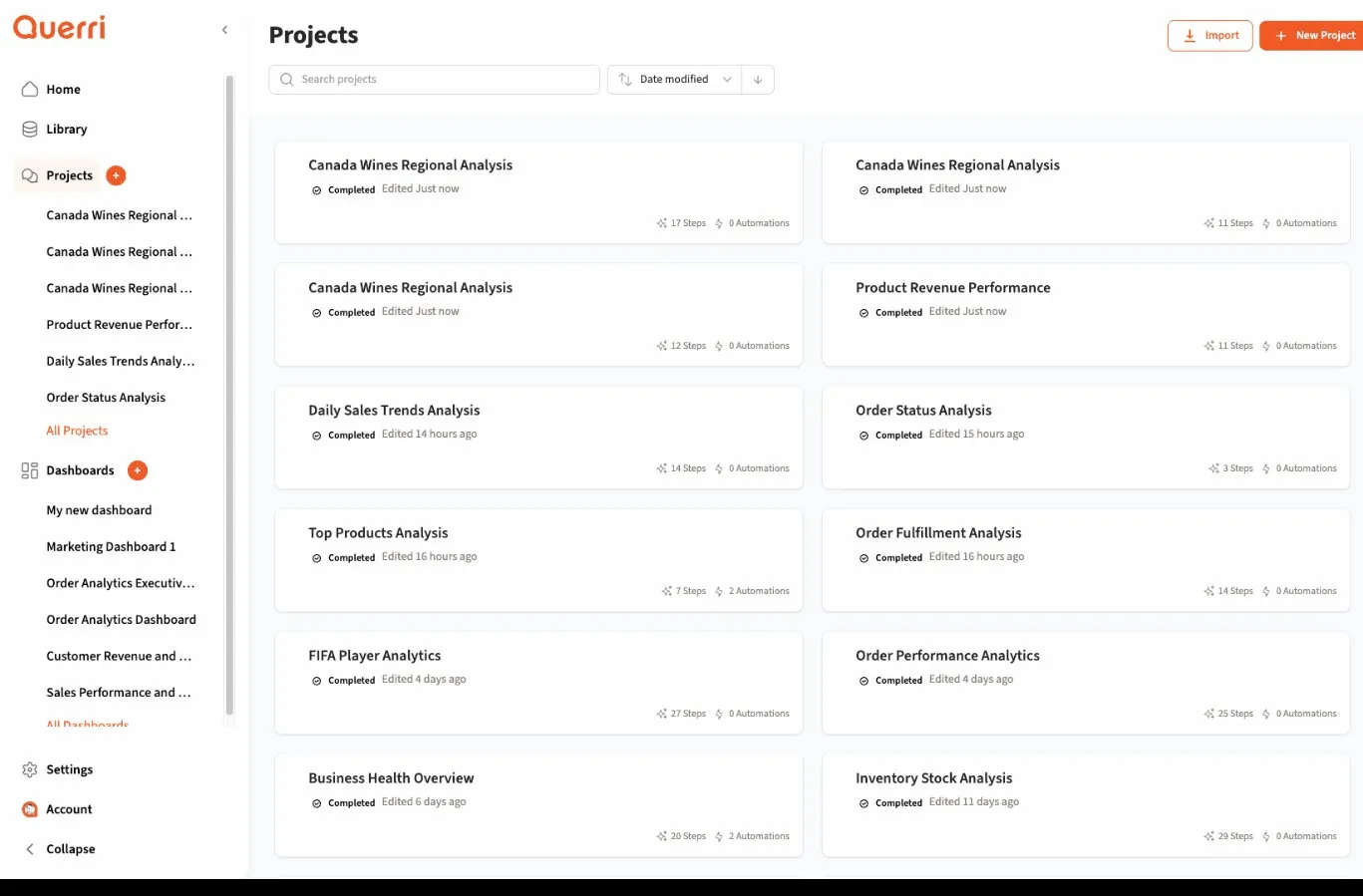
Access your projects from the Projects page (often at /project or via a “Projects” menu item).

The Projects page displays:

  • Project names: What you or the AI named each project
  • Created date: When the project started
  • Last modified: Most recent activity
  • Status: Current state of the project
  • Preview: Sometimes a snippet of the first question or key results

Organize your project list:

  • Sort by date: Newest or oldest first
  • Sort by name: Alphabetical order
  • Filter by status: Active, completed, error, etc.
  • Search: Find projects by name or content

This helps you find specific projects quickly, especially if you have many.

Projects can have different statuses indicating their state:

Meaning: You’re currently working on this project, or it has steps that haven’t finished Indicator: Usually a color like blue or green Action: Continue where you left off

Meaning: All steps have finished successfully Indicator: Often green or a checkmark Action: Review results, share, or archive

Meaning: One or more steps failed Indicator: Red or warning icon Action: Open the project to see errors and fix them

Meaning: Project started but no steps executed yet Indicator: Gray or neutral color Action: Continue the conversation to generate steps

Meaning: You’ve marked this project as archived (if archiving is supported) Indicator: Dimmed or moved to separate section Action: Restore if needed, or delete permanently

Understanding statuses helps you prioritize which projects need attention.

Click on any project to open it:

  1. Navigate to Projects page
  2. Find the project you want to open
  3. Click on the project name or row
  4. The project opens showing the conversation history, steps, and results

You can now:

  • Review what you’ve done
  • Continue the analysis
  • Share or export results
  • Make changes

Give your projects descriptive names for easy identification:

  1. Open the project or find a rename option on the project list
  2. Click on the project name or “Edit” button
  3. Type a new name
  4. Save or press Enter

The project is now renamed.

Use clear, descriptive names:

  • Good: “Q4 2024 Sales Analysis”
  • Better: “Q4 2024 Regional Sales Performance Review”
  • Avoid: “Project 1” or “Untitled”

Include key details:

  • What data you analyzed
  • Time period covered
  • Purpose or focus

This makes finding projects later much easier, especially if you work on similar analyses regularly.

Querri often suggests a name based on your first question:

  • You ask: “Analyze monthly revenue trends”
  • Auto-name: “Monthly Revenue Trends Analysis”

You can keep this or change it to something more specific.

Remove projects you no longer need:

  1. Navigate to Projects page
  2. Find the project to delete
  3. Click Delete, Remove, or a trash icon
    • This might be visible on hover or in a menu
  4. Confirm deletion when prompted

The project is permanently removed.

When you delete a project:

  • All steps and their results
  • The conversation history
  • Any project-specific settings

Note: This does NOT delete data sources in your Library—only this project’s use of them.

Consider:

  • Do you need the results? Download any important tables or charts first
  • Might you reference this later? Archive instead if that’s an option
  • Is it shared? Deleting may affect others who have access

Once deleted, projects usually can’t be recovered, so be certain.

Keep your workspace tidy:

Periodically:

  • Delete old test projects
  • Archive completed analyses
  • Rename unclear project names
  • Review and organize

If you create many projects, use consistent naming:

  • “YYYY-MM - Topic” format: “2024-10 - Regional Sales”
  • Prefix by department: “Marketing - Campaign Analysis”
  • Use tags in names: “URGENT - Q3 Revenue Issue”

Consistency makes scanning the project list faster.

Some Querri instances may support:

  • Folders: Group related projects
  • Tags: Label projects by type, client, or theme
  • Favorites: Star important projects

Use these organizational features if available.

Find specific projects quickly:

Type part of the project name in the search box:

  • Search for “revenue” finds all projects with “revenue” in the name
  • Search for “2024” finds all projects from that year

Some search features let you find projects by:

  • Questions you asked
  • Data sources used
  • Results or insights generated

This is helpful when you remember what you analyzed but not what you named it.

Often there’s a “Recent” or “Recent Activity” section showing:

  • Projects you opened recently
  • Projects modified recently

Quick access to your active work.

Create a copy of an existing project (if supported):

  1. Find the project you want to duplicate
  2. Click Duplicate, Copy, or similar
  3. A new project is created with the same steps and data
  4. Modify as needed

Use this to:

  • Try variations on an analysis without losing the original
  • Reuse a successful workflow with different data
  • Create templates for recurring analyses

View metadata and settings for a project:

  • Created by: Who started the project
  • Created date: When it began
  • Last modified: Most recent change
  • Steps count: How many steps it contains
  • Data sources: Which files or connections it uses

Some projects may have settings:

  • Privacy: Private, team, or public
  • Sharing: Who has access
  • Notifications: Alerts for updates

Access these via a Settings or Info button in the project.

If you create projects frequently:

Some interfaces offer a dashboard showing:

  • Active projects
  • Recent results
  • Projects needing attention (errors, etc.)

Select multiple projects to:

  • Delete several at once
  • Archive in bulk
  • Change sharing settings

Saves time when cleaning up.

Create custom views:

  • “My active analyses”
  • “Shared with team”
  • “Last 30 days”
  • “Error status”

Helps focus on relevant projects.

Don’t leave projects as “Untitled” or auto-generated names:

  • Rename as soon as the focus is clear
  • Include relevant dates and topics
  • Make names scannable

Set a schedule:

  • Weekly: Review projects from the last week
  • Monthly: Delete old test projects
  • Quarterly: Archive completed work

Keeps your workspace manageable.

Don’t try to cram multiple unrelated analyses into one project:

  • Keeps conversations focused
  • Makes finding things easier
  • Simplifies sharing

Start a new project for each distinct question or analysis.

Always open a project before deleting to verify:

  • It’s truly the one you want to remove
  • You don’t need any results from it
  • It’s not shared with others who might still need it

Instead of scrolling through dozens of projects:

  • Search by keywords
  • Use date filters
  • Sort strategically

Saves time and frustration.

A typical project goes through these stages:

  1. Creation: You ask a question, project starts
  2. Active work: Steps are created and executed
  3. Review: You examine results and refine
  4. Completion: Analysis is finished
  5. Sharing (optional): Collaborate or present results
  6. Archive or Delete: Clean up when no longer needed

Understanding this lifecycle helps you manage projects appropriately at each stage.

  • Check if you’re filtering or searching too narrowly
  • Look in archived or deleted sections
  • Verify you’re in the correct account (if you have multiple)
  • Use search with broader terms
  • Check your internet connection
  • Refresh the page
  • Try logging out and back in
  • Contact support if persistent
  • Check if there’s a “Trash” or “Recently Deleted” section
  • Some systems allow recovery within a time window
  • Otherwise, projects are usually not recoverable
  • Use archiving to hide old but potentially useful projects
  • Delete test and experimental projects aggressively
  • Create better naming conventions to reduce clutter perception