
Sharing & Collaboration
Querri makes it easy to share your analysis work with team members or external stakeholders. This guide covers sharing options, permission levels, and collaboration best practices.
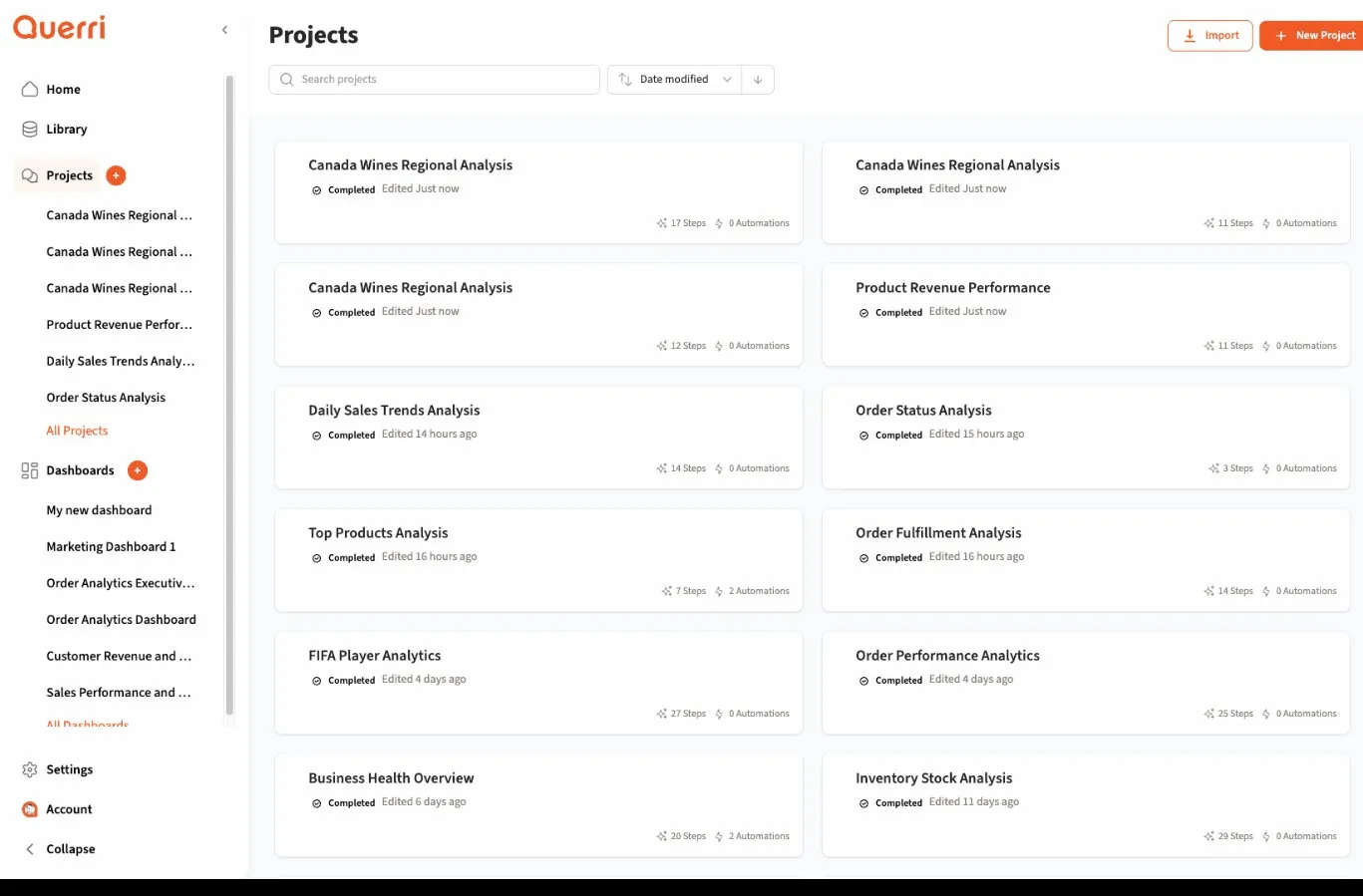
Sharing with Team Members
Section titled “Sharing with Team Members”Share projects with colleagues who have Querri accounts:
How to Share
Section titled “How to Share”- Open the project you want to share
- Find the Share button (usually in the top-right corner or project menu)
- Enter team member’s email or username
- Select permission level (see below)
- Click Share or Send Invitation
The team member receives a notification and can now access the project.
Adding Multiple Team Members
Section titled “Adding Multiple Team Members”You can share with several people at once:
- Enter multiple email addresses
- Select from a team directory (if available)
- Share with entire teams or groups
Everyone added receives access according to their assigned permission level.
Permission Levels
Section titled “Permission Levels”Querri uses different permission levels to control what shared users can do:
Who: The person who created the project
Can:
- View all project content
- Edit and continue the analysis
- Share with others
- Change permissions
- Delete the project
Note: Projects can have only one owner, but ownership can sometimes be transferred.
Editor
Section titled “Editor”Who: Team members you want to collaborate with actively
Can:
- View all project content
- Continue the conversation and add steps
- Modify existing steps (sometimes)
- Share with others (sometimes, depending on settings)
Cannot:
- Delete the project
- Remove the owner
- Change owner permissions
Use this for team members who should actively work on the analysis.
Viewer
Section titled “Viewer”Who: Stakeholders who need to see results but not change anything
Can:
- View all project content
- See steps and results
- Download or export results
- Comment (if commenting is supported)
Cannot:
- Add or modify steps
- Continue the conversation
- Share with others
- Delete or edit the project
Use this for managers, clients, or anyone who needs visibility without editing capability.
Commenter (if available)
Section titled “Commenter (if available)”Who: People who should provide feedback
Can:
- Everything a Viewer can do
- Add comments and annotations
- Tag others in comments
Cannot:
- Modify the actual analysis
Useful for review and feedback workflows.
Creating Public Share Links
Section titled “Creating Public Share Links”Share projects with people who don’t have Querri accounts:
How to Create a Public Link
Section titled “How to Create a Public Link”- Open the project
- Find Share or Get Link option
- Select “Create public link” or “Share via link”
- Configure settings (see below)
- Copy the link
Anyone with the link can now access the project according to the link’s settings.
Public Link Settings
Section titled “Public Link Settings”When creating a public link, you can usually configure:
Permission level: Typically view-only for public links Expiration: When the link stops working (see below) Password protection: Require a password to access (see below)
Adjust these settings based on your security and sharing needs.
Sharing the Link
Section titled “Sharing the Link”Once created, you can share the link via:
- Slack or Microsoft Teams
- Text message
- Any other communication channel
Just paste the URL and send it.
Password Protection
Section titled “Password Protection”Add an extra layer of security to shared links:
How to Set a Password
Section titled “How to Set a Password”- When creating the share link, enable password protection
- Enter a password (or one is generated for you)
- Share both the link and password with intended recipients
Users must enter the password to access the project.
When to Use Passwords
Section titled “When to Use Passwords”Use password protection when:
- Sharing sensitive data publicly
- You want to control who accesses the link even if it leaks
- Compliance or security policies require it
- Sharing with external clients or partners
Password Best Practices
Section titled “Password Best Practices”- Don’t use trivial passwords: “password123” defeats the purpose
- Share passwords separately: Send the link via email, password via text, for example
- Change passwords if compromised: If the password leaks, update it
- Use password managers: If sharing with a team, use a shared password manager
Share Link Expiration
Section titled “Share Link Expiration”Set when share links stop working:
Expiration Options
Section titled “Expiration Options”Common options include:
- 1 day: For very temporary sharing
- 7 days: For short-term reviews
- 30 days: For monthly reports or projects
- 90 days: For quarterly analyses
- Never: Link works indefinitely (use cautiously)
Choose based on how long you need the project accessible.
Why Use Expiration
Section titled “Why Use Expiration”Benefits of expiring links:
- Security: Limits exposure window
- Control: Ensures outdated analyses aren’t referenced
- Compliance: Meets data retention policies
- Cleanup: Reduces number of active shares
Extending Expiration
Section titled “Extending Expiration”If a link expires but you still need it:
- Go to project sharing settings
- Find the expired link
- Extend the expiration or create a new link
Some systems let you extend; others require creating a fresh link.
Viewing Who Has Access
Section titled “Viewing Who Has Access”See everyone who can access your project:
Access List
Section titled “Access List”In the project’s sharing settings, you’ll see:
- Team members: Names and permission levels
- Public links: Which links are active
- Expiration dates: When links expire
Managing Access
Section titled “Managing Access”From this view you can:
- Change permission levels: Upgrade viewer to editor, etc.
- Remove users: Revoke someone’s access
- Disable links: Turn off public sharing
- Update settings: Change passwords or expiration
Regular audits of who has access maintain security.
Revoking Access
Section titled “Revoking Access”Remove someone’s access to a project:
Remove a Team Member
Section titled “Remove a Team Member”- Open sharing settings
- Find the person in the access list
- Click Remove, Revoke, or X icon
- Confirm the action
They immediately lose access to the project.
Disable a Public Link
Section titled “Disable a Public Link”- Open sharing settings
- Find the public link
- Click Disable, Delete, or similar
- Confirm
The link stops working immediately for everyone.
When to Revoke Access
Section titled “When to Revoke Access”Remove access when:
- Someone leaves your team
- A project is completed and no longer needs external visibility
- A link was shared too broadly
- Security concerns arise
- The recipient no longer needs access
Collaboration Workflow
Section titled “Collaboration Workflow”Here’s how teams typically collaborate on projects:
1. Owner Creates Analysis
Section titled “1. Owner Creates Analysis”You start a project and do initial exploration:
- Load data
- Ask questions
- Generate initial insights
2. Share for Collaboration
Section titled “2. Share for Collaboration”Once you have something to build on:
- Share with team members as Editors
- They continue the conversation
- Multiple people can contribute questions and refinement
3. Review and Refine
Section titled “3. Review and Refine”Team members:
- Review steps and results
- Ask follow-up questions
- Add comments or suggestions
- Export results for other uses
4. Share Results with Stakeholders
Section titled “4. Share Results with Stakeholders”When analysis is complete:
- Share with managers/executives as Viewers
- Create public links for broader distribution
- Add password protection if needed
5. Archive or Revoke Access
Section titled “5. Archive or Revoke Access”After the project concludes:
- Remove temporary team members
- Disable public links
- Archive the project for reference
Real-Time Collaboration
Section titled “Real-Time Collaboration”If multiple people work on a project simultaneously:
Concurrent Editing
Section titled “Concurrent Editing”Some systems allow:
- Multiple users in the same project
- Real-time updates as others ask questions
- Seeing who else is active
Check if this is supported in your Querri instance.
Avoiding Conflicts
Section titled “Avoiding Conflicts”If concurrent editing is supported:
- Communicate with team members about who’s doing what
- Use comments to coordinate
- Watch for notifications about others’ changes
If not supported, take turns or divide work across multiple projects.
Commenting and Feedback
Section titled “Commenting and Feedback”If commenting features exist:
Adding Comments
Section titled “Adding Comments”- On steps: Comment on specific steps to ask questions or suggest changes
- On results: Annotate tables or charts
- General comments: Add notes about the overall project
Tagging Team Members
Section titled “Tagging Team Members”Use @mentions to notify specific people:
- “@john can you review this forecast?”
- “@sarah does this match your expectations?”
Tagged users receive notifications.
Resolving Comments
Section titled “Resolving Comments”Mark comments as resolved once addressed:
- Keeps the conversation organized
- Shows what’s been handled
- Maintains a record of decisions
Best Practices for Sharing
Section titled “Best Practices for Sharing”Share Intentionally
Section titled “Share Intentionally”Don’t share everything with everyone:
- Consider who truly needs access
- Use appropriate permission levels
- Review and update access regularly
Use Descriptive Project Names
Section titled “Use Descriptive Project Names”Before sharing, ensure the project name is clear:
- Recipients should understand what it’s about
- Avoid generic names like “Analysis 1”
Provide Context When Sharing
Section titled “Provide Context When Sharing”When you share a project, add a message:
- “Here’s the Q4 revenue analysis we discussed”
- “Please review the forecast and let me know if assumptions look right”
- “This is view-only for the board meeting next week”
Context helps recipients understand what to do with it.
Secure Sensitive Data
Section titled “Secure Sensitive Data”For sensitive projects:
- Use password protection
- Set short expiration times
- Share only with necessary people
- Use viewer permissions when possible
Audit Access Regularly
Section titled “Audit Access Regularly”Periodically review:
- Who has access to what
- Are old public links still active?
- Do permissions still make sense?
- Should anyone be removed?
Quarterly audits are a good practice.
Communicate Changes
Section titled “Communicate Changes”If you remove someone’s access or change permissions, let them know:
- Avoids confusion
- Maintains good relationships
- Provides opportunity to explain
Sharing Limitations
Section titled “Sharing Limitations”Be aware of potential restrictions:
User Limits
Section titled “User Limits”Some Querri plans may limit:
- Number of people you can share with
- Number of public links
- Collaboration features
Check your plan details if you hit limits.
Data Source Permissions
Section titled “Data Source Permissions”If a project uses data sources the recipient doesn’t have access to:
- They might not see all data
- Steps might fail when they try to continue
- Consider this when sharing
Export and Download
Section titled “Export and Download”Viewers may or may not be able to:
- Download results
- Export charts
- Copy data
Check permission settings if this matters.
Troubleshooting Sharing Issues
Section titled “Troubleshooting Sharing Issues”Recipient Can’t Access
Section titled “Recipient Can’t Access”If someone can’t open a shared project:
- Verify their email is correct
- Check they have a Querri account (for team sharing)
- Ensure the link hasn’t expired
- Verify they’re entering the correct password
Public Link Not Working
Section titled “Public Link Not Working”If a public link fails:
- Check if it has expired
- Verify password protection isn’t blocking them
- Ensure the link wasn’t disabled
- Try creating a fresh link
Wrong Permission Level
Section titled “Wrong Permission Level”If someone has the wrong access:
- Go to sharing settings
- Find them in the access list
- Change their permission level
- Changes take effect immediately
Example Sharing Scenarios
Section titled “Example Sharing Scenarios”Scenario 1: Team Collaboration
Section titled “Scenario 1: Team Collaboration”You’re analyzing sales data with two colleagues:
- Create the project
- Share with both colleagues as Editors
- All three contribute questions and analysis
- When complete, share with your manager as Viewer
- Manager reviews and provides feedback via comments
Scenario 2: Board Presentation
Section titled “Scenario 2: Board Presentation”You’ve created a quarterly performance dashboard:
- Complete the analysis
- Create a public share link
- Set password protection
- Set expiration for 2 days after board meeting
- Share link and password with board members
- After meeting, disable the link
Scenario 3: Client Delivery
Section titled “Scenario 3: Client Delivery”You’ve completed analysis for an external client:
- Finalize all results
- Create public link with password
- Set 30-day expiration
- Email link and password to client
- Client reviews and downloads results
- After 30 days, link expires automatically
Next Steps
Section titled “Next Steps”- Learn about project management to organize work before sharing
- Review results and visualizations to ensure quality before sharing
- Explore data sources to understand what recipients will see