
Creating Visualizations
Visualizations turn data into insights you can see. Querri makes it easy to create charts through natural language requests. This guide covers how to ask for charts, what types are available, and how to customize them.
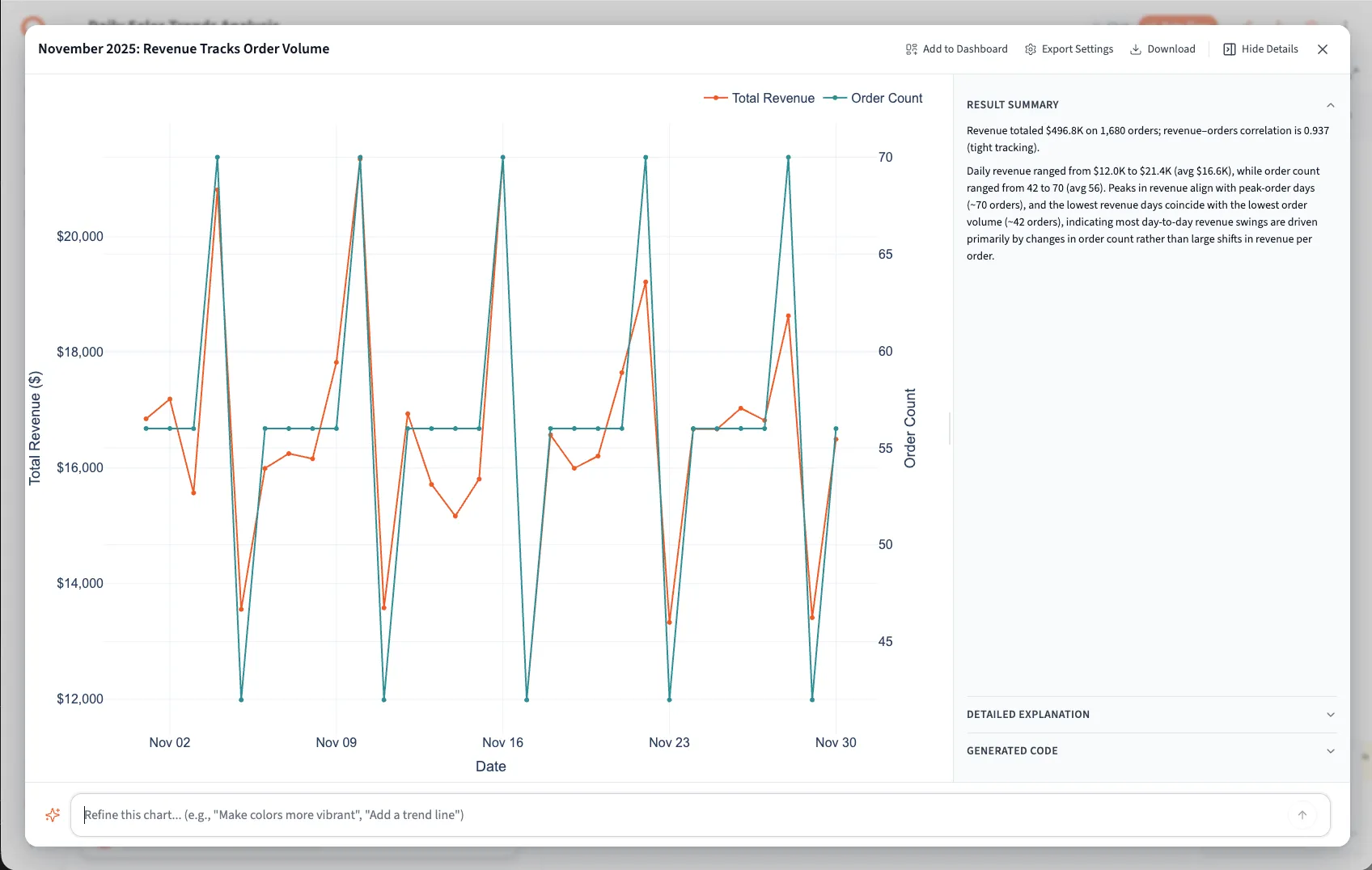
Asking for Charts
Section titled “Asking for Charts”The simplest way to create a visualization is to ask for it:
Basic Requests
Section titled “Basic Requests”- “Show me a bar chart of sales by region”
- “Create a line chart of revenue over time”
- “Make a scatter plot of price vs. quantity”
- “Display a pie chart of market share by product”
The AI will:
- Understand what data you want to visualize
- Select the appropriate chart type
- Configure axes and labels
- Generate the chart
From Existing Data
Section titled “From Existing Data”If you’ve already created a table in a previous step:
- “Turn that into a bar chart”
- “Visualize those results as a line chart”
- “Plot that data”
The AI knows which data you’re referring to based on context.
Specifying Details
Section titled “Specifying Details”You can be more specific about what you want:
- “Create a line chart with month on the x-axis and revenue on the y-axis”
- “Make a bar chart grouped by category, showing average price”
- “Plot revenue by month with separate lines for each region”
More details help ensure you get exactly the chart you need.
Available Chart Types
Section titled “Available Chart Types”Querri supports a variety of visualization types:
Line Charts
Section titled “Line Charts”Best for: Trends over time, continuous data
Examples:
- “Show monthly revenue as a line chart”
- “Plot daily active users over the past quarter”
- “Create a line chart of temperature readings”
Features:
- Single or multiple lines
- Time series or sequential data
- Clear trend identification
Bar Charts
Section titled “Bar Charts”Best for: Comparing values across categories
Examples:
- “Make a bar chart of sales by product category”
- “Show revenue by region as bars”
- “Create a horizontal bar chart of top 10 customers by spend”
Features:
- Vertical or horizontal orientation
- Grouped or stacked bars
- Clear category comparisons
Scatter Plots
Section titled “Scatter Plots”Best for: Showing relationships between two variables
Examples:
- “Create a scatter plot of marketing spend vs. revenue”
- “Plot price against units sold”
- “Show the relationship between age and purchase frequency”
Features:
- Identify correlations
- Spot outliers
- See distribution patterns
Pie Charts
Section titled “Pie Charts”Best for: Showing proportions of a whole
Examples:
- “Make a pie chart of revenue share by product line”
- “Show market share as a pie chart”
- “Display customer distribution by region”
Features:
- Percentage breakdown
- Part-to-whole relationships
- Limited number of slices (works best with 5-7 categories)
Area Charts
Section titled “Area Charts”Best for: Cumulative values over time, volume visualization
Examples:
- “Create an area chart of cumulative sales”
- “Show stacked area chart of revenue by product category over time”
- “Plot website traffic by source as an area chart”
Features:
- Filled areas under lines
- Stacked or overlapping
- Good for showing volume
Histograms
Section titled “Histograms”Best for: Distribution of values, frequency analysis
Examples:
- “Create a histogram of order values”
- “Show the distribution of customer ages”
- “Plot a histogram of transaction amounts”
Features:
- Frequency distributions
- Identify patterns in value ranges
- See data concentration
Heatmaps
Section titled “Heatmaps”Best for: Showing intensity across two dimensions
Examples:
- “Create a heatmap of sales by day of week and hour”
- “Show correlation matrix as a heatmap”
- “Visualize activity by time and location”
Features:
- Color-coded intensity
- Two-dimensional patterns
- Complex data simplified
Box Plots
Section titled “Box Plots”Best for: Statistical distributions, comparing groups
Examples:
- “Create box plots of revenue by quarter”
- “Show distribution of prices across categories”
- “Compare sales performance by sales rep with box plots”
Features:
- Median, quartiles, and outliers
- Statistical summary
- Compare distributions
Customizing Visualizations
Section titled “Customizing Visualizations”If the initial chart isn’t quite right, ask for modifications:
Changing Chart Type
Section titled “Changing Chart Type”- “Make that a line chart instead”
- “Convert that to a bar chart”
- “Show that as a scatter plot”
Adjusting Data
Section titled “Adjusting Data”- “Only show the top 10 categories”
- “Filter to data from 2024”
- “Remove outliers before plotting”
Modifying Appearance
Section titled “Modifying Appearance”- “Sort bars by value descending”
- “Use different colors for each region”
- “Make the lines thicker”
- “Add labels to each data point”
Refining Axes
Section titled “Refining Axes”- “Put revenue on a logarithmic scale”
- “Start the y-axis at zero”
- “Rotate x-axis labels”
- “Show dates in MM/YYYY format”
The AI will update the chart based on your requests.
Multi-Series Charts
Section titled “Multi-Series Charts”Create charts with multiple data series:
Multiple Lines
Section titled “Multiple Lines”“Create a line chart with separate lines for each product category” “Plot revenue and profit over time on the same chart”
Grouped Bars
Section titled “Grouped Bars”“Make a bar chart showing revenue and costs side by side for each month” “Compare 2023 and 2024 sales by quarter”
Stacked Charts
Section titled “Stacked Charts”“Create a stacked bar chart of revenue by product over time” “Show a stacked area chart of traffic sources”
Multi-series charts make comparisons easy.
Working with Time Data
Section titled “Working with Time Data”Time-based visualizations are particularly powerful:
Time Periods
Section titled “Time Periods”- “Show daily totals for last month”
- “Aggregate by week”
- “Display yearly trends”
Date Ranges
Section titled “Date Ranges”- “Plot data from January to June”
- “Show the last 90 days”
- “Compare Q1 2023 vs Q1 2024”
Time Formatting
Section titled “Time Formatting”The AI automatically formats time axes appropriately based on your data granularity (days, months, years, etc.).
Saving Charts
Section titled “Saving Charts”Once you have a chart you like:
In the Project
Section titled “In the Project”Charts are automatically saved as part of your project steps. You can:
- Scroll back to view them anytime
- Reference them in conversation (“use the same data as in that earlier chart”)
- Share the entire project with the chart included
Exporting Images
Section titled “Exporting Images”Download charts for use elsewhere:
-
Look for an Export, Download, or Save button on the chart
-
Select image format:
- PNG: Good for presentations and web use
- JPEG: Smaller file size, good for photos
- SVG: Vector format, scales perfectly (best for editing)
- PDF: Good for printing and documents
-
Save to your computer
Screenshot
Section titled “Screenshot”You can also take a screenshot:
- Use your operating system’s screenshot tool
- Capture the chart as displayed
- Quick and simple for informal sharing
Exporting Chart Images
Section titled “Exporting Chart Images”Exported charts can be used in:
Presentations
Section titled “Presentations”- Import into PowerPoint, Keynote, or Google Slides
- Resize without quality loss (if exported as SVG)
- Annotate and present your findings
Reports
Section titled “Reports”- Embed in Word documents or PDFs
- Include in dashboards
- Support written analysis
Sharing
Section titled “Sharing”- Email to colleagues
- Post in Slack or Teams
- Upload to shared drives
Publications
Section titled “Publications”- High-resolution exports for printing
- Professional-quality graphics
- Branded materials
Best Practices for Effective Visualizations
Section titled “Best Practices for Effective Visualizations”Choose the Right Chart Type
Section titled “Choose the Right Chart Type”Match the chart to your data and message:
- Trends over time: Line or area chart
- Category comparisons: Bar chart
- Relationships: Scatter plot
- Proportions: Pie chart
- Distributions: Histogram or box plot
Keep It Simple
Section titled “Keep It Simple”- Don’t overload with too many series
- Limit pie charts to 5-7 slices
- Use clear, descriptive labels
- Remove unnecessary elements
Make It Readable
Section titled “Make It Readable”- Ensure text is large enough
- Use contrasting colors
- Include units on axes
- Add a descriptive title
Tell a Story
Section titled “Tell a Story”Good visualizations communicate clearly:
- What is the main message?
- What should the viewer notice?
- What action or insight follows?
If a chart doesn’t clearly communicate, refine it.
Common Visualization Patterns
Section titled “Common Visualization Patterns”Before/After Comparisons
Section titled “Before/After Comparisons”“Show revenue in 2023 vs 2024 side by side as a grouped bar chart”
Trend Analysis
Section titled “Trend Analysis”“Create a line chart of monthly sales with a trend line”
Top N Analysis
Section titled “Top N Analysis”“Make a bar chart of top 10 products by revenue”
Correlation Discovery
Section titled “Correlation Discovery”“Plot marketing spend vs sales as a scatter plot to see if they correlate”
Distribution Analysis
Section titled “Distribution Analysis”“Show a histogram of customer order values to see the most common price points”
Part-to-Whole
Section titled “Part-to-Whole”“Create a pie chart showing what percentage each region contributes to total revenue”
Troubleshooting Visualizations
Section titled “Troubleshooting Visualizations”Chart Looks Cluttered
Section titled “Chart Looks Cluttered”- Filter to fewer categories: “Only show top 5”
- Aggregate more: “Group by month instead of day”
- Split into multiple charts: “Make separate charts for each region”
Can’t See All Labels
Section titled “Can’t See All Labels”- “Rotate x-axis labels 45 degrees”
- “Use shorter date format”
- “Abbreviate category names”
Wrong Data Displayed
Section titled “Wrong Data Displayed”- “Plot revenue not quantity on the y-axis”
- “Use total not average”
- “Show gross margin instead of revenue”
Scale Issues
Section titled “Scale Issues”- “Start y-axis at zero”
- “Use a logarithmic scale”
- “Set y-axis maximum to 100”
Just describe the problem, and the AI will fix it.
Example Visualization Workflow
Section titled “Example Visualization Workflow”Here’s a typical workflow for creating a visualization:
You: “Show me sales by month” AI creates table of monthly sales
You: “Make that a line chart” AI creates line chart
You: “Only show 2024” AI filters and updates chart
You: “Add a line for 2023 for comparison” AI adds second line
You: “Perfect, export that as PNG” Downloads chart image
This iterative refinement helps you create exactly the visualization you need.
Next Steps
Section titled “Next Steps”- Review how to interpret results including charts
- Learn about project management to organize your visualizations
- Explore sharing options to collaborate on visual insights