
Data Audit
Esta página aún no está disponible en español. Se muestra la versión en inglés.
The Data Audit lists the problems Querri found in your tables, most urgent first, with the questions each one affects. Use it to decide what to fix, what to leave, and what to hand to the Janitor.
Who can see this: anyone who can open the Library. You only see notes about tables you have access to.
Leer la transcripción
What the Data Audit shows
The Querri Data Audit is where you find what’s wrong with your data, see which problems change your answers, and clean them up, while the raw data stays exactly as it arrived. Querri runs more than a hundred and eighty checks on every table as it arrives: blanks hiding as text, numbers that won’t add up, an invisible character splitting one customer into two. Each problem it finds becomes a note here, worst first. Each note says what’s wrong, how many rows it touches, and shows the evidence. Here, fifty-three spellings of customers’ last names… fold down to forty.
Why a problem ranks where it does
Querri ranks each problem by what reads that column, like a saved question… or a project step. So the top notes would move a number someone reads. Already know about one? Acknowledge it to mark it as seen… or dismiss it with a reason, and Querri’s assistants won’t raise it again.
Clean a table with the Janitor
Click Clean this table, and the Janitor, the assistant on this page, asks only the calls you have to make, like day-first or month-first dates, leading with its recommendation. Before changing anything, it previews each fix on your rows, with counts before and after, then shows the plan on a review card. Nothing is built until you say so.
Where the cleaned view goes
Then it builds a cleaned view, a saved table with every fix applied, and Querri measures it again. A note resolves only when its problem is gone. From then on, new answers start from the cleaned view. The same notes appear in each table’s Data quality section in the Library, and in Visualize, a badge marks tables with open problems. Start on the Data Audit page, with the table at the top. Find a problem once, clean it with the Janitor, and every new answer starts from the clean version.
How the audit works
Section titled “How the audit works”Every table that arrives in Querri goes through more than 180 checks, with nothing to set up. Uploads, connector tables and views are all checked. The checks look for problems that quietly change a number, for example:
- Placeholders standing in for blanks, such as
N/A,-or a1900-01-01date - Numbers and dates stored as text, or written in two formats in one column
- The same value spelled several ways, such as “Retail”, “retail ” and “RETAIL”
- Repeated IDs whose rows disagree
- Total rows and repeated headers inside a spreadsheet export
- A last month that is only half loaded, or a table that stopped updating
Each problem becomes a data quality note on the table it was found in.
Find the Data Audit
Section titled “Find the Data Audit”Click Data Audit in the left rail. Its badge counts the open notes marked Material.
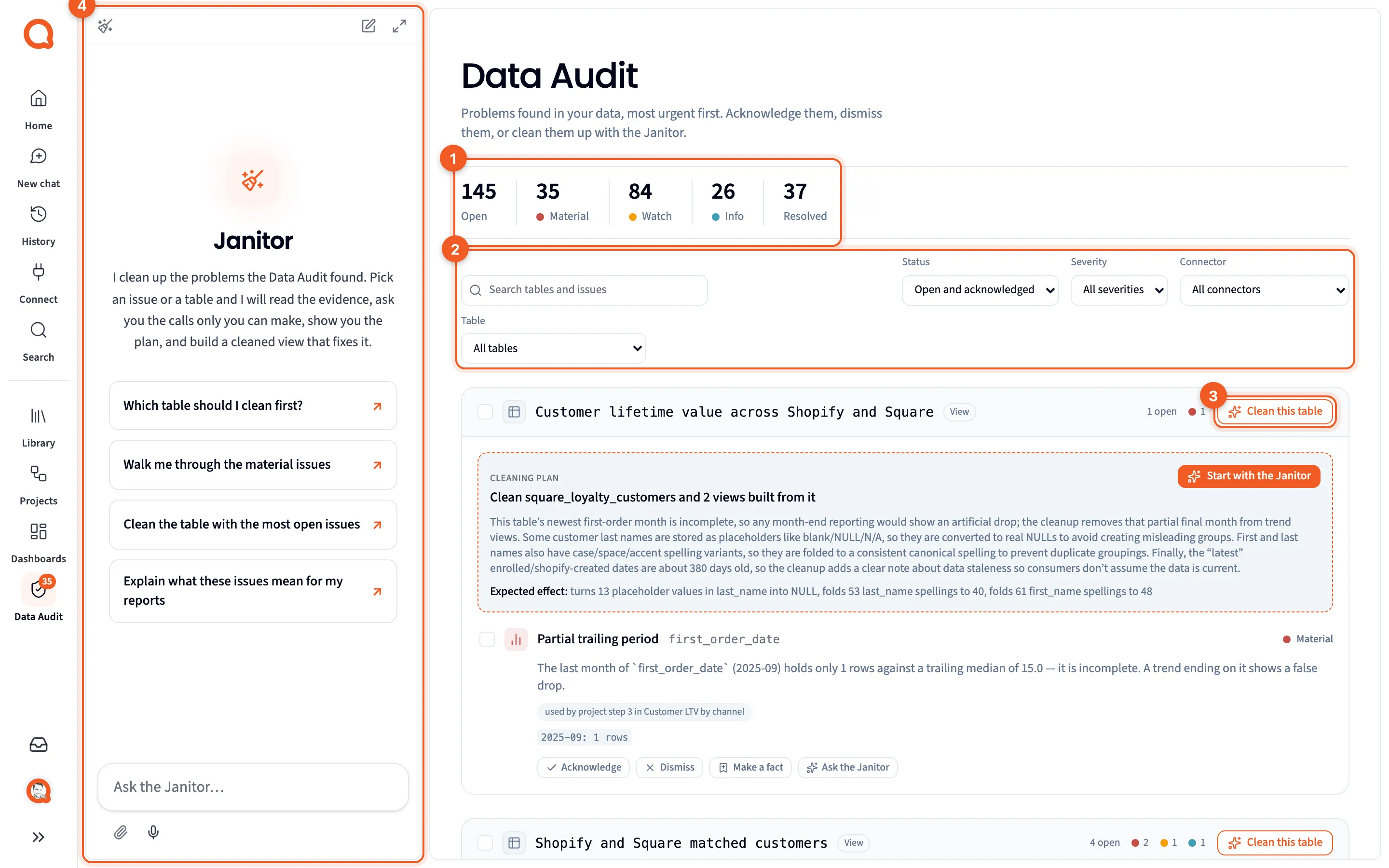
- The counts: open notes by severity, and how many are resolved.
- Search and filters: narrow by Status, Severity, Connector or Table. The search box filters as you type.
- Clean this table: hand the whole table to the Janitor.
- The Janitor: on this page the chat panel becomes the Janitor.
Each table is a card with its open count. Notes are sorted so the problems that affect the most-used data come first.
Read a note
Section titled “Read a note”
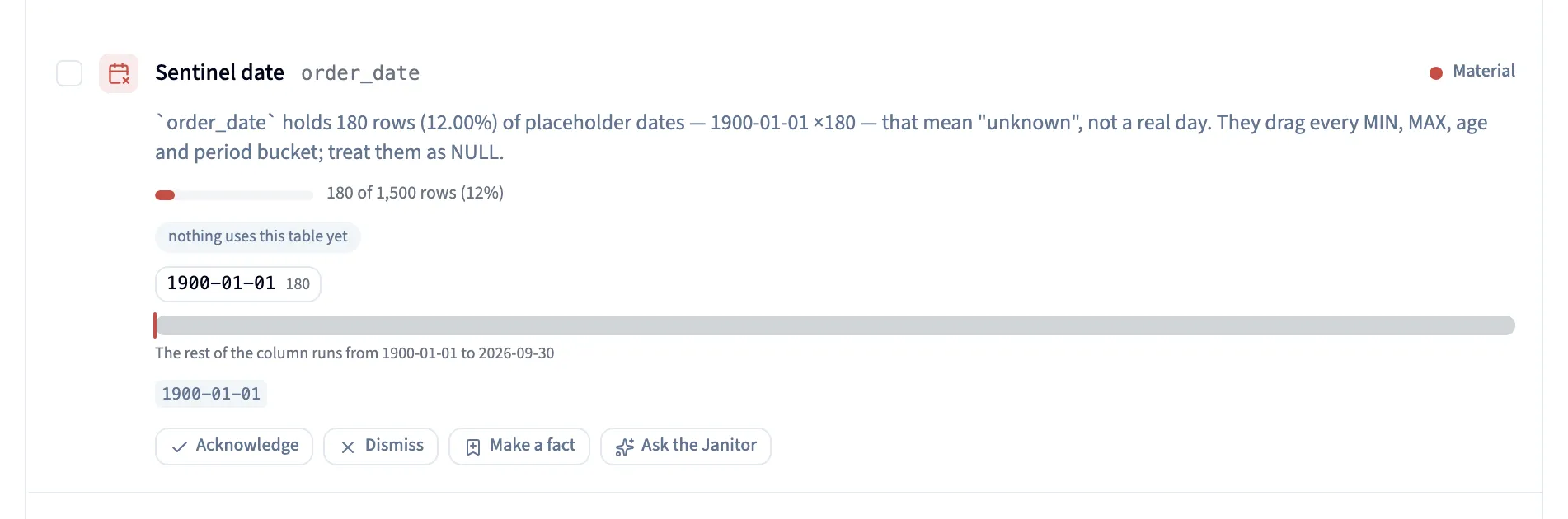
- What’s wrong, and where: the kind of problem and the column it’s in. A note marked Suspected comes from what a column’s name and values suggest, so check it before acting.
- Severity: Material changes answers and is worth fixing first. Watch is worth knowing about. Info is minor.
- Why it matters: the questions, metrics and project steps that read this column. “nothing uses this table yet” means it won’t change any answer today.
- Actions: Acknowledge, Dismiss, Make a fact and Ask the Janitor.
Under the sentence, most notes show a small picture of the evidence: how many rows are affected, the offending values, and where they sit in the column.
A note has one of these statuses:
| Status | Meaning |
|---|---|
| Open | Still to deal with |
| Acknowledged | Seen, and left as it is for now |
| Dismissed | Not a problem here. The reason you gave is kept |
| Resolved | Fixed by a cleaned view the Janitor built |
Use the Status filter to see resolved notes. Reopen puts an acknowledged or dismissed note back to Open.
Act on notes
Section titled “Act on notes”- Acknowledge when you already know about the problem and want it out of your way.
- Dismiss when it isn’t a problem for your data. Querri asks why, so the next person and the Agent know.
- Make a fact when the note describes a standing rule, such as “refunds are stored as negative quantities”. Edit the sentence and click Save as fact. Agents read that fact whenever they use this data. See Facts & Rules.
- Ask the Janitor to fix this one note.
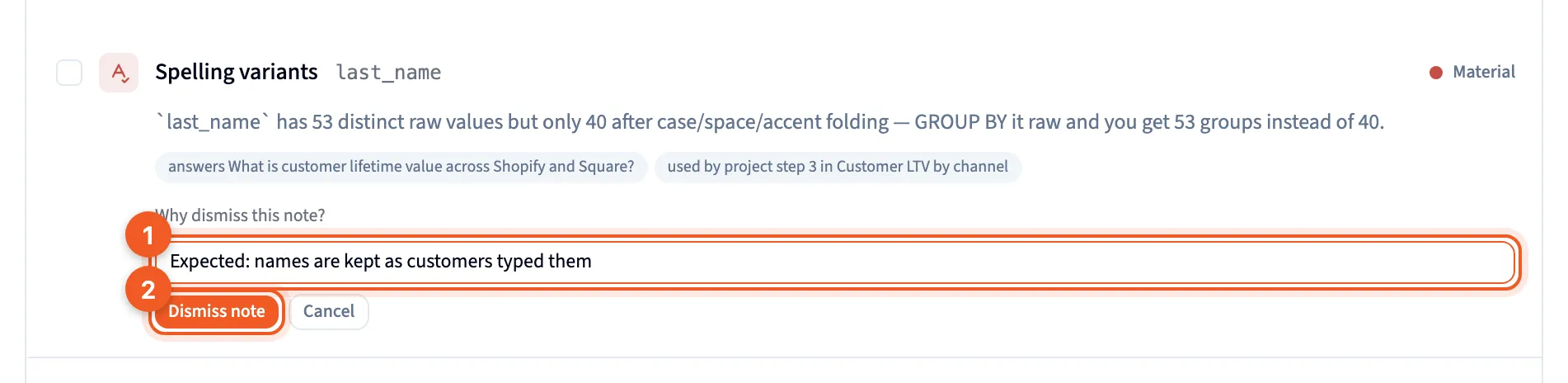
- Why dismiss this note?: say why it’s expected here.
- Dismiss note: save it.
Decisions stick. A dismissed or acknowledged note isn’t raised again as new, and the Agent reads your reason when it writes queries against that table.
Work through several at once
Section titled “Work through several at once”Tick a note’s box to select it. Shift-click another to select every note in between, or tick the table’s box to select all of its notes.
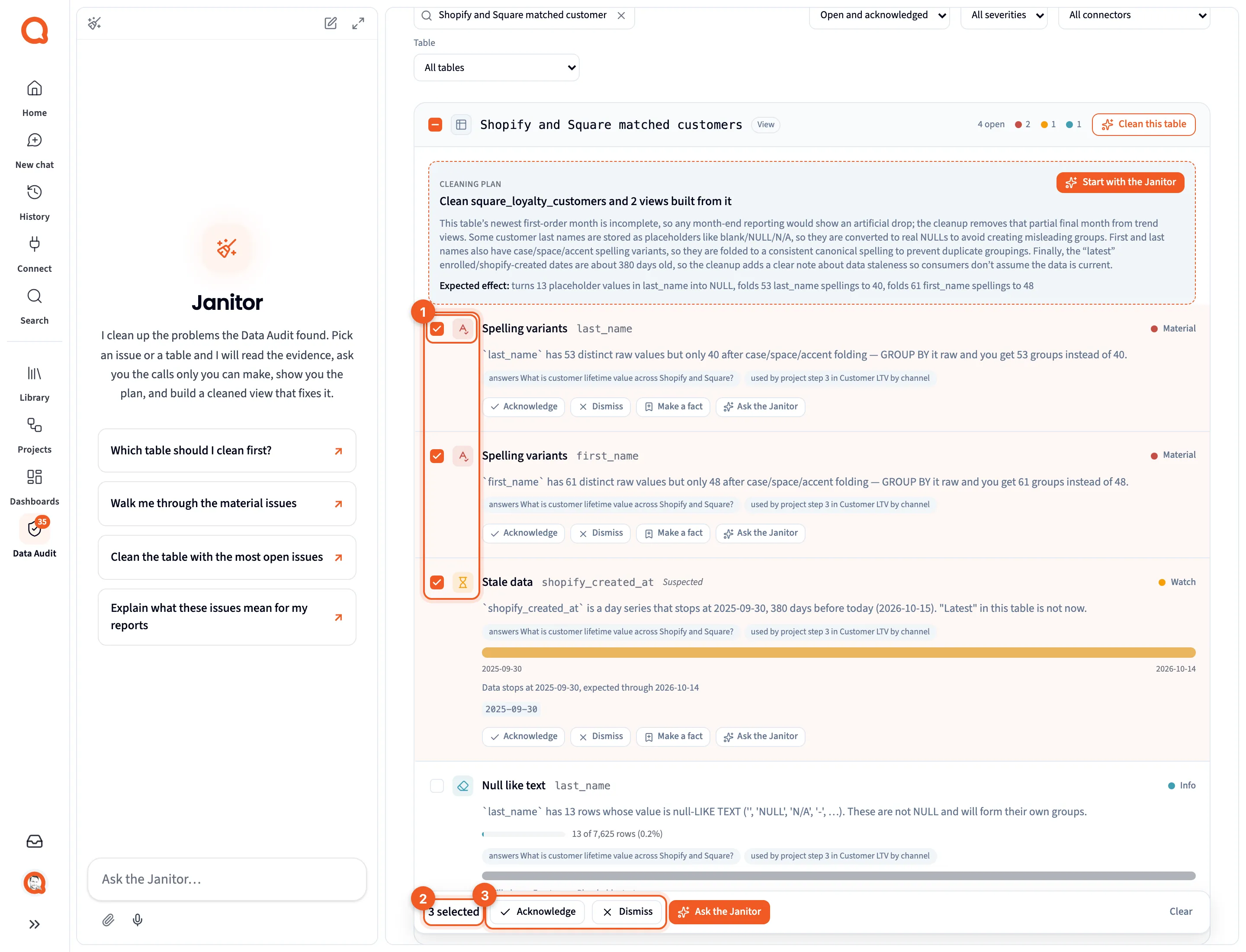
- The selected notes.
- The count of selected notes.
- Acknowledge or Dismiss them together. Ask the Janitor hands them all to the Janitor, and Clear deselects.
Data quality in the Library
Section titled “Data quality in the Library”You don’t have to leave the Library to see notes. Table, column and view panels have a Data quality section with the same notes and actions, grouped by column. See Table and column panels.
In Visualize, turn on Data quality in the toolbar at the bottom of the map. A red badge counts a table’s open Material notes. A table with none shows an orange badge counting its open Watch notes instead. Querri remembers the setting in this browser.
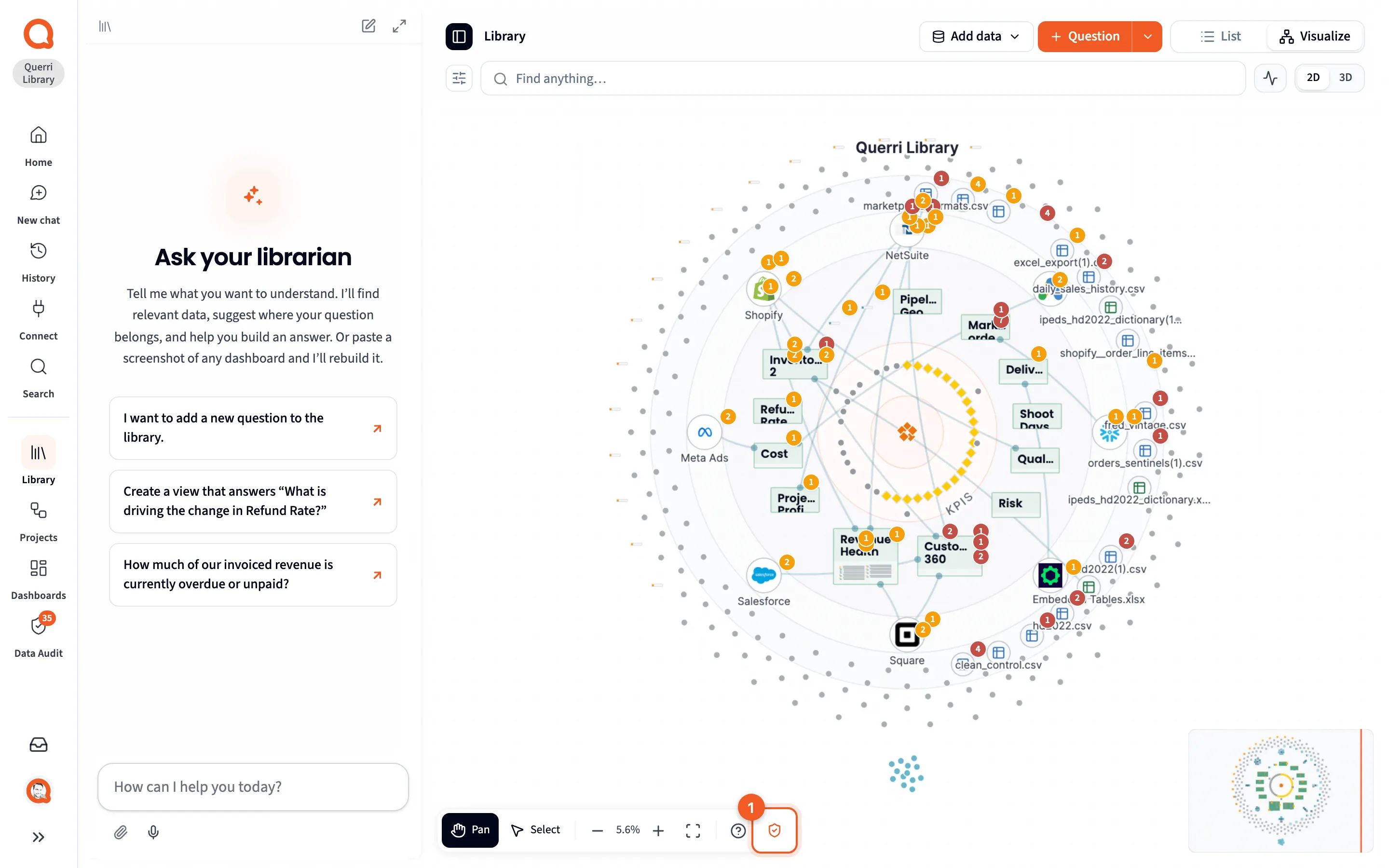
- Data quality: show or hide the badges.
Next steps
Section titled “Next steps”- The Janitor: clean a table into a view, answering only the calls you have to make.
- Views: what a cleaned view is and where it’s used.
- Visualize: the Library map the overlay sits on.
- The Librarian: the agent that organizes your Library and answers from it.
- Clean up messy data: a step-by-step guide to cleaning a table.