
The Janitor
The Janitor cleans up the problems the Data Audit found. It reads the evidence, asks you the calls only you can make, shows you the plan, and builds a cleaned view. Your original table stays exactly as it arrived.
Who can see this: anyone who can open the Data Audit. The Janitor only works on tables you have access to.
Start the Janitor
Section titled “Start the Janitor”On the Data Audit page, the chat panel is the Janitor. Start it from whatever you’re looking at:
- Clean this table on a table’s card, to work through all of its notes.
- Ask the Janitor on a note, to fix just that one.
- Ask the Janitor in the selection bar, for the notes you’ve ticked.
- Start with the Janitor on a cleaning plan.
- Or type in Ask the Janitor…, or pick a starter such as Which table should I clean first?
Cleaning plans
Section titled “Cleaning plans”With Nightly insights on, Querri groups a table’s open notes overnight into a Cleaning plan and shows it at the top of the table’s card.
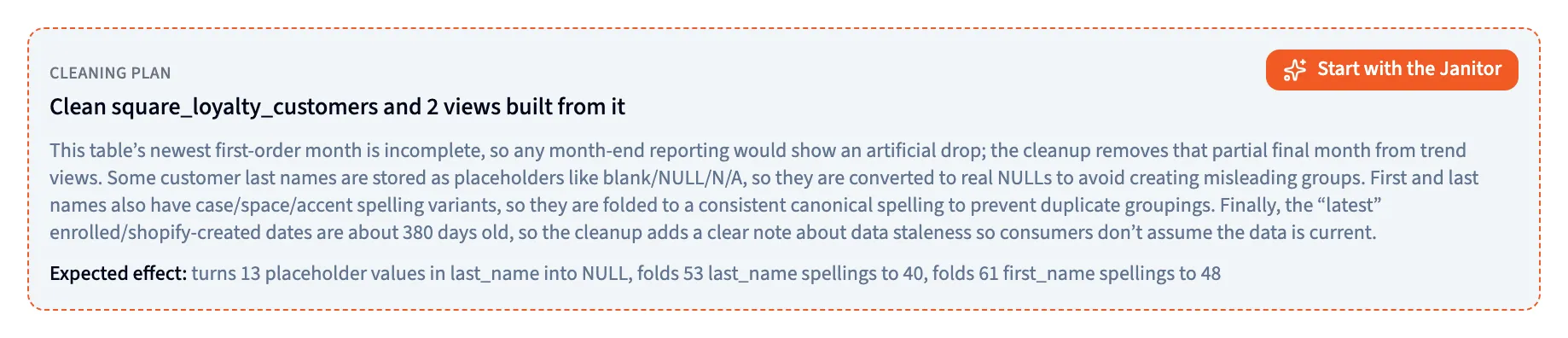
A plan says what the cleaned view would fix and why, the Expected effect in rows and values, and any Open questions the Janitor will need you to answer. Start with the Janitor picks up from there.
How a cleaning goes
Section titled “How a cleaning goes”1. It reads the notes
Section titled “1. It reads the notes”The Janitor starts with the notes for that table, most important first, and tells you in a few lines which ones one cleaned view can fix and which it would leave.
2. It asks you the calls it can’t make alone
Section titled “2. It asks you the calls it can’t make alone”Some fixes change the numbers, and the data can’t decide them for you. Are the slash dates day-first or month-first? Are negative quantities refunds or errors? Which copy of a repeated order should be kept? The Janitor asks one question at a time, with its recommendation first.
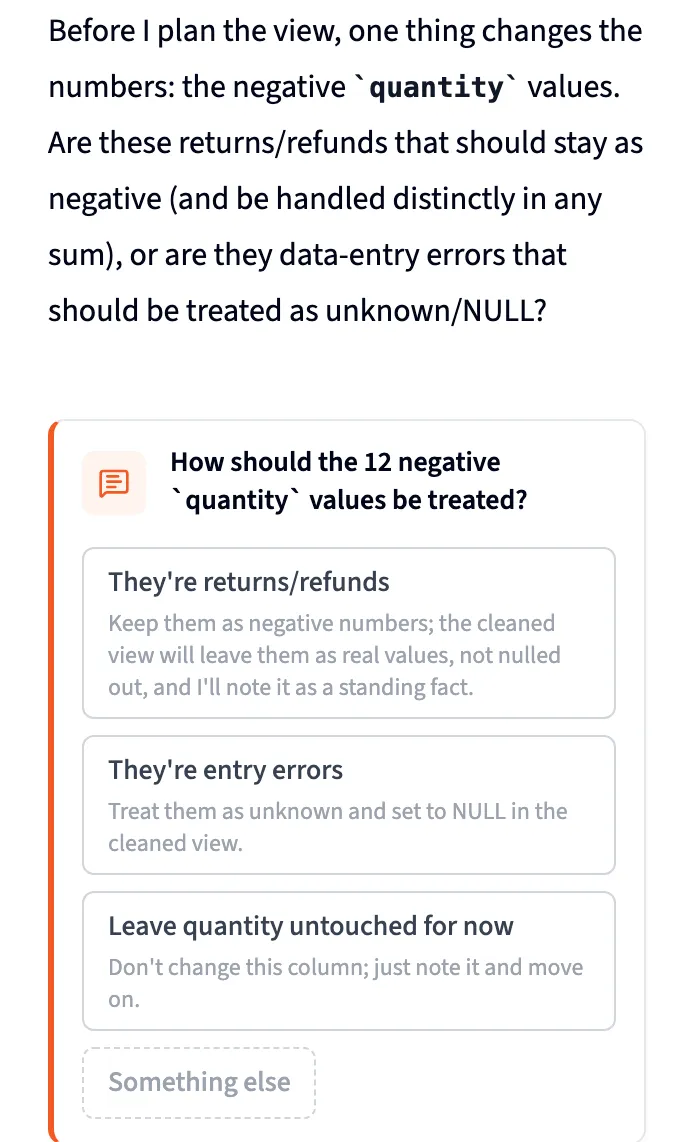
Click an answer, or Something else to say it in your own words.
3. It previews the fix
Section titled “3. It previews the fix”Before it builds anything, the Janitor tries each fix on a sample of your rows and reports what changed, for example “180 rows held 1900-01-01, after the fix 0”.
4. It shows you the plan
Section titled “4. It shows you the plan”Nothing is built until you say so. The Janitor shows one review card with the whole plan.
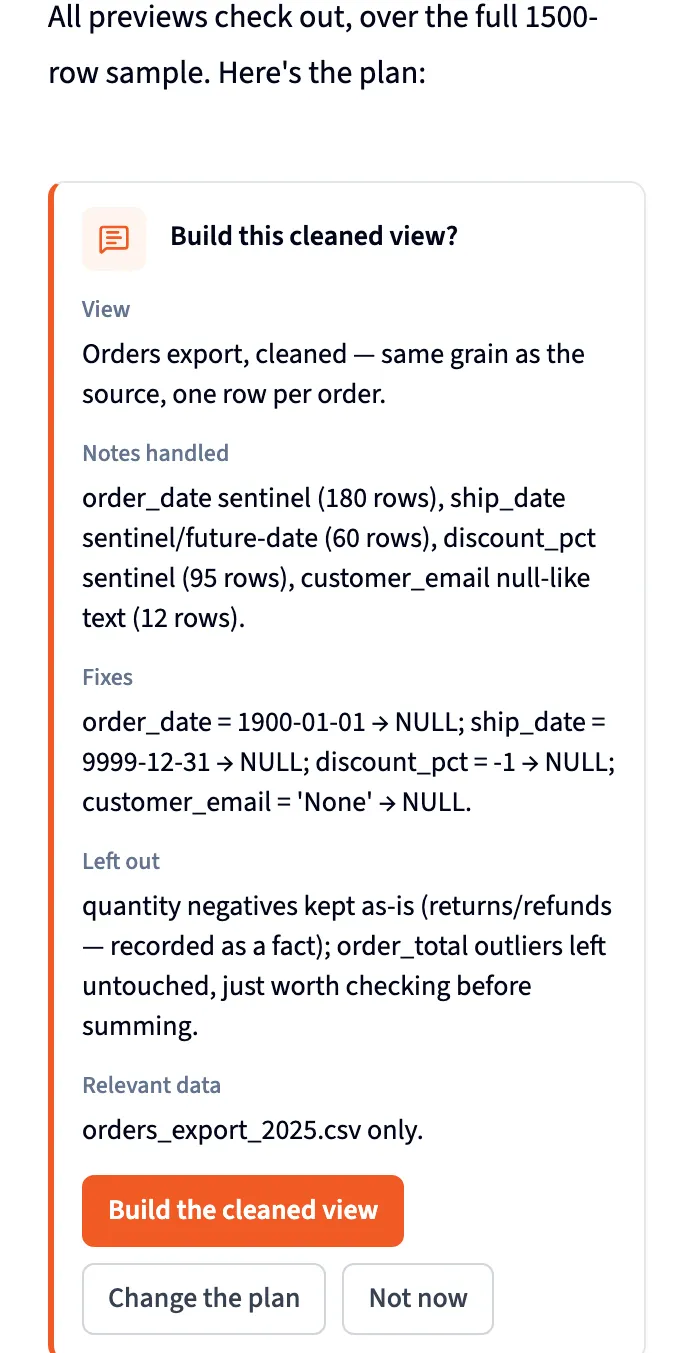
- View: the cleaned view’s name and what one row means.
- Notes handled: the notes this view fixes.
- Fixes: each change, one line each.
- Left out: what it won’t touch, and why.
- Relevant data: the tables the view reads.
Click Build the cleaned view to go ahead. Change the plan lets you correct it in your own words, and Not now stops without building.
5. It builds the view and checks its work
Section titled “5. It builds the view and checks its work”The Janitor builds a new view on top of your table, then measures the view with the same checks. A note is marked Resolved only if its problem is really gone from the view. If a note is still there, the Janitor says so and offers to adjust the view.
After cleaning
Section titled “After cleaning”The table’s card now reads Cleaned as with the view’s name, and each resolved note says which view resolved it. Choose Resolved in the Status filter to see them.
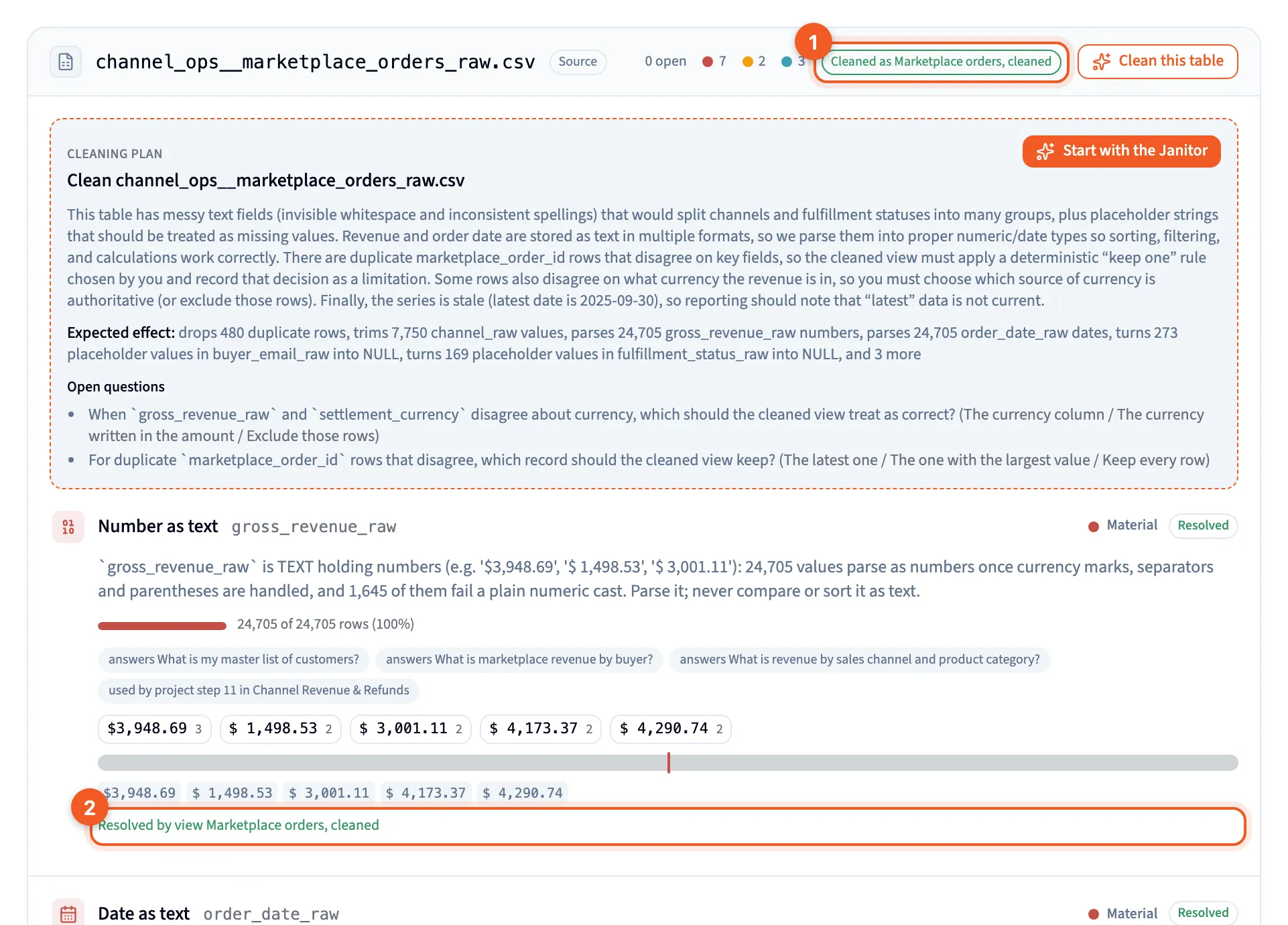
- Cleaned as: the cleaned view this table points to.
- Resolved by view: the note this view fixed.
The table’s panel in the Library shows the same Cleaned as link at the top of its Data quality section.
What this means for your work:
- Your original data is untouched. The cleaned view is a separate view in the Library, and you can open its SQL under How it’s computed. See Table and column panels.
- Answers use the clean version. When you ask a question about that data, Querri prefers the cleaned view over the raw table.
- Build on it like any view. Use it in projects and dashboards, and it rebuilds after each sync.
Next steps
Section titled “Next steps”- Data Audit: read notes and decide which to clean.
- Views: how views work and where they’re used.
- Visualize: turn on the Data quality overlay to spot tables with open notes.
- The Librarian: the agent that organizes your Library and answers from it.
- Clean up messy data: a step-by-step guide to cleaning a table.