
Connector Agent
Esta página aún no está disponible en español. Se muestra la versión en inglés.
Connecting a system has always meant finding the right settings, the right key and the right tables, then working out why the test failed. The Connector Agent is an assistant that does that work with you. It sits beside the Connectors page, sees every connector you have access to, and walks you through adding or fixing one.
It never sees your passwords or keys, and anything that creates, loads or copies a connector waits for you to approve it.
Overview
Section titled “Overview”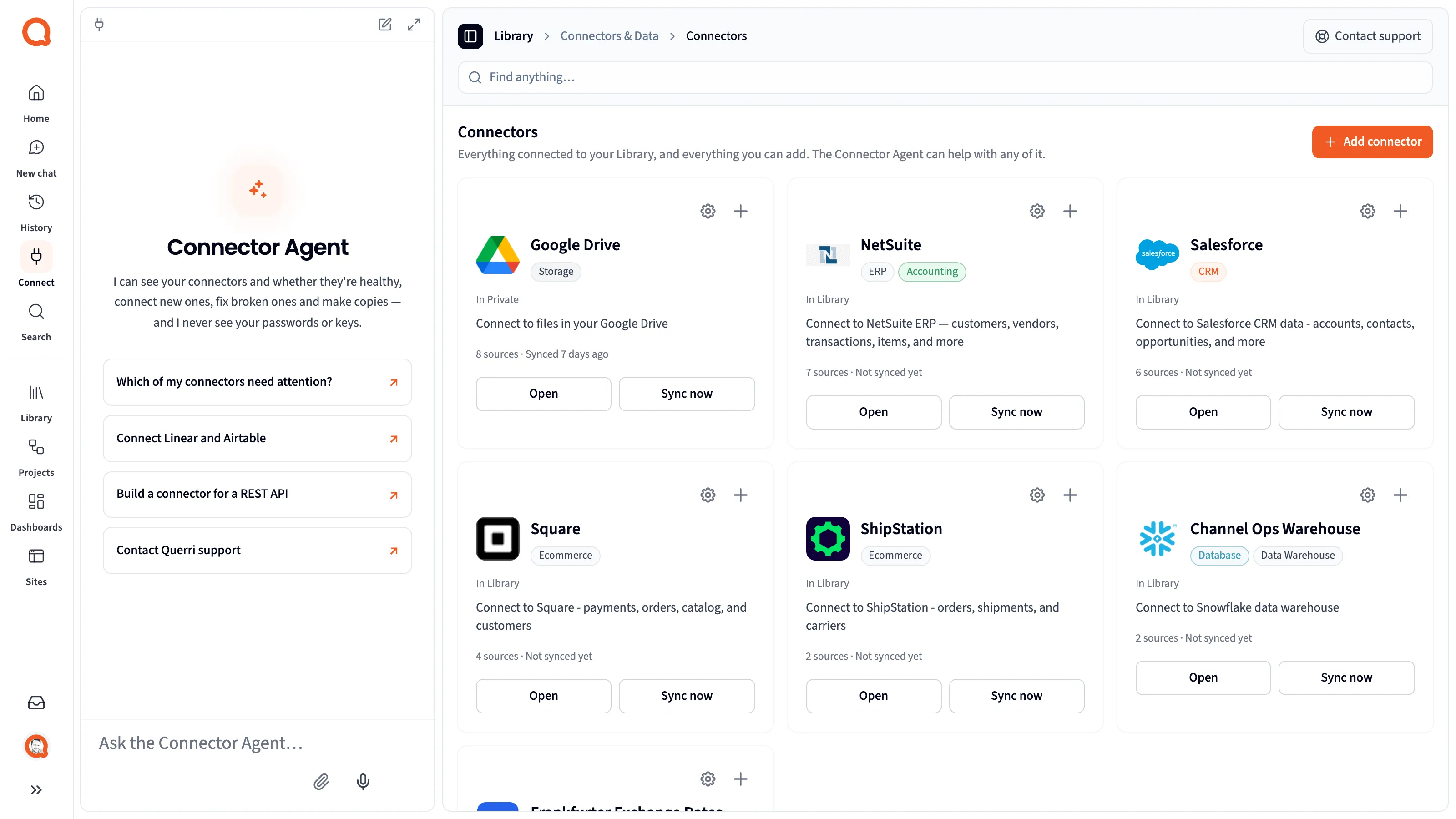
Click Connect in the app rail. The Connectors page opens with the Connector Agent docked on the left. Type in Ask the Connector Agent…, or pick a suggestion such as Which of my connectors need attention? or Connect Linear and Airtable.
The agent can:
- Tell you which connectors are healthy, which need attention, and why.
- Search the catalog for a system or a kind of system (“Which databases can I connect?”).
- Connect a catalog connector step by step, including several at once.
- Test a connection, read the error, and suggest a fix.
- Copy an existing connector with the same settings.
- Draft a support request when something isn’t listed or won’t connect.
- Build a connector for a REST API or OData feed, or start one from a public data template. See REST, OData and Public Data.
As it works, the page follows along: it opens the catalog, or the connector it’s working on. A line such as Worked on your connectors · 2 steps shows what it did; click it to see each step.
The agent sets up connections. It doesn’t read your data. Ask the Librarian questions about what’s in your connectors; the agent hands those questions over.
Connect a system
Section titled “Connect a system”Tell the agent what you want to connect, for example “Connect our Postgres orders database”. It finds the connector in the catalog and proposes the first step.
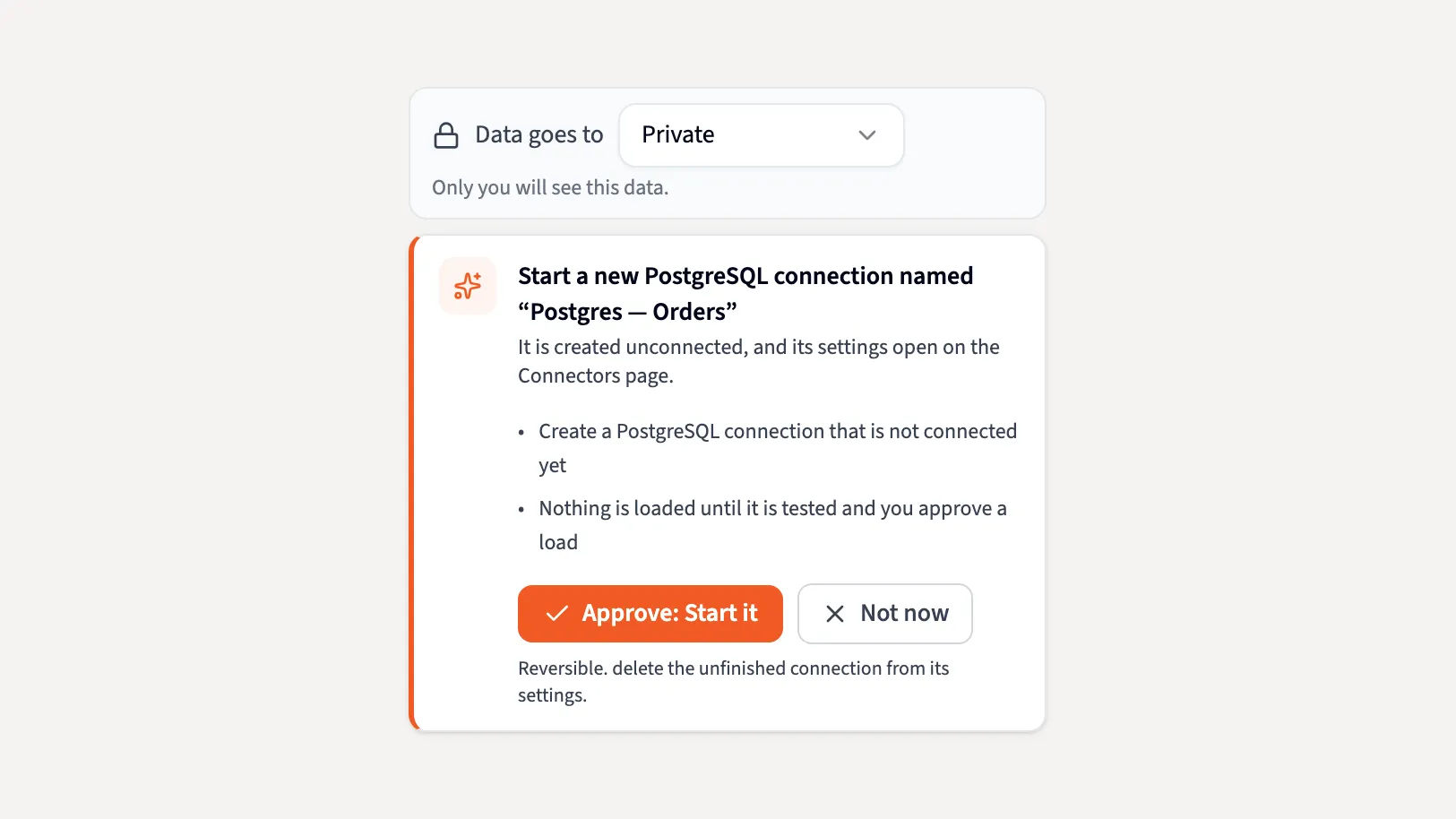
- Approve the new connection. The card says what it will create. Pick where the data goes in Data goes to, then click Approve: Start it. Not now cancels.
- Sign in or enter details. For an app that uses sign-in, the agent opens the provider’s sign-in window. For a key or a password, it opens a secure prompt on the page (see Your keys stay out of the chat). Settings that aren’t secret, such as a host or port, it fills in from what you tell it.
- Test. The agent tests the connection and tells you what it found.
- Choose what to load. For a database, the agent lists the tables and proposes a selection for you to approve. You can name a column, such as
updated_at, so later loads fetch only new and changed rows. - Load. Loading data is its own approval. Nothing loads until the connection has passed its test and you approve a load.
When the connection works, its tables arrive in your Library like any other connector’s. Sync schedules are set on the connector’s Schedule section, not by the agent. See Sync Scheduling.
Connect several systems at once
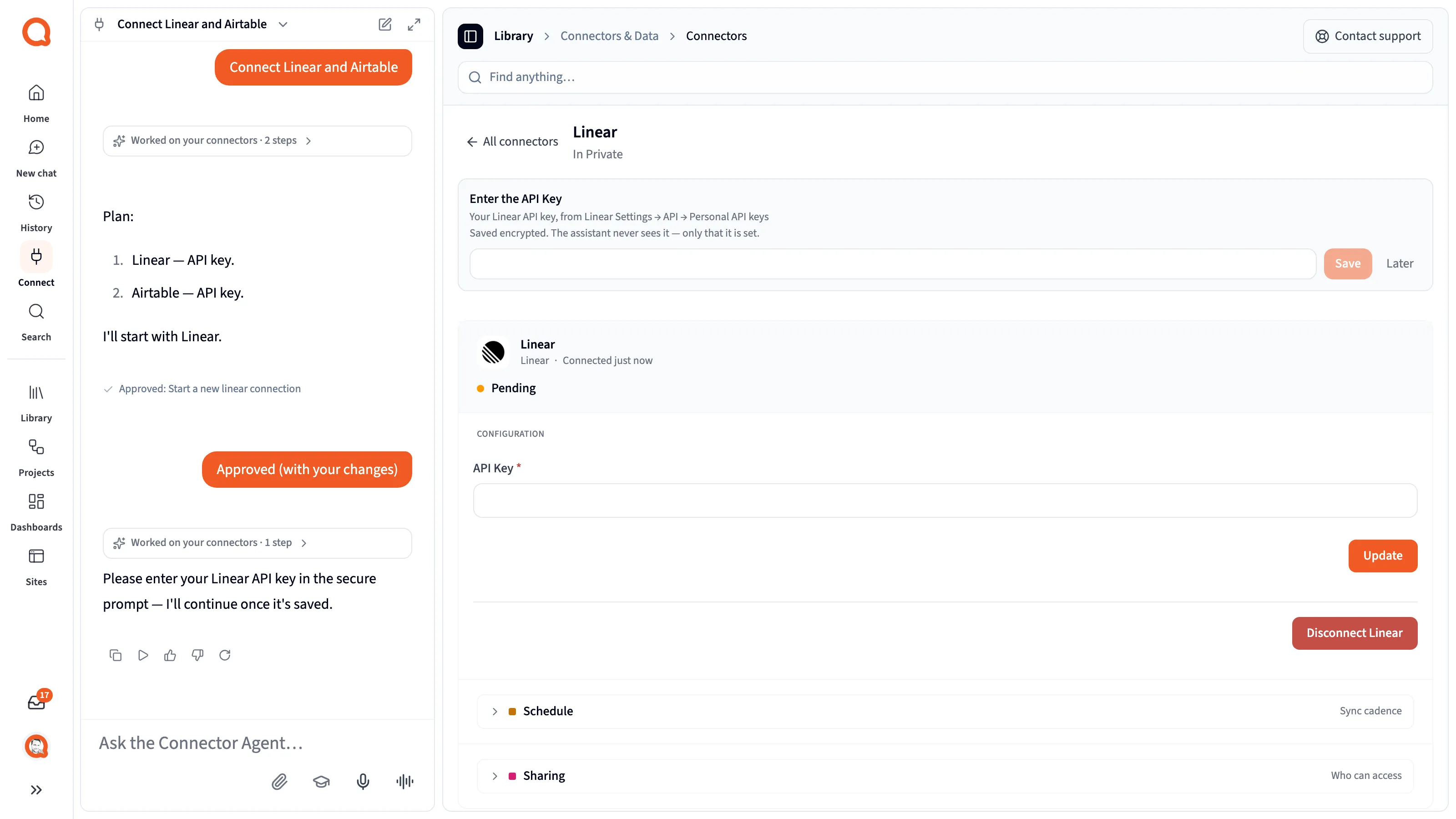
Section titled “Connect several systems at once”Ask for more than one, for example “Connect Linear and Airtable”. The agent writes a numbered plan, then works through the systems one at a time, so you’re never asked for two keys at once.
Your keys stay out of the chat
Section titled “Your keys stay out of the chat”When a connector needs an API key, token or password, the agent opens a secure prompt on the page, such as Enter the API Key. Type or paste the value there and click Save, or Later to come back to it.
- The value is saved encrypted. The agent only learns that it is set or missing.
- Don’t paste a key into the chat. If you do, the agent won’t repeat it and points you to the secure prompt.
- Once you save, the agent picks up where it left off.
Approving changes
Section titled “Approving changes”The agent changes things only through actions you can see. These wait for you to click Approve on a card:
- Starting a new connection
- Choosing which tables to load
- Loading data
- Copying a connector
- Saving and loading a REST or OData connector
A support request is sent only when you review it and click Send.
Reading status, searching the catalog, testing a connection and previewing a REST endpoint don’t change anything, so they run without a card.
The agent can’t do more than you can. Anyone signed in can start a connection; editing one needs editor access, and loading data needs ownership.
Check and fix connections
Section titled “Check and fix connections”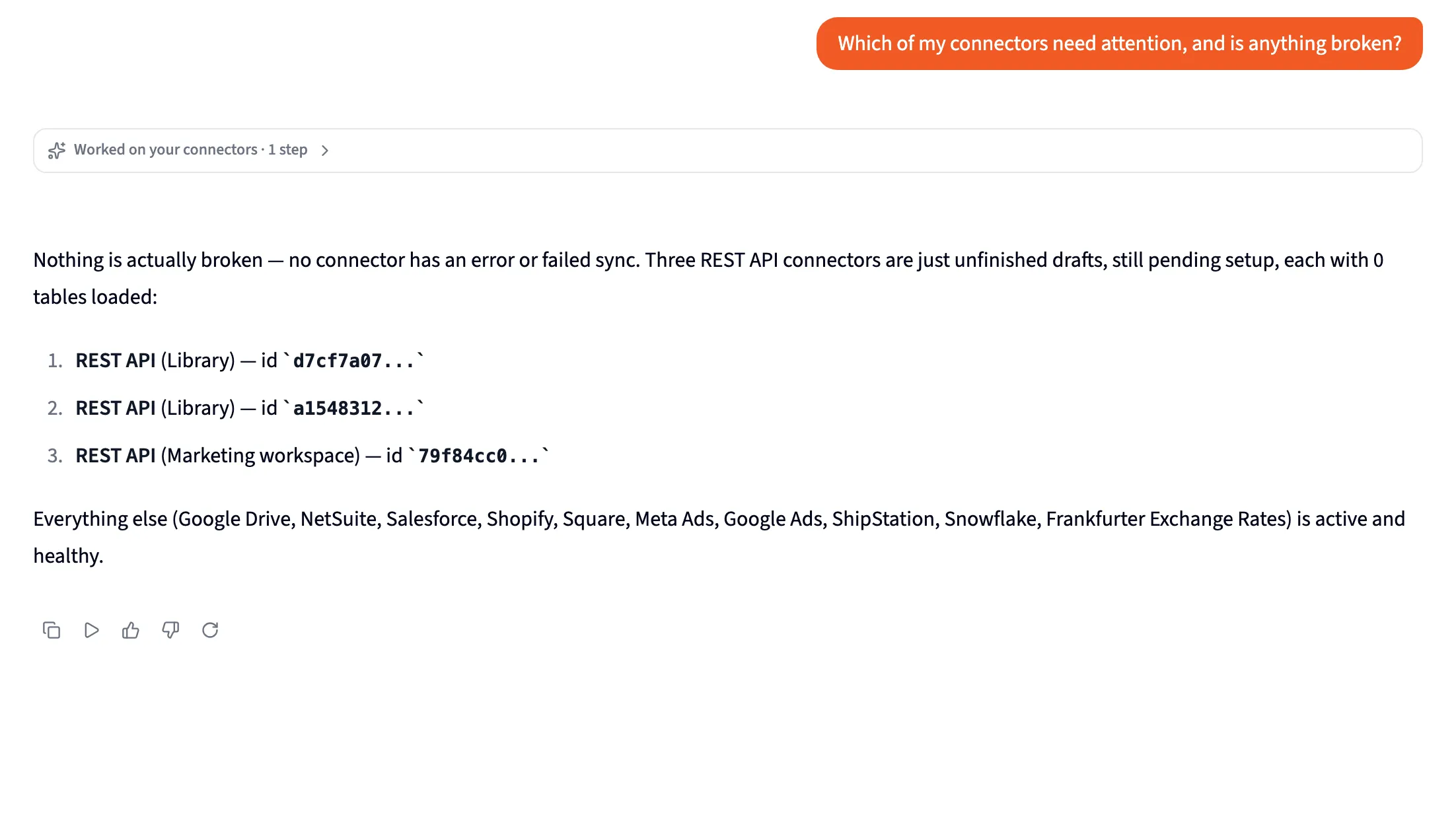
Ask Which of my connectors need attention? The agent checks every connector you can see, across your workspaces, and reports each one’s status, last sync and last error. Open a connector and ask Is this connector healthy? for that one alone.
When a test fails, the agent reads the error and says what it points to:
- 401, 403 or “invalid”: the key, password or its permissions.
- Host, port or timeout errors: the address, or a firewall. A database on a private network connects through a VPN set up in the connector’s form. See Connecting Databases.
After two failed tests in a row, it offers to draft a support request.
Copy a connector
Section titled “Copy a connector”Open a connector and ask Set up another one like this. The agent copies the settings and either reuses the saved credentials (you need to own the original) or asks for new ones. A connector you signed in to with a provider account can’t reuse that sign-in; you sign in again.
When your system isn’t listed
Section titled “When your system isn’t listed”Ask I need an integration that isn’t listed. The agent searches the catalog first. If your system has a JSON REST API or an OData feed, an organization admin can build a connector for it with the agent. See REST, OData and Public Data. Otherwise the agent drafts a request to Querri support for you to review and send. Support replies by email.
Limits
Section titled “Limits”- The agent doesn’t read, query or analyze your data. That’s the Librarian’s job.
- It doesn’t set sync schedules.
- It’s for people signed in to Querri. API keys and embedded sessions can’t use it.
- It never sees credentials, so it can’t tell you what a saved key is.
Next Steps
Section titled “Next Steps”- REST, OData and Public Data: build a connector for an API, or start from a public data template
- Data Connectors Overview: every connector in the catalog
- Sync Scheduling: full and incremental schedules
- Managing Connections: change, refresh and remove connectors