
Live Tables
Esta página aún no está disponible en español. Se muestra la versión en inglés.
Most connectors copy your tables into Querri. With Snowflake and Databricks, you can choose to leave a table in your warehouse instead. Querri then asks the warehouse each time a question needs that table. Every other connector is synced only.
Live or synced
Section titled “Live or synced”For a Snowflake or Databricks connection, each table is either synced or Live:
| Synced (the default) | Live | |
|---|---|---|
| Where the rows are | Copied into Querri on the schedule you set | They stay in your warehouse. Querri keeps only the table’s columns and an estimated row count |
| What a question does | Reads Querri’s copy | Runs a query in your warehouse, and only the result comes back |
| How fresh answers are | As of the last sync | As of right now |
| Warehouse work | Only while a table syncs | Every question that needs the table, on your warehouse bill |
Live is query-on-demand, not streaming. Each question reads the warehouse at the moment you ask.
Turn a table Live
Section titled “Turn a table Live”You can choose Live tables in two places. Both are on the connector, so open it first (see Managing Connections).
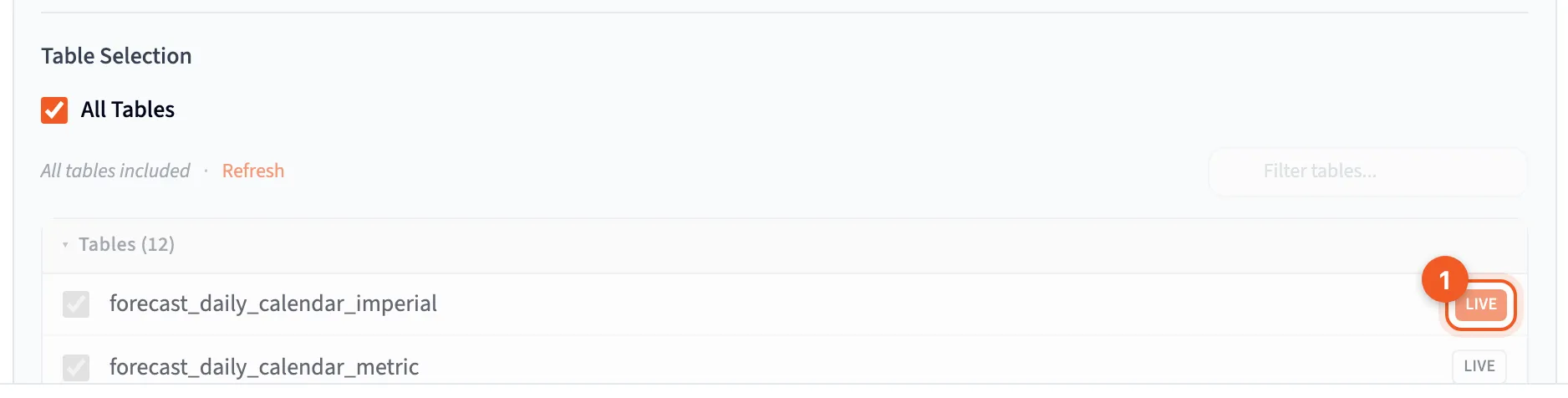
In the table picker. On the Configuration tab, under Table Selection, each selected table has a Live switch. Turn it on for the tables you want to keep in the warehouse, then click Save and Load Data. Querri loads the synced tables and leaves the Live ones where they are.
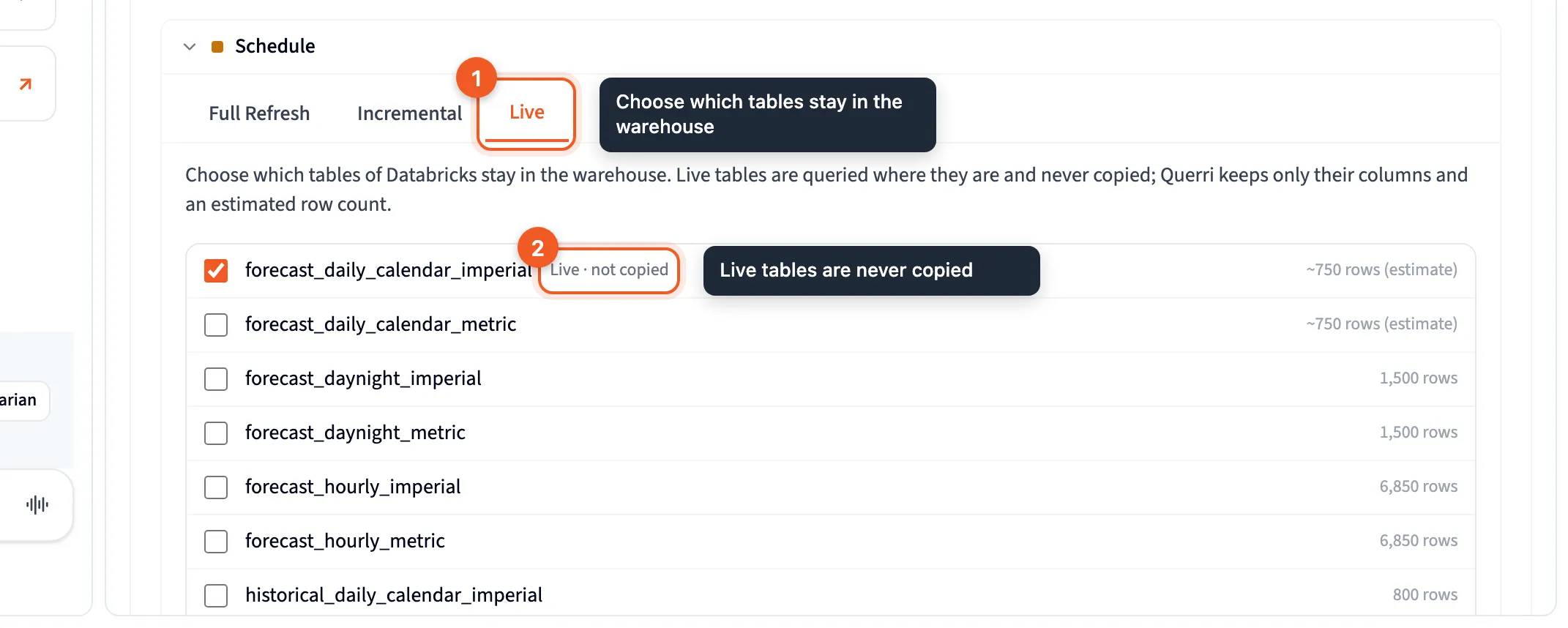
On the Live tab. Go to Schedule and choose the Live tab, next to Full Refresh and Incremental. It lists the tables the connector already has. If it’s empty, choose tables on the Configuration tab first.
- Tick the tables you want Live. Each one shows its row count.
- Click Save Live tables.
A Live table shows Live · not copied, both here and on its source panel in the Library.
If a table is in the middle of a sync when you save, it becomes Live once that sync ends.
If your plan doesn’t include Live tables, the Live tab shows a lock and the Live switch is greyed out. Live tables are available in Scale plans.
The Live schedule
Section titled “The Live schedule”The Live tab has its own schedule, below the table list. It refreshes your Live tables’ columns and row estimates, and never copies rows. Set it up the same way as the other schedules (see Sync Scheduling).
How questions run
Section titled “How questions run”You ask questions the same way, whether a table is Live or synced. Behind the scenes:
- The agent writes the query in your warehouse’s own language, Snowflake SQL or Databricks SQL.
- The result comes back as an ordinary table, so charts, dashboards, exports and follow-up questions all work on it.
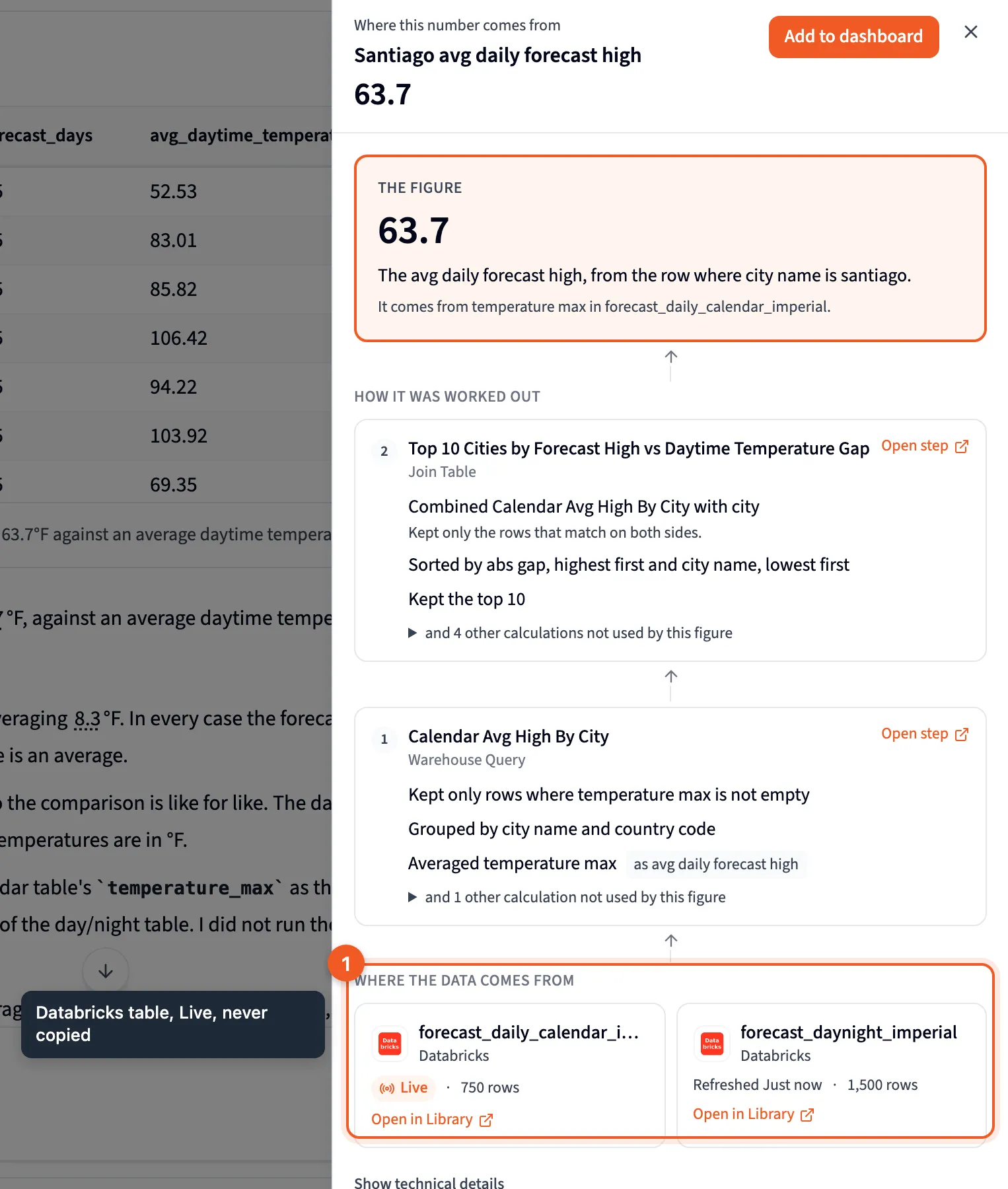
- When you check where a number came from, the panel names the table and the connection, such as “Databricks”, with a Live badge.
Combining Live tables with other data
Section titled “Combining Live tables with other data”You can mix Live tables with anything else. Querri works out the plan for you:
- Several Live tables from the same connection run as one query in that warehouse.
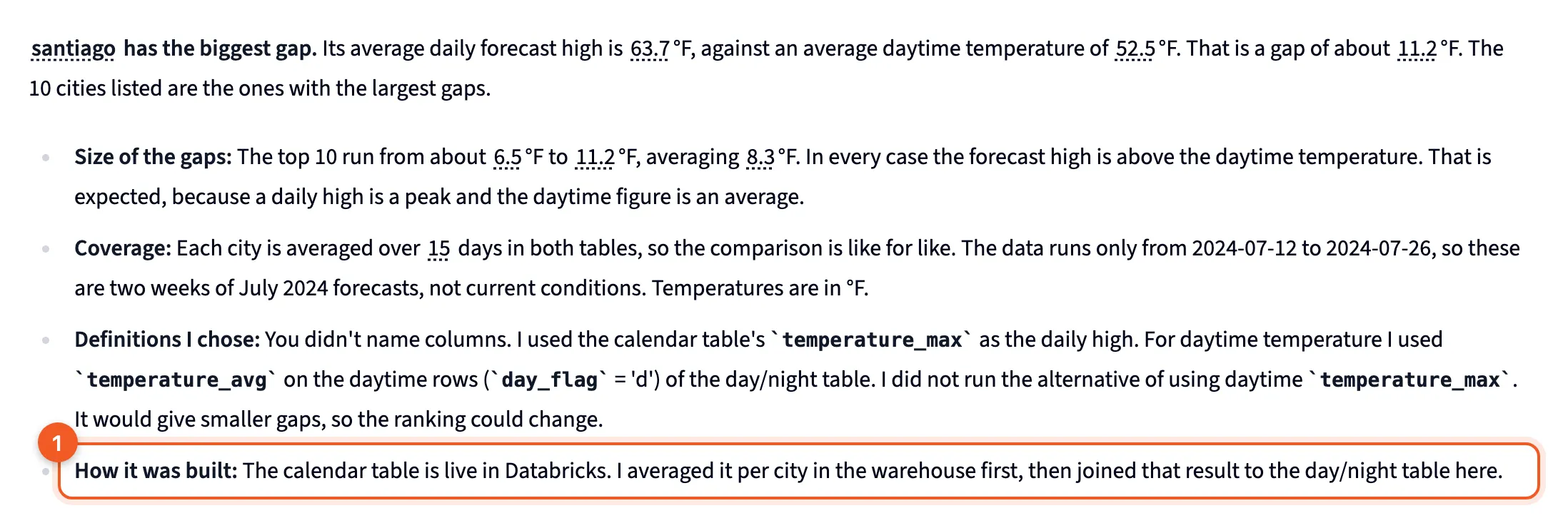
- A Live table plus data held in Querri (a synced table or an uploaded file) runs in two parts. The warehouse summarises the Live table first, then Querri combines that small result with the other data.
- Live tables from two different connections work the same way. Each warehouse summarises its own tables, then Querri combines the results.
The answer tells you how it was built, so you can see when a Live table was summarised in the warehouse first (1):
Safety and control
Section titled “Safety and control”Read-only. Querri only ever sends a single SELECT over the tables you chose. Anything that would change data, such as DELETE, UPDATE, INSERT, MERGE, DROP or CREATE, is refused before it reaches the warehouse. So are multiple statements, other tables, file reads and session settings. If you ask the agent to delete data, it tells you it can’t change your warehouse.
Even so, connect with a read-only role. The Snowflake and Databricks pages show how.
Row-level security. Querri’s access policies are applied inside the warehouse query. A person who can only see some rows has the others filtered out before anything leaves your warehouse.
Limits. Each connection has these defaults:
| Limit | Default |
|---|---|
| Rows per result | Up to 100,000. A result cut off by this limit is labelled |
| Time for a question in chat | 2 minutes |
| Live queries running at once | 4 per connection |
Traceable. Every query Querri sends is tagged, so you can find it in your warehouse’s own query history: the query tag in Snowflake, and query tags in Databricks.
Never copied. Querri doesn’t copy a Live table’s rows, including on scheduled refreshes. The answers to your questions are stored in Querri like any other answer.
Freshness and cost
Section titled “Freshness and cost”Every question reads the warehouse as it is now.
Before a dashboard refresh or a scheduled run, Querri first asks the warehouse whether the table has changed. That check reads metadata and doesn’t start the warehouse. If the table changed, the steps that depend on it run again in the warehouse. If it didn’t, nothing runs and nothing is billed.
Live queries use your warehouse’s compute, so they appear on your Snowflake or Databricks bill.
Choosing Live or synced
Section titled “Choosing Live or synced”You choose per table, so most connections end up with a mix.
Choose Live for:
- very large tables
- data that must not leave your warehouse
- answers that always need to be current
- teams that already pay for warehouse compute
Keep it synced for:
- small and medium tables. A small table is cheap to copy, and questions on it cost nothing in the warehouse.
- heavy exploration, with lots of questions in a row
- data you combine with many other sources
- warehouses that are slow to wake up
Next Steps
Section titled “Next Steps”- Snowflake: connect Snowflake and choose your tables
- Databricks: connect a Databricks SQL warehouse
- Sync Scheduling: schedules for synced and Live tables
- Access Policies: row-level security that also applies to Live tables