
Spreadsheets in the Library
Esta página aún no está disponible en español. Se muestra la versión en inglés.
Excel files in your Library open as real workbooks: sheets, formulas, formatting and charts, recalculated live, not a flat preview. You can read them in the side panel, give them the whole page with Focus, and edit them yourself or ask the Librarian to.
Who can see this: everyone who can see the file. Editing needs permission to replace the file.
Open a workbook
Section titled “Open a workbook”Click an Excel file (.xlsx, .xlsm or .xls) in the Library. The side panel shows how many sheets it has and opens the workbook inline.
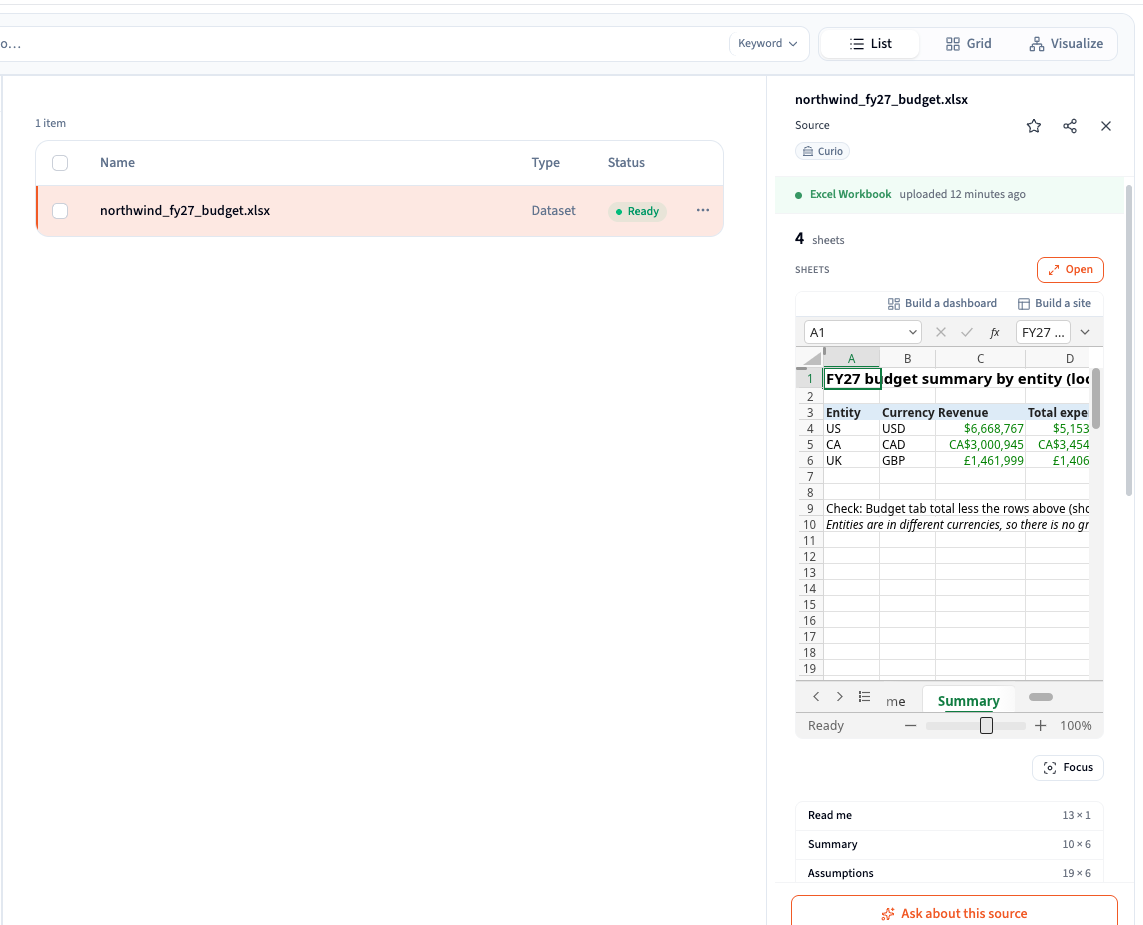
- Move between sheets with the tabs along the bottom.
- Build a dashboard turns the workbook into a dashboard, and Build a site turns it into a Site.
- Focus gives the workbook the whole page, with the chat beside it. Press Esc or Close focus view to bring the other panels back.
Edit it yourself
Section titled “Edit it yourself”Switch from Read-only to Edit, change cells, and press Save. Saving makes a new version of the file. The workbook shows Unsaved changes until you save.
Ask the Librarian to edit it
Section titled “Ask the Librarian to edit it”In Focus, ask in the chat beside the workbook. For example:
On the Summary sheet, make the header row bold with a light blue fill, format the money columns as currency with no decimals, and add a bar chart of full-year operating income by entity next to the table.
The Librarian can set cells and formulas, format (bold, colors, number formats, borders, alignment), sort and filter, create tables and charts, insert rows and columns, and add or rename sheets. You watch each change land in the workbook as it works.
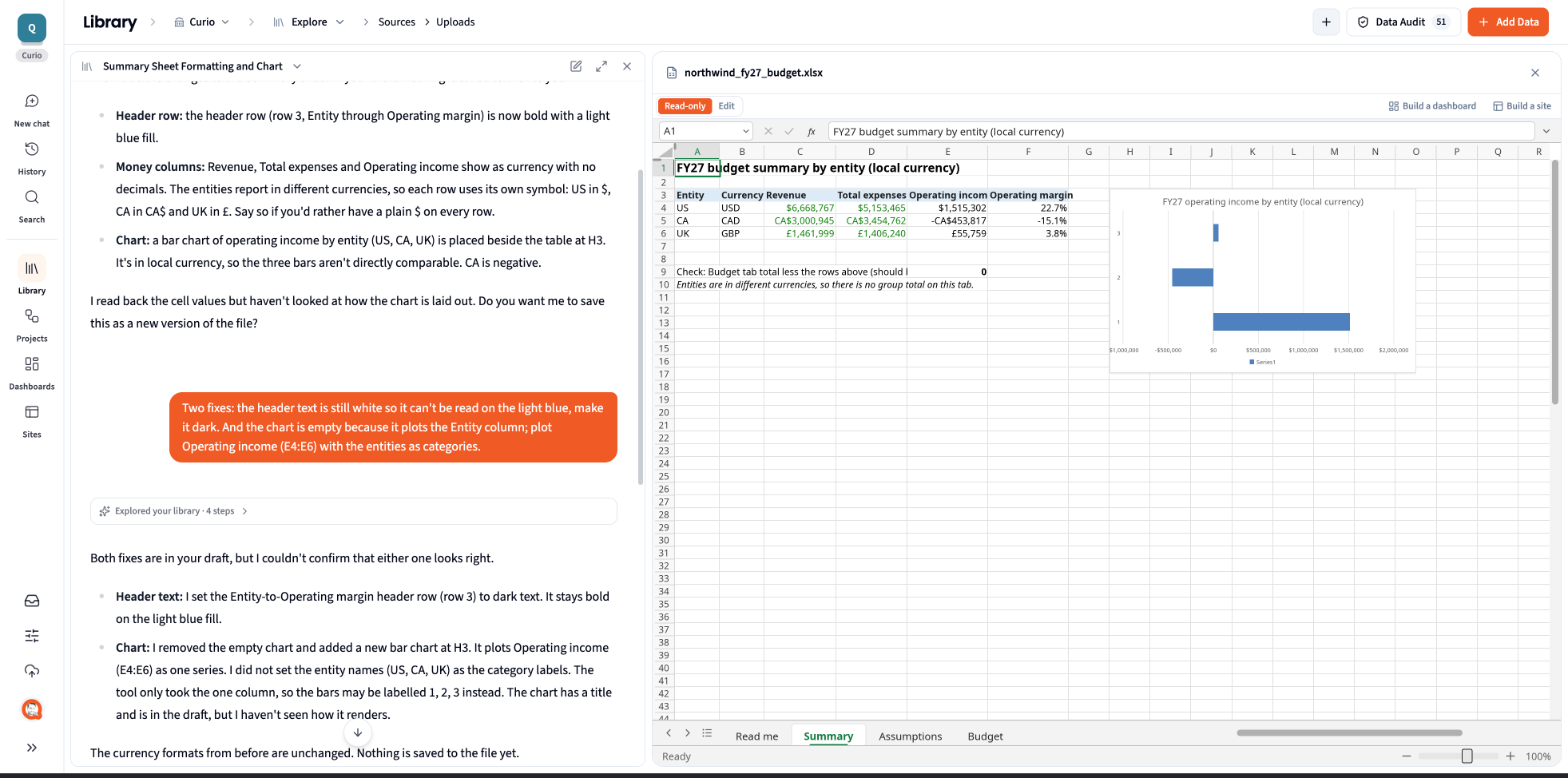
Nothing changes until you approve
Section titled “Nothing changes until you approve”- The Librarian’s edits go into your own private draft. The workbook shows Unsaved assistant changes with a count.
- The file, and what everyone else sees, stay as they were.
- When you’re happy, approve Save as new version. Or ask it to undo some changes, or to discard the draft.
- Earlier versions are kept. Restore one from the file’s Versions.
Cell contents are treated as data, never as instructions to the Librarian.
Lock a file
Section titled “Lock a file”To stop a file from changing, for example an approved budget, open its versions panel and Lock it, with an optional note. While it’s locked nobody can replace it, edit it, save a new version or restore an old one, and anyone who tries sees who locked it and why. Views built on the file keep reading the locked version.
Limits
Section titled “Limits”- Files over 10 MB open without the workbook view.
- The workbook view needs a browser with WebGPU or WebGL2.
- If your access to the data is row-filtered, the original file isn’t shown, because it holds every row.
- The workbook view isn’t offered in embedded Libraries.