
Agents and Jobs
Querri has a team of agents, each good at one kind of work. You can talk to one at a time, or ask for a whole piece of work in one message and let several of them do it together in the same conversation.
Who can see this: everyone who’s signed in. Each agent is available to you if your role allows the work it does. For example, the Analyst needs permission to create projects, and the Connector agent is for admins.
The agents
Section titled “The agents”| Agent | Type | What it does |
|---|---|---|
| Librarian | @Librarian | Finds, organizes and explains your data. Answers from your Library. |
| Analyst | @Analyst | Answers questions with analysis and charts. It works in its own project. |
| Dashboard builder | @DashboardBuilder | Builds and edits dashboards. |
| Site designer | @SiteDesigner | Builds and edits your Sites. |
| Connector agent | @ConnectorAgent | Finds and connects data sources. Admins only. |
| Reviewer | @Reviewer | Checks that an analysis is right. Read-only. |
| Support | @Support | Helps you use Querri and finds answers in these docs. |
| Tuner | @Tuner | Reviews how Querri behaves and proposes setting changes. Admins only. |
Your organization can also have its own agents.
Picking an agent
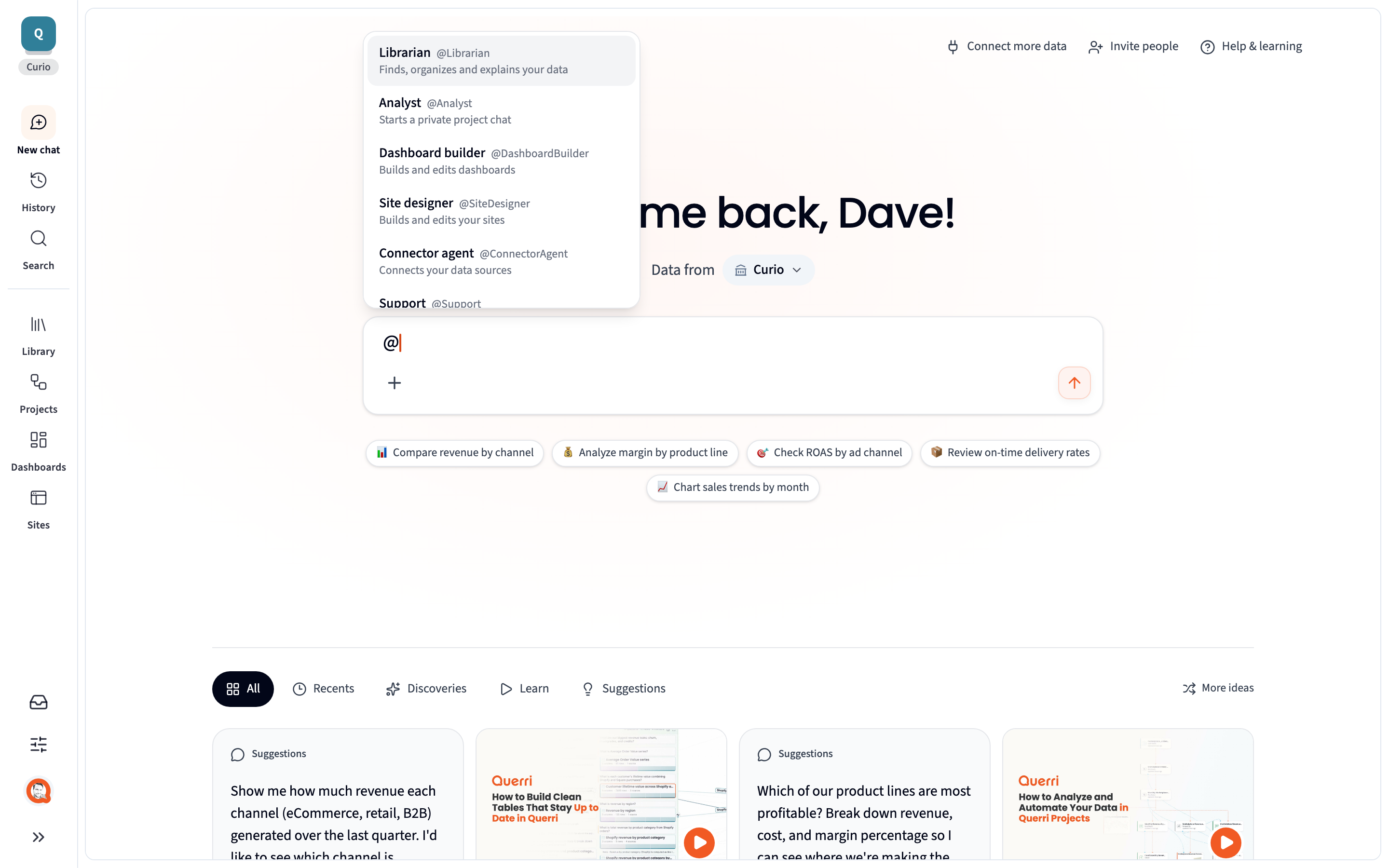
Section titled “Picking an agent”- Type @ in any chat box to see the agents you can use, then pick one. You can also type the handle yourself anywhere in a sentence, for example “can @Analyst check this by region?”, and it’s highlighted as you type.
- The Agents list beside the chat shows every agent. Click one to send it your next message. A dot marks agents that are working on your current job.
- If you don’t name an agent, the one that answers follows the page you’re on: the Connector agent on the Connectors page, the Site designer on Sites, and the Librarian everywhere else.
Asking several agents for one job
Section titled “Asking several agents for one job”Name each agent and say what it should do, in one message:
Have @Analyst work out on-time delivery rate by carrier for each of the last 6 complete months, then have @SiteDesigner build a one-page operations site from that analysis for the warehouse team.
The agent you’re talking to writes a plan: which agent does each step, and which steps wait for others. The plan appears as a card in the conversation.
- Work you asked for starts right away. If an agent proposes extra work, or you say “plan it first”, the card waits for you to press Start. Tick Always allow starting background plans for me if you’d rather proposals start on their own.
- The helpers work in the background, so your chat stays free.
- Each step shows its state: Planned, Up next, Working, Done, Needs a look, Couldn’t finish, Stopped or Needs you.
- Press Open on a step to step into that agent’s own conversation. You can ask it something there, then come back.
- What ran shows what a step did. Try again re-runs a step that didn’t finish.
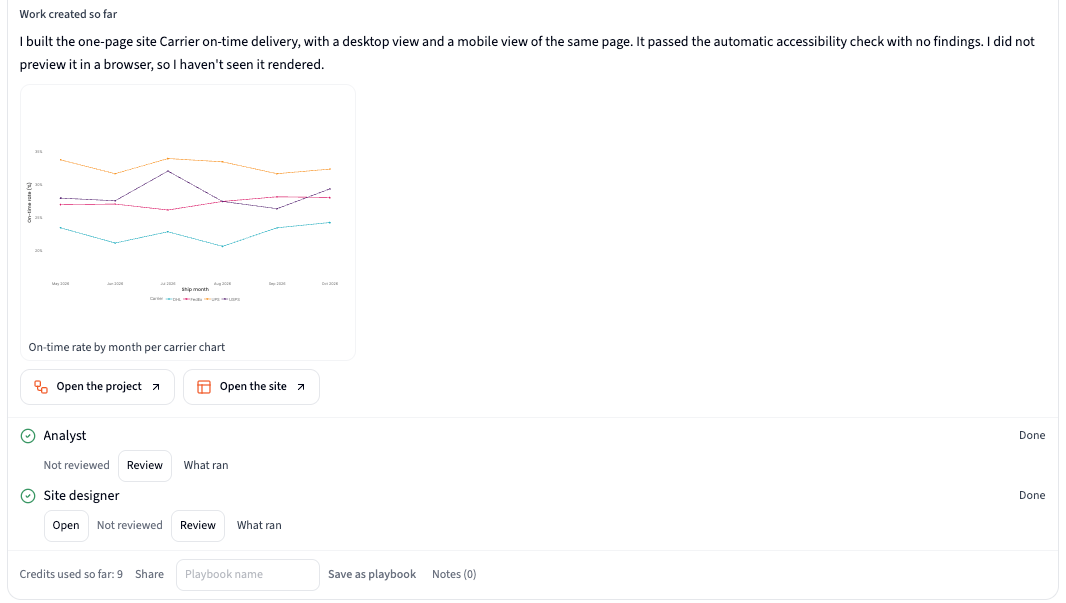
- When a step finishes, the conversation picks itself back up and says what was made, with links to it: Open the project, Open the site and so on.
Closing the tab
Section titled “Closing the tab”A job keeps going if you close the tab. When you come back, a While you were away divider shows what happened. Your Inbox tells you when a step is done or needs you, with Open conversation.
A job can carry Notes that every agent in it reads: a Decision, Definition, Assumption, Caveat, Open question, Finding or Correction. Agents add notes as they go, and you can add your own with Add note. Pin a note to keep it, Correct it, or Save to Library to keep it beyond this job.
Credits and stopping
Section titled “Credits and stopping”- The card shows Credits used so far for every step in the job.
- Stop the job stops it. Nothing that was made is deleted.
- If you run out of credits, the job pauses with nothing lost, and Continue picks it up.
Sharing a finished job
Section titled “Sharing a finished job”Share on a finished job makes a read-only link to it. Stop sharing turns the link off.
What agents can and can’t do
Section titled “What agents can and can’t do”- Agents never do more than you can. Your permissions are checked again each time a step starts.
- Agents ask before they create data, connect a source, share something or start a build. One agent’s message is never treated as your consent.
- Helpers go one level deep: a helper can’t hand its work on to another helper.
- A job can have up to 12 planned steps.
Plan diagrams
Section titled “Plan diagrams”A plan can come with a diagram of what it will build. It shows what’s Already here in your Library (grey), such as the collection and View the work starts from, and what’s Proposed (highlighted): the analysis, the dashboard, the site. Arrows show what feeds what. Open Details & connections for the full description, and use the button at the top right to pause or resume the animation.
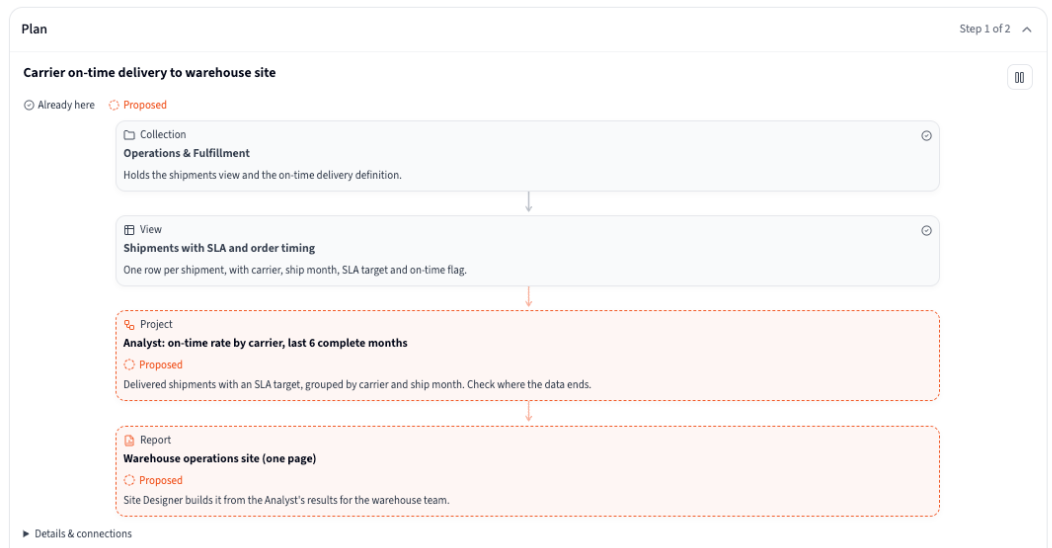
- To change a plan that hasn’t started, reply in chat: “drop the site step” or “use the existing Sales View”. The card and diagram update in place.
- A plan that has started can’t be replaced.
- The diagram is a picture of the plan. Approving still happens with Start or on the agent’s own approval card.
Agents also draw diagrams to explain things you ask about, for example “show me how my Shopify orders become the Sales by channel View and the dashboard that uses it.” These diagrams never create or change anything.
The Reviewer
Section titled “The Reviewer”The Reviewer checks an analysis before you rely on it: joins, the level the data is counted at, totals, date ranges, blanks, filters and definitions. It also works out the headline numbers a second way to see whether they agree.
- Press Review on a finished step, or ask
@Reviewer. The Reviewer only runs when you ask, because a review uses credits. - It is read-only. It can’t change anything it checks.
- When it finds a problem, it goes back once to the agent that made the thing. If the problem is still there, you decide.
- A step shows Not reviewed until a review has finished. A review that doesn’t finish says Review didn’t finish, never “no problems”.
Playbooks
Section titled “Playbooks”Save a finished plan as a playbook to run the same job again. Type a name next to Save as playbook on the card and press it. A playbook keeps the steps, which agent does each, and what waits for what. It doesn’t keep any data or permissions.
Your playbooks are listed under Playbooks, below the Agents list beside the chat.
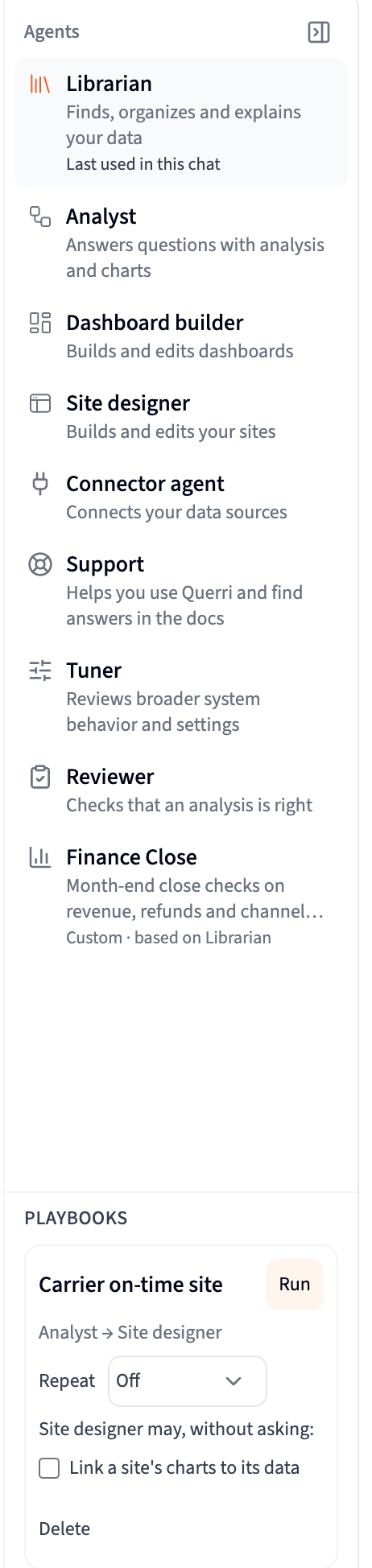
- Run starts a new conversation with the plan ready for Start.
- Repeat runs it Every day or Every week. Scheduled runs count as automatic work against your organization’s automatic-work credit share.
- … may, without asking lets an agent do a few low-risk things in this playbook without an approval card each time: add files to collections, tag files, mark files as favourites, move files to folders, change file details, or link a site’s charts to its data. You can untick them at any time.
- Connecting a source, making a public link, starting a build, spending credits and deleting always ask. An admin’s Ask first setting on an agent still applies.
- Every run checks the plan against your role and the agents available at that moment. If something it needs is no longer allowed, the run stops instead of skipping the step.
- Delete removes the playbook. You can keep up to 50.
Build your own agents
Section titled “Build your own agents”Admins (anyone whose role can manage agents) make custom agents in Settings › Agents.
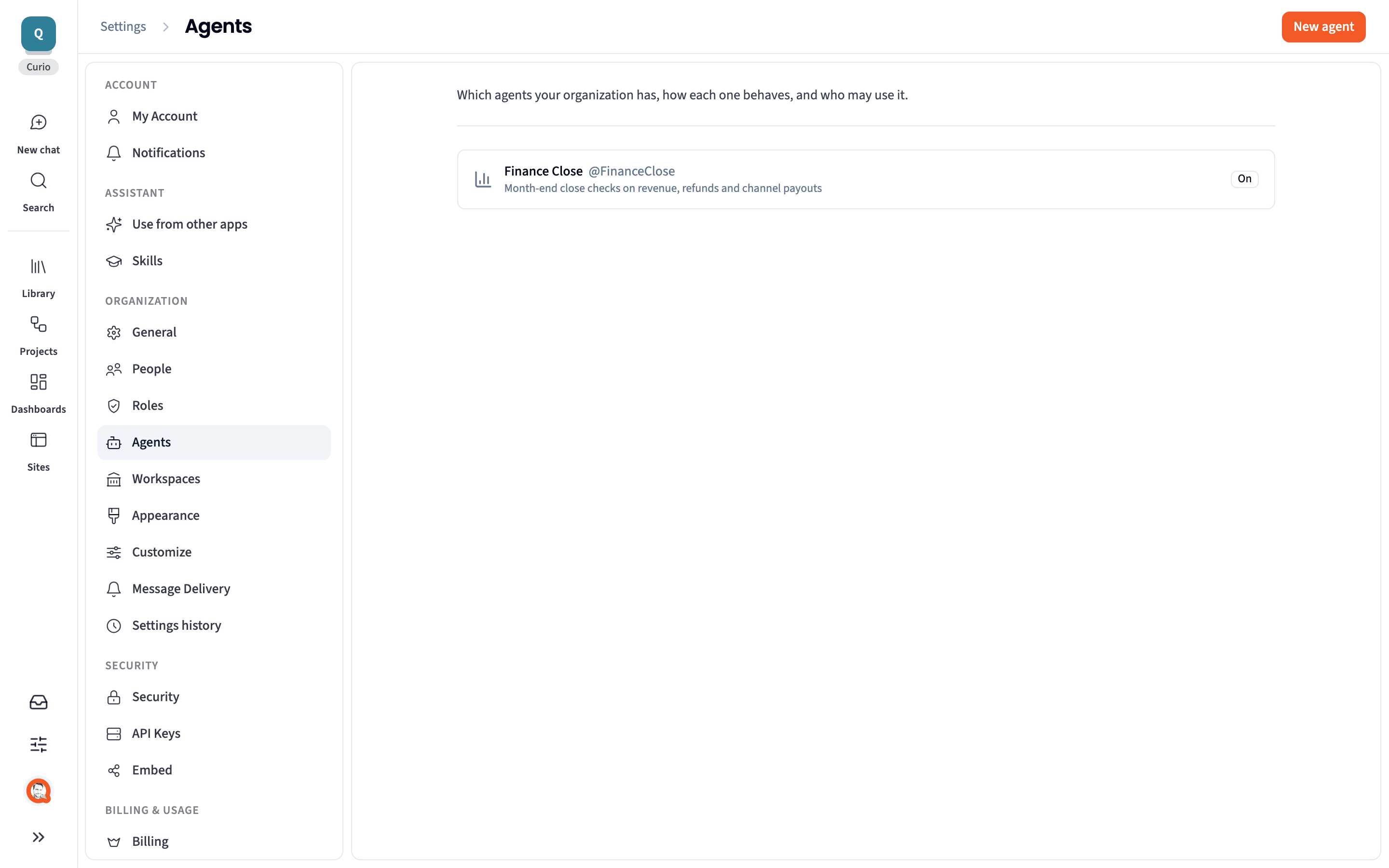
- Press New agent and choose the agent to start from.
- Set the Name, Handle (what people type after @), What it does and Icon.
- Write a Brief: instructions added to the base agent’s own. It can’t remove or override the base agent’s instructions, and it can’t add tools or data.
- Under Tools, turn off tools the agent shouldn’t use, or tick Ask first so it shows an approval card before using one. Tools marked Always asks always need approval.
- Add a Welcome message and up to four Starter questions.
- Under Who can use it, pick the custom roles that get this agent.
- Under Tests, add the questions people will ask and what should happen, then Run tests. Tests never carry anything out, but they use credits.
- Press Try it to chat with the agent, then switch Turned on.
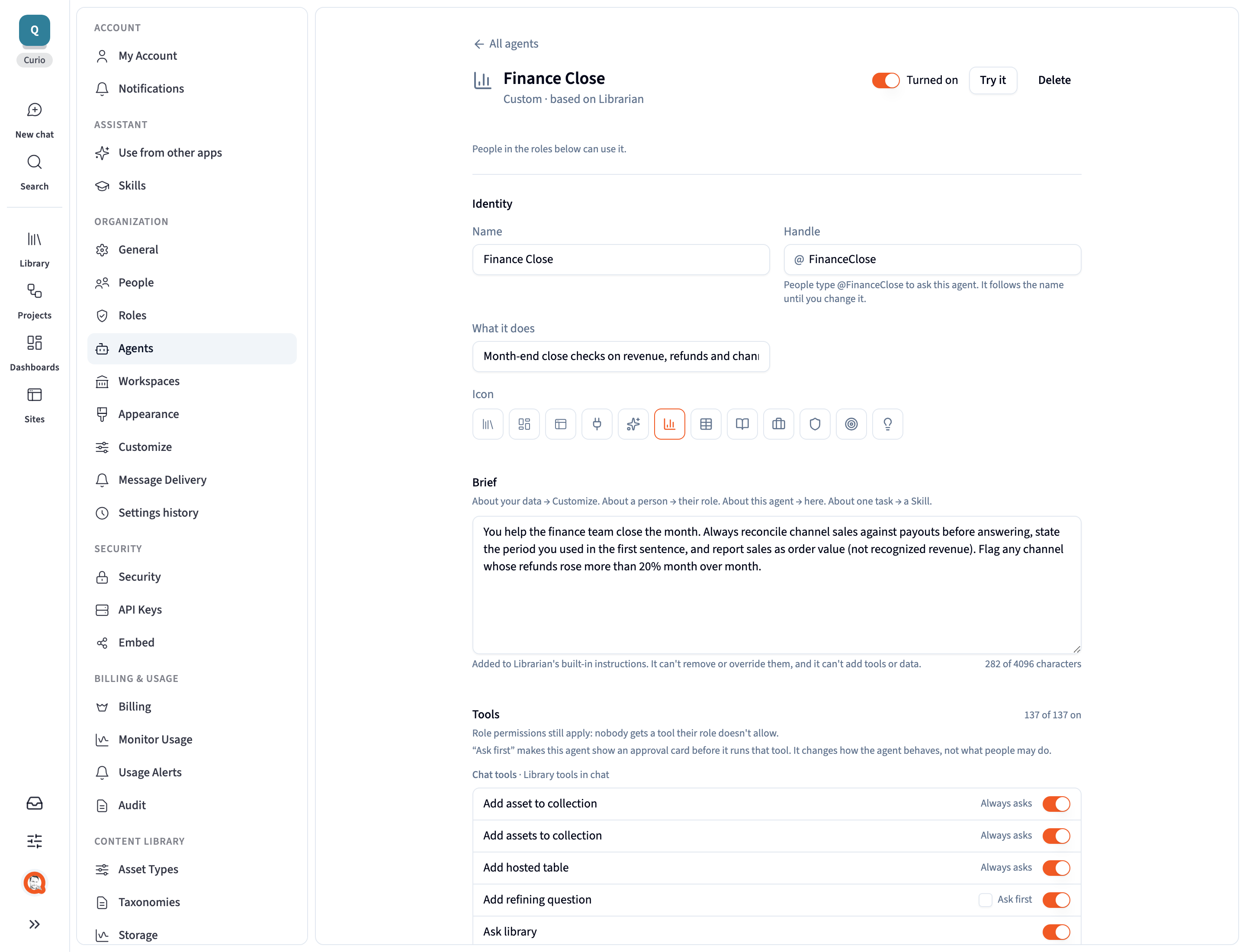
A new agent is a draft that only people who manage agents can use until it’s turned on. It runs as its base agent with that agent’s permission checks, so it can never reach further than the agent it copies, and every person’s own role still applies. It also follows your organization’s Customize rules, role instructions and any skills a person loads.