
Databricks
Connect Querri to a Databricks SQL warehouse, choose tables from Unity Catalog, and ask questions about them in plain language.
Overview
Section titled “Overview”The Databricks connector reads the catalogs, schemas and tables in Unity Catalog that its sign-in can see, and runs queries on one SQL warehouse. For each table you choose, you decide how Querri uses it:
- Synced (the default): Querri copies the table into its own storage on the schedule you set.
- Live: the table stays in Databricks, and each question runs as a query on your SQL warehouse. See Live Tables.
Before you start
Section titled “Before you start”You’ll need:
- A Databricks workspace with Unity Catalog, and a SQL warehouse for Querri’s queries.
- The warehouse’s Server hostname and HTTP path. Open SQL Warehouses, select the warehouse, and go to its Connection details tab. The hostname looks like
dbc-a1b2c3d4-e5f6.cloud.databricks.com, and the HTTP path like/sql/1.0/warehouses/abc123def456. - A way to sign in:
- A service principal with an OAuth secret (recommended). You need its client ID (the application ID) and the secret. Its tokens are short-lived, so there’s nothing to rotate.
- A personal access token. Databricks treats these as legacy, so use one only if a service principal isn’t an option.
Give Querri read-only access
Section titled “Give Querri read-only access”Use a service principal that can only read. It needs permission to use the SQL warehouse, and read access to the data:
- On the SQL warehouse, open Permissions and give the service principal Can use.
- Grant read access in Unity Catalog. Replace the catalog, schema and application ID with yours:
GRANT USE CATALOG ON CATALOG main TO `<application-id>`;GRANT USE SCHEMA ON SCHEMA main.sales TO `<application-id>`;GRANT SELECT ON SCHEMA main.sales TO `<application-id>`;Granting SELECT on a schema covers every table in it, including tables added later. To share only some tables, grant SELECT on each table instead. Querri skips tables the service principal can’t read.
Keep the access read-only. Querri only reads, and that holds for Live tables too.
Connect Databricks
Section titled “Connect Databricks”-
Open the connector. Click Connect in the app rail and pick Databricks, or click Connect on it in Settings → Connectors (admins).
-
Enter connection settings under Connection Settings:
Field Notes Connector Name Defaults to Databricks Server Hostname * From the warehouse’s Connection details. Pasting the full https://address is fineHTTP Path * From the same tab, such as /sql/1.0/warehouses/abc123def456Authentication OAuth with a service principal (recommended), or a personal access token Client ID and Client Secret For OAuth: the service principal’s application ID and OAuth secret Personal Access Token For a personal access token Catalog Optional. Leave it blank to choose from a list after testing -
Test the connection. Click Test connection and discover access. This saves the connector, then connects and lists what the sign-in can read.
-
Choose a catalog and schema. Under Select Data, choose a Catalog first. The schema and tables appear once a catalog is set. Then pick the Schema whose tables you want.
-
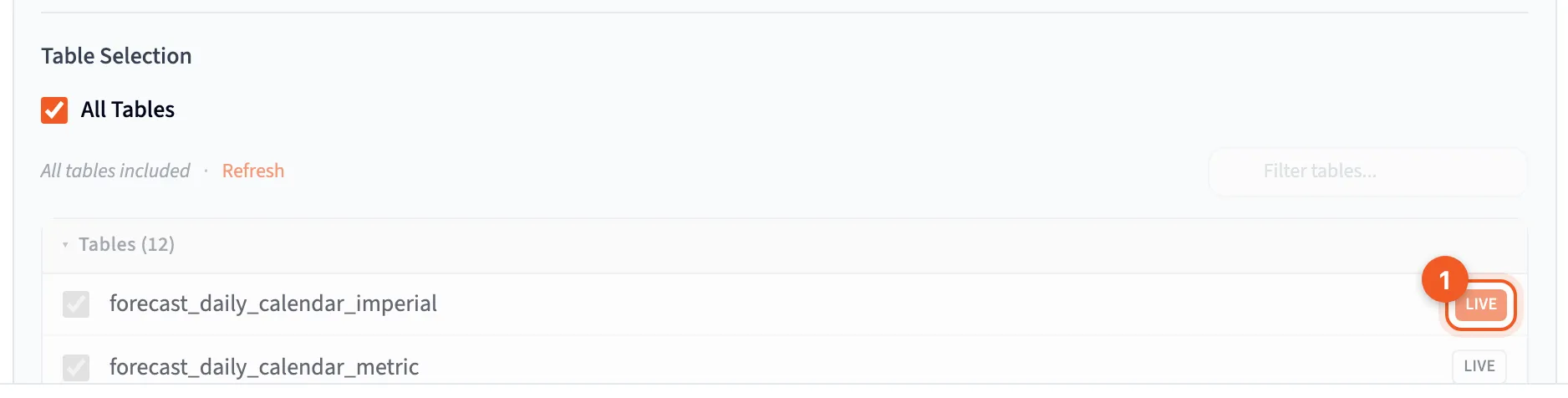
Choose tables. Under Table Selection, All Tables is on by default. Turn it off to pick tables yourself.
-
Keep each table synced, or make it Live. Each selected table has a Live switch. Leave it off to copy the table into Querri, or turn it on to keep the table in Databricks and query it there. See Live Tables.
-
Check advanced settings. Under Advanced Settings, Limit rows per table caps how many rows each synced table loads.
-
Load your data. Click Save and Load Data. A progress card shows each synced table loading. Live tables aren’t copied, so Querri keeps only their columns and an estimated row count.
Custom SQL queries aren’t available for Databricks. To load a filtered or joined result, create a view in Databricks and choose it in the table picker.
Sync scheduling
Section titled “Sync scheduling”The connector’s owner can keep synced tables up to date on the Schedule tab. Use Full Refresh: each Databricks sync reloads the whole table, so there’s no cursor column to set.
The Live tab sits next to it. It’s where you choose Live tables after setup, and set a schedule that refreshes their columns and row estimates without copying rows.
Scheduled syncs use credits when they run. See Sync Scheduling.
Troubleshooting
Section titled “Troubleshooting””No Unity Catalog catalog is configured”
Section titled “”No Unity Catalog catalog is configured””The connector doesn’t know which catalog to read yet. Open it, choose a Catalog under Select Data, and try again.
”No SQL warehouse HTTP path is configured”
Section titled “”No SQL warehouse HTTP path is configured””Copy the HTTP path from the SQL warehouse’s Connection details tab. It looks like /sql/1.0/warehouses/<id>.
Sign-in fails
Section titled “Sign-in fails”- OAuth: check the Client ID is the service principal’s application ID, and that the Client Secret is an OAuth secret created for that service principal.
- Personal access token: check the token hasn’t expired or been revoked.
- Check the hostname is the workspace you created the credentials in.
Tables are missing
Section titled “Tables are missing”- Check the service principal has
USE CATALOG,USE SCHEMAandSELECTon what you expect to see. Querri skips tables it can’t read. - Check you picked the right catalog and schema.
The test or first question is slow
Section titled “The test or first question is slow”A SQL warehouse that has auto-stopped has to start again first. A serverless warehouse usually resumes within seconds; in testing, a cold one added about 5 to 10 seconds to the first question. A classic warehouse can take from 30 seconds to 2 minutes. Later queries are faster while the warehouse stays running.
Finding Querri’s queries in Databricks
Section titled “Finding Querri’s queries in Databricks”Querri tags its queries, so you can find them in the SQL warehouse’s query history.
Next Steps
Section titled “Next Steps”- Live Tables: query Databricks tables where they are
- Sync Scheduling: full refresh and Live schedules
- Connecting Databases: the other database connectors
- Managing Connections: change, refresh and remove connectors