
Workspaces
Esta página aún no está disponible en español. Se muestra la versión en inglés.
In Settings’ own words: “A workspace is a place where a group of people share a set of data and files. Create one per team or per project, decide who can see it, then set what can live there.”
For the idea behind workspaces, including the Everything and Private scopes and where new work is saved, see Workspaces and privacy. For every setting, see Workspaces in Settings.
Who can see a workspace
Section titled “Who can see a workspace”- Everyone can reach their own private workspace and the organization’s default workspace without being added.
- Any other workspace is visible only to the people added to it. Until someone is added, only you can see it.
- Only people already in your organization can be added.
Workspace roles
Section titled “Workspace roles”Each member has one of three roles, set on the workspace’s Members tab.
| Role | What the screen says |
|---|---|
| Viewer | ”Can see this workspace’s content.” |
| Creator | ”Can see and edit. The usual choice.” |
| Admin | ”Can also manage the workspace and its members.” |
Creator is the default when you add someone. A workspace admin can also delete or share anything saved in the workspace, even things they didn’t make.
These are separate from organization roles (Admin, Creator and Guest), which are set in People.
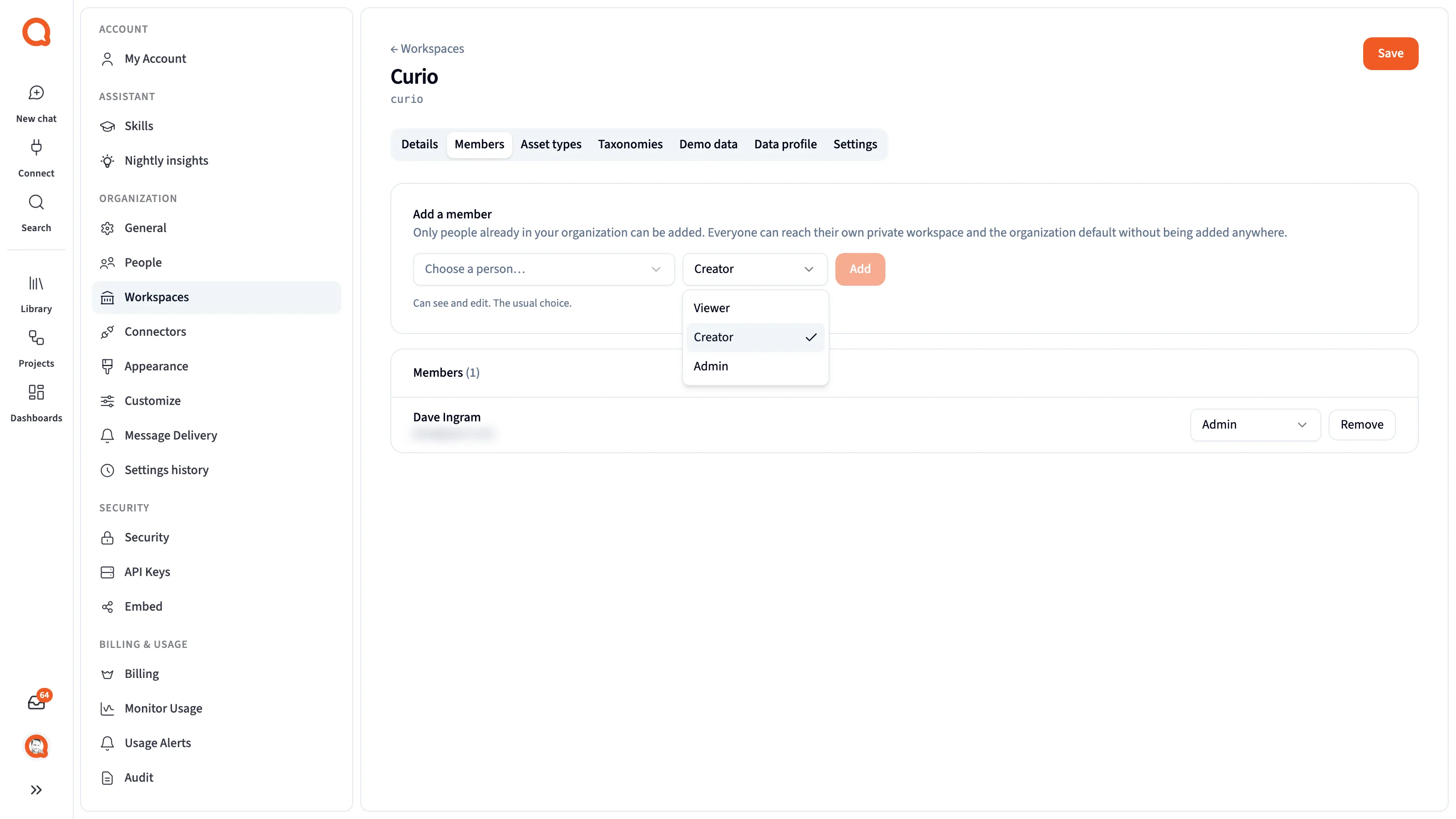
- Add a member: add someone from your organization.
- The role select: Viewer, Creator or Admin.
- A member row: someone in the workspace, with their role.
Create a workspace
Section titled “Create a workspace”Organization admins create workspaces in Settings → Organization → Workspaces. Enter a Name and a URL name, then click Create workspace. A dialog then asks whether to switch to the new workspace. If you stay where you are, anything you upload or connect next still goes to your current workspace.
Manage on a workspace opens its tabs: Details, Members, Asset types, Taxonomies, Demo data, Data profile and Settings.
Workspaces, sharing and policies
Section titled “Workspaces, sharing and policies”- Members see what’s saved in a workspace by role, without anyone sharing each item.
- Sharing gives one person access to one item, on top of their workspace role.
- Access policies filter rows for each person, whatever workspace the data is in.
Next steps
Section titled “Next steps”- Workspaces and privacy: scopes, roles and where work lands
- Workspaces in Settings: every tab and setting
- Sharing: share single items