Getting around
Querri keeps the same frame on every screen: the app rail on the left, the chat beside it, and the page you’re working on.
Who can see this: everyone who’s signed in. Some items depend on your role. For example, Invite people on Home and Manage workspaces show only for admins.
Signing in opens Home, where you can ask a question straight away. An admin can send people in a role somewhere else with the role’s Where people land setting. See Custom Roles.
The app rail
Section titled “The app rail”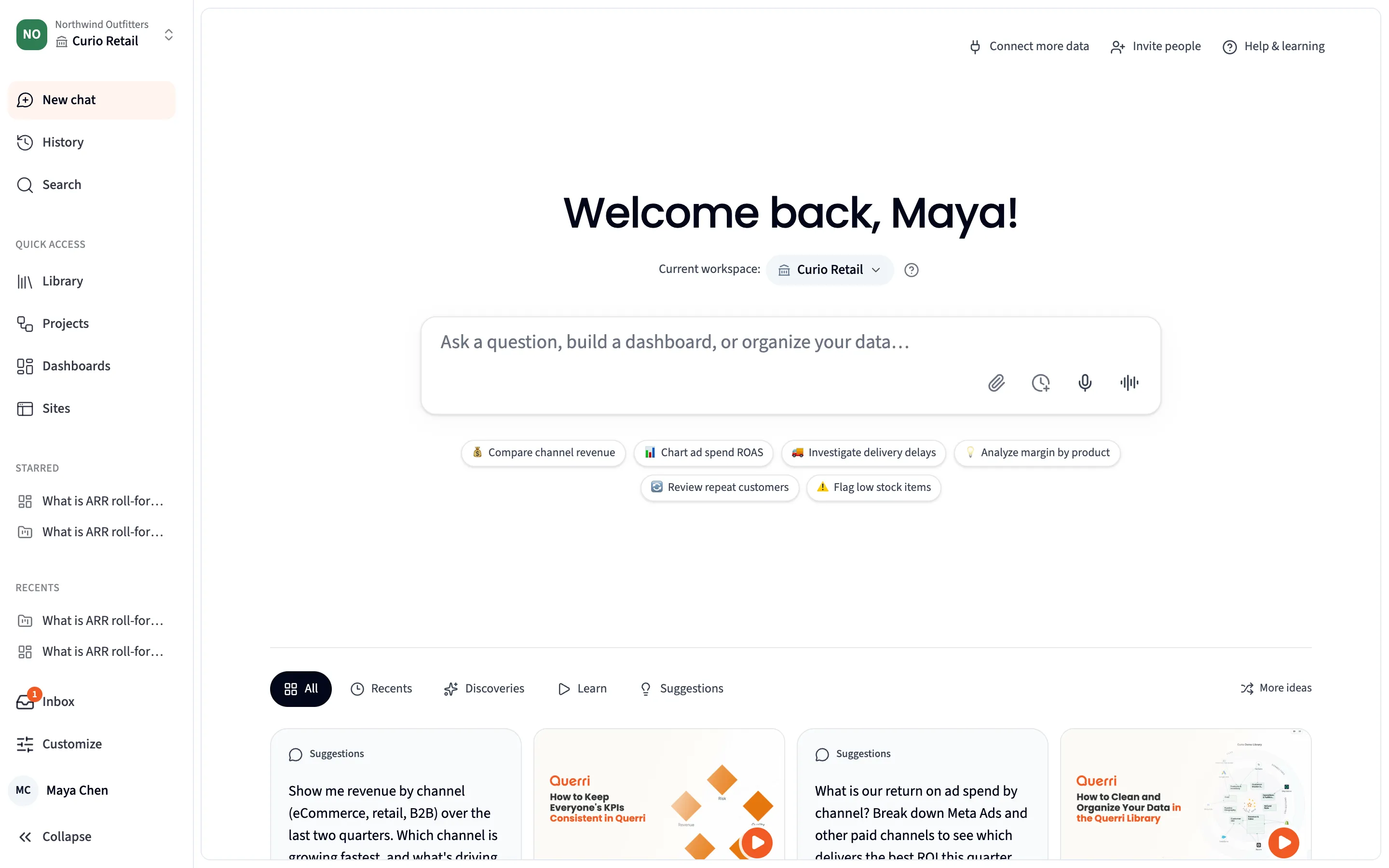
From the top:
- The organization tile shows your organization, and the workspace you’re in when the rail is wide. See The workspace switcher.
- New chat opens Home, a fresh place to ask anything. Inside a project, it starts a new chat in that project instead.
- History opens Chat history in the chat panel. While the chat is closed, its label reads Show chat and it brings your conversation back.
- Search searches everything you can see. See Search everything.
- Library takes you back to the workspace you were last in. The Library’s Data Audit and Connectors are in its header. See The Library header.
- Projects opens your projects. While a project is still open in the chat, it takes you back to that project. See Projects.
- Dashboards opens your dashboards. See Dashboards.
- Sites opens your Sites.
- Inbox, near the bottom, counts what’s waiting, up to 99+. See Inbox.
- Customize, the sliders icon, is where you shape how Querri answers and looks: workspaces, roles, organization context, Skills, tools, Blueprints and more.
- Your picture opens a menu with Settings and Sign out. See Settings.
The button at the very bottom widens the rail. The wide rail puts labels beside the icons and adds two lists:
- Starred: the projects and dashboards you starred. Click the star on a project, a dashboard or a row in their lists to add one. Stars are yours alone.
- Recents: the projects and dashboards you opened recently.
Querri remembers the width for you. While files upload, an Uploads item shows their progress. In a narrow window, the rail folds away behind a menu button at the top left.
How the frame changes
Section titled “How the frame changes”The chat keeps the same conversation wherever you go, so an answer that’s still arriving carries on while you move around. What changes is how much room it gets.
| Where you are | The chat |
|---|---|
| Home (New chat) | The page is the chat: ask in the box in the middle |
| The Library, and the Projects, Dashboards, Sites and Inbox pages | A column beside the page, which you can close |
| A project | That project’s chat, with its Data Flow panel beside it once you open it |
| A dashboard | Opens beside the dashboard, and you can close it |
| Customize | The Tuner, an assistant for changing how Querri answers |
| Settings | Hidden, with your conversation waiting for you |
On a page with the chat docked, Expand chat in the chat’s header lets it cover the page, and Restore layout puts it back. If you close the chat, Show chat or New chat on the rail brings it back.
New chat opens Home. It greets you by name, shows the workspace you’re working in, and gives you a box that reads Ask a question, build a dashboard, or organize your data… Suggestions under the box come from your own data. Type a question and the page turns into the conversation, right where you are. A question asked here starts a new project of its own; it isn’t added to an older one unless you name it.
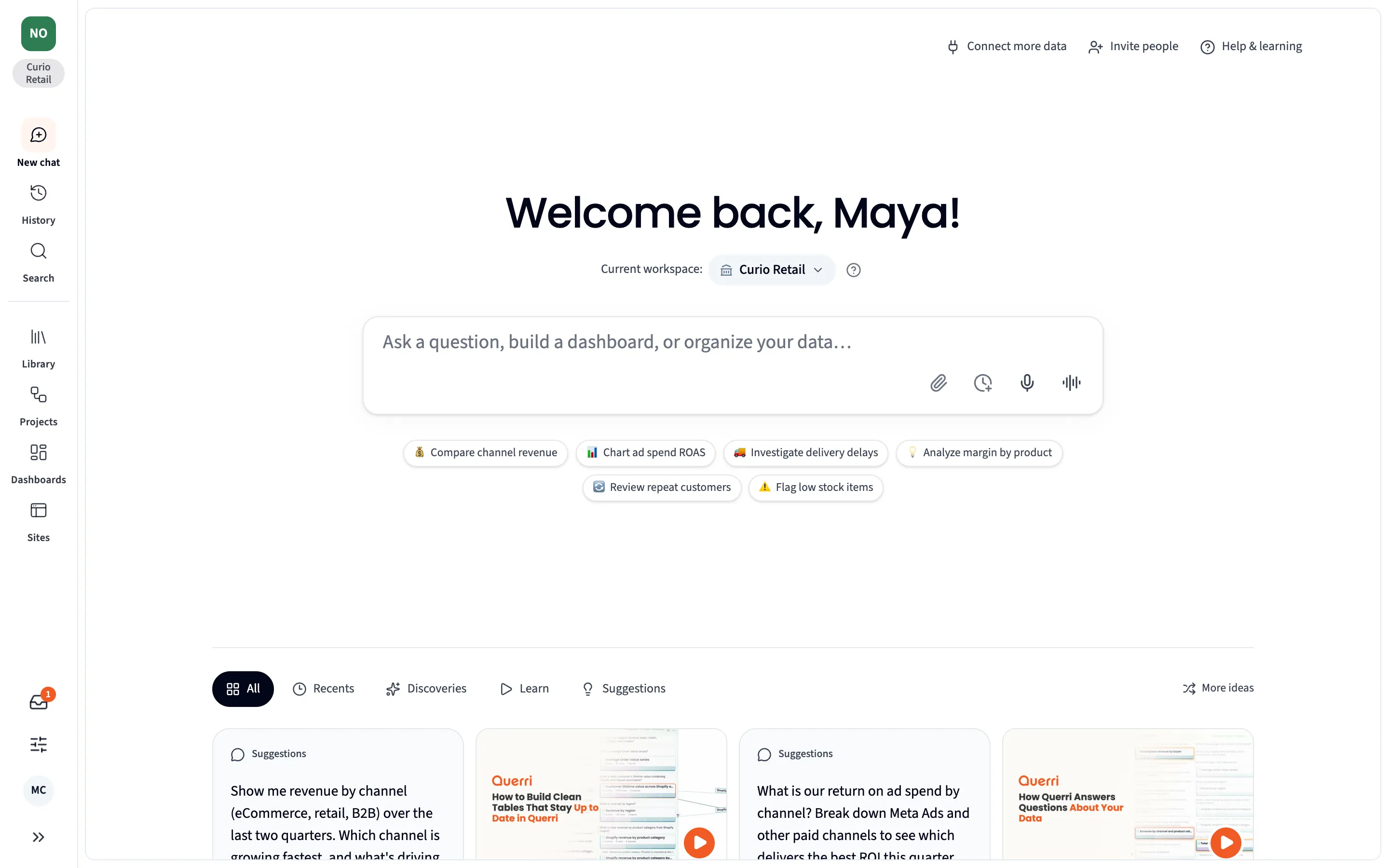
Click Current workspace to choose where your next chat looks and where it files what it makes. It’s the quickest way to set the context before you ask.
Below the box:
- Recents: projects and dashboards you opened recently.
- Suggestions: questions worth asking of your data. Click Start in chat to ask one.
Admins also see:
- Connect more data, Invite people and Help & learning at the top right
- All, Discoveries and Learn in the grid. Discoveries are the same findings as your Inbox, and Learn has short videos.
- More ideas, for a fresh set of suggestions
The Library header
Section titled “The Library header”The Library has its own header. Hover Explore to switch between the three Library sections:
- Explore: browse your collections, questions, Views, sources and connectors, as a List, a Grid or a Visualize map.
- Data Audit: the problems Querri found in your tables. See Data Audit.
- Connectors: everything connected to your Library, and everything you can add. See Data Connectors Overview.
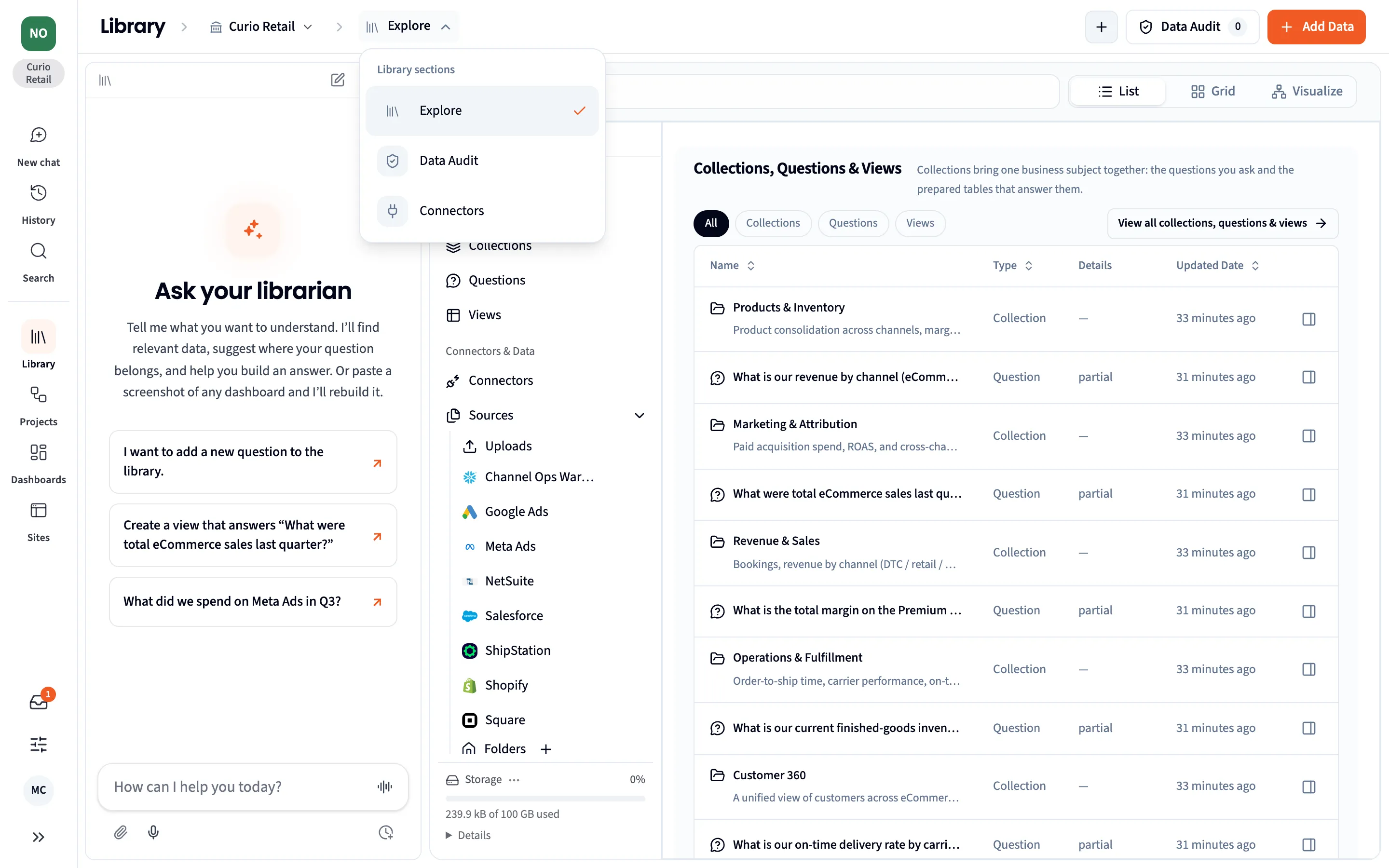
The workspace name beside it changes the workspace you’re browsing. Add Data at the top right uploads files or adds a connector.
The workspace switcher
Section titled “The workspace switcher”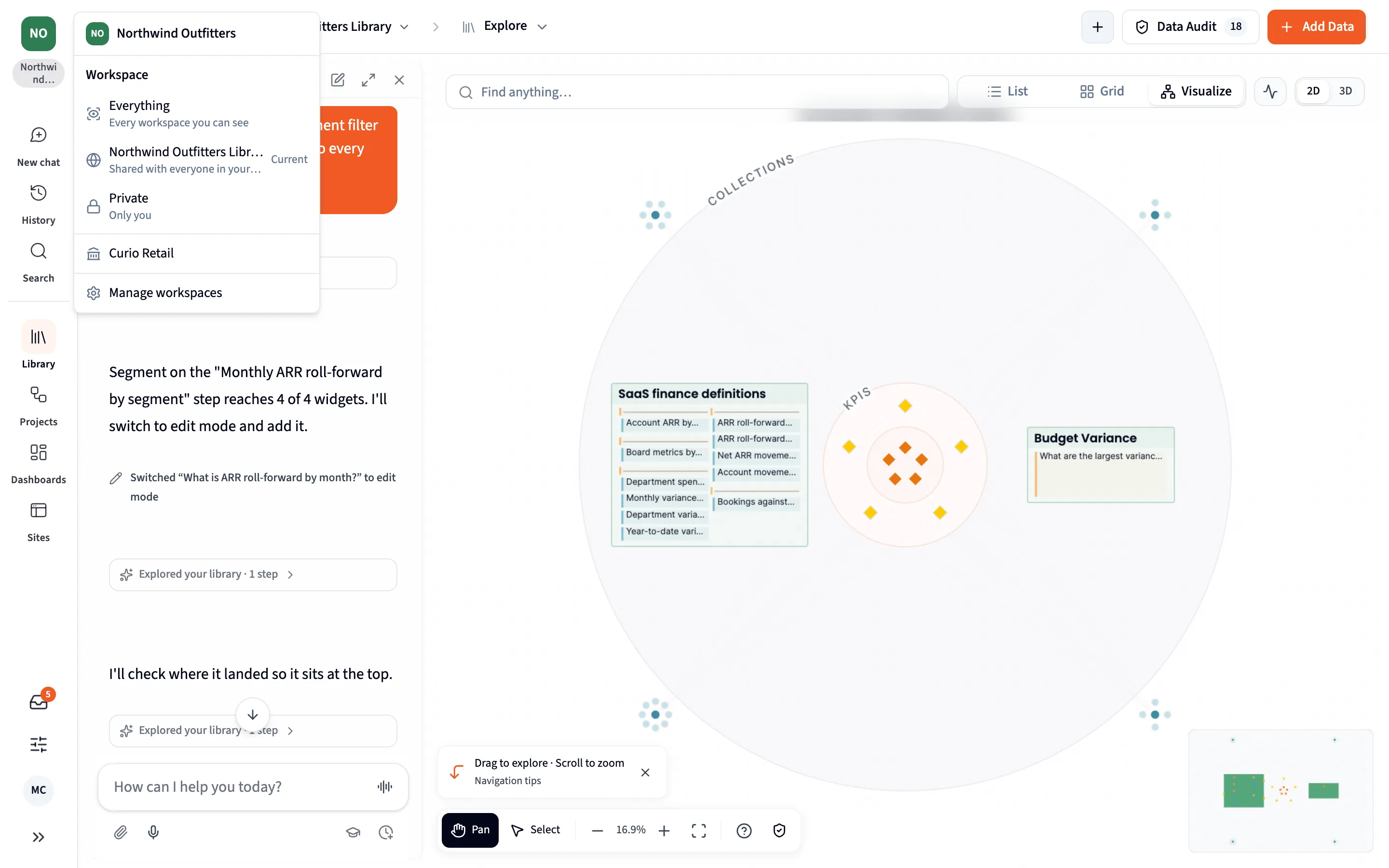
Click the organization tile at the top of the rail to switch organization, if you belong to more than one, or to change workspace. Under Workspace, the menu lists:
- Everything, “Every workspace you can see”
- your company-wide workspace, “Shared with everyone in your organization”
- Private, “Only you”
- any other workspace you belong to
Current marks the workspace you’re in, and picking another opens the Library there.
The workspace you’re in decides what the Librarian can find and where new work is saved. With Everything, the chat reads across every workspace you can see, but anything it creates is saved to Private. Workspaces and privacy explains why that matters.
Manage workspaces, for admins, opens Customize › Workspaces. See Workspaces.
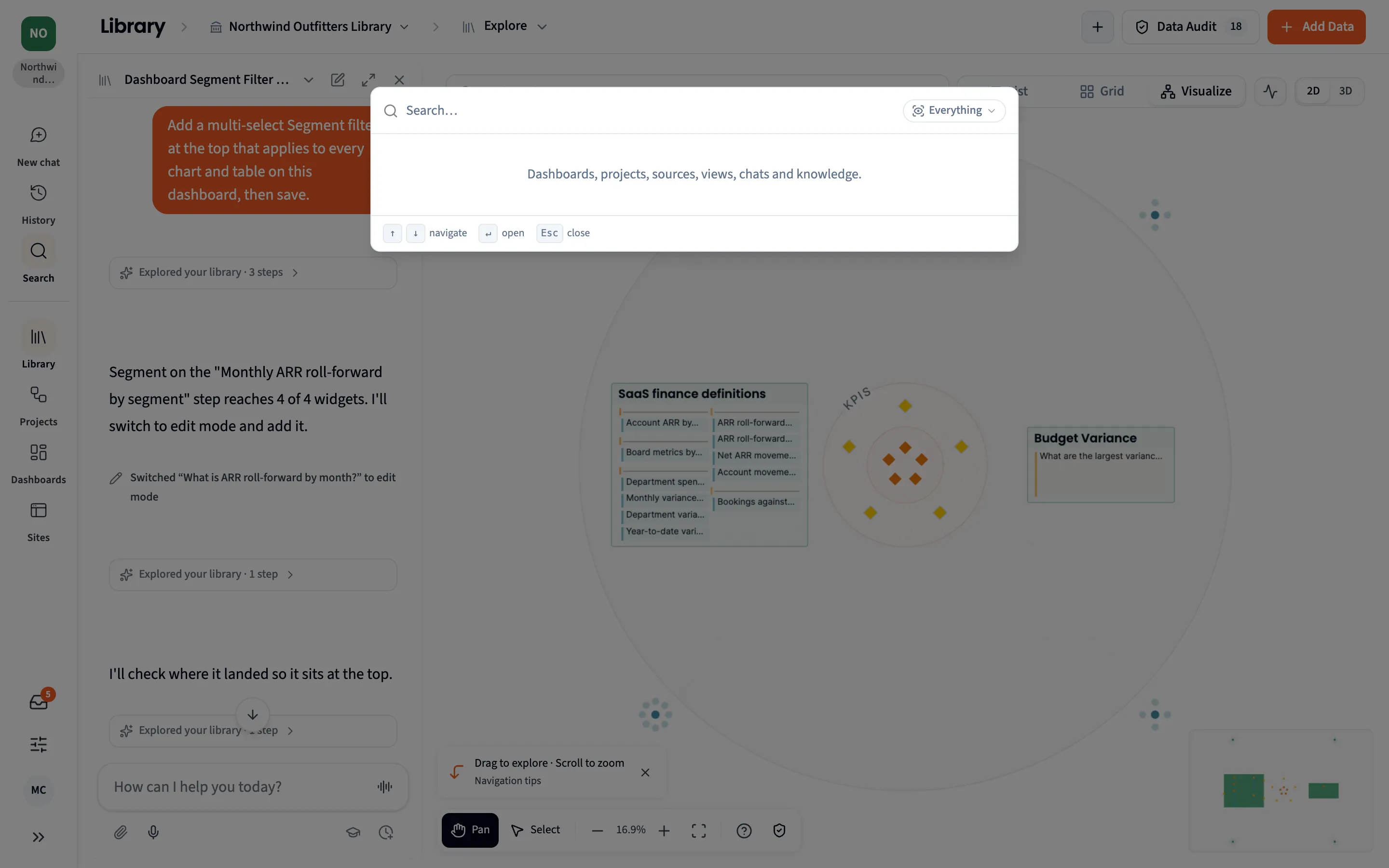
Search everything
Section titled “Search everything”Press ⌘K (Ctrl+K on Windows) or click Search on the rail to search every item you can see: dashboards, projects, sources, Views, chats and knowledge. It starts across Everything, and it matches the words in names and summaries rather than their meaning. Use the arrow keys to move, Enter to open and Esc to close. Search covers the rest.