
Settings overview
Settings is where you look after your own account and, if you’re an admin, the whole organization: its people, workspaces, branding, credits and what Querri does overnight.
Who can see this: everyone. Members see up to three groups in the rail, and admins see them all.
Click your picture at the bottom of the app rail and choose Settings. You land on My Account.
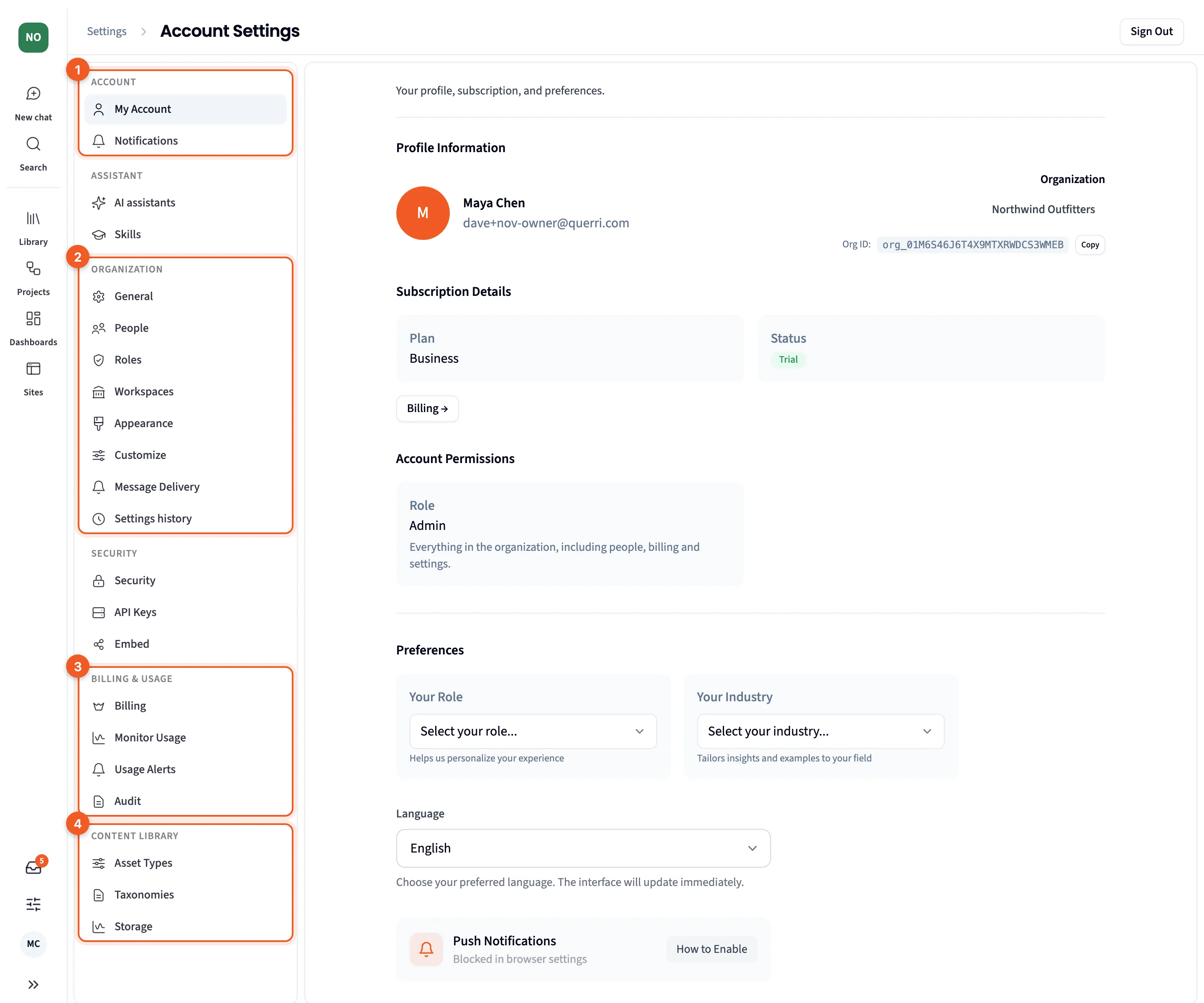
- Account: your own profile and preferences.
- Organization: settings that apply to everyone in the organization. Admins only.
- Billing & Usage: your plan, and how credits are being used.
- Content Library: asset types, taxonomies and storage for the file library. Admins only.
The rail, group by group
Section titled “The rail, group by group”Each group heading shows up only when you can see at least one item under it.
| Group | Items | Who sees them |
|---|---|---|
| Account | My Account, Notifications | Everyone |
| Assistant | AI assistants, Skills | Everyone |
| Organization | General, People, Roles, Message Delivery | Admins |
| Security | Security, API Keys, Embed | Admins |
| Billing & Usage | Billing, Monitor Usage, Usage Alerts, Audit | Audit: admins. The rest: everyone |
| Content Library | Asset Types, Taxonomies, Storage | Admins |
Skills appears when skills are turned on for your organization.
Workspaces, Appearance, Organization Context and the change history moved out of Settings. They now live under Customize in the app rail. See Customize.
Nightly insights used to sit under Assistant. It’s now a tab on each workspace, under Customize › Workspaces, because the schedule and budget belong to one workspace at a time.
Where each page is covered:
- My account
- Skills
- Nightly insights
- Organization: General, People and Message delivery
- In Customize: Workspaces, Look and feel, Organization Context and Change history
- Connectors are now in the Library: Data Connectors Overview
- Security: Security & Governance, API keys and Embed domains
- Billing & Usage: Billing, Monitor usage, Usage alerts and Billing audit log
Rail names and page titles
Section titled “Rail names and page titles”Four pages go by a different name at the top of the page than in the rail:
| In the rail | At the top of the page |
|---|---|
| My Account | Account Settings |
| Monitor Usage | Usage Settings |
| Audit | Billing Audit Log |
If you’re not an admin
Section titled “If you’re not an admin”When skills are turned on, your rail has three groups: Account, Assistant with AI assistants and Skills, and Billing & Usage with Billing, Monitor Usage and Usage Alerts. With skills turned off, Assistant doesn’t appear.
- My Account: your profile and preferences.
- Skills: the skills you can load in project chat or Librarian chat.
- Billing: your organization’s plan. Changing it takes an admin.
“Admin” here means an organization admin, someone with the Admin organization role on People. The workspace role Admin doesn’t open these pages.
Open an admin-only page’s address as a member and Querri either sends you to a new chat or shows Admin access required: “This settings section is only available to organization administrators.” Go to My Account takes you back.
- The message a member sees on an admin-only page.
If Querri is embedded in another app, you’ll see only the settings sections that app allows.
Some settings can also be pinned for your organization from outside it, by whoever runs Querri for you. The page then says so, for example “Your provider manages this limit, so it cannot be changed here.” or “This setting is managed by your Querri operator.”, and an admin can’t change it there.