
Late November 2026
Esta página aún no está disponible en español. Se muestra la versión en inglés.
This release is about Querri’s agents working as a team. You can now name several agents in one message, and the agent you’re talking to plans the work, shows you the plan as a diagram, and hands each part to the right specialist. The Analyst, Dashboard builder, Site designer, Connector agent, Reviewer, Support and the Librarian all work from the same conversation, on whichever page you’re on, and the job keeps going if you close the tab. You can also talk to any agent with voice mode, save a finished plan as a playbook to run again or on a schedule, and build your own agents in Settings.
Sites are now on for everyone, and spreadsheets open right in the Library side panel, where you or the Librarian can edit them. The Scientist, an agent for questions that need evidence, is in early access.
What’s New
Section titled “What’s New”Agents That Work Together
Section titled “Agents That Work Together”Querri has a set of specialist agents, and each one is good at one kind of work. Until now you talked to one at a time. Now you can ask for a whole piece of work in one message and name the agents you want, and they work on it together in the same conversation.
| Agent | Type | What it does |
|---|---|---|
| Librarian | @Librarian | Finds, organizes and explains your data |
| Analyst | @Analyst | Answers questions with analysis and charts, in its own project |
| Dashboard builder | @DashboardBuilder | Builds and edits dashboards |
| Site designer | @SiteDesigner | Builds and edits your Sites |
| Connector agent | @ConnectorAgent | Finds and connects your data sources (admins) |
| Reviewer | @Reviewer | Checks that an analysis is right. It never changes anything |
| Support | @Support | Helps you use Querri and finds answers in the docs |
| Tuner | @Tuner | Reviews how Querri behaves and proposes changes to its settings (admins) |
Type @ in any chat box to pick one. You can also type the name yourself, anywhere in a sentence, and it’s highlighted as you type.
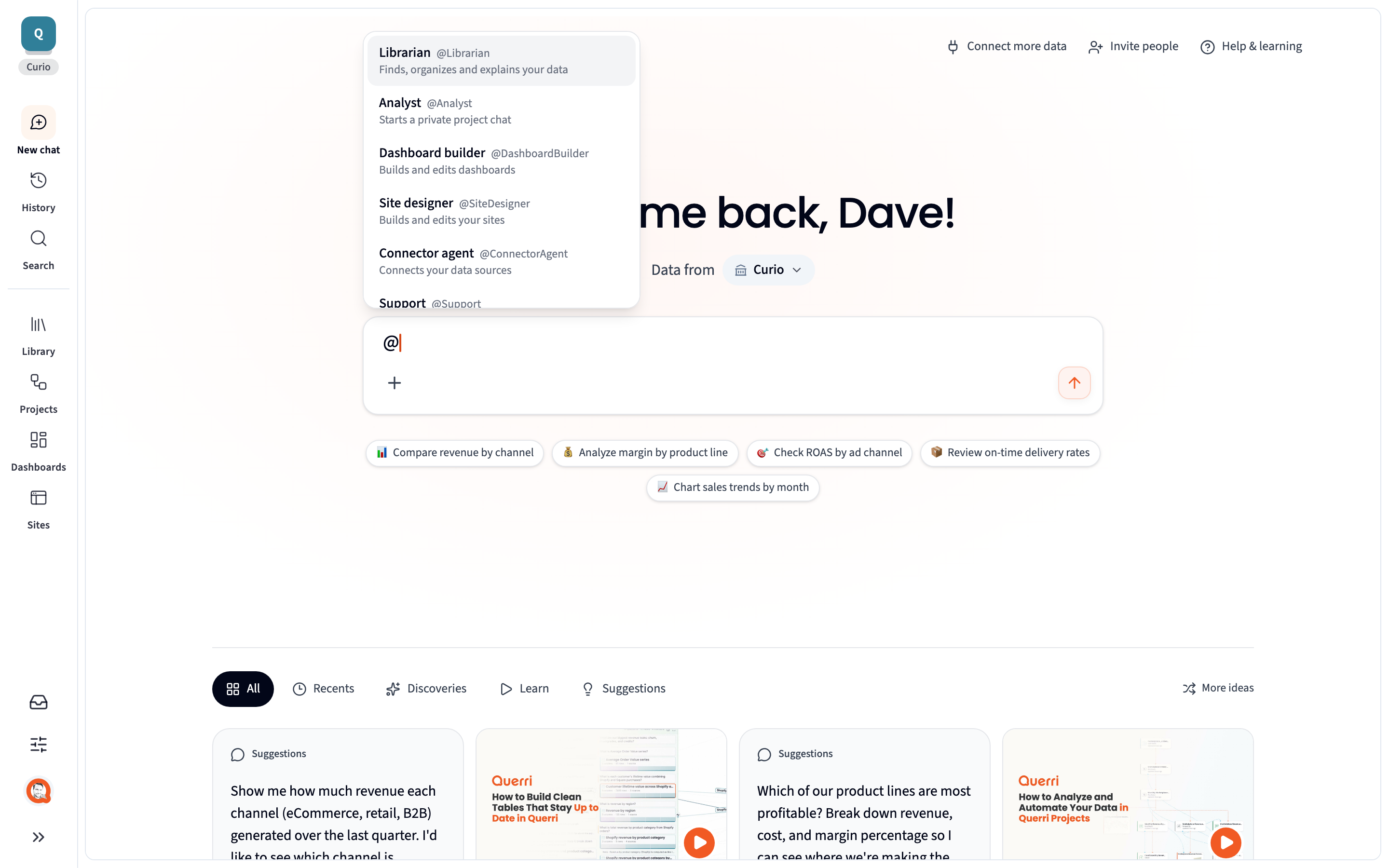
Ask for the whole job in one message
Name the agents and say what each one should do:
Have @Analyst work out on-time delivery rate by carrier for each of the last 6 complete months, then have @SiteDesigner build a one-page operations site from that analysis for the warehouse team.
The agent you’re talking to turns that into a plan: which agent does what, and what has to finish before the next step starts. The plan appears as a card in your conversation, and the helpers work in the background while your chat stays free for other questions. Each step shows its state as it goes: Planned, Up next, Working, Done, or Needs you when a step is waiting on a decision only you can make.
Every page, one conversation
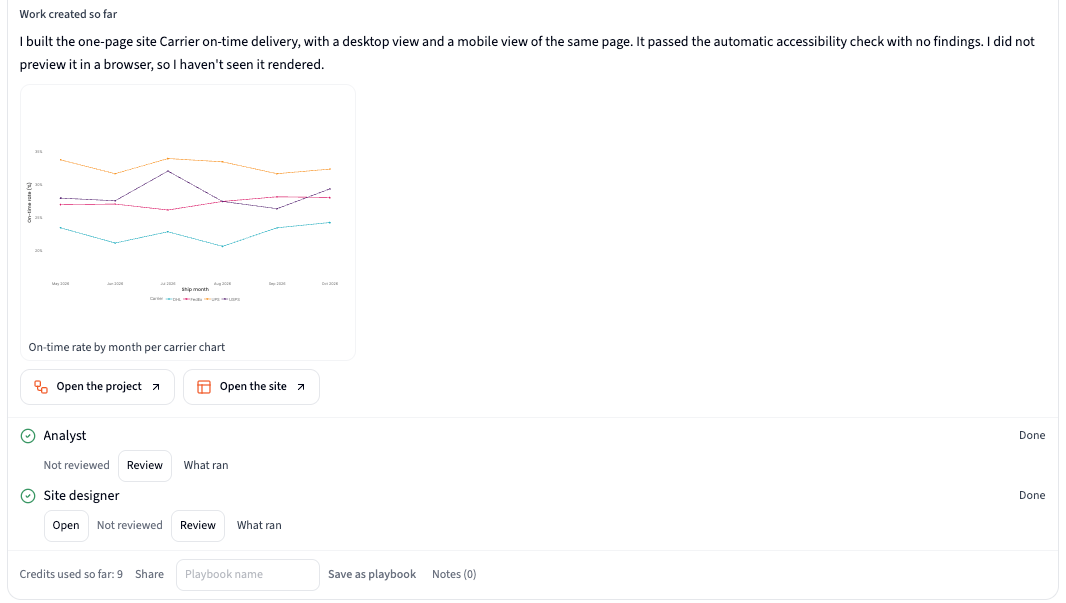
The agents work across Querri’s pages. The Analyst builds its analysis in a project, the Dashboard builder works in that project’s dashboard, and the Site designer works in Sites, but you never leave your conversation. Press Open on any step to step into that agent’s own conversation, ask it something, and come back. When a step finishes, the conversation picks itself back up and tells you what was made, with links straight to it.
The agent that answers by default follows the page you’re on: the Connector agent on the Connectors page, the Site designer on Sites, and the Librarian everywhere else. The Agents list beside the chat shows them all, with a dot on any agent that’s working on your current job. Click one to send it your next message.
It keeps going when you close the tab
A job doesn’t need you to watch it. Close the tab and the agents keep working. When you come back, a While you were away divider shows what happened, and your Inbox tells you when a step is done or needs you.
You stay in charge
- Work you asked for starts right away. Work an agent proposes waits for you to press Start.
- Agents still ask before they create data, connect a source, share something or start a build.
- Helpers can never do more than you can. Your permissions are checked again every time a step starts.
- The card shows Credits used so far, and Stop the job stops it without deleting anything.
- A job can carry Notes that every agent in it reads: a decision, a definition, an assumption, a caveat. Pin one, correct one, or save it to your Library.
- When a job is finished, Share makes a read-only link to it.
Full details: Agents and Jobs.
Plans You Can See
Section titled “Plans You Can See”Before agents build something, they can show you the plan as a diagram. It lays out what’s Already here in your Library, such as the collection and View the work will start from, and what’s Proposed: the analysis, the dashboard, the site. Arrows show what feeds what.
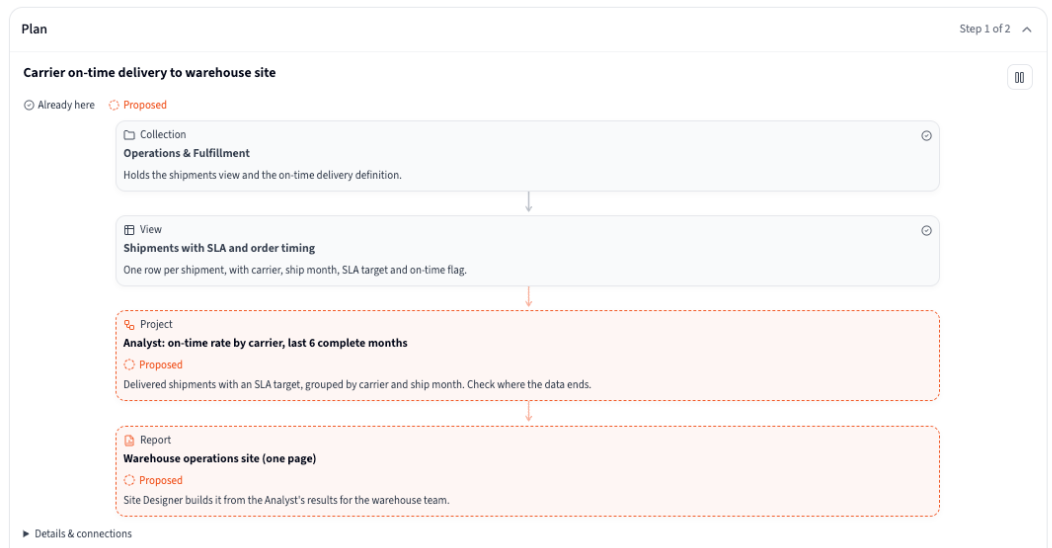
The diagram is a picture of the plan, not a separate approval. To change the plan, reply in chat (“drop the site step”, “use the existing Sales View instead”) and the card redraws in place. Once a plan has started it can’t be swapped out, so you always know what’s running. Agents also use the same diagrams to explain how your data connects when you ask, for example “show me how my Shopify orders become the Sales by channel View and the dashboard that uses it.”
The Reviewer
Section titled “The Reviewer”The Reviewer checks an analysis before you rely on it. It looks at joins, the level the data is counted at, totals, date ranges, blanks, filters and definitions, and it works out the headline numbers a second way to see if they agree.
- Press Review on any finished step, or ask
@Reviewerdirectly. - The Reviewer is read-only. It can’t change anything it checks.
- It only runs when you ask, because a review uses credits.
- If it finds a problem, it goes back to the agent that made the thing to fix it once. If the problem is still there, you decide what happens next.
- A review that doesn’t finish says so. It never reports “no problems” by default.
Playbooks
Section titled “Playbooks”When a plan has worked, save it as a playbook so you can run the same job again. A playbook keeps the steps, which agent does each one, and what each step depends on. It doesn’t keep any data or permissions.
- Find your playbooks under Playbooks, below the Agents list beside the chat.
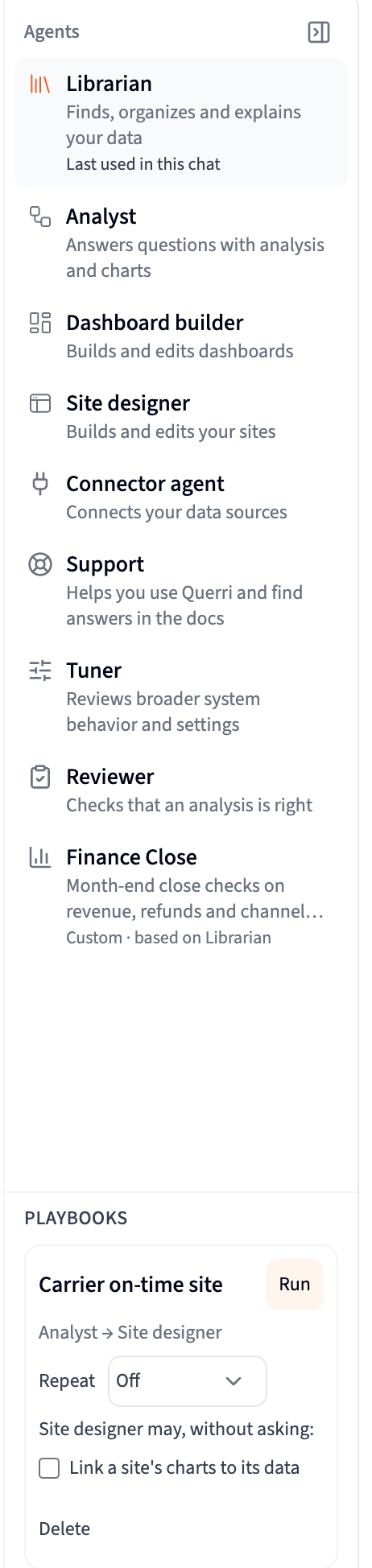
- Run starts a new conversation with the plan ready for you to press Start.
- Repeat runs it Every day or Every week. A scheduled run counts as automatic work.
- For each playbook you can let an agent do a few low-risk things without asking each time, such as adding files to collections, tagging files or linking a site’s charts to its data. Connecting a source, making a public link, starting a build, spending and deleting always ask.
- Every run checks the plan against your role and agents at that moment. If something you relied on is no longer allowed, the run stops instead of quietly skipping a step.
Build Your Own Agents
Section titled “Build Your Own Agents”Admins can now make their own agents in Settings › Agents. Start from one of the built-in agents, then give it a name, a handle, an icon, a brief, its own welcome message and starter questions.
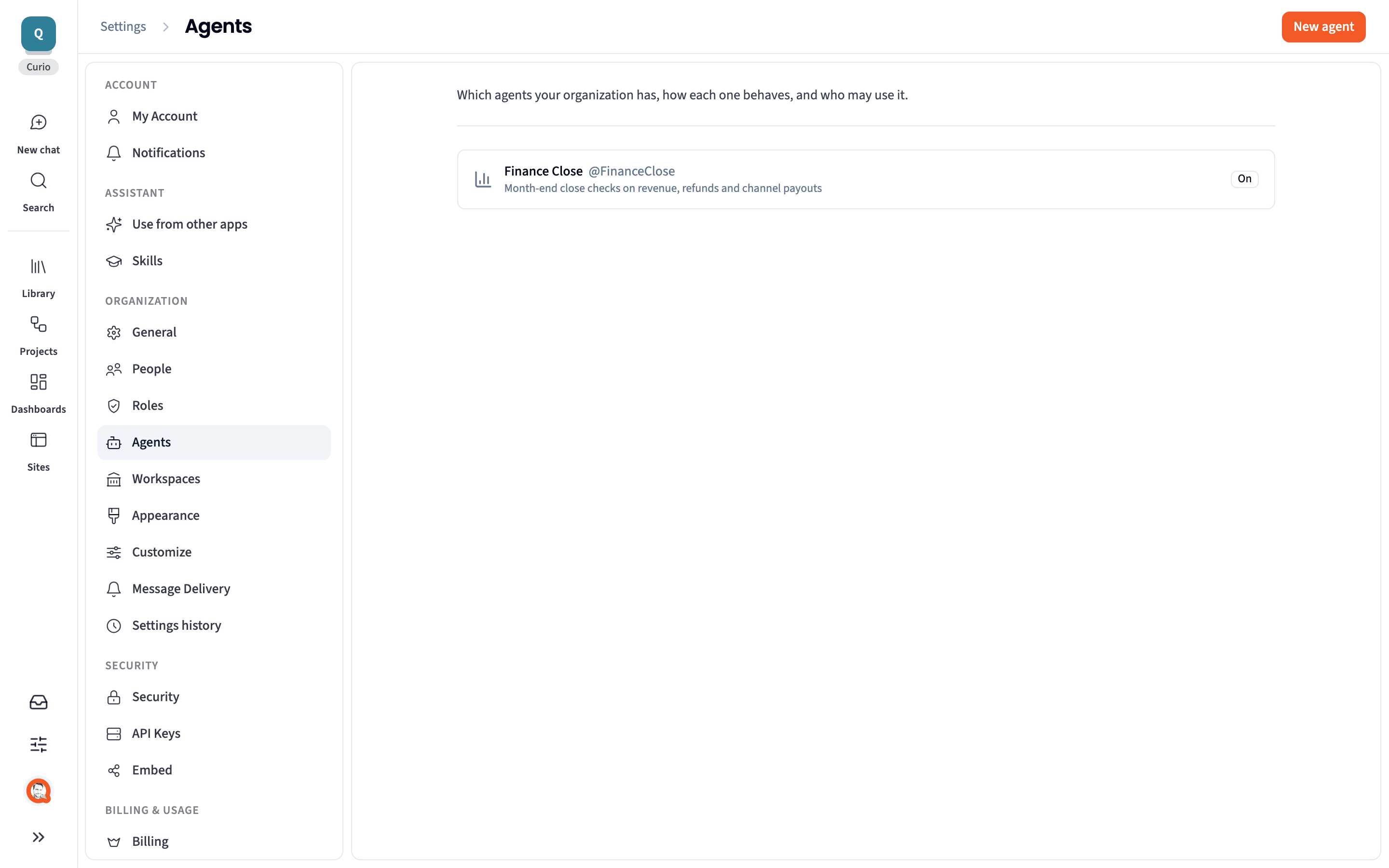
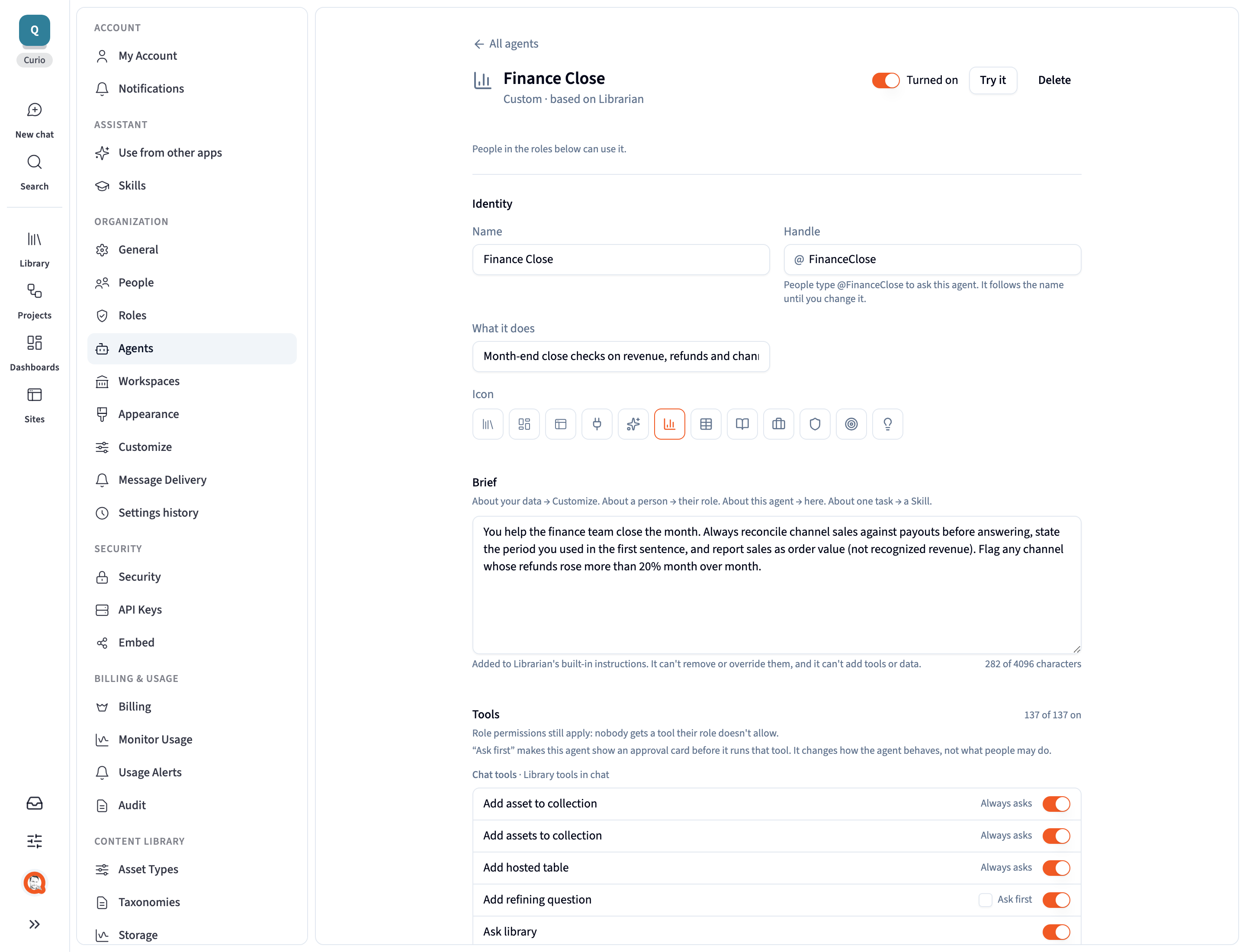
- Brief: instructions added to the base agent’s own. A brief can’t remove the base agent’s rules or give it new data or tools.
- Tools: turn individual tools off, or mark them Ask first so the agent shows an approval card before using them.
- Who can use it: choose which custom roles get the agent.
- Tests: write the questions people will ask and what should happen, then Run tests before and after you change the agent.
- Try it opens a chat with the agent before anyone else can use it. A new agent starts as a draft and is only visible to people who manage agents until you turn it on.
A custom agent can never reach further than the agent it’s based on, and everyone’s role permissions still apply. Once it’s on, people find it in the Agents list and with @ like any other agent.
Voice Mode
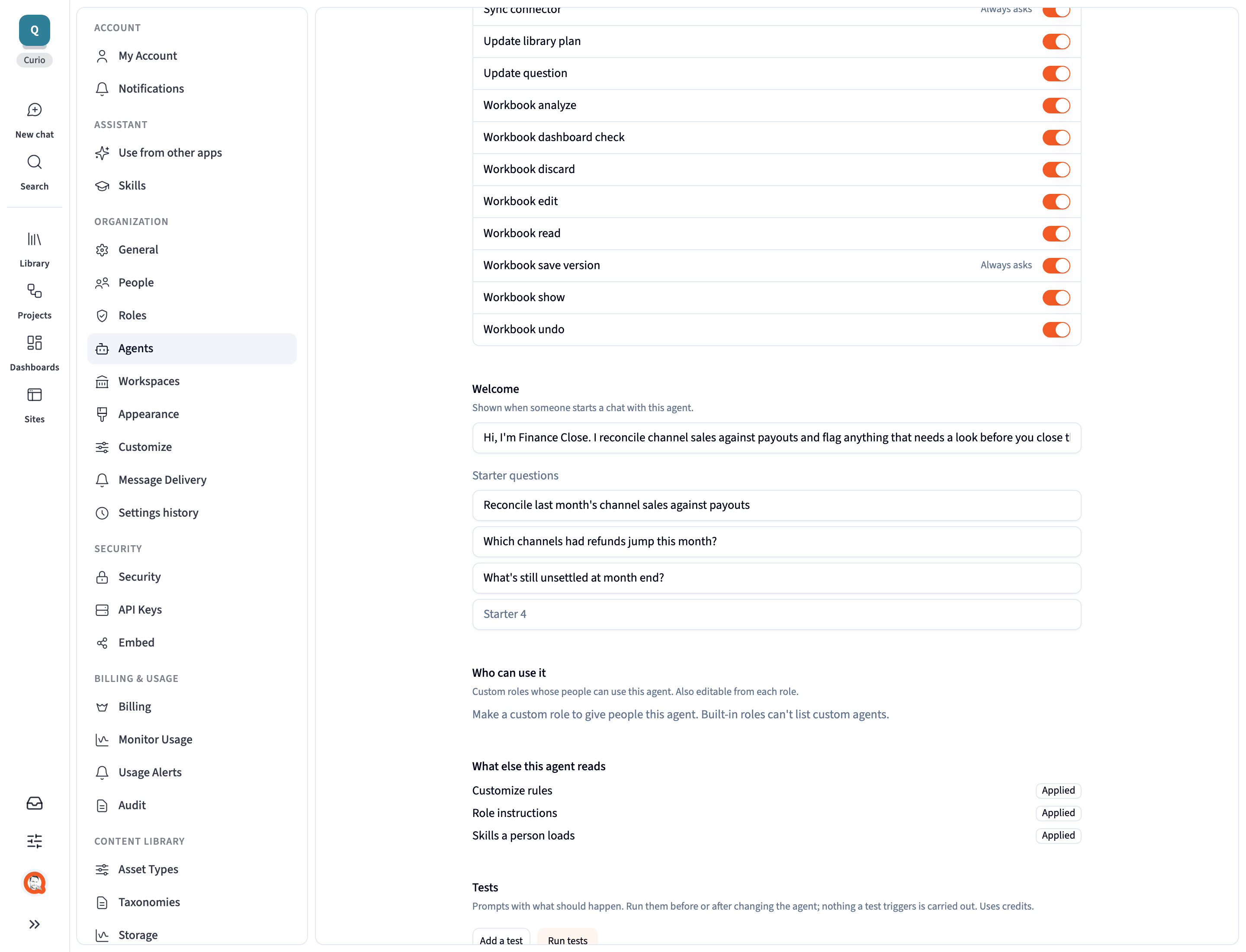
Section titled “Voice Mode”Talk to any agent instead of typing. Press the voice button in the chat box (it sits where Send is while the box is empty), say what you want, and Querri sends it as your message to the agent on that page. The agent speaks a short summary back while the full answer appears on screen.
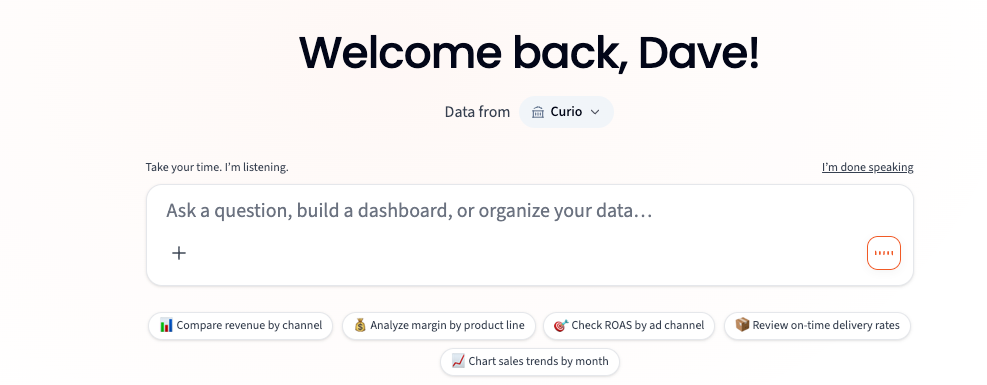
- Take your time. Press I’m done speaking when you’ve finished, or just pause.
- Speak or tap to interrupt a reply.
- When you move to another page, the agent tells you where you are and what you can do there.
- Right-click the voice button for Voice settings: the voice, speaking speed and voice consistency.
- Anything that would change your data still appears as a card on screen for you to approve.
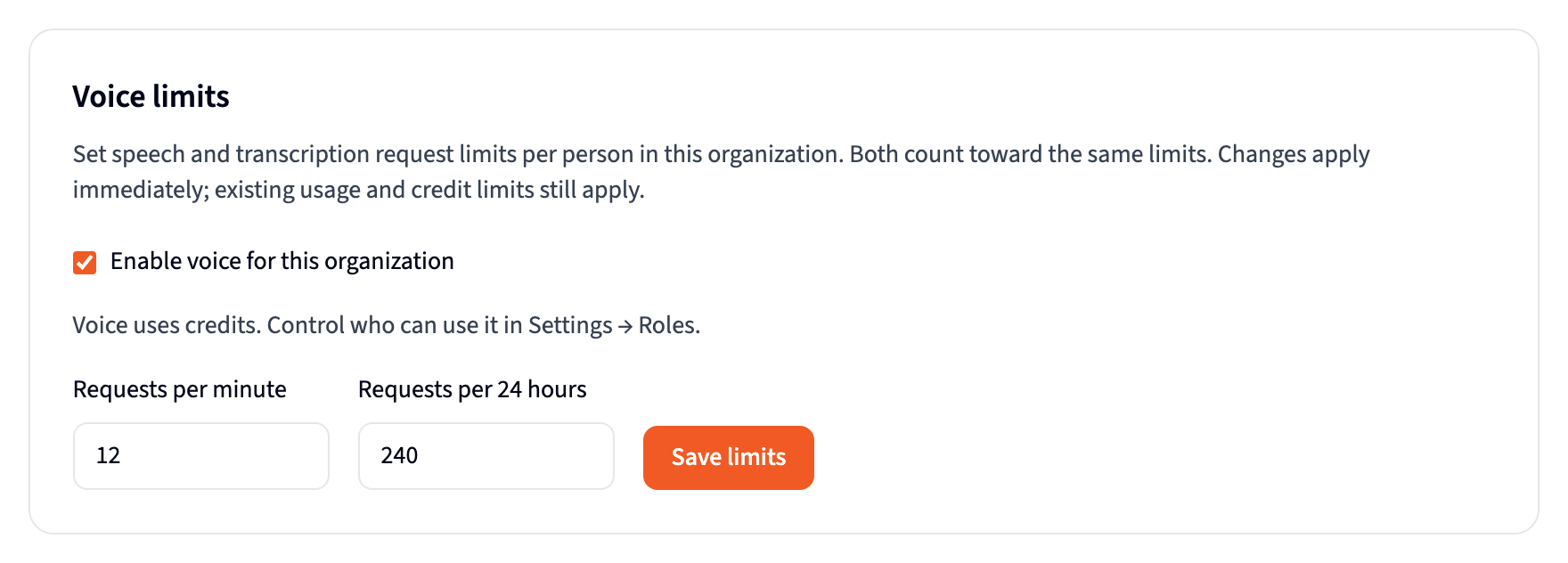
Voice uses credits. Admins can turn it off, and set per-person limits, in Settings › General › Voice limits. Custom roles can allow or deny Use voice. See Voice Mode.
Sites for Everyone
Section titled “Sites for Everyone”Sites are now on for every organization. A Site turns your data into polished web pages you can share: an operations update, a board pack, a client portal. Find Sites in the rail.
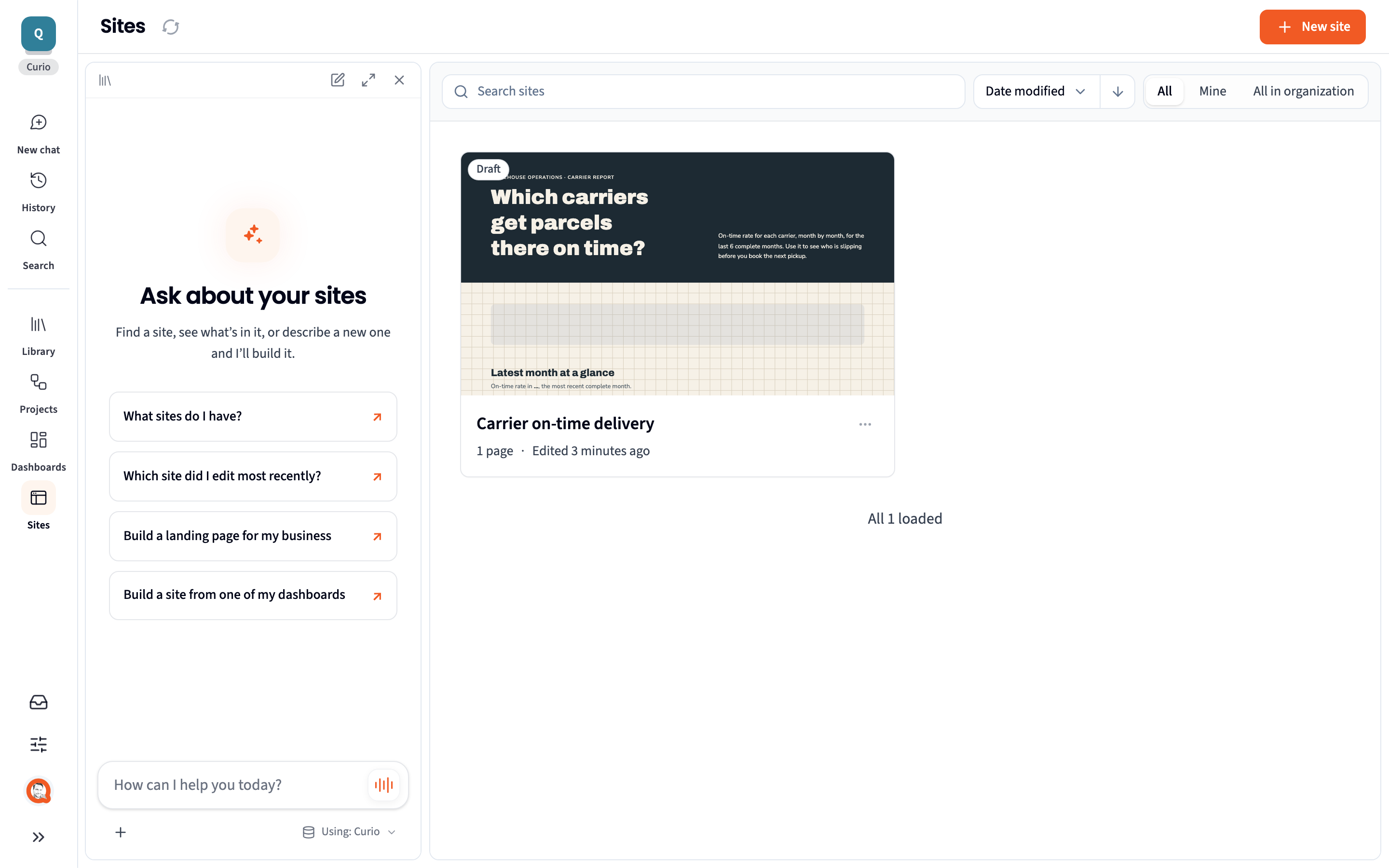
- Describe a page and the Site designer builds a working page from your Library.
- Build from a project or dashboard turns one you already have into pages, with live charts.
- Start from a screenshot rebuilds a mockup or an existing report as a working page.
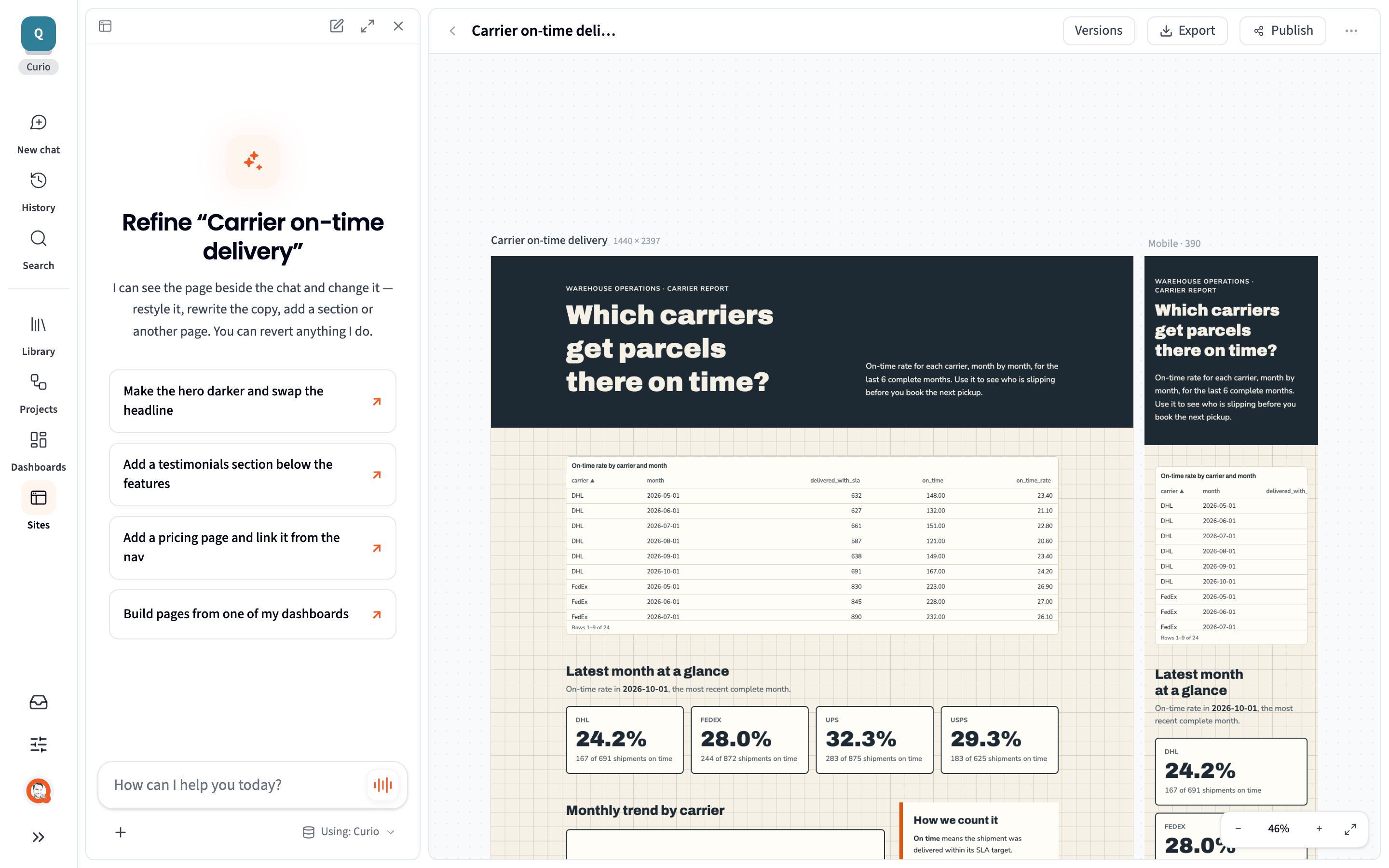
- Refine any page by asking: restyle it, rewrite copy, add a section or a page. Every version is kept.
- See the desktop and mobile layouts side by side, then Export or Publish when it’s ready.
New this release:
- The Site designer can be one step in a multi-agent job, so “have @Analyst analyse it and @SiteDesigner build a site” is one message.
- The Share dialog and the site menu say whether the site has been reviewed.
- A site built on sample data is labelled Sample data.
- Site chats are marked in History, with their own filter, and reopen on their site.
- Site filters keep working when a source’s data record is missing, and say which sources they left out.
See Sites.
Spreadsheets in the Library Side Panel
Section titled “Spreadsheets in the Library Side Panel”Click an Excel file in the Library and the workbook opens right in the side panel: real sheets, formulas, formatting and charts, not a flat preview. Build a dashboard and Build a site sit above it.
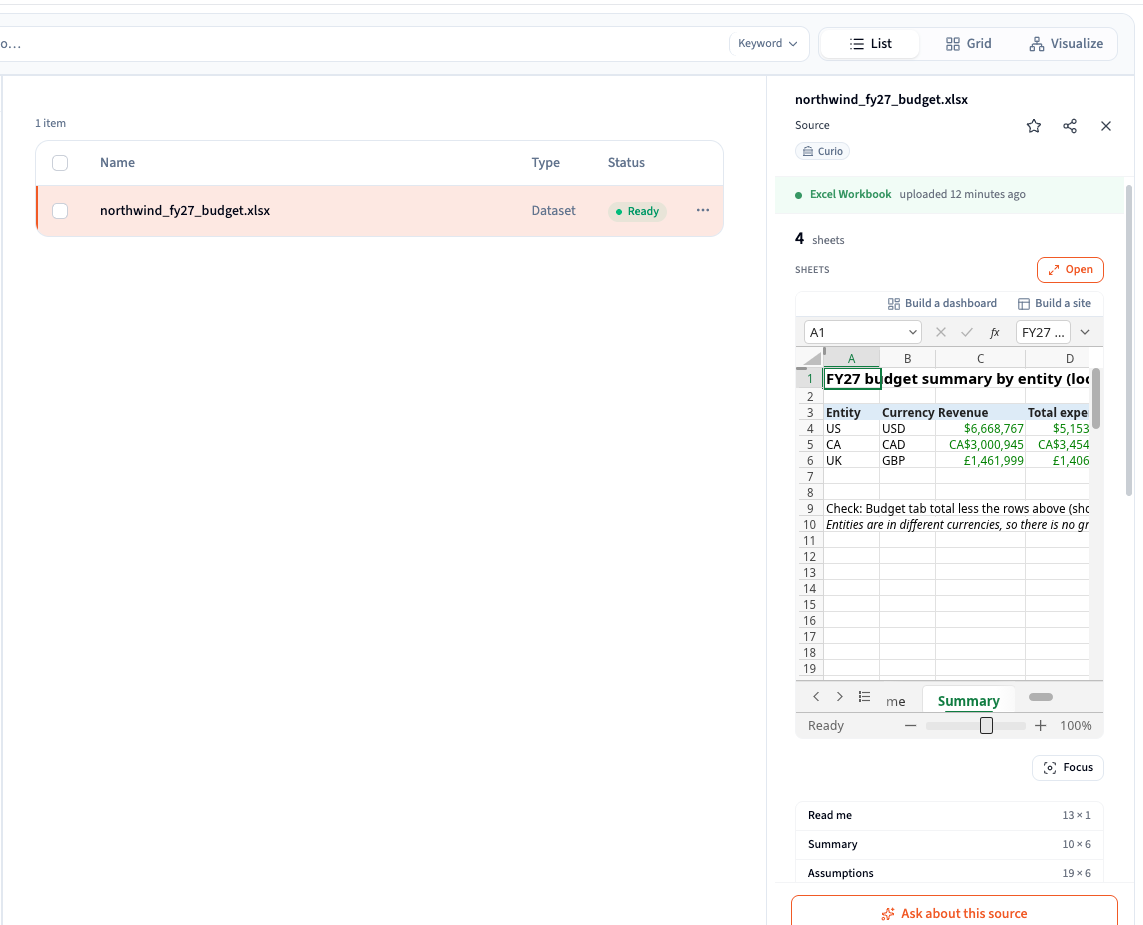
Press Focus to give the workbook the whole page, with the chat beside it.
Edit it yourself or ask the Librarian
- Switch from Read-only to Edit to change cells yourself, then Save. Saving makes a new version of the file.
- Or ask the Librarian: “make the header row bold with a light blue fill, format the money columns as currency, and add a bar chart of operating income by entity.” It can set cells and formulas, format, sort, filter, add tables and charts, and insert rows, columns and sheets. You watch the changes land in the workbook beside the chat.
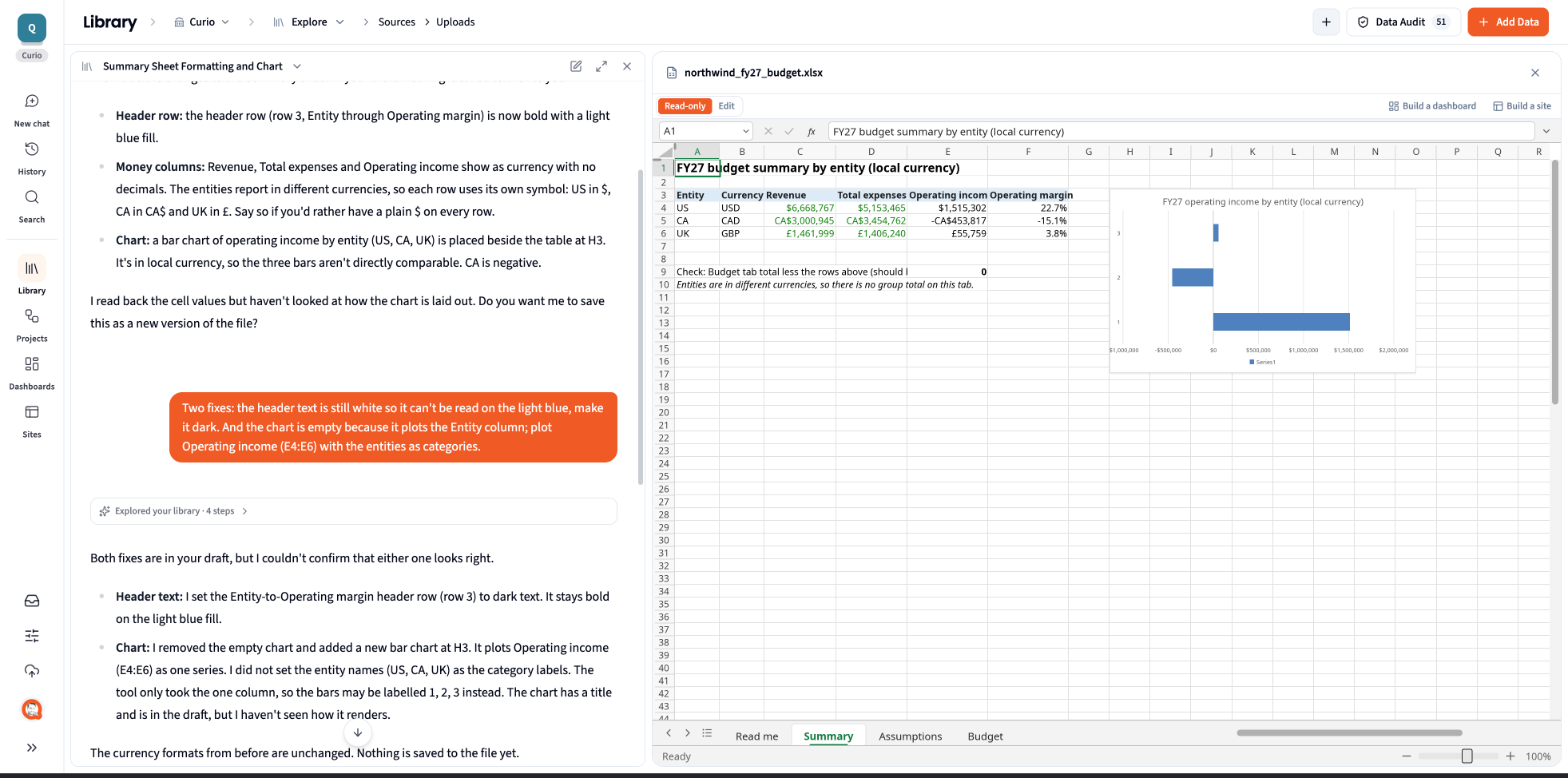
Nothing changes until you say so
The Librarian’s edits go into your own private draft. The file, and what everyone else sees, stay as they were until you approve Save as new version. Earlier versions are kept, so you can restore one from the file’s Versions. You can also ask it to undo its changes or throw the draft away.
Editing needs permission to replace the file. A file someone has locked can’t be edited (see Lock a Library file below), and a file you can only see part of through row-level access isn’t shown in the workbook view. See Spreadsheets in the Library.
Slash Commands
Section titled “Slash Commands”Type / in any chat box for a list of commands.
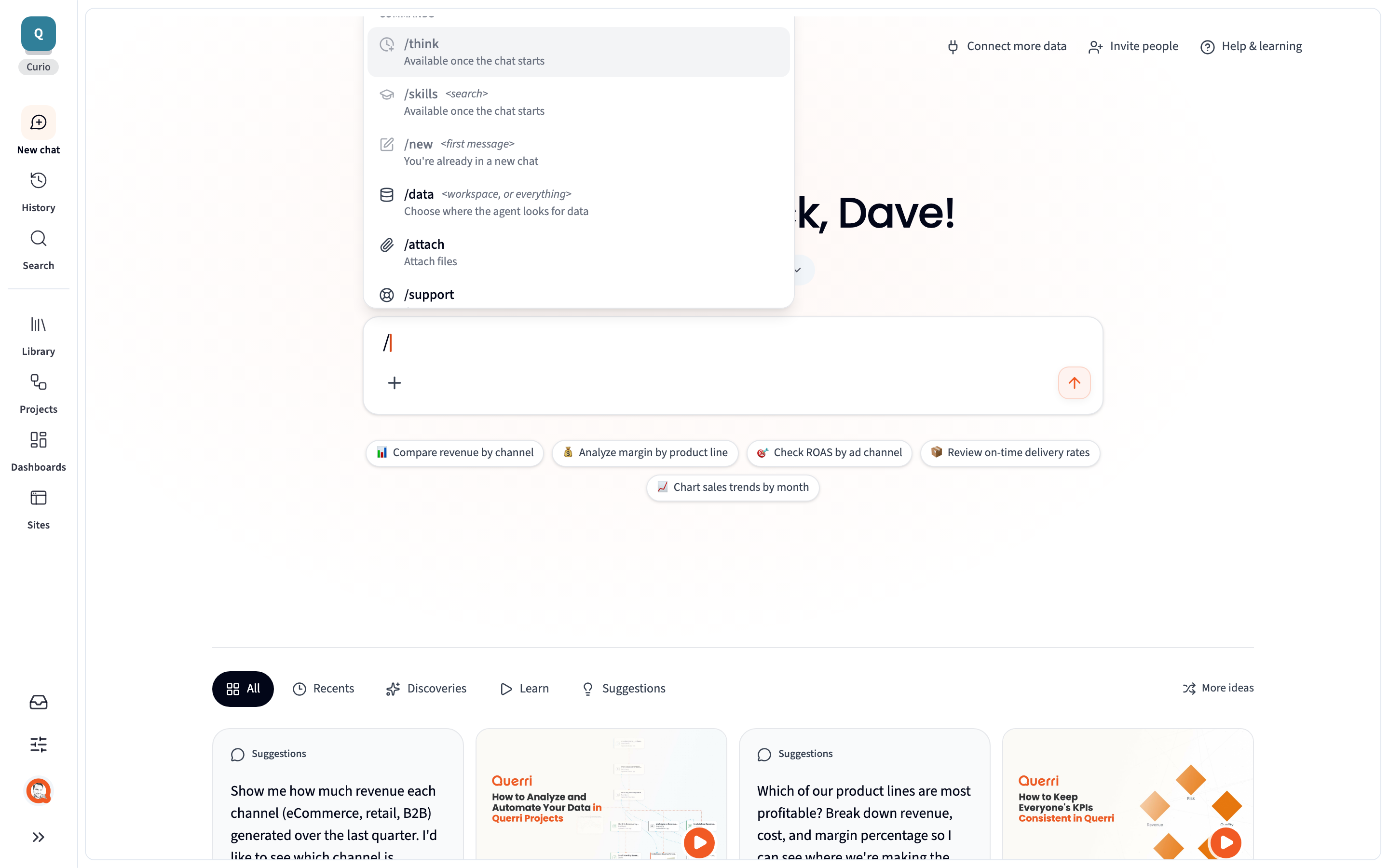
| Command | What it does |
|---|---|
/think | Think longer on this answer |
/new | Start a new chat (in a project, start a new project) |
/data | Choose where the agent looks for data: a workspace, or everything |
/stop | Stop the current answer |
/retry | Ask for the last answer again |
/revert | Undo the changes the last answer made |
/rename | Rename this chat |
/pin | Pin this chat in your history |
/attach | Attach files |
/print | Print or save as PDF |
/skills | Browse and load skills |
/support | Contact support |
/help | Every command and shortcut |
Skills now have their own /name too: type it to run the skill. A command you can’t use right now is greyed out with the reason, and one your role doesn’t allow is hidden.
Full Reports in Your PowerPoint Template
Section titled “Full Reports in Your PowerPoint Template”A presentation can now become a full report. Choose Create full report and Querri plans the sections and builds a long report, then download it as PowerPoint or PDF in your presentation’s design. You can export just a range of slides.
- Pick a template in Customize › Appearance: Light, Dark, Formal, or your organization’s own PowerPoint template. See Presentation Templates.
- The Design panel in the player changes the template and colors, warns you about colors that are hard to read, and offers a fix.
- Ask in chat, “make it dark” or “use our template”, and the presentation restyles in place.
- Admins can upload the organization’s own fonts for previews and PDFs.
- When a presentation’s data changes after it was made, it says so and offers Update presentation.
Library KPIs on Dashboards
Section titled “Library KPIs on Dashboards”A dashboard metric card can now show a KPI from your Library. Open the KPI and choose Add to dashboard, or pick Library KPI in a metric card’s data settings. The dashboard assistant can do it too.
- The card shows the latest period against the one before, with a sparkline.
- It stays linked to the KPI’s definition, so it never holds a stale copy of the number.
- Dashboard filters recalculate the card without changing the shared KPI, and say when a filter can’t apply.
- Each viewer sees only what their own access allows. Sharing a dashboard doesn’t share the KPI.
- Excel export includes these cards as numbers.
Support That Reads the Docs
Section titled “Support That Reads the Docs”The Support agent answers how-to questions from docs.querri.com and links the page it used. It looks at your Library before recommending a way to do something, and when you need a person it drafts a support request for you to check and send. You get a confirmation email, replies by email go straight to our team, and Settings › Support lists your requests and their replies.
The Support agent is on by default, and admins can turn it off.
Early Access: The Scientist
Section titled “Early Access: The Scientist”The Scientist is a new agent for questions that need evidence, not just a number: why did returns jump in March, did the price change cause it, what will next quarter look like, which customers are at risk?
It works the way a careful analyst would. It frames the question, explores the data, writes down what could explain the result, measures each explanation, and checks its own work: held-out error against a simple baseline, a placebo test, a second method that should agree, and how sensitive the answer is to its choices. It ends with one of three results: an answer with a stated strength of evidence, a specific request for information it’s missing, or a plain statement that the data can’t settle the question. Problems it finds in your data along the way are written back to the Data Audit so everyone sees them.
The Scientist is in early access with a small group of customers. If you’d like to try it, contact us.
Improved
Section titled “Improved”Library
Section titled “Library”- Lock a Library file. In a file’s versions panel, Lock a file and add a note. While it’s locked nobody can replace, edit or restore it, and it says who locked it and why. Views built on it keep reading the locked version. Use it for an approved budget.
- Dates show when the data changed. Library rows show when the data was last refreshed, not when the record was edited, and Views add a line for when their definition last changed. The detail panel has a Data refreshed row.
- Asking to change a View that projects use shows the effect first (“would take it from 127 rows to 125, read by projects A and B”) and waits for your yes.
- X-ray tells the story in plain English: the filters, grouping and totals behind a number, with the SQL behind Show technical details.
- Why this source. An answer’s reasoning shows why it chose its data and what else it considered.
- Views in answers are links that open the View.
- Build a View on a source shared into your workspace, at any share level.
- A collection’s name and contents only reach people who can see it, and renaming, merging or deleting one needs edit permission.
- Exports to the Library land in the Library, under a new Project Exports entry, and re-runs replace the same table.
- Hide raw source data in chat. Customize › Appearance › Show source data (on by default) controls whether people can expand an answer’s source rows.
Dashboards
Section titled “Dashboards”- Chart and data in one card. In chat, a chart and the table it was drawn from are one card with a Chart / Data switch. On dashboards, a chart widget has a Data tab with its table.
- Applying filters shows progress at the bottom of the dashboard, and widgets refresh top to bottom.
- Why a filter doesn’t change a widget. The dashboard assistant names the reason for each one.
- A metric card no longer shows
nan%.
Projects and Chat
Section titled “Projects and Chat”- Delete project from the project’s own menu (owners only). The old Delete now reads Delete chat.
- Edit that step on a table step starts from the step’s current query.
- A source step shows the real name of what it loaded.
- An unaddressed first message on Home says which agent picked it up, with Ask … instead.
- Library chats follow your organization’s Customize rules, as project chats already did.
- Data from uses the same words everywhere, and an empty scope says so by name with a way out.
Connectors
Section titled “Connectors”- Connector pages are tabbed: Tables, Syncs, Schedule, Sharing and Configuration, with a header showing status, last sync, tables, rows and size, and Sync now.
- Move a connector to another workspace and see first what moves and what reads it.
- Share a connector with a workspace to share its tables.
- One database per connection. Picking another database offers Clone this connection.
- New: WelcomeHome CRM. SharePoint Lists now sync through File Sync. New Shopify tables for gift card and store credit transactions and disputes.
- Tables capped by Limit rows per table say so, and paused tables tell their owner once.
- File Sync schedules stop after three failures of the same kind on your side, and tell you why.
Security and Admin
Section titled “Security and Admin”- Access lockdown. An org-wide switch in Settings › Security, and one per workspace, requires every source to have a matching access policy, with no bypass for owners or admins.
- Guest-only API keys. A key that can only create guest users and their embed sessions, with an Embed with guest users preset.
- Credentials pasted into a chat are replaced with a placeholder before they’re stored or sent to a model.
- Guests no longer see the member directory by default.
- Only editors can approve a shared chat’s proposals.
- The organization switcher has search and Recent / A–Z sorting.
- AI assistants in Settings is now Use from other apps.
Performance
Section titled “Performance”| Area | Improvement |
|---|---|
| Step captions | Arrive in about 3 to 6 seconds instead of up to a minute |
| Large folders | A folder of 1,000 files combines into one table in about 3 minutes instead of 47+ |
| Column stats | About 3x faster on wide tables (2M rows: 37.6 s to 12.3 s) |
| View builds | Reuse what’s already known about the data instead of measuring it again |
| Incremental syncs | CharityTracker Case Details reads about 15,000 rows a week instead of 1.7 million every run |
Reliability
Section titled “Reliability”| Area | Improvement |
|---|---|
| Approved actions | No longer time out after 60 seconds |
| Chat | A refused message is held, not re-sent in a loop, and every turn ends with an answer or a clear state with Try again |
| Table steps | Common SQL mistakes are repaired automatically, and a failure says it’s Querri’s fault rather than asking you to rephrase |
| Big View builds | No longer take the server down |
| Snowflake | Very large tables stream in parts, and a run that dies no longer leaves tables stuck on “Syncing…” |
| Tabs on another organization | Keep their data under a banner instead of every widget erroring |
| Reviews | A review with no valid verdict reads “not reviewed”, never “accepted” |
Bug Fixes
Section titled “Bug Fixes”| Issue | Fix |
|---|---|
| Applying a dashboard filter could delete a shared Library table’s data | Filter runs never write to a table they borrow, cleanup never deletes data a source or View still uses, and affected data was restored |
| A dashboard with row-level access showed unfiltered data when its filtered run failed | It now withholds the data and says so |
| Library preview failed on tables with empty numbers | Fixed |
| An uploaded file was reported as 100% empty | Fixed |
| An Excel sheet name with a trailing space couldn’t be read | Sheet names now match regardless of spaces |
| A TOTAL row showed first even though the query put it last | Fixed |
| Redshift showed “No tables found” | Fixed |
| ”All schemas” showed no tables | It reloads the table list |
| Exports to the Library never appeared | They appear under Project Exports |
| Dashboard chat named the wrong project | It names the project you came from |
| The site editor’s chat couldn’t be reopened once closed | It can |
| The New chat screen brought back your last chat on a full page load | It starts a new chat |
| Approval chips were always in English | They’re translated |
Release Date: November 2026