
File Sync
File Sync keeps folders from another system in step with your Library. Connect OneDrive, SharePoint, an SFTP server or Amazon S3, pick the folders you want, and Querri copies their files in and keeps them current. You decide what Querri does with each folder: turn every file into a table, stack them into one table, make them searchable for answers, or have AI pull the same fields out of every file.
Overview
Section titled “Overview”File Sync is for data that already lives as files somewhere else: the daily export a vendor drops on an SFTP server, the month-end workbooks in a SharePoint site, a folder of invoices in OneDrive, or the files a pipeline writes to an S3 bucket. Instead of downloading and uploading them by hand, you connect the folder once.
- New and changed files arrive on the next sync.
- A file deleted at the source leaves the Library too.
- Querri only reads. It never changes, moves or deletes your files in the other system.
Supported connectors
Section titled “Supported connectors”All four are in Library › Connectors under + Add a connector. Search “sync” to see them together.
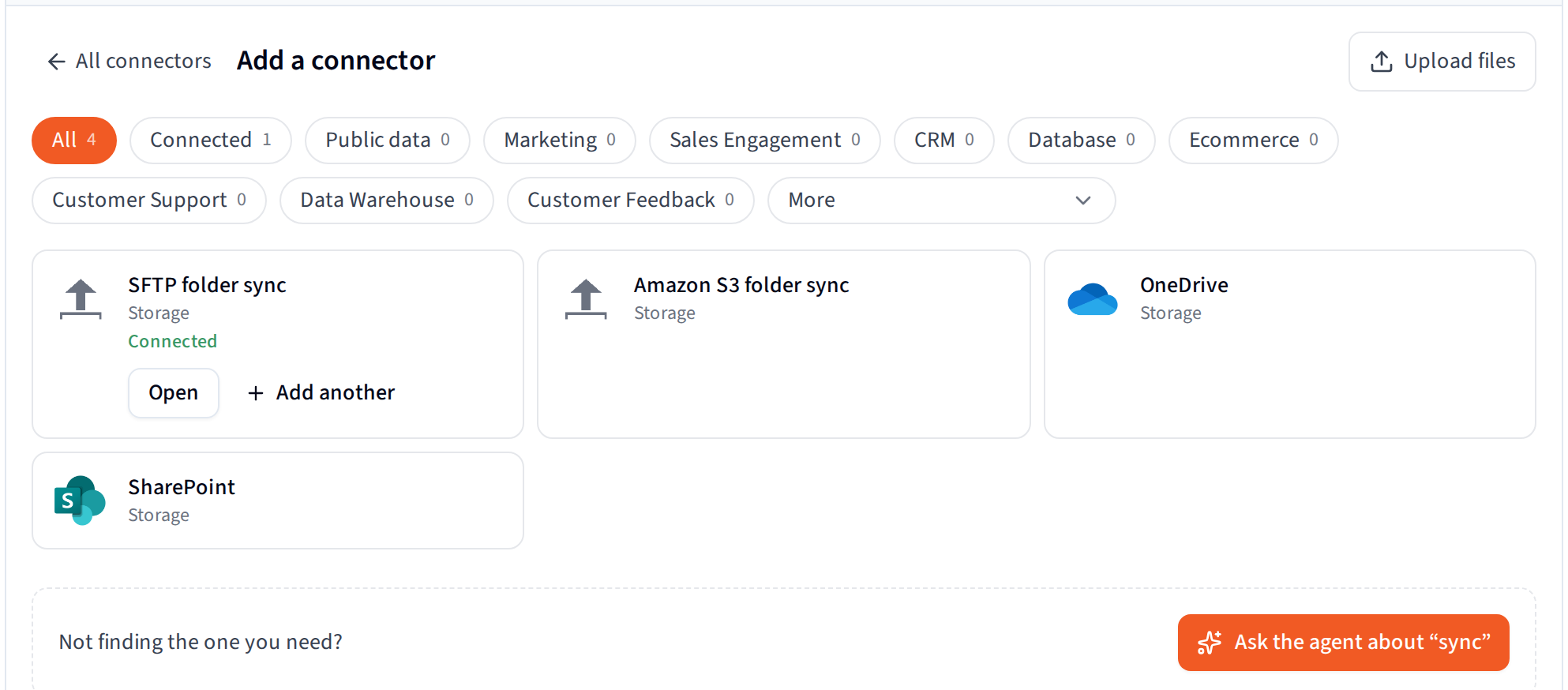
OneDrive and SharePoint share one Microsoft sign-in, so one connection can cover both.
How it works
Section titled “How it works”- Connect. Add the connector and sign in, or enter the server’s or bucket’s details.
- Choose where files go. Pick the workspace and the Library folder the synced folders land in.
- Pick folders. Browse the other system’s folders and click Add beside each one you want. Each one appears in the Library with the same name, marked Synced from another system.
- Choose a mode for each folder. The mode decides what its files become. See below.
- Sync. Setup shows roughly how much the folders you picked hold. Click Sync now to copy them in. After that, Querri syncs on a schedule, every hour unless you change it.
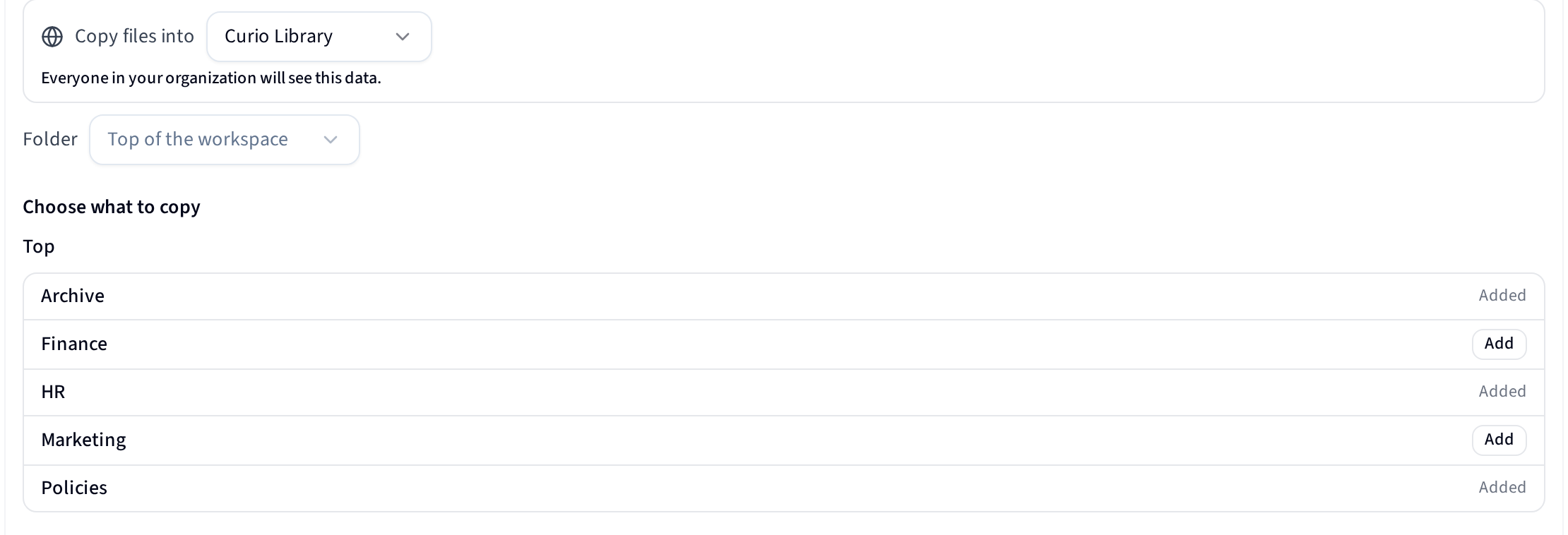
Only the person who connected a sync can change which folders it copies. For a SharePoint connection your IT admin approved for the whole organization, any organization admin can.
Folder modes
Section titled “Folder modes”Every synced folder has a mode. Subfolders use their parent’s mode unless you give them their own.
| Mode | What Querri does with the folder’s files | Good for |
|---|---|---|
| Raw | Each file becomes its own table. This is the default. | A handful of separate reports |
| Concatenate | Stacks every table in the folder into one, with columns saying which file each row came from and when that file changed. | Daily or monthly exports with the same columns |
| RAG only | Makes the files searchable for answers without turning them into tables. | Policies, contracts, notes, manuals |
| Extract fields | Reads each file with AI and builds one table: a row per file, with the columns you describe. | Invoices, receipts, statements, forms |
| Ignore | Leaves the files out. Nothing is copied. | Archives and folders you don’t need |
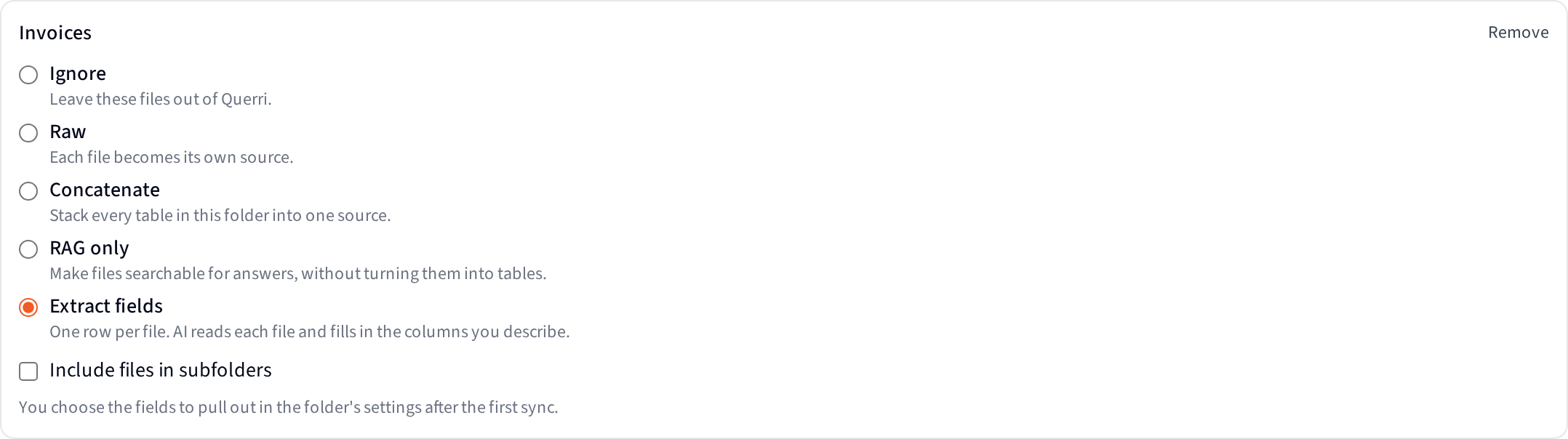
Modes aren’t only for synced folders. Any Library folder can have one, including folders you upload into. See Folder Modes for each mode in detail, how Extract fields works and what it costs, and what happens when you change a folder’s mode.
Sync schedule
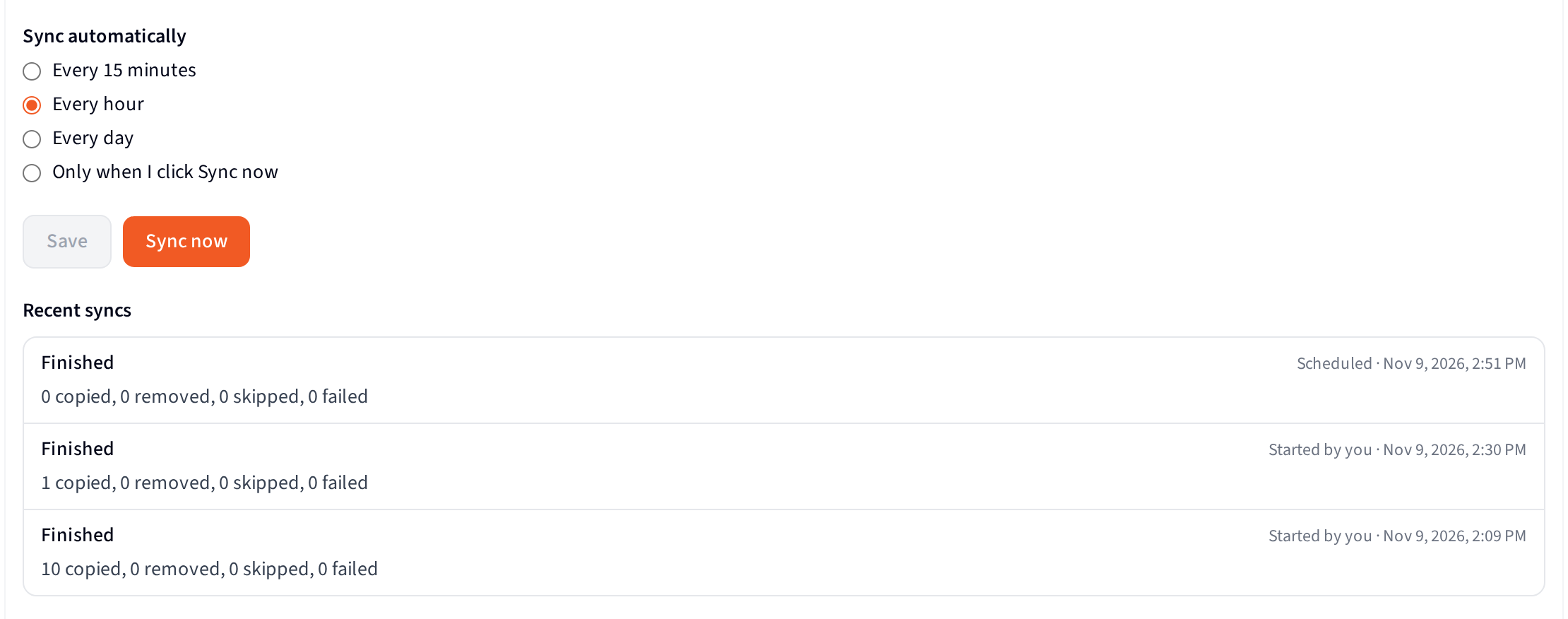
Section titled “Sync schedule”New connections sync every hour. You can choose another schedule when you set up, or later on the connection’s Schedule tab:
- Every 15 minutes
- Every hour
- Every day
- Only when I click Sync now
Click Sync now at any time to sync right away. While a sync runs, it shows how far it has got: first “Reading the list of files…”, then “Copying files… X of Y”.
Recent syncs lists each run with how many files it copied, removed, skipped or couldn’t read. The Activity list records who added or removed a folder and who changed a folder’s mode.
A file Querri couldn’t read is tried again on the next sync, up to three times. After that it waits until the file changes at the source.
Synced folders are read-only
Section titled “Synced folders are read-only”A synced folder belongs to the other system, so it mirrors whatever is there. In the Library you can’t rename, move or delete synced folders and files, or upload into a synced folder. To change them, change them at the source and let the next sync bring the change across.
You can still change each synced folder’s settings, including its mode, and add tags and collections to its files.
Querri keeps the current version of each synced file and its three previous versions.
Credits and storage
Section titled “Credits and storage”- Syncing is free. So are the Raw, Concatenate, RAG only and Ignore modes.
- Extract fields costs credits, because AI reads every file. See What Extract fields costs.
- Synced files count toward your storage, the same as uploaded files. If a sync reaches your storage limit, it stops copying, the run shows as capped, and your Inbox gets a notice. The next sync picks up where it stopped.
- Files larger than the upload limit are skipped, and the folder shows how many.
When something needs your attention
Section titled “When something needs your attention”File Sync tells you in the Inbox when:
- The connection needs reconnecting. The password, key or sign-in was refused, or every file was refused. Nothing already synced is removed.
- Extract is waiting for credits. It picks up again when credits are available.
- The storage limit stopped a sync.
- New restricted folders were set to Ignore. This applies to OneDrive and SharePoint. See Restricted folders.
Related
Section titled “Related”- Folder Modes
- OneDrive and SharePoint
- SFTP
- Amazon S3
- Google Drive, which adds the individual files you pick instead of syncing folders
- Sync Scheduling