
Folder Modes
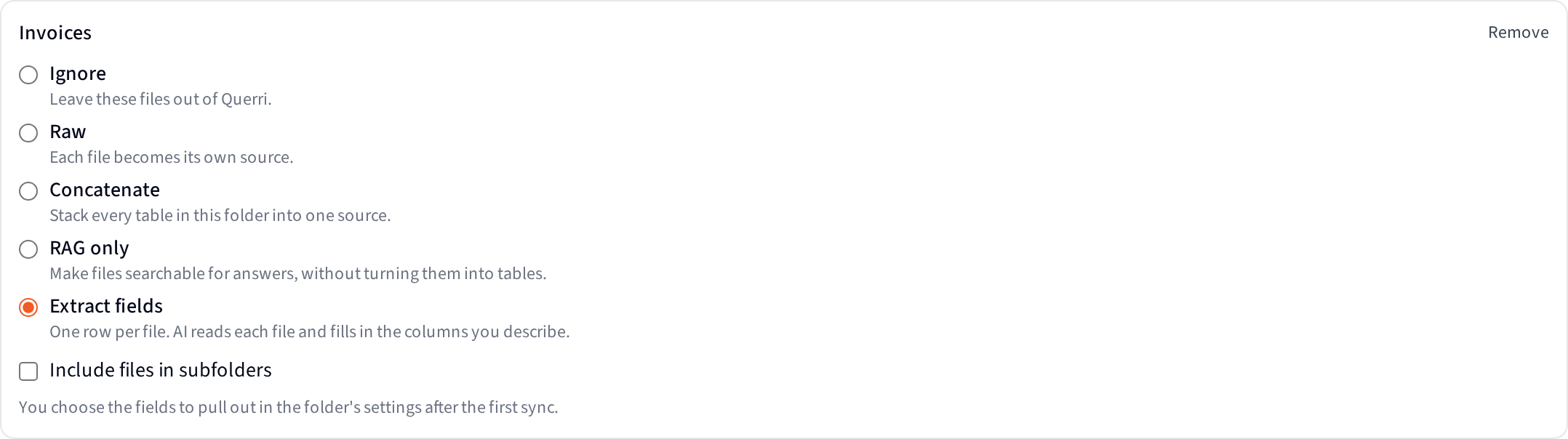
A folder’s mode decides what its files become in Querri: separate tables, one stacked table, searchable documents, one table of fields pulled out by AI, or nothing at all.
Overview
Section titled “Overview”Every folder in the Library can have a mode. That covers folders synced by File Sync and ordinary folders you upload files into.
| Mode | What it makes | Costs credits |
|---|---|---|
| Raw | One table per file | No |
| Concatenate | One table for the whole folder, with every file’s rows stacked | No |
| RAG only | Searchable documents, no tables | No |
| Extract fields | One table for the whole folder, with a row per file and the columns you describe | Yes |
| Ignore | Nothing | No |
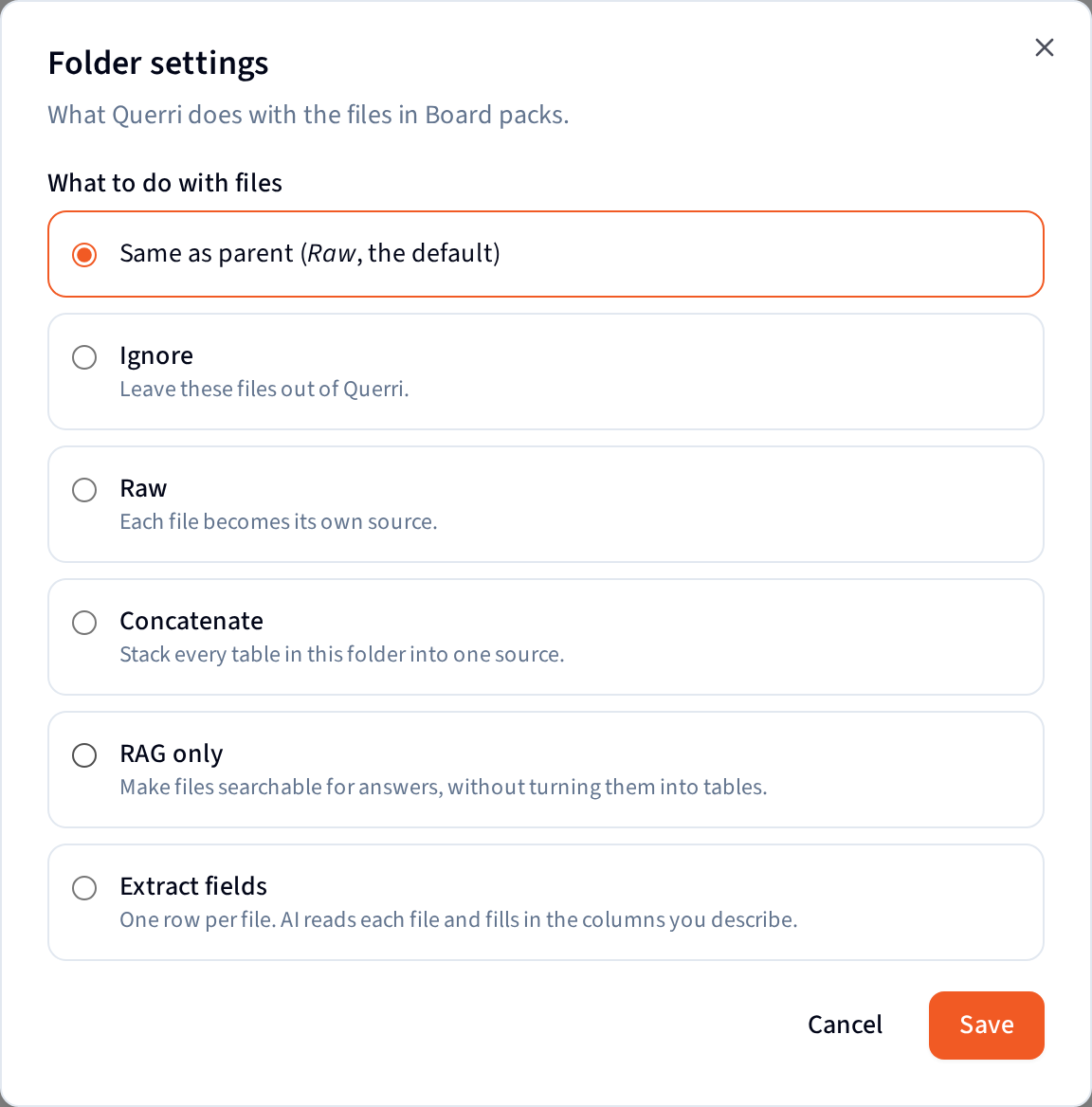
Raw is the default. A folder with no mode of its own uses its parent’s. In folder settings this shows as Same as parent. The top folder of a sync never takes its mode from the Library folder it sits in, so a sync’s folders start as Raw unless you pick another mode at setup.
Choosing a mode
Section titled “Choosing a mode”For a synced folder: pick the mode beside each folder when you add it during File Sync setup, or later from the folder’s settings.
For any Library folder: open the folder’s menu and choose Folder settings. The mode applies to the files already in the folder and to every file you upload there later.
Each file becomes its own table in the Library, the same as uploading it. Use Raw when the files are different reports that you want to ask about separately.
Querri remembers how it cleaned up a CSV’s layout, such as skipped header rows and column types. Later files with the same header in the same folder are read the same way, which keeps a recurring export consistent.
Concatenate
Section titled “Concatenate”Concatenate stacks every table in the folder into a single table named after the folder. Use it when a system drops a new file with the same columns every day, week or month: a year of daily exports becomes one table you can ask about across the whole year.
- Two columns are added to every row:
_source_file, the file the row came from, and_source_modified, when that file last changed. - Columns are matched by name. Columns whose names differ only in capitals are merged into one. A column that only some files have is kept, and it’s empty for the rows from files without it.
- Possible renames and type changes are flagged. If a column looks renamed, or changes from numbers to text, Querri adds a note to the Data Audit and sends one notice, so you can decide how to combine them.
- Only changed files are read again. A new, changed or deleted file updates its own rows. The rest of the folder isn’t re-read.
- Include subfolders stacks the tables in the folder’s subfolders as well.
- Sheet names the worksheet to read from Excel workbooks, when the one you want isn’t the first.
Files that aren’t tables, such as PDFs, stay in the folder as files. The folder lists them, along with any files it couldn’t read, so you can see what was left out.
RAG only
Section titled “RAG only”RAG only makes the folder’s files searchable for answers without turning them into tables. When someone asks a question, the Librarian can find the relevant passages and cite the file it used.
Use it for documents you want Querri to read, not count: policies, contracts, meeting notes, manuals and handbooks.
Extract fields
Section titled “Extract fields”Extract fields reads each file with AI and builds one table for the folder, with a row per file. You describe the columns. Use it for documents that each hold the same few facts, such as invoices, receipts, purchase orders, statements or forms.
Describing the fields
Section titled “Describing the fields”In the folder’s settings, add a field for each column you want. Each field has:
- A name, which becomes the column name.
- A type: text, number, date, date and time, true/false, or one of a list.
- Instructions: a sentence telling the AI what the field is and where to find it, such as “The invoice total including tax, in the invoice’s own currency.”
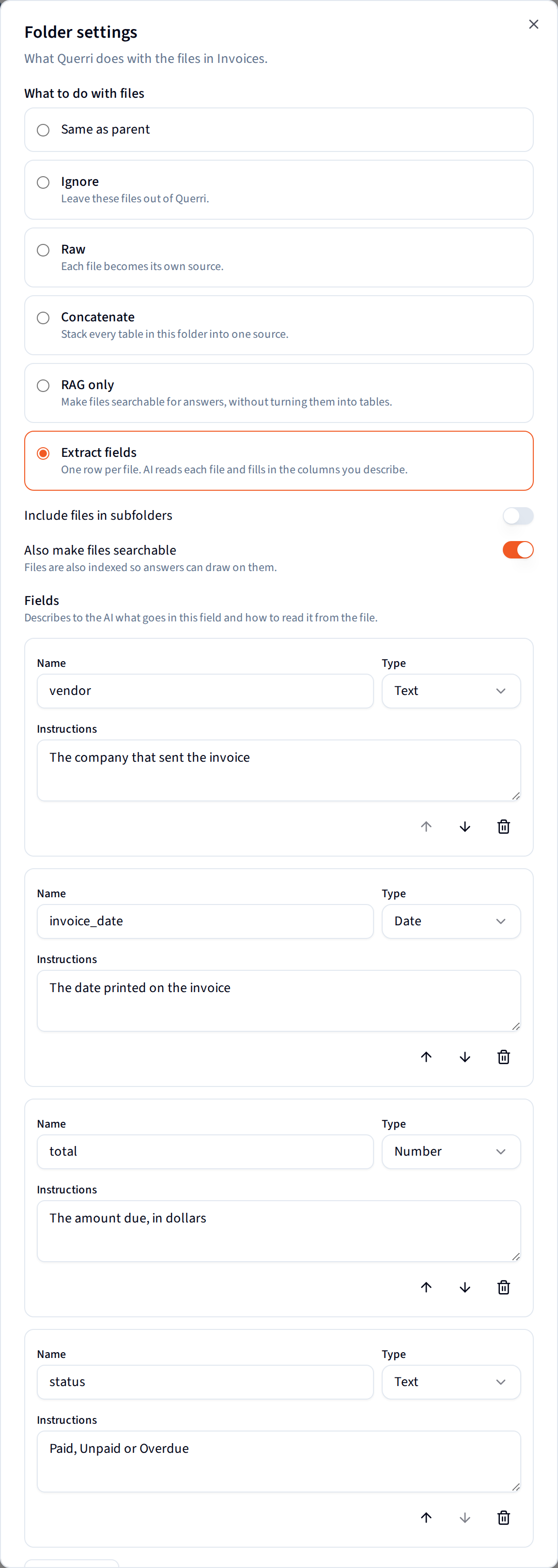
Values are converted to the field’s type, so “3 February 2025” becomes a date and “EUR 2.400,00” becomes a number.
The result table
Section titled “The result table”The table has a row per file. Before your fields, it has columns Querri fills in without AI: File name, Path, Link, File type, Size, Author, Created and Modified.

Querri reads every file once, then only the files that are new or changed. Change the fields and it reads the whole folder again. If an answer looks wrong or empty, Querri adds a note to the Data Audit.
Include subfolders reads the files in the folder’s subfolders as well.
What Extract fields costs
Section titled “What Extract fields costs”Extract fields costs 0.1 credit for every 10 pages a file has, or part of 10. A page is a scanned page, or about 3,000 characters of text. A one-page receipt costs 0.1 credit, and a 15-page contract costs 0.2.
- Querri reads up to the first 24 pages of each file. A file that was cut short gets a Data Audit note saying how many pages were read.
- A file is charged only when it’s read. An unchanged file isn’t read, or charged, again.
- Before a change re-reads a folder, Querri says how many files it will read and roughly what it will cost.
- Extract runs as background work. When your background credits run out, it pauses, the folder shows Waiting for credits, and your Inbox gets a notice. It picks up again when credits are available, and keeps the rows it already has.
See Monitor Usage to track credits.
Ignore
Section titled “Ignore”Ignore leaves the folder’s files out of Querri. For a synced folder, nothing is copied, and the folder shows how many files it holds at the source so you know what you’re skipping. For an ordinary folder, its files stay in the Library but aren’t processed into tables or made searchable.
Turning Ignore off later reads the files in.
Changing a folder’s mode
Section titled “Changing a folder’s mode”Changing a mode processes the files already in the folder again. Querri tells you how many files that is first, and for Extract fields roughly what it will cost.
If the change would remove a table that a dashboard or project still reads, Querri lists what would be affected and asks before going ahead. The same check applies when you:
- move a file into a folder with a different mode, or
- delete a folder.
The new mode applies to the moved file, or the deleted folder’s files are removed, only after you confirm.