
Views
Esta página aún no está disponible en español. Se muestra la versión en inglés.
Revenue arrives from several systems. The same customer shows up twice with slightly different details. Some rows are missing the one value you need. If every question starts again from the raw tables, every answer redoes that cleanup, and maybe does it a little differently each time. A view does the work once and keeps the result.
Leer la transcripción
What a view is
Views are where Querri turns your raw data into clean tables you can build on: joined, cleaned, and calculated ahead of time, ready to answer your team’s questions. Take your customers. Some buy online, some in your store… and the same person can show up in both systems, with nothing linking the two. A view pulls all of that together, matches people up, and gives you one row per customer. Then it works out the numbers for each customer. Say Maria placed three orders: forty, sixty-five, and fifty-five dollars. Her first purchase date is the earliest one. Her lifetime value is everything she’s spent so far: a hundred and sixty dollars. Her average order value is that total, divided by three: about fifty-three. A view does that for every customer, ahead of time, and keeps it as a real table… while your original data stays as it was.
Find your views
Open one from Views in your Library to see whether it’s healthy, its columns, what it’s built from, the question it answers… and how it’s computed. On the Library’s map, it sits under the question it answers, connected to everything it’s built from.
Build a view by asking
The easiest way to make a view in Querri is to ask the Librarian. It checks what you already have first. Here, a customer view already existed… so it added the missing columns to that one instead of making a duplicate, and everything using it keeps working. But that view only counted online orders. Ask it to bring in your in-store customers too… and before it decides how to combine them, it asks you.
Check what it assumed
Then it builds it, and tells you what it had to assume, with the numbers. This is the part to read. Here, far more shoppers matched than it expected… and in-store sales with no loyalty ID can’t be tied to anyone, so they’re left out. That’s the kind of gap you want to know about before you trust the totals. Hit Open to see the whole table, full screen. The side panel shows the judgement calls it made, like which orders count as revenue… what it’s built from, a chat to refine it, and its SQL.
How views stay current
And you don’t have to rebuild it yourself. When a connected source syncs, the views built on it rebuild, in order… and the metrics measured from them update too. Views can even be built on other views. This one sits on top of the matched customer list… so match your customers once, and every view built on that list starts clean.
Views answer your questions
Every view is linked to the question it answers. So when someone asks, Querri looks for a view that fits first… and shows you exactly which view the answer came from. Start with a question your team asks every week. Ask the Librarian to build a view for it… read what it assumed… and give your whole team a clean table to build on.
The idea
Section titled “The idea”The Views tab defines it in two sentences: “A view is a reusable, saved query. It joins, cleans and pre-calculates your raw data so it can answer a business question directly.”
A view is a real table, stored along with its results. It’s the workhorse of the Library. Views are built from your sources, and sometimes from other views. They answer your questions, and a KPI can be measured from one.
Views keep themselves current. After a connector syncs, the views built on it rebuild, and so do views built on those views. The view’s panel says it plainly: “rebuilds after source syncs”. Two kinds are skipped: frozen snapshot views, and views whose inputs failed in that sync.
When you ask the Librarian something, Querri first looks for a saved view that fits. It uses a view only when that view clearly owns the question, neither narrower nor wider than what you asked. Otherwise it answers from your sources, and it falls back to them as well if a view it picked comes back empty. See How Querri answers a question.
The Librarian builds views. You can ask it for one directly, or press + Build a view to answer this on a question, which opens chat with the request written out for you. When a chat produces a draft table, Save this table as a view keeps it, once you approve. Accepting a Question worth a view or View to build card in the Inbox adds one too.
Connecting new data doesn’t build views on its own. It links the views you already have, marks the questions the new data can answer, and once the data settles, leaves View to build cards in your Inbox for you to decide on.
An example
Section titled “An example”Curio’s on-time delivery rate shows why a view is worth having. The view On-time delivery rate by carrier is built from two tables, one of shipments and one of SLA targets. It has columns for the carrier, the ship month, delivered shipments, on-time shipments and the on-time rate, which is “the share of delivered shipments that arrived within the promised transit days”.
Look at the denominator. The obvious formula is on-time shipments divided by all shipments. This view divides by delivered shipments that matched an SLA target, and a scope fact attached to the view says so. Neither version is wrong. But what happens when three people each work it out from the raw tables? You can end up with three rates. The view writes one version down, and the questions it owns are answered from it.
Before you rely on a view, open it and spot-check it. How it’s computed shows the SQL. The Columns list shows, for every column, how much of it is filled (the figure turns red below 90%), how many distinct values it has (uniq), and a small chart of how the values are spread (dist). It’s the quickest way to answer “did this come in right?”
Where it lives in Querri
Section titled “Where it lives in Querri”Views are listed on the Views tab in the Library. A collection page lists each view under the question it answers, and a view that’s also a file in the workspace shows up on the Files tab with the type View.
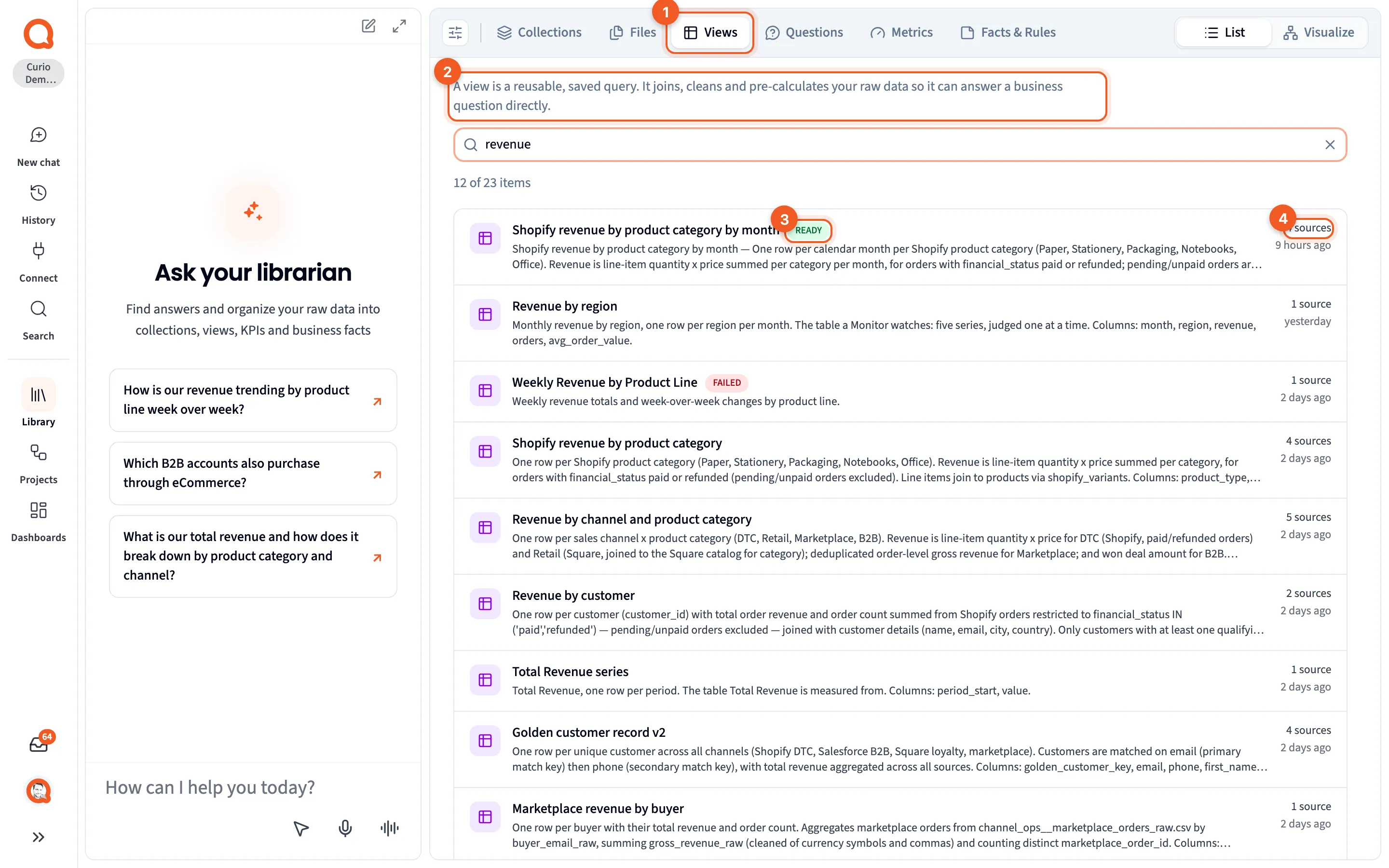
- Views: the tab.
- The description of what a view is.
- READY: the view is built and ready to use. FAILED means the build didn’t work.
- Source count: how many sources the view is built from.
Open a view to see its status, its Columns, its Connections (starting with Built from, the tables it reads) and How it’s computed. Table and column panels goes through the panel in detail.
On the Visualize map, a view is a blue row inside its collection, indented under the question it answers. A view that answers nothing sits at the bottom of the box, and a view outside any collection is a card of its own. An amber dot on a view means it’s still building, and a red one means the build failed.
Next steps
Section titled “Next steps”- How Querri answers a question explains when a view is used.
- One number, one definition puts views, KPIs and facts to work together.
- Facts & Rules covers the rules you can attach to a view.