
My account
Esta página aún no está disponible en español. Se muestra la versión en inglés.
Account Settings is your own page in Settings: who you are, which organization you’re in, your plan, and a few preferences. It’s listed in the rail as My Account, and it’s where Settings opens.
Who can see this: everyone. Only admins can change Your Role and Your Industry.
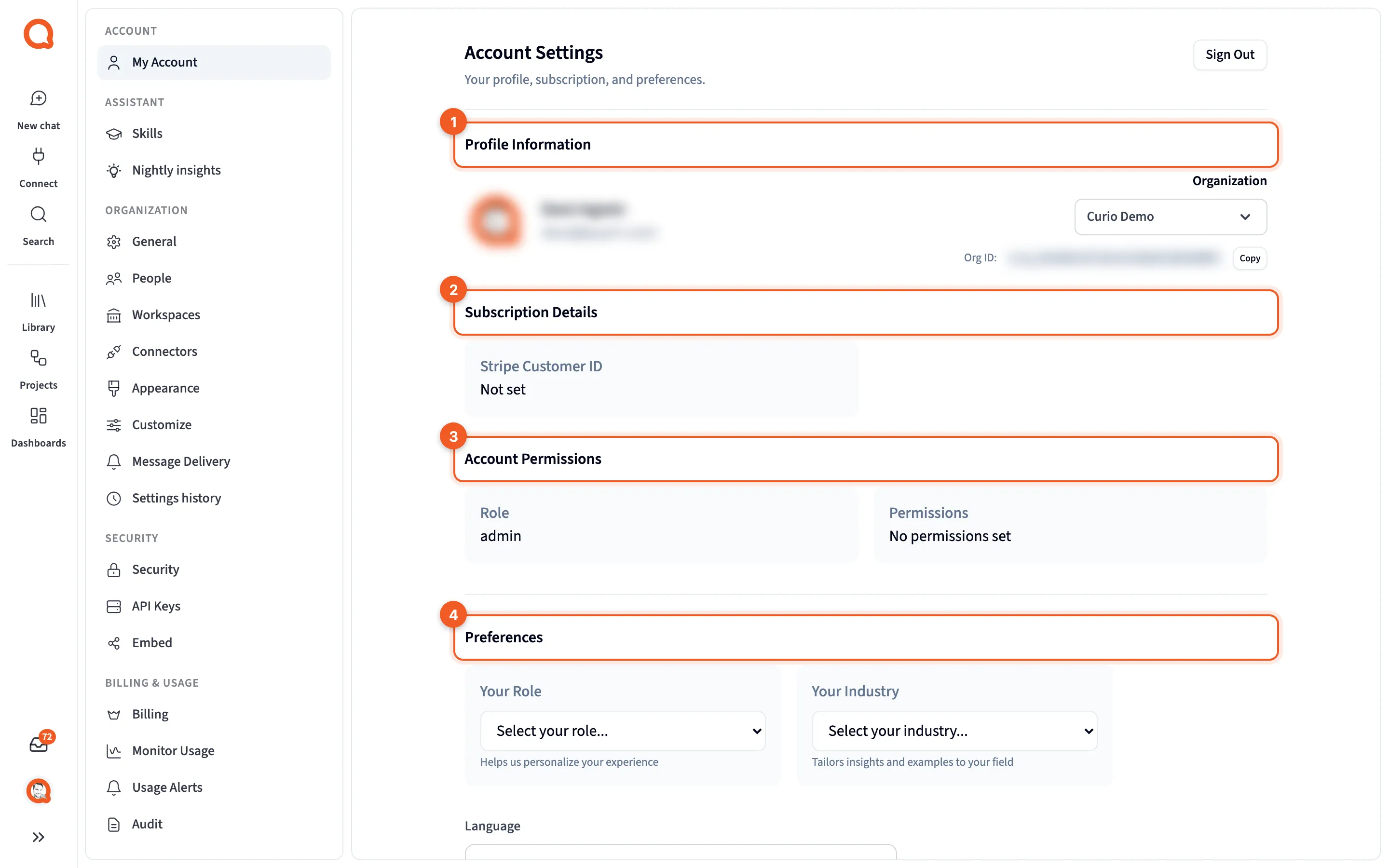
- Profile Information: your name, email and organization.
- Subscription Details: your plan and billing period.
- Account Permissions: the role your account signed in with. It isn’t your organization role.
- Preferences: your role, language and a few settings for this device.
Sign Out, at the top right, ends your session.
Alerts
Section titled “Alerts”A banner appears at the top only when something needs attention:
- Billing Issue Detected, with Update Payment Method, when your subscription is past due or unpaid.
- Trial Ending Soon, with Upgrade Plan, when your trial ends within seven days.
Both buttons take you to Billing.
Profile Information
Section titled “Profile Information”Your avatar (or your initial), name and email. On the right, Organization shows the organization you’re working in, with a switcher that has a Search organizations… box. Under it is your Org ID, with Copy.
Subscription Details
Section titled “Subscription Details”If you have a subscription, the card lists Plan (Free when there’s no plan to show), Status, Trial Expiration, Billing (the amount per billing period) and Current Period Ends. A Subscription History table underneath gives each period’s Status, Created, Current Period and Plan.
Without a subscription, the card shows only your Stripe Customer ID, which reads Not set if you don’t have one. Entitlements are listed under it only when your account has some. To change plans, go to Billing.
Account Permissions
Section titled “Account Permissions”Role reads Paid User on a paid subscription. Otherwise it shows the role your account signed in with, such as admin, which may not use the same names as the organization roles on People. Permissions reads No permissions set when there aren’t any.
An admin changes someone’s organization role on People, not here.
Preferences
Section titled “Preferences”- Your Role: what you picked for this during setup. “Helps us personalize your experience.” It isn’t a permission and doesn’t change what anyone can do. Admins choose from a list, and the choice saves as soon as they pick it. Everyone else sees it read-only, marked “Managed by your organization administrator”.
- Your Industry: admins only. “Tailors insights and examples to your field.” It also saves the moment you pick.
- Language: the language Querri’s screens use.
- Push Notifications, which says whether your browser allows them and offers How to Enable when it doesn’t, plus the app’s install status and Clear Cache under Troubleshooting.
- Guided tips, if shown: Show tips again brings back the tips you’ve already seen. It only appears for accounts that went through onboarding.
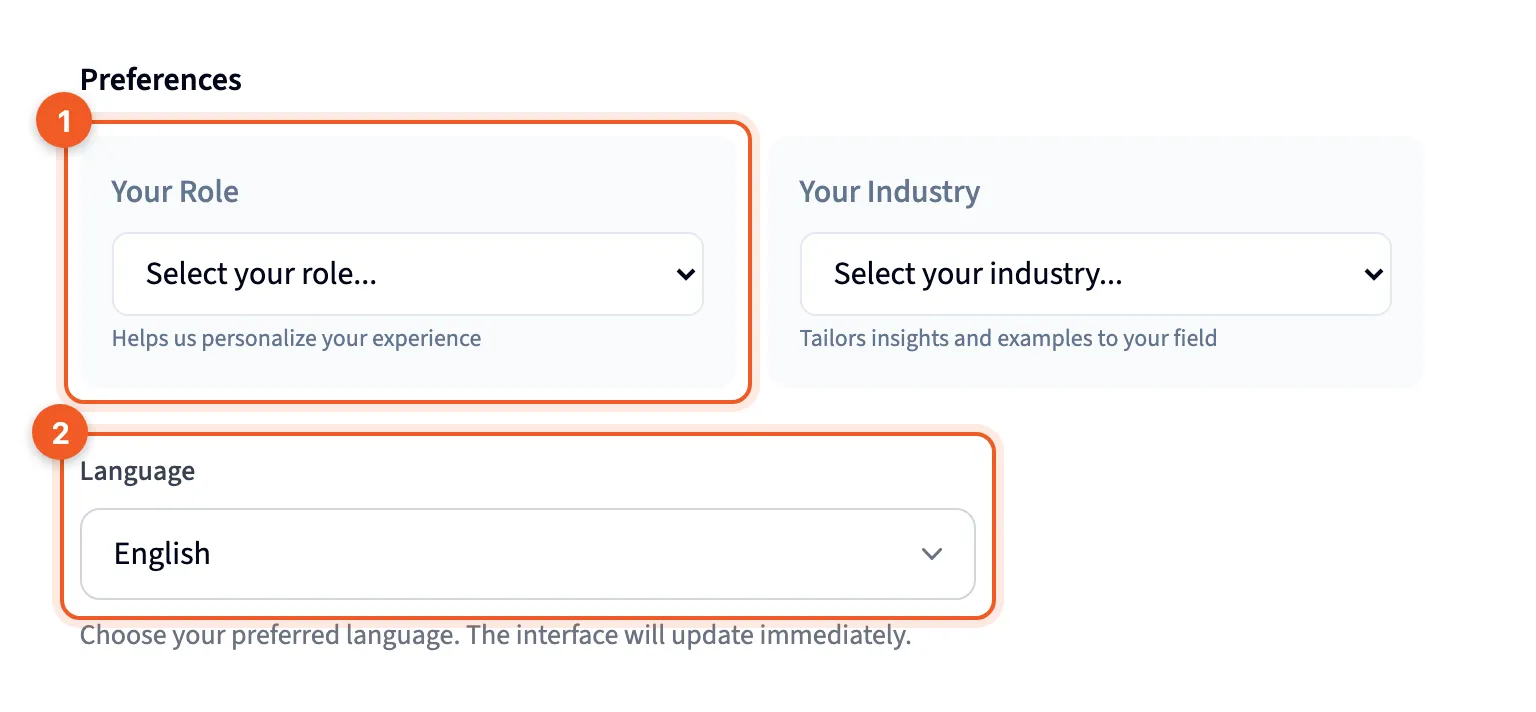
- Your Role: an answer from setup, not a permission.
- Language: the language for Querri’s screens.
Need Help?
Section titled “Need Help?”- Customer Support: Contact Support opens Gmail in a new browser tab, with a new message addressed to support. You won’t see it if no support address is set up.
- Documentation: Visit Help Center opens these docs, at docs.querri.com.
The app’s version number sits at the very bottom of the page.
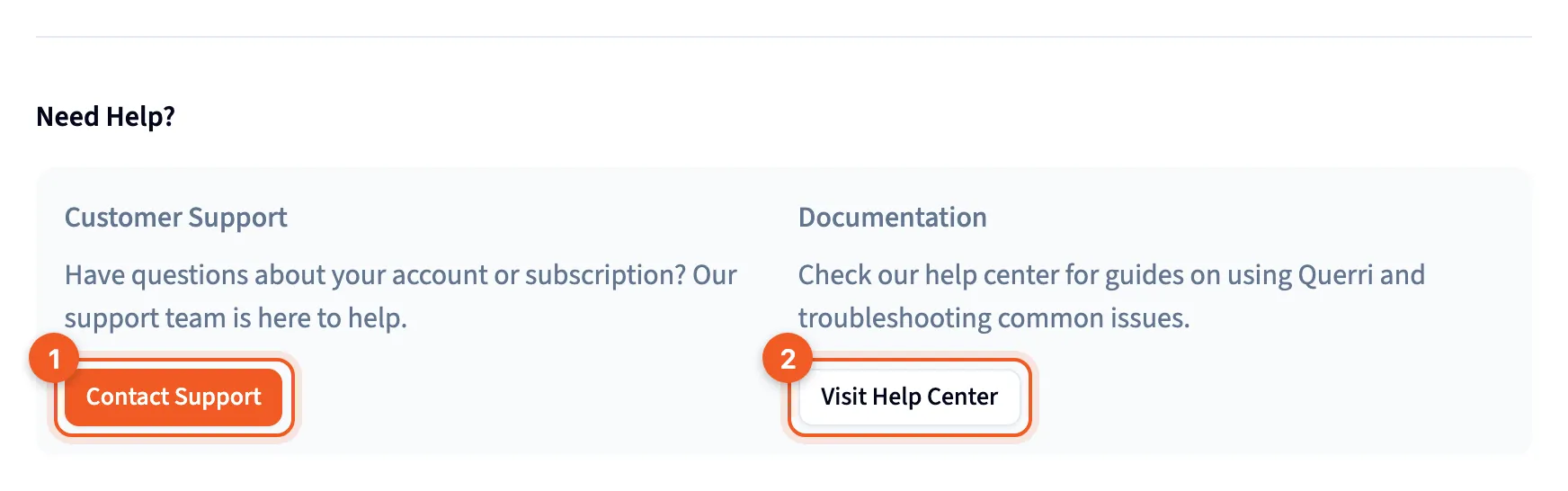
- Contact Support: email support.
- Visit Help Center: open the help center.