
Context settings
Esta página aún no está disponible en español. Se muestra la versión en inglés.
Context Settings is where you tell Querri how your organization works: how to handle data, how charts should look, what your terms mean and how answers should read. The rail calls it Customize.
Who can see this: admins only. What you write here applies to everyone in your organization.
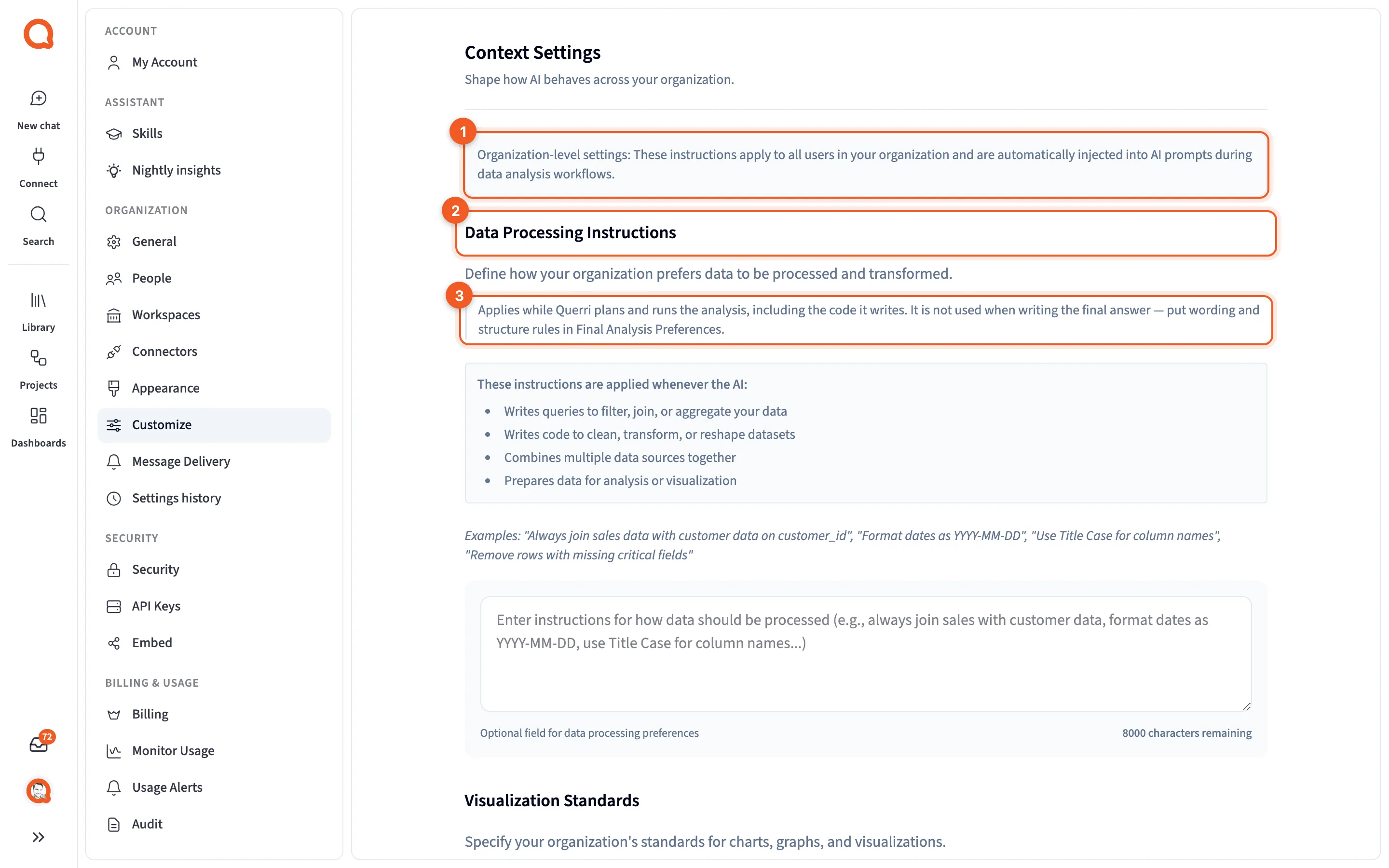
- The notice: these instructions apply to everyone in the organization.
- Data Processing Instructions: the first instruction box.
- The grey note: which part of the work reads this box.
The notice at the top explains that the instructions “are automatically injected into AI prompts during data analysis workflows.”
The instruction boxes
Section titled “The instruction boxes”Each box has a title and a description, a grey note saying which part of the work reads it, a list of when it applies, some examples, and a text box with a count of characters left. A box holds up to 8,000 characters, and the glossary holds 4,000.
Read the grey notes. They tell you where your words end up:
| Box | Read when |
|---|---|
| Data Processing Instructions | Planning and running the analysis, including its code. Not the final answer. |
| Visualization Standards | Making charts and presentations. Not the final answer. |
| Analysis Preferences | Planning and running the analysis. Not the final answer. |
| Organization Glossary | Everywhere, including the final answer. |
| Final Analysis Preferences | Writing the answer. It’s the only box that controls the wording, structure and formatting of responses. |
| Suggested Questions | Only the suggested questions Querri offers. |
| Follow-up Recommendations | Planning. Anything listed here is kept out of the analysis and offered as a next step. |
So if you want every answer to lead with the number and keep to a few lines, put that in Final Analysis Preferences. The same request in Analysis Preferences won’t change how answers read.
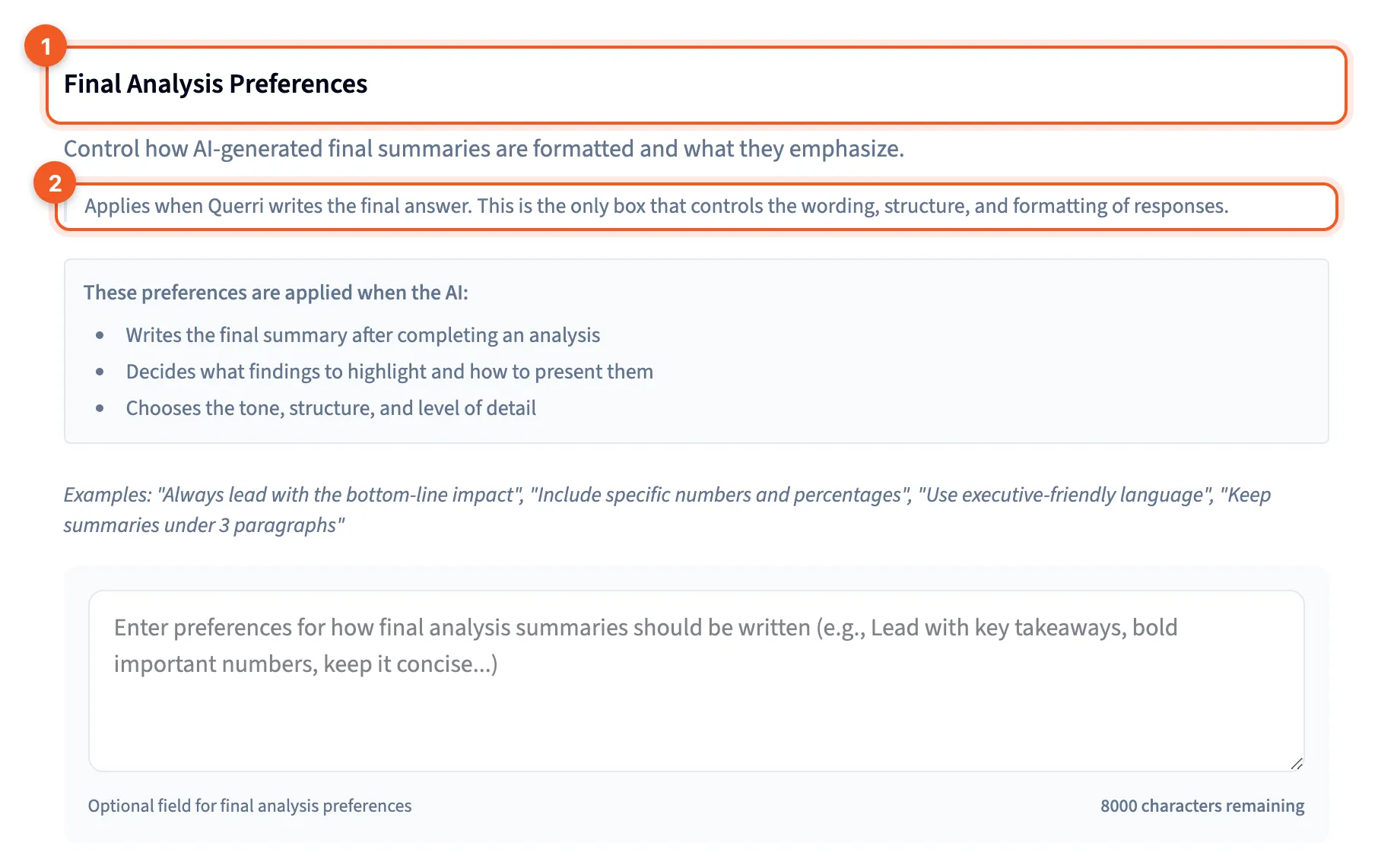
- Final Analysis Preferences: the answer-writing box.
- Its grey note: the only box that shapes how answers are worded.
Organization Glossary
Section titled “Organization Glossary”This is for terms that mean something specific in your business. Revenue is a good first entry, because companies count it differently. One might count it once the money’s in the bank, another the moment the invoice goes out. Write down which one you mean.
Rules about particular tables can also live in your Library as facts. Write down definitions and rules helps you decide which goes where.
Suggested Questions
Section titled “Suggested Questions”This box steers the suggested questions on the home and project screens: which topics and datasets they start from, and how each one’s worded. It doesn’t change how analyses run or how answers are written. The screen’s own examples:
- “Only suggest questions about sales and inventory”
- “Never suggest questions about individual employees”
- “Phrase every suggestion as a business question, not a technical one”
It doesn’t touch the suggestions in an empty Librarian chat, which come from your Library’s own questions.
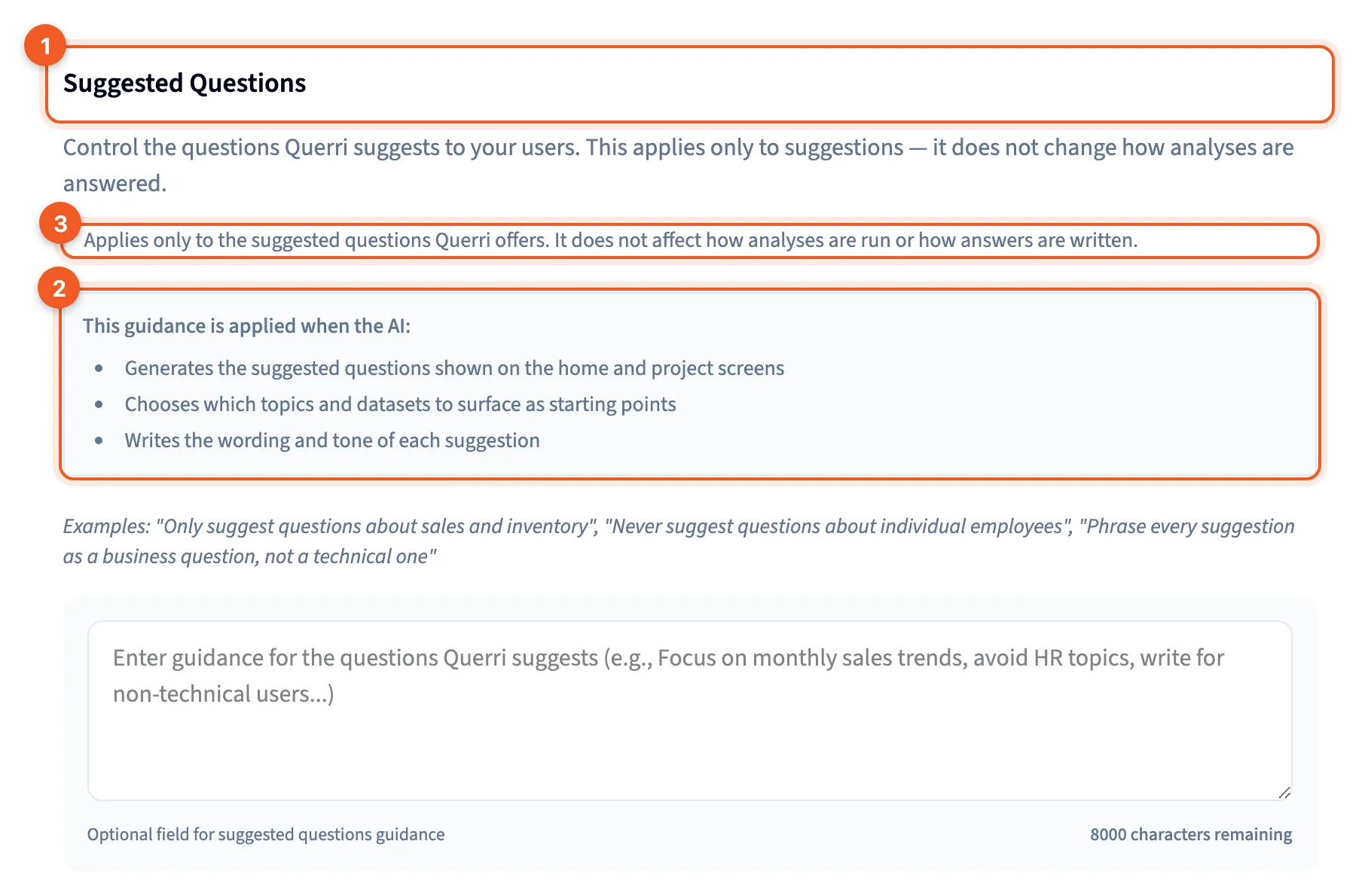
- Suggested Questions: guidance for suggestions.
- Where the suggestions show: the home and project screens.
- The grey note: it affects suggestions only.
Data Import Settings
Section titled “Data Import Settings”“Configure how data is interpreted when importing CSV and Excel files.”
- Treat empty strings as NULL, on by default.
- Trim whitespace on import.
- Values to treat as NULL (comma-separated). The defaults are
NULL,null,NA,N/A,n/a,NaN,nan,NAT,NaT,#N/A,#NA,<NA>and-. Reset to defaults brings that list back.
Saving
Section titled “Saving”Save Settings saves every box and the import settings together, and so does Ctrl+S (Cmd+S on a Mac). Reset reloads what’s saved and drops your edits.
One box over its limit shows “Character limit exceeded” and turns off Save Settings for the whole page until you trim it.
Saved changes are recorded in Settings history.
Feature toggles
Section titled “Feature toggles”“Enable optional capabilities for your organization. Some toggles are managed by your provider.”
Unlike the boxes above, each toggle saves the moment you change it. A locked row is managed by your provider, and changing it means contacting support. When there’s nothing you can control, the section says “No customer-controllable features are available.”