
Inbox
Esta página aún no está disponible en español. Se muestra la versión en inglés.
The Inbox is where the Librarian leaves what it found and what it needs a person to decide. In the page’s own words: “What the Librarian has found across your data, and what it needs from you.”
Who can see this: everyone. Accepting, snoozing or turning down a card needs write access to the Library, which everyone in your organization has, Guests and workspace Viewers included.
Leer la transcripción
What the Inbox is for
The Querri Inbox is where your Library gets better overnight: Querri looks over what your team asked and what your data can answer, and brings you suggestions to approve.
What happens overnight
By default, it runs once a night… Querri calls this dreaming. It groups the questions your team asked, looks for questions your data could answer that nobody has asked yet, checks the health of your columns and the joins between your sources, and watches your metrics for moves that look unusual. Before Querri suggests anything, it tests the idea against your real data. If it can’t get an answer, it tells you that instead.
Find your way around the Inbox
Open the Inbox from the rail. The summary at the top counts what it found, and the filters sort it by kind: changes to look at, metrics worth watching, questions worth a view, views to build, cleanups, facts worth remembering, and questions it can’t answer yet.
Review a suggestion
Each card explains why it matters, shows the evidence behind it, and names exactly what accepting adds, like a question, a view, and a metric. You stay in charge. Add it in one click, accept it with edits, snooze it for thirty days, or mark it not useful… and it won’t bring that idea back.
Set up nightly insights
Admins set it up in Nightly insights: how many credits it can spend each night, which checks it runs, and whether it runs daily, weekly, or not at all. Results always land in your Inbox for approval.
Get the nightly email
And admins get a summary email: a short list of what’s waiting, with a button that goes straight to the Inbox. Open your Inbox, pick one suggestion that fits your business, and add it… Querri does the digging overnight, and you decide what joins your Library.
- Find new questions and Nightly settings, at the top right.
- The digest: a one-line count of what’s waiting, by kind.
- The filters: a chip for each kind of card.
- Inbox in the app rail, with a badge counting what’s waiting.
Nothing a card suggests joins your Library until someone accepts it. Where the suggestions come from is explained in How the Library learns.
The top of the page
Section titled “The top of the page”Find new questions asks the Librarian to look for questions nobody has asked yet, starting from gaps in your KPI coverage. Nightly settings opens a workspace’s Nightly insights tab, which only admins can use.
The same cards appear on Home, under Discoveries, so what Querri found is in front of you when you arrive rather than behind a badge. Open Inbox there brings you to the full list.
The digest counts what’s waiting by kind, such as “2 changes that need you · 3 questions worth a view”. When more than one kind is waiting, chips filter the list, starting with Everything. A Discovery chip, if you see one, holds older suggestions saved before cards had a kind.
The badge on Inbox shows 99+ past 99. It updates when you accept, snooze or turn down a card, but not after Acknowledge, so it can read one too high until the page reloads.
What a card shows
Section titled “What a card shows”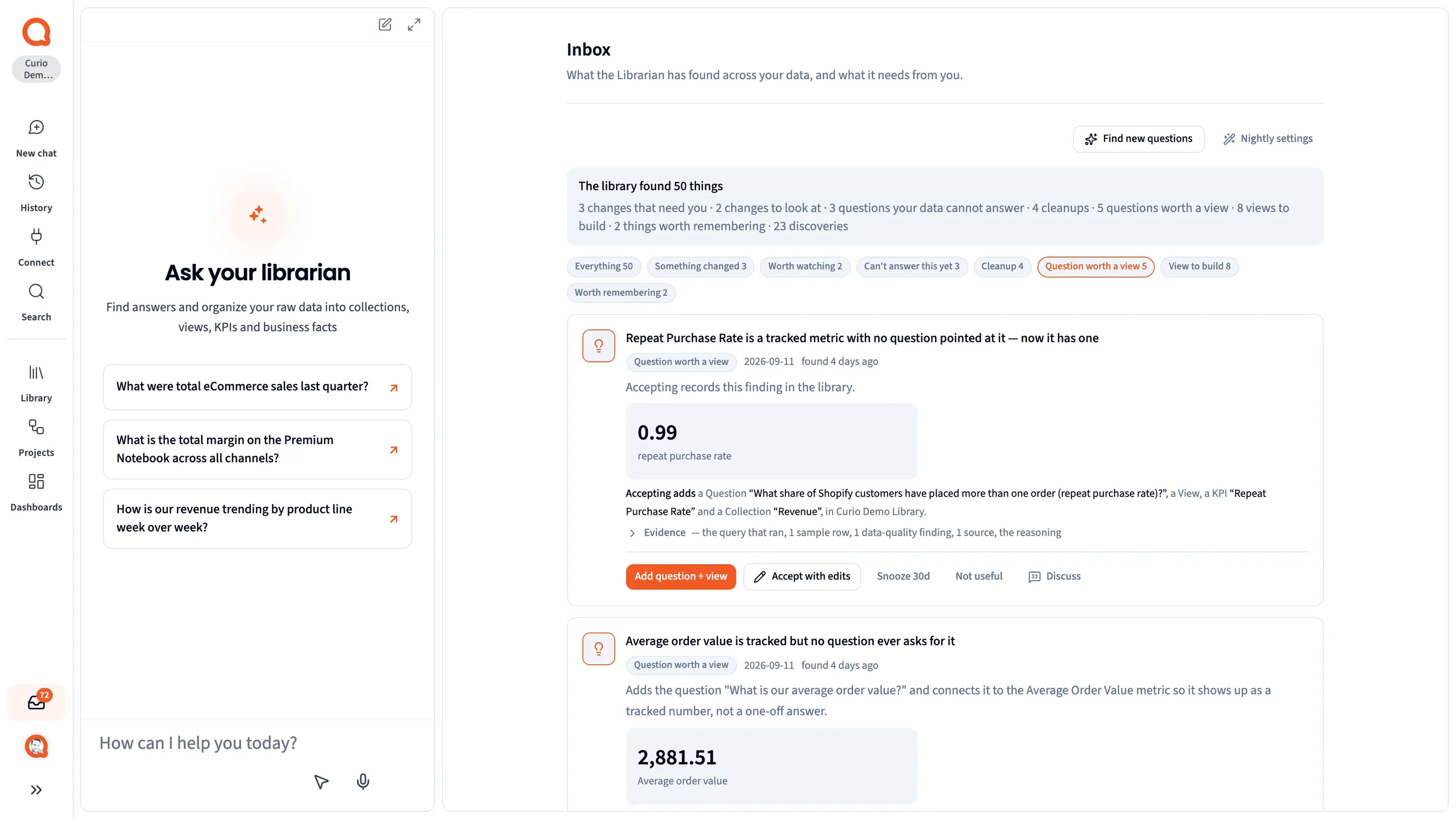
- The kind: what sort of card this is.
- Why it matters: what would change. Show all opens longer text.
- Accepting adds: exactly what accepting puts in your Library, and in which workspace.
- The buttons for this card.
A card also shows a chart or a number with its change, and who’s been asking, such as “asked by 3 people, 7 times, in the last 30 days”.
Evidence, folded at first, shows what’s behind the card: Why the librarian proposed this, What the data looks like, Where the numbers come from (the sources and how they join), a sample of rows, and The query that ran.
- Why the librarian proposed this: the reasoning.
- The rows: a sample of what the query returned.
- The query that ran: the SQL.
If you turn something down and it comes back later, the card quotes your reason and says it’s back because something changed. Tick I’ve read why this came back before you accept it.
Kinds of card
Section titled “Kinds of card”| Card | Accepting it |
|---|---|
| Something changed | An alert from a monitor, with its own buttons. See Something changed alerts |
| Worth watching | Sets up a monitor on the KPI it’s about. See Worth watching cards |
| Question worth a view | Adds what the card lists |
| View to build | Adds what the card lists |
| Metric to track | Adds what the card lists |
| Worth remembering | Records a fact |
| Can’t answer this yet | Records a fact. It never builds a view |
| Cleanup | Attaches views, or merges collections. See Cleanup cards |
On Question worth a view, View to build and Metric to track, the button names what it adds, such as Add question + view + KPI. Accepting can add a question, a collection, a view, a KPI with its first value, and a fact recording why. A new view builds in the background.
Buttons on a suggestion
Section titled “Buttons on a suggestion”- Add … (or Accept) adds what the card lists. An Added to your Library note then links to each new item.
- Accept with edits opens Librarian chat and sends a message asking to change the suggestion first. On a Worth watching card it opens a short form instead.
- Snooze 30d hides the card for 30 days.
- Not useful turns the card down, with an optional reason and Confirm. The Librarian won’t bring it back unless something changes.
- Discuss opens Librarian chat and asks the Librarian to go through the suggestion with you. The card stays as it is.
Discuss, Chat about these on the Added to your Library note, and Accept with edits on every card except Worth watching each start a Librarian chat. That uses a credit and takes you out of the Inbox.
Cleanup cards
Section titled “Cleanup cards”A Cleanup card comes in two versions, and accepting them does very different things.
- “N views answer no question and are in no collection.” Accepting gives each view a question and a collection. Nothing is renamed, rebuilt or deleted.
- “N collections cover ’…’ and overlap.” Accepting moves everything in them onto one collection and deletes the other collections. Read this one before you accept it.
Worth watching cards
Section titled “Worth watching cards”The nightly Watch metrics pass reads each KPI’s history. When a KPI moves in a way that history says is unusual, it files a Worth watching card. The card’s chart draws the KPI’s measured history as a line over a shaded band, the range that history says to expect, and marks any point flagged as unusual.
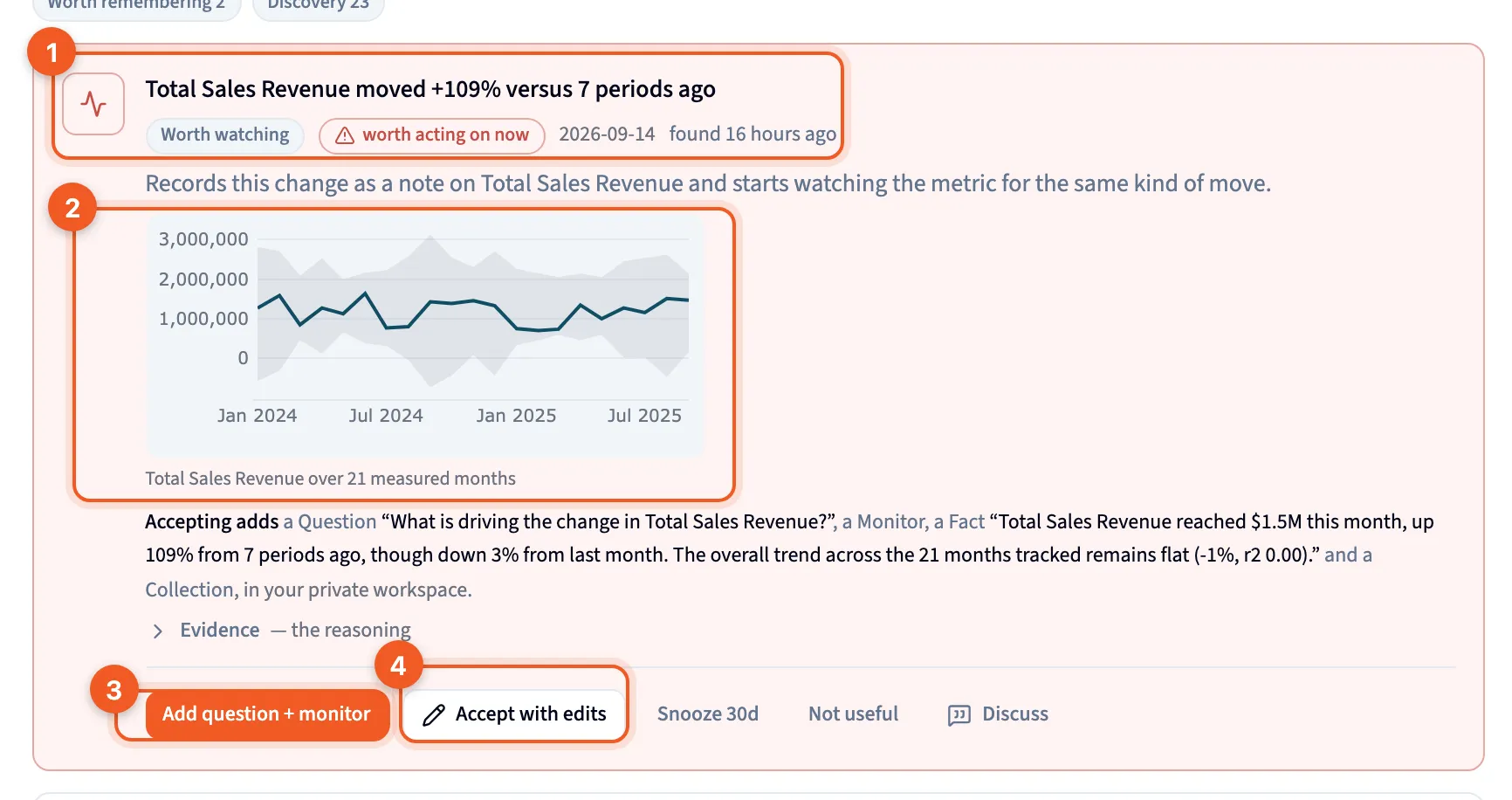
- The card header: the Worth watching kind, a headline saying how the KPI moved, and how serious the move is.
- The chart: the KPI’s history against its expected range.
- Add question + monitor: accepts the card as it stands.
- Accept with edits: change the monitor first.
Accepting adds a question about the change, a monitor that watches the KPI’s whole number, a fact saying why, and a collection if the card doesn’t name one. If the KPI isn’t measured from a table yet, you get the rest but no monitor, even though the button still says monitor.
Want it split by region or store? Use Accept with edits. On this card it opens a short form, not a chat:
- Monitor name
- Break it down by: up to two columns. Leave it empty to watch the number as a whole.
- Email this alert to, Subject and Message: who gets the monitor’s alerts by email, and the wording.
The form’s accept button creates the monitor with your changes. A breakdown takes longer, because Querri writes a new query for it. Change something else… opens Librarian chat instead.
Something changed alerts
Section titled “Something changed alerts”A monitor files a Something changed card when one slice of the number it watches, such as one region, moves outside its usual range. The card rates it worth acting on now or keep an eye on this, shows the value now against its usual value, and lists other slices that moved. Its buttons are Acknowledge, Snooze for that slice, Adjust sensitivity and Discuss. Monitors and alerts covers each one. People on a monitor’s delivery list also get each alert by email.
The digest email
Section titled “The digest email”After each scheduled nightly pass, Querri emails your organization’s admins a summary of the cards waiting for a decision, with a link to the Inbox. Something changed alerts come first.
No email goes out when nothing is waiting. The email follows How often on Nightly insights, so a Weekly pass means a weekly email and Off means none. On Automatic, the default, it arrives nightly for the first week and then weekly while someone is reading the Inbox.
Review verdicts
Section titled “Review verdicts”Below the cards, the Inbox shows verdicts from the latest review of your Library. That’s usually last night’s pass, or a run an admin started on Nightly insights. A verdict such as build recommended or retire recommended waits for someone to click Create this view or Retire these. A cluster that didn’t get far enough offers Retry this cluster, and one that ran out of data offers Connect the data. Only the newest run shows, so each new run replaces the verdicts before it.
A verdict you’ve acted on stays on the list rather than disappearing, and its button becomes Open view, so you can see what was built without going to find it.
Work through your Inbox goes through each verdict, its button, and the Reviewed list.