
Detail panels
Esta página aún no está disponible en español. Se muestra la versión en inglés.
Click almost anything in the Library and its details open in a panel on the right. Every panel has the same frame, and the middle changes with the kind of item you opened.
Who can see this: anyone who can see the item.
This page covers the shared layout, collections, questions and facts. KPIs have their own page, KPI panel. Views, source tables and columns, including Attach a fact, are on Table and column panels.
The shared layout
Section titled “The shared layout”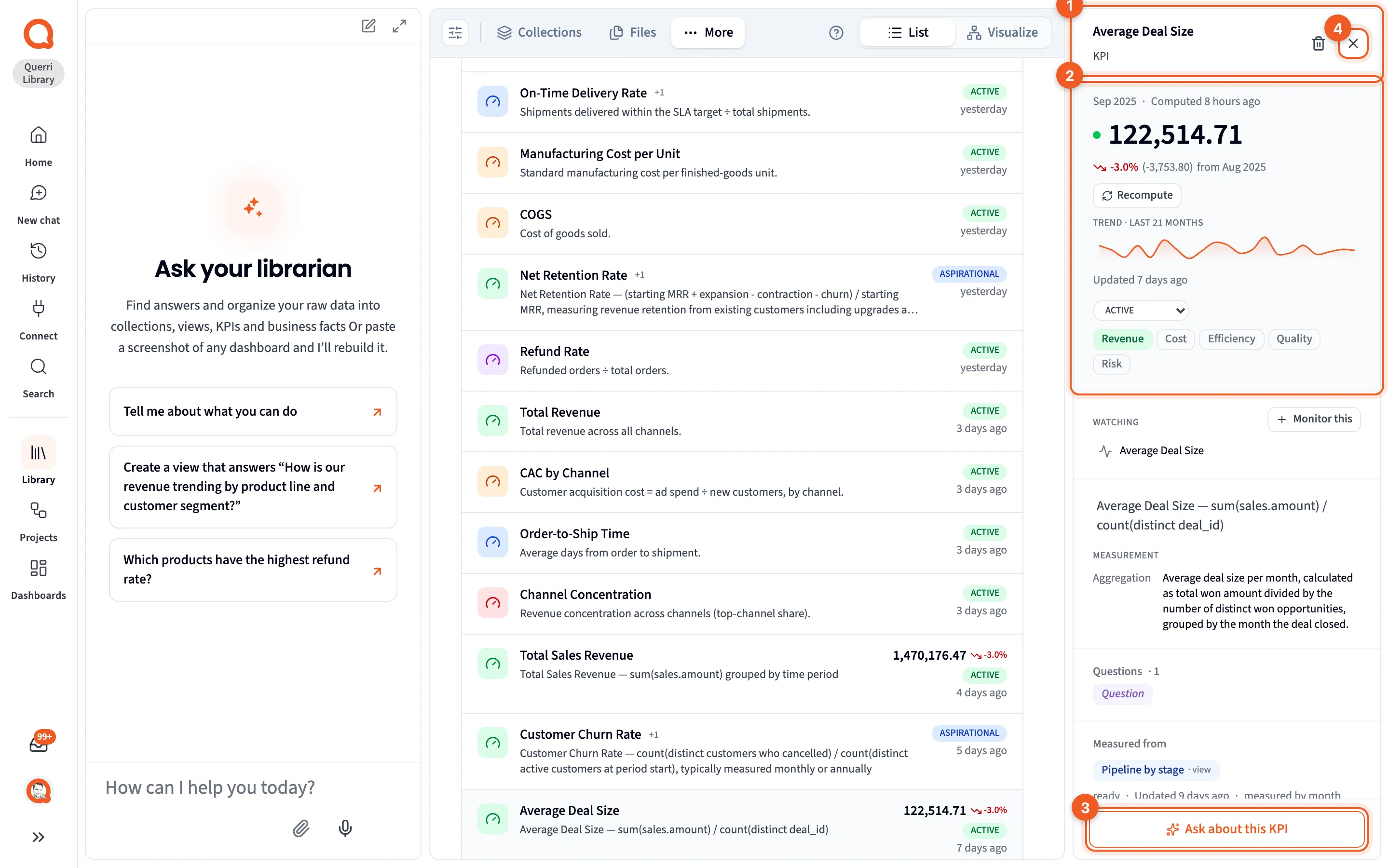
- The header shows the item’s name and its kind, such as KPI or Question. Click the name to rename it. A view or table that’s also a file in the workspace adds a workspace pill, a favorite star and Share.
- The body depends on what you opened. The sections below go through each kind.
- The footer has an Ask about this button for the kind, such as Ask about this question. It points Librarian chat at the item and starts a message for you, “Tell me about” and the item’s name. Nothing is sent until you send it.
- × closes the panel. Switching to another tab closes it too.
Links to other items appear as chips under a label with a count, such as “Questions · 1”. Click a chip and that item opens in the same panel. Sections with a chevron stay folded until you click them, and some show a hint while they’re folded, like how many lines of SQL are inside.
Collections
Section titled “Collections”A collection opens as a full page instead of a side panel when you click it on the Collections tab or in the browse panel. See Collections.
From the top:
- Coverage: how many of the collection’s questions are answered, such as “6/20 answered”, with a bar split into Answered, Partial and Open.
- A description. Click it to edit.
- Main question: the collection’s anchor question.
- Follow-up questions: its refining questions, with a count.
- Other views: views in the collection that don’t answer any of its questions.
- Facts & rules: facts recorded about the collection, each with its kind and full statement. Click one to open it.
- Sources, folded: the tables the collection draws on.
At the bottom is Ask about this collection.
Question cards
Section titled “Question cards”Every question on the page is a card, and clicking the question opens its panel. A badge on the card says whether a view answers it:
| Badge | Meaning |
|---|---|
| Answered | A view answers the question. |
| Answerable | The data can support an answer, but no view exists yet. |
| No view yet | Neither of the above. It doesn’t mean your data can’t answer it. |
Under the badge sit chips for the KPIs that measure the question, then Answered by with a card for each view that answers it. A view card shows the view’s status (Ready, Building or Failed), its rows and columns, when it was built, and how closely it matches the question.
When no view answers it, the card offers + Build a view to answer this instead. That opens Librarian chat with the request already written, and nothing happens until you send it.
Don’t mix these badges up with the ones on the Questions tab. There, ANSWERABLE means the question reaches real data. Here, Answerable means a view could be built but hasn’t been.
Find what your data can’t answer yet shows how to tell a real gap from a question that only needs a view.
Questions
Section titled “Questions”Anchor and refining questions share one panel. Its header can show a short name for the question, like “Stockout risk”, but you’ll always find the full question right under it.
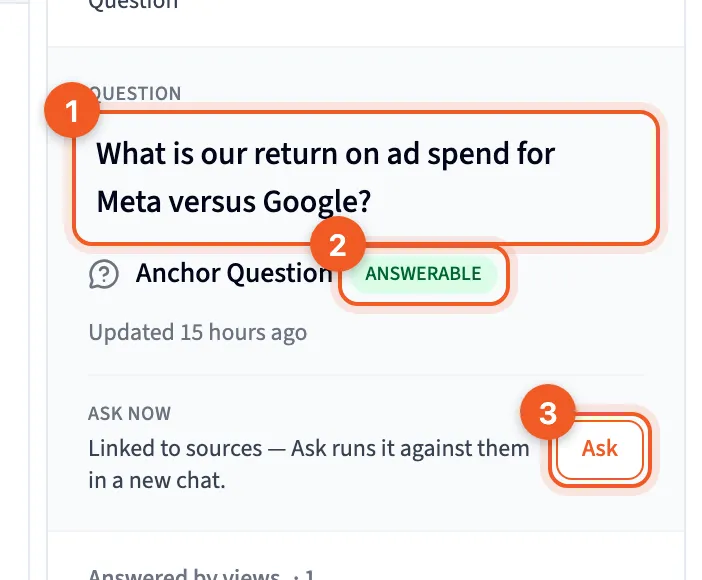
- The question, in full.
- ANSWERABLE: whether your data can answer it, with the same badges as the Questions tab.
- Ask: puts the question in Librarian chat and points the chat at it, ready for you to send. A line beside it tells you what to expect. For a PARTIAL question it warns that the answer may be incomplete, and for an UNANSWERABLE one the button is turned off.
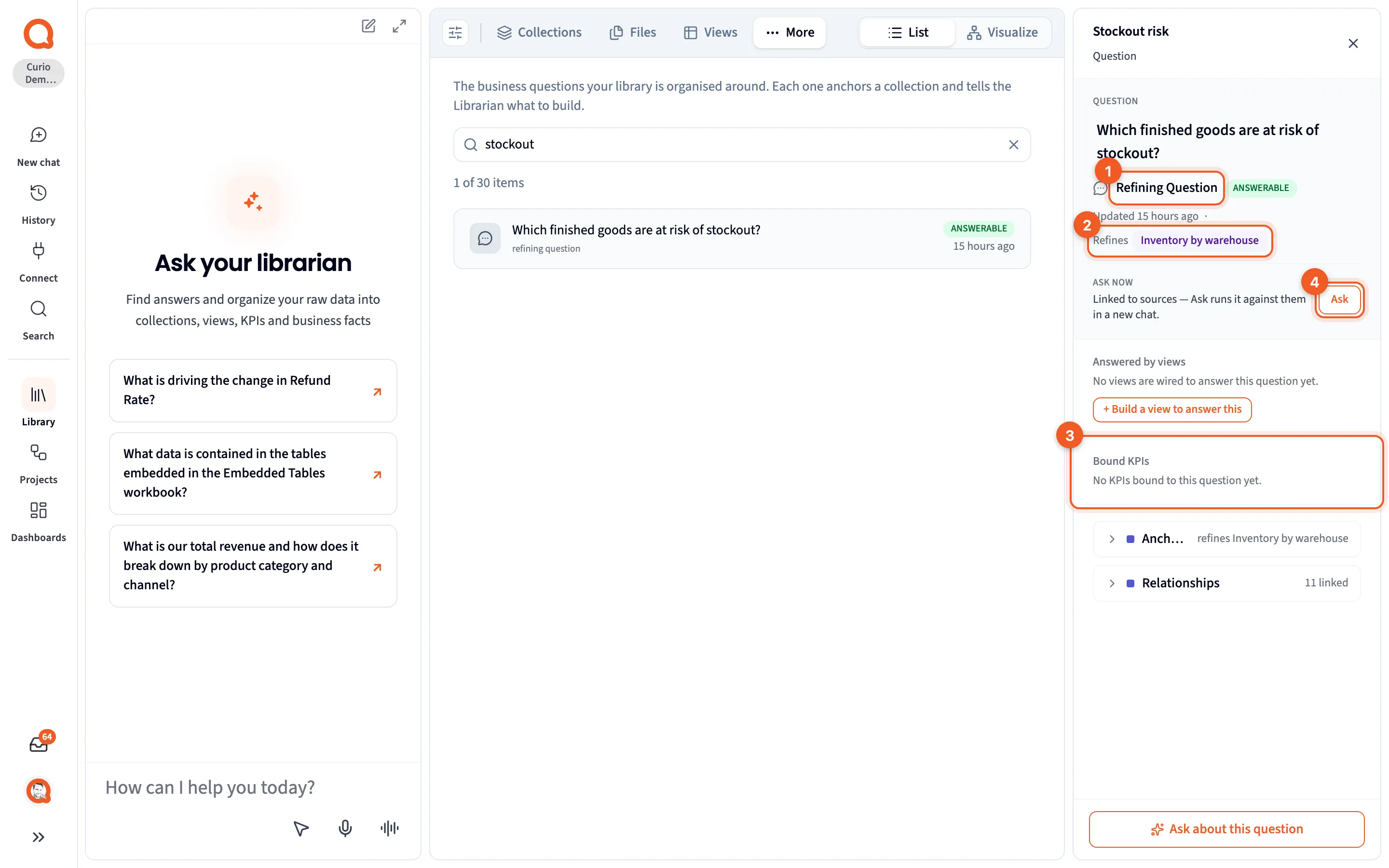
- Refining Question: the kind. An anchor question reads Anchor Question.
- Refines: the anchor question this one drills into. Click it to open that question.
- Bound KPIs: KPIs that measure this question, or a note that there aren’t any.
- Ask: works as described above.
Further down:
- Answered by views: views that answer the question. If there aren’t any, + Build a view to answer this asks the Librarian for one.
- Anchorage, folded: for an anchor question, the collections it anchors and its refining questions. For a refining question, the anchor it refines.
- Relationships, folded: any other links.
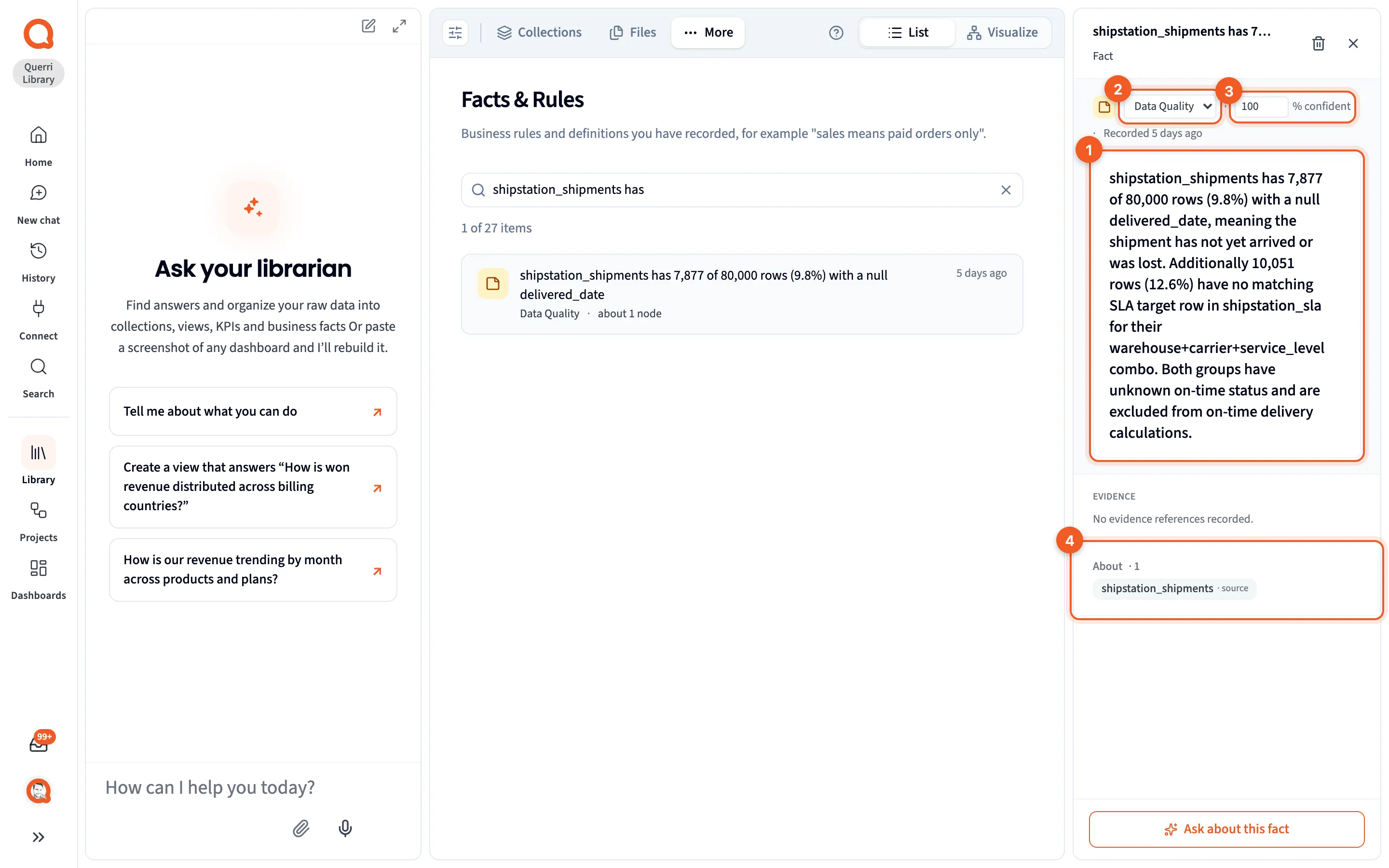
The badges mark its statement (1), its kind (2), its confidence (3) and About (4).
A fact is a rule, a definition or a data-quality finding, attached to the things it’s about. From the top, its panel shows:
- A kind: Note, Data Quality, Timing or Scope. Changing it saves straight away.
- Confidence, as ”% confident”.
- When it was recorded.
- Its full statement. Click it to edit.
- Evidence: any references behind the fact. Web links open.
- About: everything the fact is attached to, such as a table, with each item’s kind beside its name. Click a chip to open it.
- Related facts, folded, when the fact has other links.
Here’s the kind of rule that belongs in one. In the Curio sample, the view On-time delivery rate by carrier has a scope fact saying it counts only delivered shipments matched to an SLA target. Anyone reading that number needs to know it, and now nobody has to remember to say so.
A fact’s panel doesn’t say where it came from. There are three ways in: the Librarian records one in chat when a rule or finding is settled, accepting an Inbox card records one, and you can write one yourself with Attach a fact. See Facts & Rules.
Write down definitions and rules covers what’s worth recording, and where it goes.