
The dashboard assistant
Esta página aún no está disponible en español. Se muestra la versión en inglés.
On a dashboard you open in Querri, the Dashboard tab in the chat panel is where you talk to the dashboard assistant. It answers questions about the dashboard in front of it, and in edit mode it can change the dashboard for you: filters, headings, KPI cards, the layout, a chart’s formatting and the look of the page.
Who can see this: everyone who opens a dashboard in Querri. Only the dashboard’s owners and editors can have it change anything. People on a public link or an embed don’t get the assistant.
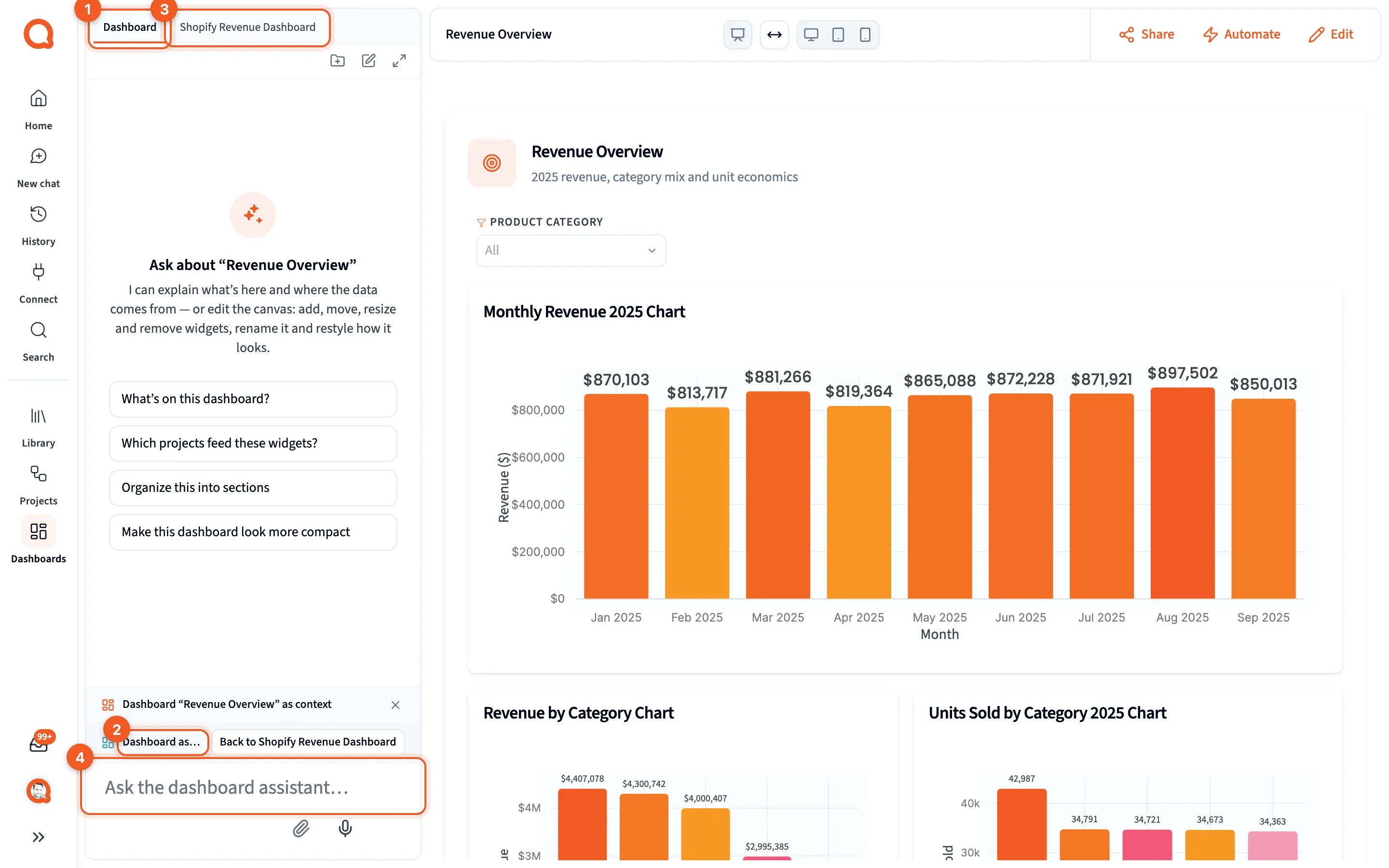
- Dashboard: the tab for the dashboard assistant.
- Dashboard assistant: who your next message goes to. The chip truncates when the panel is narrow.
- The project tab: the chat of a project that feeds this dashboard.
- Ask the dashboard assistant…: type here.
Tabs in the chat panel
Section titled “Tabs in the chat panel”The chat panel opens beside the dashboard, and you can close it. The first tab is always Dashboard. Beside it sits one project tab at a time, named after the project; when there’s more than one, a chevron opens the list.
- Add a project to this chat, the folder icon, opens a dialog of the same name with a Search projects… box. A dashboard can keep up to 20 projects.
- The tabs come back when you reload. A project you open beside a dashboard stays linked to it until you close its tab.
- A project you arrived from, rather than one that feeds a widget, carries a pin, and its tooltip reads “{name} — the project you came from”.
- Closing a tab: the ✕ in the chevron list shows only for a project the dashboard draws no widget from. A project behind a widget would come back on the next reload, so it has no ✕.
- On a project tab, the bar above the composer shows Project chat · and the project’s name, with Switch to dashboard assistant. On the Dashboard tab it shows Dashboard assistant, with Back to and the project’s name.
- Open a dashboard from a project’s chat and the panel first asks where your next message should go.
- The question: “You’ve brought your project chat with you.”
- Use the dashboard assistant: talk to the dashboard. Stay in project chat keeps talking to the project.
Asking about the dashboard
Section titled “Asking about the dashboard”The dashboard assistant is the Librarian, working with the dashboard in front of it. Ask it:
- what’s on the dashboard, and which projects feed its widgets
- how the layout is arranged
- how a chart is set up, such as which series and axes it has
- how the page looks, since while you’re editing it can see the canvas
- which columns you can filter on, and why a column might not be safe
- questions about your data, which it answers from your Library
A new conversation suggests a few openers, and they follow what you’re doing:
| Where you are | What it offers |
|---|---|
| Viewing the dashboard | What’s on this dashboard?, Which projects feed these widgets?, Organize this into sections, Make this dashboard look more compact |
| Editing it | Review this dashboard and suggest improvements, Tidy the layout into clean, full rows, Add a KPI row and section headings |
| Editing with a widget focused | Make this easier to read, Fix the legend and labels, Give this widget its own row |
Focus on one widget
Section titled “Focus on one widget”While you’re editing, a row above the composer reads What the assistant is looking at, and it says Whole dashboard or Focused on “{title}”. Click a widget on the canvas to focus it: your next message is about that widget, the widget shows an In chat badge, and the composer’s placeholder changes to Ask about “{name}”.
To go back to the whole dashboard, click Whole dashboard, press Ctrl+Shift+D (⌘+Shift+D on a Mac), click empty canvas, or press Escape.
- What the assistant is looking at: the row that says what your next message covers.
- Focused on “{title}”: the widget you clicked.
- In chat: the same widget, marked on the canvas.
- Ask about “{name}”: the composer follows the focus.
Changing the dashboard
Section titled “Changing the dashboard”Ask in plain words, one change at a time: “Add a date range filter on order date”, then “Reorganize the four charts into a two-by-two grid”, then “Make the whole thing a bit warmer”. If the dashboard is in view mode, the assistant switches it to edit mode first and says so: Switched “{name}” to edit mode.
It can change:
- Filters: add, remove or set a filter. A new filter goes above the charts it controls.
- Headings and notes: add a section heading or a text block, above or below a widget or at the bottom.
- Layout: move, resize or remove widgets, or organize the whole dashboard into sections in one go. A moved widget goes full width until it’s resized.
- KPI cards: add a metric card for a number the dashboard already has.
- A chart’s formatting: number and date formats, axis ranges and ticks, the hover box, annotations and reference lines, the legend, titles, colors, data labels and markers.
- The dashboard’s look: describe it (“make it darker”, “use our brand colors”) or name one of the six palettes: navy, slate, teal, indigo, charcoal or midnight, the only dark one. A theme recolors every widget at once and clears colors you set on single widgets. Text and gridlines are worked out from the theme, so a theme can’t leave a widget unreadable. It also turns Use organization branding off on the dashboard, since your organization’s palette would otherwise override the colors it just applied, and it tells you it did. The switch is in Style in the properties panel. Ask for the theme and your organization’s branding together if you want both.
- One widget’s style: its title, header, card, border, padding, legend and grid.
- The page frame: the header style, title, subtitle, brand line and footer.
- The title and description.
- Widgets: any that are already here, and any step from a project you can open, including a project on one of its tabs.
Each change shows in the conversation as a line such as “Added a Product Category filter to the dashboard”, “Reorganized into 3 sections”, “Applied the “Midnight” theme to the dashboard” or “Configured a chart”. Changes land on the open dashboard at once and save like your own edits.
- Added heading: a heading it placed.
- The filter line: a filter it added.
- Added a text block: a note it placed.
Two things to know when you read those lines. A chart drawn as a fixed image can’t be recolored, and the assistant says so rather than claiming it changed. And when the change was sent but the page didn’t confirm it, the line ends sent — the browser did not confirm it; check the dashboard before you rely on it.
Undoing what it did
Section titled “Undoing what it did”There are three ways back, depending on how much you want to undo:
- The whole reply. When a turn finishes, a chip above the composer reads “The assistant made {count} changes to this dashboard”, with Undo them, or “The assistant made one change to this dashboard”, with Undo it. That returns the dashboard to how it was before that reply’s first change, and you can undo the undo. The chip belongs to the conversation that made the change: reload the page and it’s gone, and the change stands. Undo it while it’s there, or put the setting back yourself.
- One setting. A row in the properties panel that the assistant changed is marked From chat, with Revert beside it.
- The editor’s own Undo, including Ctrl+Z (⌘+Z). A theme change counts as one step, so one undo puts the old look back.
What it can’t do
Section titled “What it can’t do”- Build a new chart or a new analysis. That’s a project’s job. The assistant can place a chart a project has already built, but it can’t write the query behind a new one.
- Change the data a widget shows.
- Work on a dashboard you don’t have open. It will switch a dashboard you’re viewing into edit mode, but it won’t go and edit another one.
- Help a viewer. People on a public link or a widget embed get no assistant. In an embed, whether the assistant may act at all is set by whoever configured the embed.
It can see the dashboard
Section titled “It can see the dashboard”While you’re editing, Querri sends a picture of the canvas along with your message, so the assistant works from what’s on screen as well as from the layout behind it. The right-hand side of the scope row says what’s happening: Screenshot will be attached, Capturing dashboard…, Screenshot attached, or Screenshot unchanged — reusing the last one. When a widget is focused, it captures that widget instead.
- The picture shows as a thumbnail in your own message.
- The eye icon turns it off for the rest of the session: Stop attaching a screenshot of the dashboard.
- If the capture fails, your message is sent without it and a notice says so.
After it changes something, the assistant can take its own look to check the result. That shows in the conversation as Looked at the dashboard, with the picture it saw.
A picture is also how a dashboard gets rebuilt: paste a screenshot of any dashboard into the panel and Querri rebuilds it as a Querri dashboard. See Dashboards. On a rebuilt dashboard, Check against screenshot hands the assistant the original to compare against, and it fixes styling, chart settings and sizes. It never changes the data or a chart’s type, and it needs the dashboard in edit mode.
- Screenshot attached: what Querri sent with your message.
- The eye: turn the picture off for this session.
- Your message: the picture goes with it.
- Looked at the dashboard: the assistant checking its own work.
Attaching files
Section titled “Attaching files”The paperclip in the composer attaches files, and you can also drop them anywhere on the panel or paste them. A message carries up to six files, and a file you attach stays in your Library.
- Spreadsheets and CSVs are read with the data tools; images, PDFs and text files are read as they are; anything else reaches the assistant as a note saying it’s there.
- Attach a picture and the placeholder changes to What should I do with this screenshot?
- Chips above the box show each file’s progress, with Retry upload and Remove.
- Attachments belong to the Dashboard tab. On a project tab it says “Files go to the Librarian chat. Switch the scope to attach them.”
Project tabs
Section titled “Project tabs”A project tab works like project chat. Ask it to change the dashboard and it shows This is Library chat work, with Switch to the dashboard assistant & ask or Not now.
Ask a project tab for a dashboard and it fills the dashboard you have open, rather than making a second one: the new widgets are added below what’s already on the canvas, and Undo works as usual. The reply says so with a card headed Added to this dashboard, which has no button, because you’re already looking at the result. A turn that simply adds a chart shows no card at all; the chart appears on the canvas. If you can’t edit the dashboard you’re on, it makes a new one instead, as it would in its own chat.
A project chat runs one question at a time. Send another while it’s working and you get “Still working on the previous message. Send yours again when it finishes.” If an answer arrives after you’ve moved on, Querri tells you it’s ready rather than dropping it.
Coming back later
Section titled “Coming back later”Reload the page within half an hour and the chat panel picks up the conversation you were in, on that tab. New chat, a new browser tab, or switching organizations starts a fresh one.
Credits
Section titled “Credits”Each question on the Dashboard tab is one turn with the Librarian: 1 credit, counted as Question asked in the Library, for whoever asks. A question on a project tab is a Question answered in a project, also 1 credit. Opening a project beside a dashboard costs nothing. See Credits.