
Billing
Esta página aún no está disponible en español. Se muestra la versión en inglés.
The Billing page shows your organization’s plan, what it has used so far this billing period, and its invoices. It’s also where an admin changes the plan, manages cards, or pauses or cancels the subscription.
Who can see this: everyone in the organization can open the overview. Only admins see its buttons, and only admins can open the plan, payment and cancel pages. Anyone else who opens one of those pages sees Organization admin only, which explains that only an admin can make the change, and a ← Back to billing link.
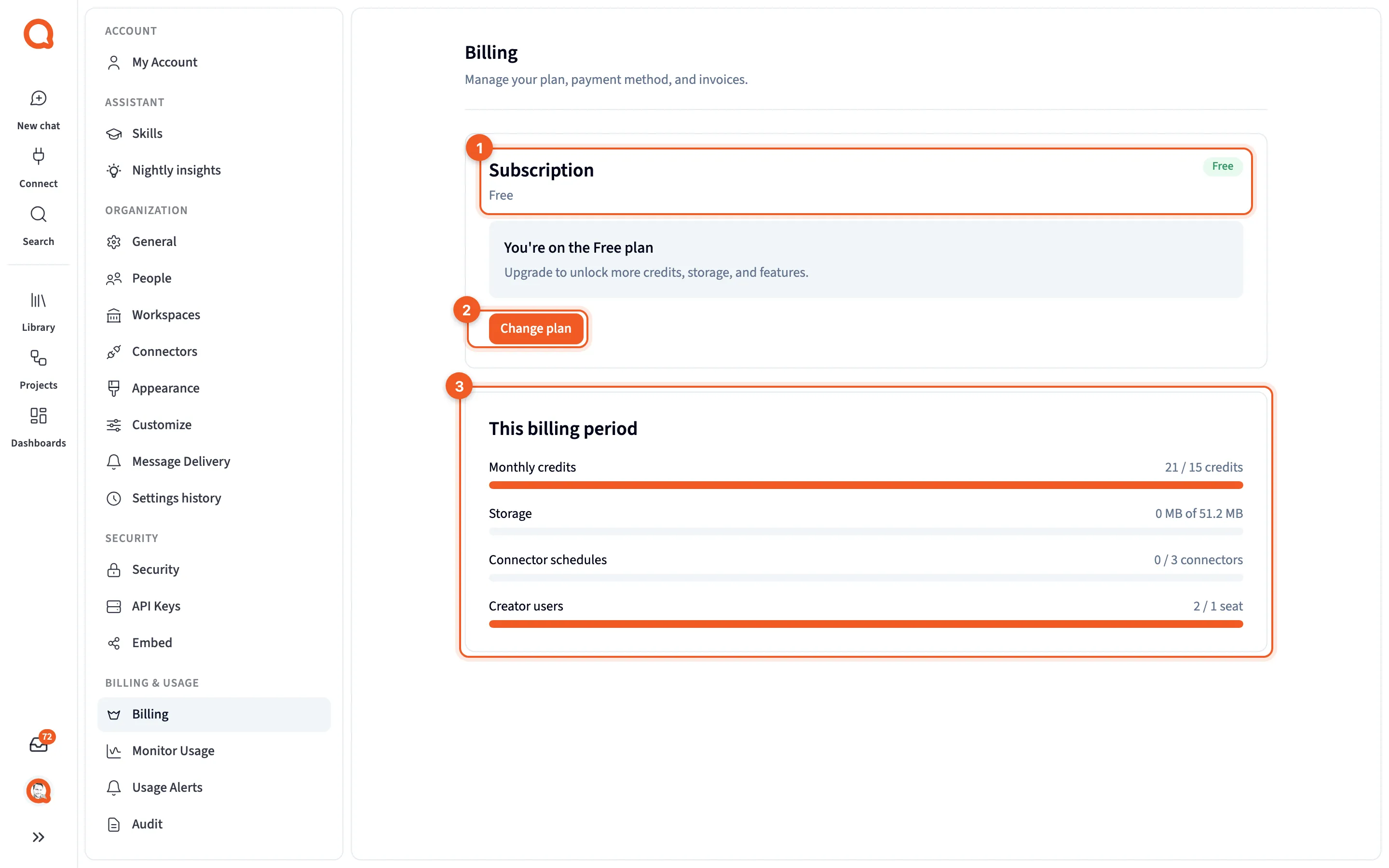
- Subscription: your plan and its status.
- Change plan: opens Choose your plan. Admins only.
- This billing period: how much of each plan feature you’ve used so far.
You’ll find it in Settings, under Billing & Usage › Billing.
Banners
Section titled “Banners”A banner appears at the top when something needs attention: a trial that’s about to end, a payment that failed, a plan change that’s scheduled, or Subscription paused. If there’s no card on file, you’ll see No payment method on file with an Add a card button.
Subscription
Section titled “Subscription”This card names your plan with its monthly price and a status badge. On the Free plan it just says You’re on the Free plan. On a paid plan it shows “Renews {date}”, or “Access ends {date}” once the subscription is set to end, plus your trial end date and “Last charge {amount} on {date}”.
Admins get buttons here, and they don’t all behave the same way.
| Button | What happens when you click it |
|---|---|
| Change plan | Opens Choose your plan. Nothing changes until you confirm. |
| Cancel subscription | Opens Cancel subscription. Read that section first. |
| Manage invoices | Opens Stripe’s customer portal, where your invoices live. |
| Pause subscription | Pauses the subscription right away. There’s no confirmation step. |
| Resume subscription, Reactivate subscription | Act right away, too. |
This billing period
Section titled “This billing period”One bar for each feature in your plan, reading something like “{used} / {limit} credits”. A feature with no limit shows up only after you’ve used it.
Want to know where the credits went? That’s Monitor usage.
On a paid plan, Estimated cost this period comes next. It may also suggest “A bigger plan could save you money”, with a Compare plans button that takes you to the plans.
Invoices and payment method
Section titled “Invoices and payment method”Recent invoices lists each invoice’s date, amount and status, with a View link that opens it in Stripe. Paid plans also show the Payment method on file.
Choose your plan
Section titled “Choose your plan”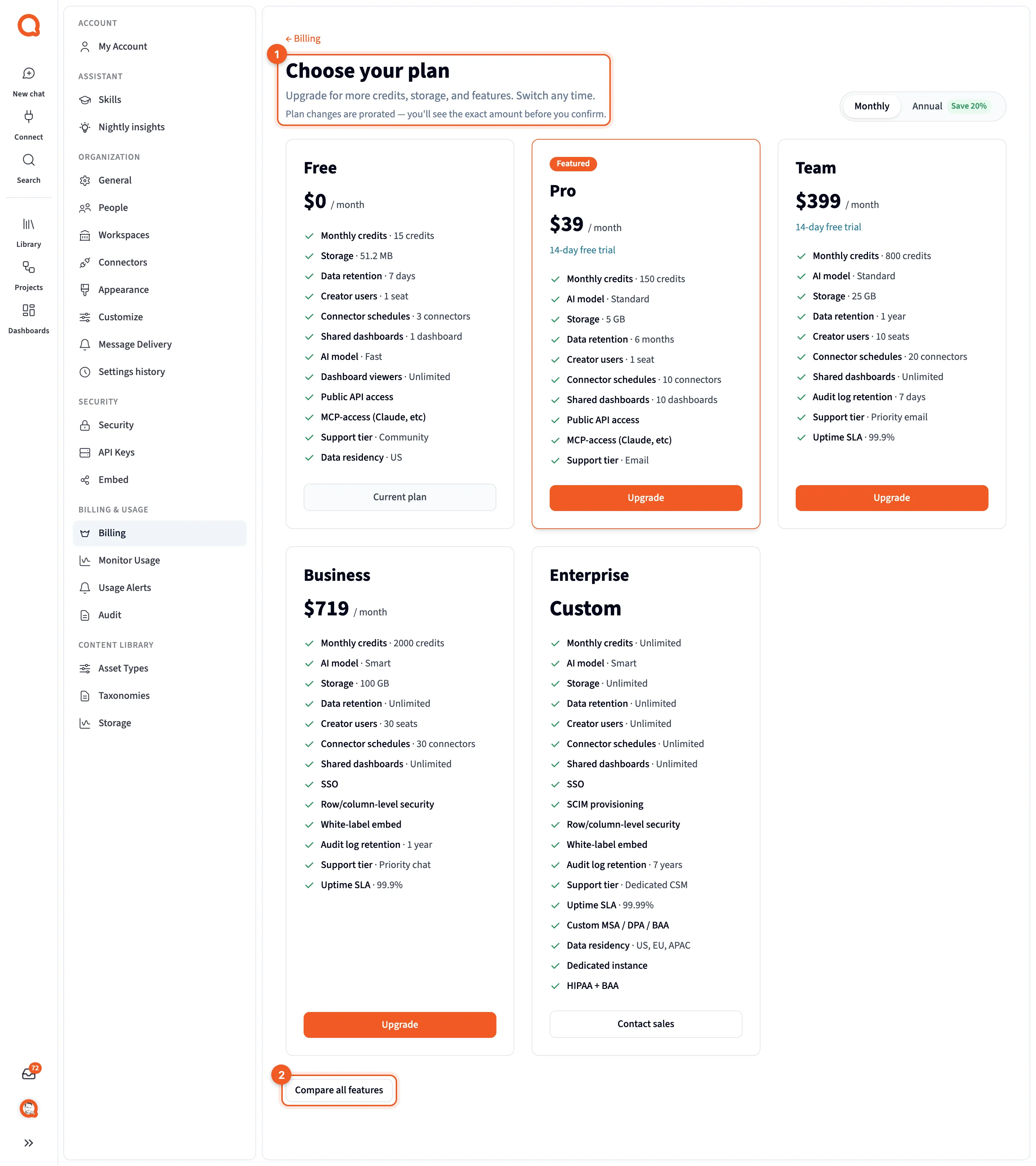
- Choose your plan: the heading, with the note on how plan changes are prorated.
- Compare all features: shows what each plan includes. Hide comparison closes it again.
Picking a card doesn’t change anything yet. Its button takes you to Confirm plan change. A monthly or annual toggle shows up if any plan has an annual price.
Plans and prices come from Querri’s plan catalog and can change, so this page is the place to check them.
Confirm plan change
Section titled “Confirm plan change”The page shows the switch from your current plan to the new one. Charges lists the prorated amounts and your next invoice total, and below that you’ll see which features change and any warnings. Confirm change switches the plan. Cancel leaves it as it was. If you picked the plan you’re already on, the page tells you there’s nothing to change.
Payment methods
Section titled “Payment methods”“Manage the cards on file for your subscription.” Until you add a card, the page reads No payment methods yet and offers Add your first card.
Once you have cards, each one has Make default and Remove, and Add another card adds more. Remove is blocked for your only card, or for the default card behind a paid plan, and the page tells you why. The billing details form sits below the cards.
Cancel subscription
Section titled “Cancel subscription”What you see depends on your plan.
- On the Free plan, the page tells you there’s nothing to cancel.
- If the subscription is already set to cancel, it says “Your subscription is already set to cancel on {date}. Reactivate it via the Change plan flow.”
- On a paid plan, it starts with “You’re currently on {plan}. Access continues until your billing period ends.” What happens next gives the date you drop to the Free plan, and What you’ll lose on Free lists the features that go. Before you go offers Pause instead and See plans. Last come a few reasons to choose from, a box for a note, Confirm cancellation and Keep my subscription.
Nothing is canceled until you click Confirm cancellation. After that, access continues until the end of the billing period, and then the organization moves to the Free plan.
Related
Section titled “Related”- Monitor usage
- Usage alerts
- Billing audit log, a record of every plan, payment and subscription change
- Credits