
Chat and the Librarian
Esta página aún no está disponible en español. Se muestra la versión en inglés.
Librarian chat is where you ask the Librarian about your data. It sits beside most pages in Querri and keeps your conversation as you move around.
Who can see this: everyone who’s signed in. It’s hidden in Settings. Each message you send the Librarian counts once toward your credits as a question asked in the Library.
- Ask your librarian: a fresh chat.
- A starter question: one of your own questions. Click it to ask.
- The composer: type your question here.
A fresh chat beside the Library shows Ask your librarian and three starter questions. They’re questions from your own Library, picked at random, and clicking one asks it straight away. Beside your projects the chat opens on Ask about your projects instead, and beside your dashboards on Ask about your dashboards.
The header shows the chat’s title, New chat, and Expand chat, which lets the chat cover the page. What the Librarian can do is covered in The Librarian.
Talking to a project or a dashboard
Section titled “Talking to a project or a dashboard”In a project, this panel is that project’s chat. Go to the Library with the project still open, and the chat asks where your next message should go: “You’ve brought your project chat with you.” Choose Stay in project chat or Switch to Library chat.
- The question: you’ve brought a project with you.
- Stay in project chat: keep talking to the project.
- Switch to Library chat: talk to the Librarian.
After that, a bar above the composer says who’s listening. Project chat · and the project’s name comes with Switch to Library chat. Library chat comes with Back to and the project’s name, and the box reads Ask the Librarian…. The × leaves the project and returns you to the Librarian. If an answer is still arriving, the switch waits for it to finish.
On a dashboard, the chooser offers Use the dashboard assistant instead, and the bar reads Dashboard assistant. See The dashboard assistant.
The composer
Section titled “The composer”- Attach files: send a file with your message.
- Load skills into context: add skills to this chat.
- Attach files, the paperclip, sends files with your message. You can also drop them anywhere on the panel or paste them, and a message carries up to six. Chips above the box show each one’s progress, with Retry upload and Remove; a file that already uploaded stays in your Library when you remove its chip. Spreadsheets and CSVs are read with the data tools, images, PDFs and text files are read as they are, and anything else arrives as a note saying it’s there.
- Load skills into context, the graduation-cap button, appears once a chat has started, if skills are turned on for your organization. Once skills are loaded, it shows how many. It opens Load a Skill, where you can load up to five skills into this chat, and the Librarian uses only the skills you load. See Skills.
- Think longer and harder, the clock icon, appears only in project chats. When it’s lit, “Answers are checked and retried before you see them.” When it’s off, “Answers come back in one pass, unchecked.”
- Send sends your message. While an answer is still arriving, it turns into Add to queue.
The Librarian moves around the app as it answers. It can open a collection, a file or a dashboard, filter or search the Library, switch pages, and edit a dashboard you have open. Each move shows as a line in the chat, such as “Opened Projects”. There’s no setting for this in Querri; only an embed can turn it off.
Reading an answer
Section titled “Reading an answer”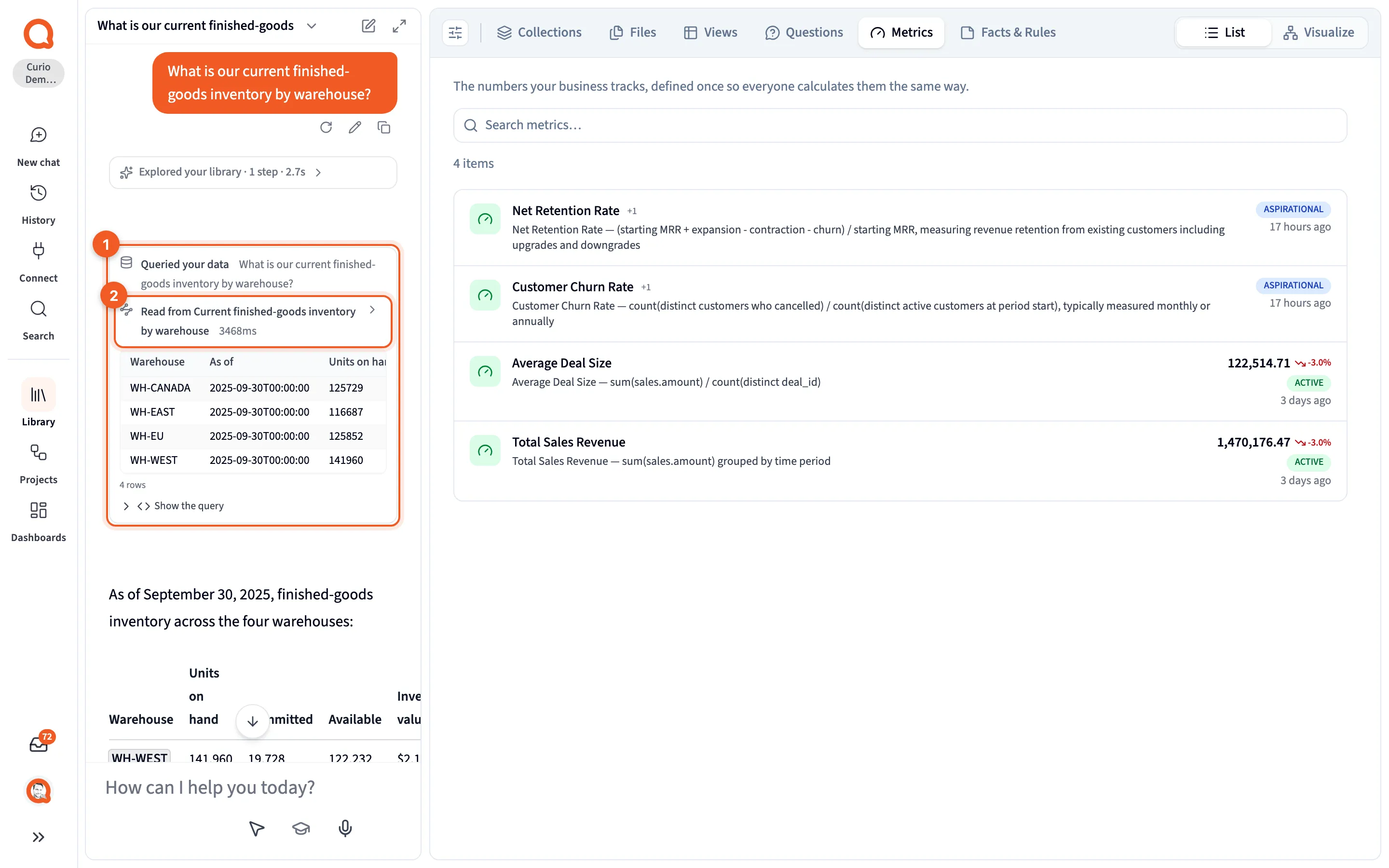
- The answer block: what the answer read, the rows it got back, and its query.
- The route row: where the answer came from. Click it to see everything the answer read or touched.
While the Librarian works, the chat reads Querying your data…. An Explored your library row above the answer shows what it searched first.
The route row starts with Read from a view or KPI, Queried one or more tables, or Searched your library when nothing was read. Under it, the rows come with a count, such as 4 rows. Cells show raw values, so a date reads like 2025-09-30T00:00:00.
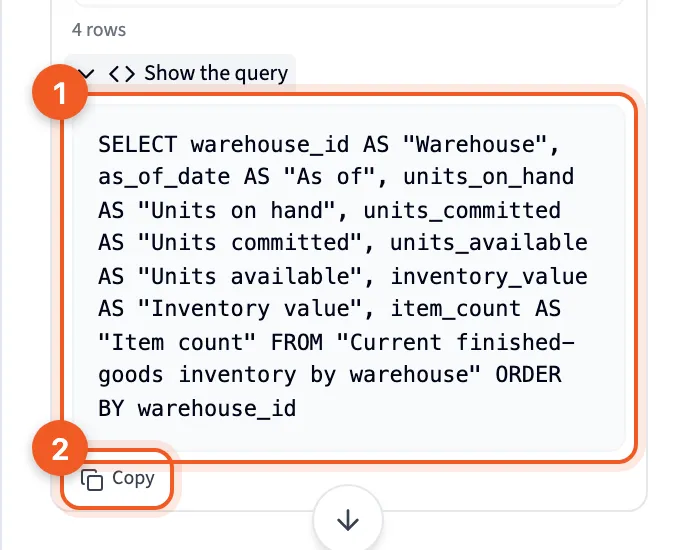
- Show the query: the SQL behind the rows.
- Copy: copy the SQL.
If the Library’s Visualize canvas is open while an answer comes in, the items it uses light up there. Afterwards, expand the route row to light them again. Highlights only show on the canvas. See Visualize.
When nothing in your Library fits, the answer reads Query declined. If the Librarian builds a table for you instead, a card offers Save this table as a view, and saving is your call. How Querri answers a question explains each path, and Check an answer before you share it shows how to check one.
When a question needs a project
Section titled “When a question needs a project”Quick questions stay in chat. When a question needs a trend, a comparison across several cuts, a chart, a forecast or a root cause, the Librarian answers briefly and offers a This needs a project card, with Create project and Not now. Nothing is created until you confirm. Sometimes the offer comes as an option instead. See Projects.
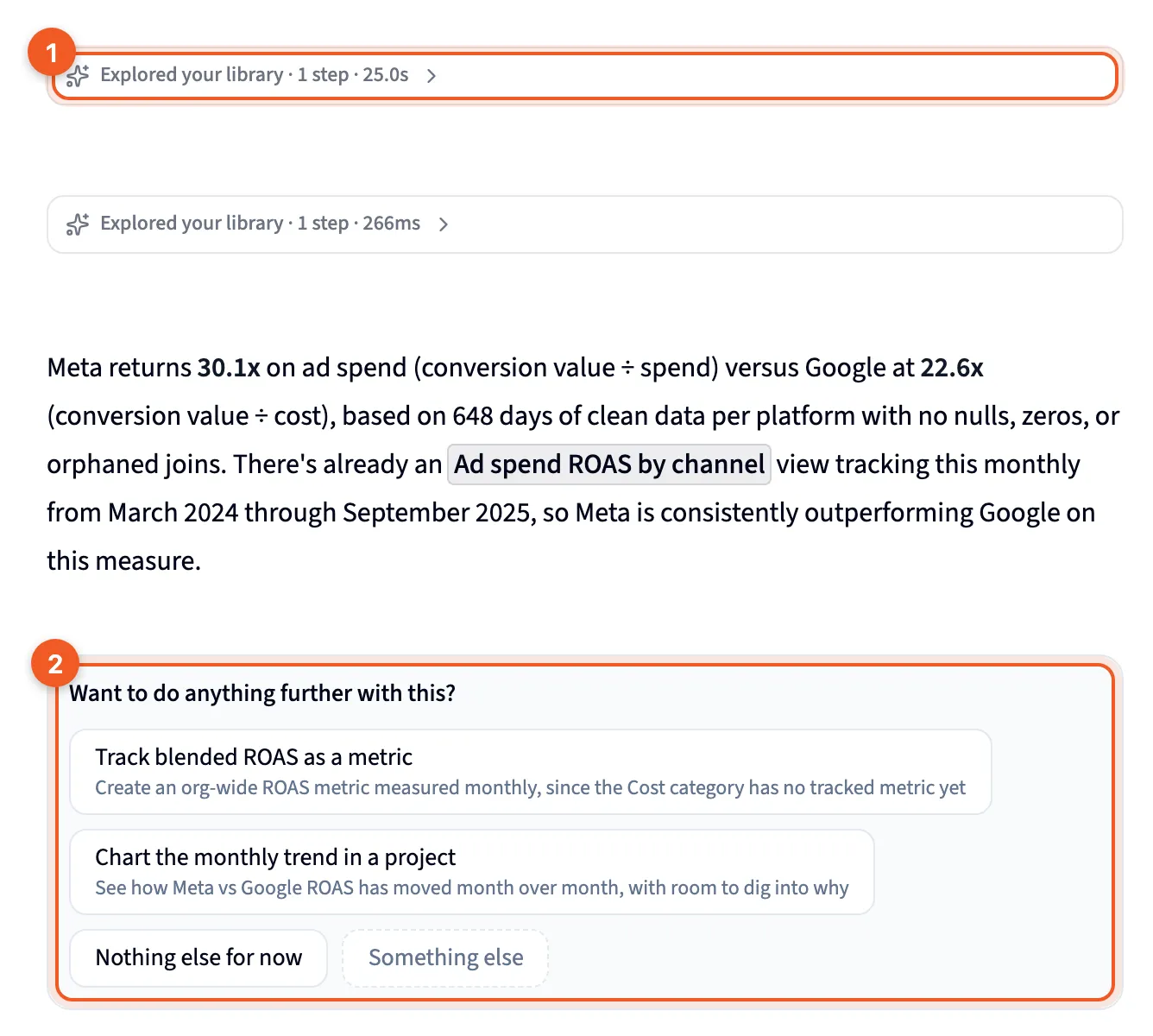
- Explored your library: what the Librarian searched first.
- The options: follow-ups to choose from, here including Chart the monthly trend in a project. Clicking one sends it as your next message.
Chat history
Section titled “Chat history”- History on the rail.
- Search chats…: filter your chats.
- The groups, by date.
- The icon: a Librarian chat or a project chat.
History on the rail opens Chat history in the chat panel. On the New chat page it opens beside the chat. Chats are grouped under Pinned, Today, Yesterday, Previous 7 days and Older, and Librarian chats and project chats share the list. Search chats… filters your 50 most recent chats by title and last question.
Click a Librarian chat to reopen it, with its answers, rows and queries. A project chat opens its project. The ⋯ menu on a Librarian chat has Pin, Rename and Delete.