
Search
Esta página aún no está disponible en español. Se muestra la versión en inglés.
The Library has more than one search, and they don’t behave the same way. The box above the Files list finds files. Each knowledge tab filters its own list. Find anything… searches the canvas in Visualize. And ⌘K, or Search in the app rail, looks through everything you can see.
Who can see this: everyone. You only get results you have access to.
Search your files
Section titled “Search your files”The search box sits above the Files table. It reads “Search assets within” and the workspace’s name, or “Search assets everywhere…” when you’re looking at Everything.
Type and press Enter to search, or press Esc to clear it. If you’ve scrolled down a long list, press / to bring the search box back.
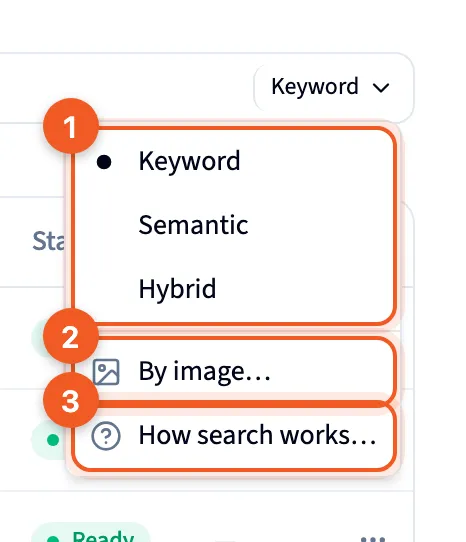
The chip at the right end of the box shows the search mode. Click it to change modes:
- Keyword, Semantic or Hybrid: how your words are matched.
- By image…: pick an image from your computer and search with it.
- How search works…: a short guide to all four.
On the Shared with lists only Keyword search runs, and the chip doesn’t appear.
How search works
Section titled “How search works”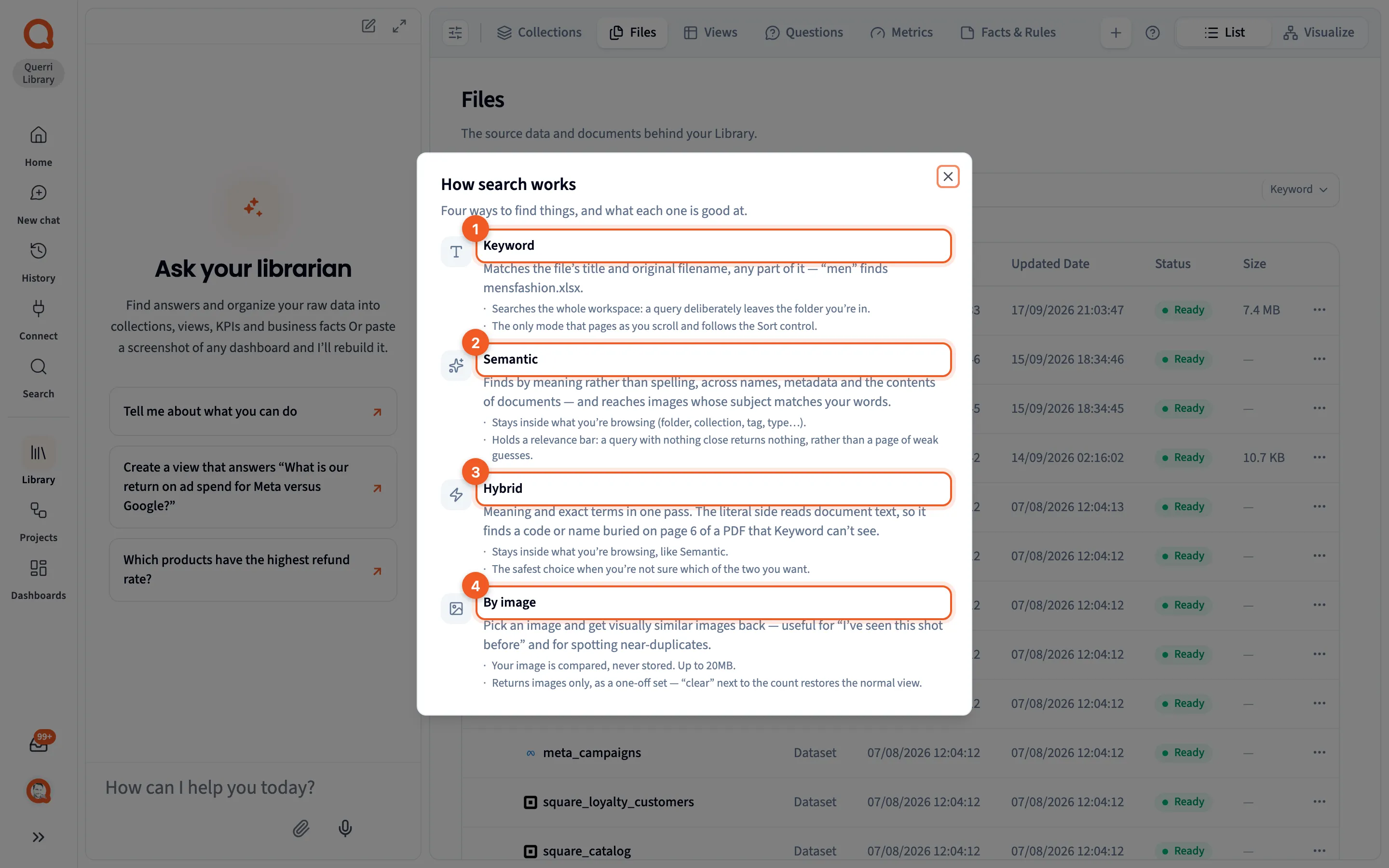
The How search works dialog describes “Four ways to find things, and what each one is good at.”
| Mode | What it matches | Where it looks |
|---|---|---|
| Keyword | Any part of a file’s title or original filename. “men” finds mensfashion.xlsx. | The whole workspace, even when you’re inside a folder. It’s also the only mode that loads more as you scroll and follows the sort order. |
| Semantic | Meaning rather than spelling, across names, metadata and what’s inside documents. It also finds images whose subject matches your words. | Only what you’re browsing: the folder, tag, type and so on. |
| Hybrid | Meaning and exact terms in one pass. It reads document text, so it can find a code or a name buried on page 6 of a PDF that Keyword can’t see. | Only what you’re browsing, like Semantic. |
| By image | Images that look like the one you pick. Handy for “I’ve seen this shot before” and for spotting near-duplicates. | Images only. Your image is compared, never stored, and can be up to 20MB. |
Two things catch people out.
Keyword is the mode that leaves your folder. Semantic and Hybrid stay inside it.
And Semantic and Hybrid would rather return nothing than a page of weak guesses. If nothing is close, you’ll see “No strong matches”, with links to try Keyword for exact names or to read why this can be empty. A Keyword search that finds nothing says “No assets match” instead.
Not sure which to use? The dialog calls Hybrid the safest choice.
After a By image search, the count line says what the results are similar to. Click clear next to it to go back to the normal list.
Save a search
Section titled “Save a search”After a Semantic or Hybrid search, a Save button appears beside the box. It saves the search as a smart folder, which stays live and picks up new files that match.
Filter the file list
Section titled “Filter the file list”The Filters tab in the browse panel narrows the Files list. It has three groups:
- Asset type: Document, Dataset or View, each with a count.
- Status: Ready, Processing, Draft or Failed.
- Connectors: one row for each kind of connector.
Tick more than one value in a group to see files that match any of them. Tick values in different groups to see only the files that match all of them. The Filters tab shows how many filters are on, and Clear filters turns them all off. Filters don’t apply to the Shared with lists.
Search a knowledge tab
Section titled “Search a knowledge tab”Collections, Views, Questions, Metrics and Facts & Rules each have their own search box, such as “Search metrics…”. It filters the list as you type, and the count reads “N of M items”. There are no modes here.
If nothing matches, the tab says so and offers Clear search.
Find anything
Section titled “Find anything”In Visualize, the section tabs give way to a Find anything… bar. It searches the items on the canvas, not your files, so the modes above don’t apply.
- Jump to one item: type part of its name and pick it from the list. It opens the item’s detail panel.
- Light up a topic: choose Zoom to with what you typed, such as “revenue”. Everything related glows and the rest of the canvas dims. What it found is added to Librarian chat as context for your next question, as a chip you can remove.
To clear it, click × on the bar, Clear in the list, or press Esc. When the Librarian searches the Library while Visualize is open, the canvas lights up the same way.
Visualize covers the canvas and what lights up on it.
Search everything with ⌘K
Section titled “Search everything with ⌘K”Press ⌘K (Ctrl+K on Windows) or click Search in the app rail. The shortcut works even while you’re typing in another box.
- Scope: it always starts at Everything, every workspace you can see. You can narrow it with the scope pill, but that only lasts until you close the search.
- Matching: type at least two characters. It finds your words in names and summaries. It matches text exactly and doesn’t search by meaning.
- Types: chips along the top filter by kind, starting with All. Only kinds with results appear, and they cover sources, views, connectors, files, collections, questions, metrics, facts, projects, steps, dashboards, widgets and chats.
- Results: each one says which workspace it lives in, or where it’s shared.
- Opening a result: projects and dashboards open their own pages. Everything else opens in the Library, with its detail panel showing.