
Creating and sharing skills
Esta página aún no está disponible en español. Se muestra la versión en inglés.
The skill editor is where you write a skill: what it’s for, how it should go, and which chats can use it. Anyone in the organization can make one. Sharing it with everyone is an admin’s call.
Who can see this: everyone in the organization. Only admins can share a skill with the organization.
Start a skill
Section titled “Start a skill”On the Skills page, click + New Skill, or Create your first skill if you don’t have any yet. In a chat, the Load a Skill dialog has Create one.
You can also start from work you’ve already done. In a project’s Data Flow panel, select between 1 and 20 steps and choose Save as Skill. That needs permission to edit the project. See The Data Flow.
The editor opens as New Skill, or Edit Skill when you open an existing one. ← Back to Skills returns to the Skills page.
The editor
Section titled “The editor”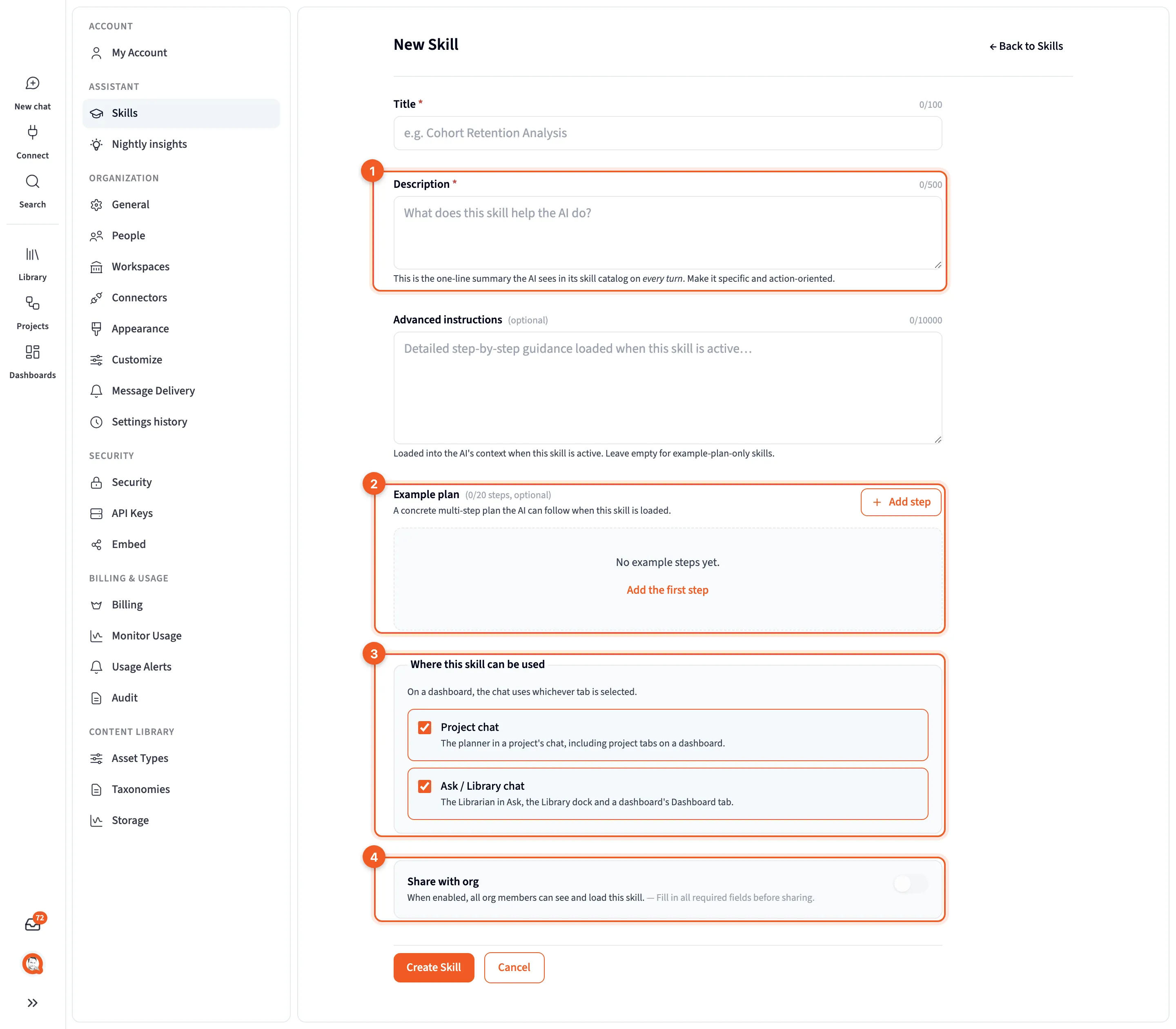
- Description: the line the assistant sees every time.
- Example plan: optional steps to follow.
- Where this skill can be used: project chat, Librarian chat, or both.
- Share with org: admins only.
The fields run top to bottom.
- Title: a short name, like “Cohort Retention Analysis”.
- Description: “This is the one-line summary the AI sees in its skill catalog on every turn. Make it specific and action-oriented.” Project chat reads it when it decides whether to load a skill by itself, so say what the skill does and when it applies.
- Advanced instructions (optional): “Loaded into the AI’s context when this skill is active. Leave empty for example-plan-only skills.” You have up to 10,000 characters.
- Example plan (optional, up to 20 steps): “A concrete multi-step plan the AI can follow when this skill is loaded.” Each step has a Name, a Tool, a Parent and a Prompt, and can list Relevant columns. Under Advanced, a step can also name Additional dependencies and hold a Code example. All the code examples share one Code budget of 12,000 characters.
- Where this skill can be used: see below.
- Share with org: see Share a skill.
Title and Description are required, and so are each example step’s Name, Tool, Parent and Prompt. Finish with Create Skill, or Save Changes when editing. Cancel throws your changes away.
What makes a good description? Being specific. “Weekly on-time delivery rate by carrier, counting only delivered shipments matched to an SLA” tells the assistant far more than “Delivery report”.
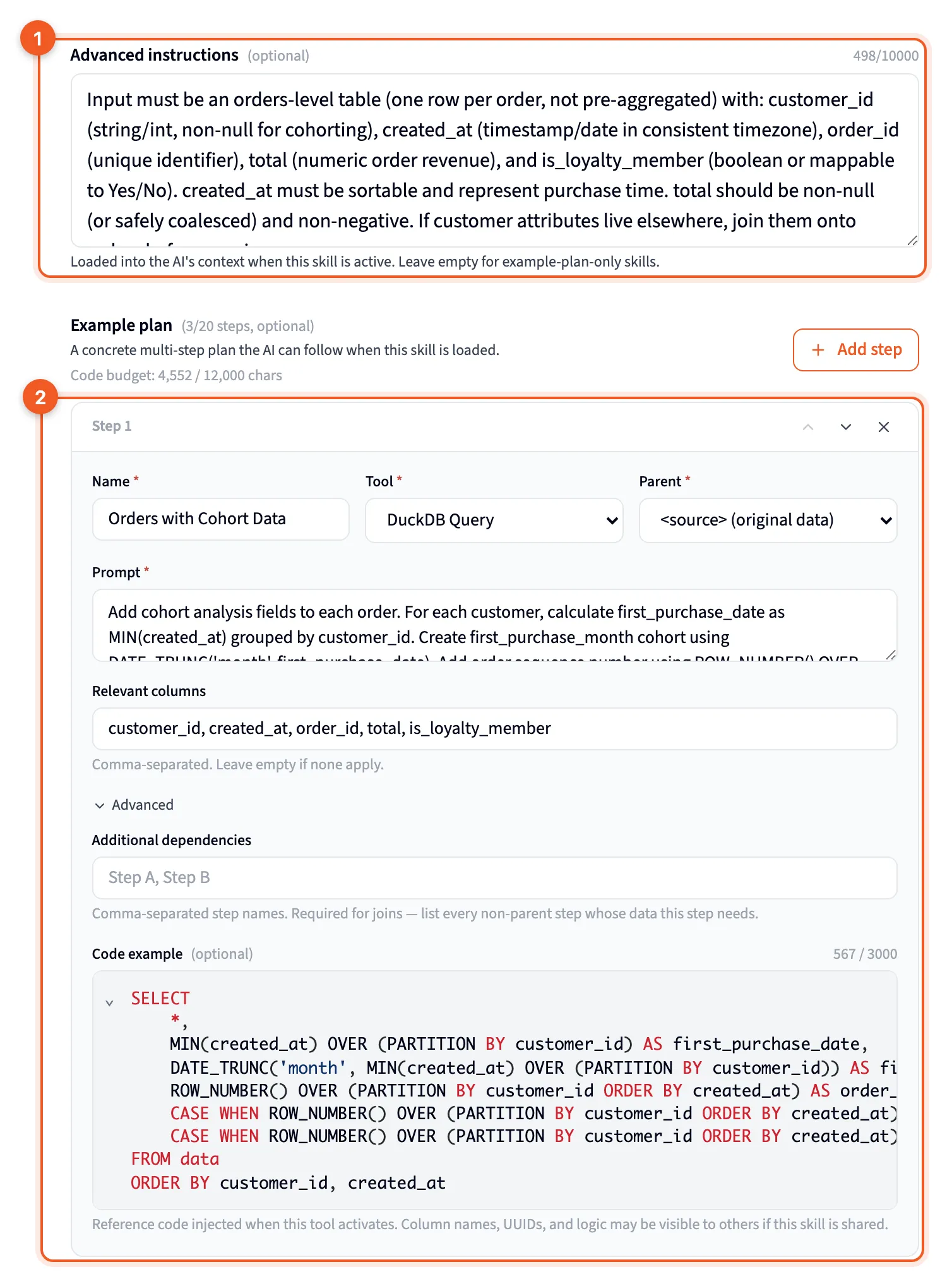
- Advanced instructions: the detail loaded with the skill.
- The first example step: one step of the plan.
Librarian chat ignores the example plan. If a skill is meant for Librarian chat, put what matters in Advanced instructions.
Where this skill can be used
Section titled “Where this skill can be used”Both boxes are ticked for a new skill. Untick one to keep the skill out of that kind of chat.
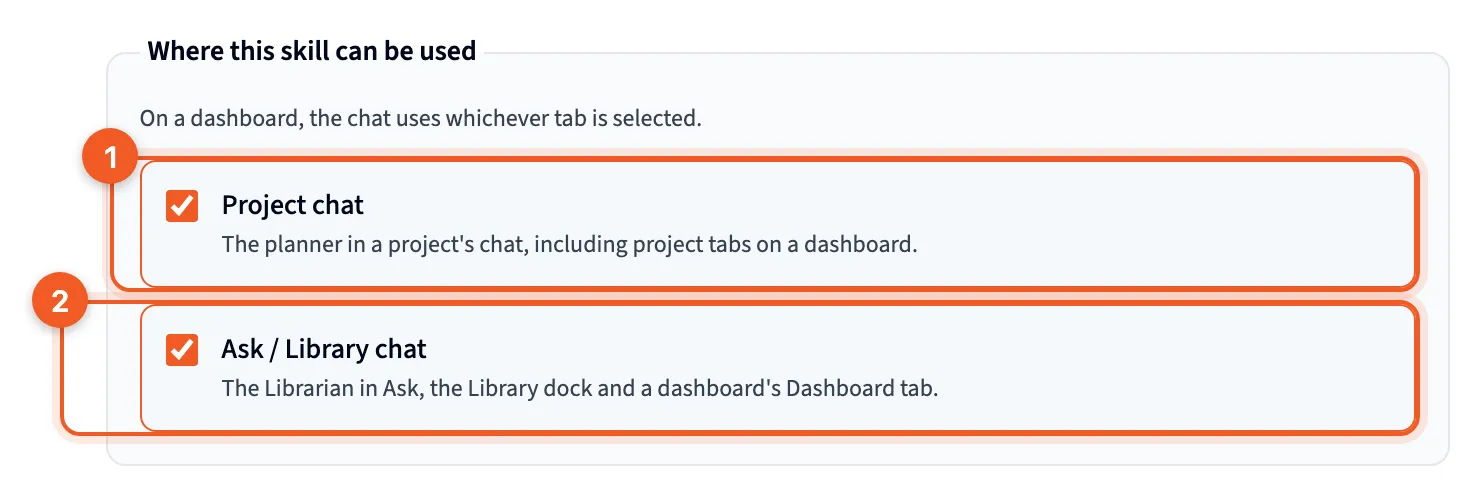
- Project chat: “The planner in a project’s chat, including project tabs on a dashboard.”
- Ask / Library chat: “The Librarian in Ask, the Library dock and a dashboard’s Dashboard tab.”
As the hint under the boxes says, “On a dashboard, the chat uses whichever tab is selected.”
A skill with only one box ticked gets an “only in” badge on its card, and the skill loader hides it in the other kind of chat.
Share a skill
Section titled “Share a skill”A new skill is private, so only you can see it and load it. Once it’s shared, “all org members can see and load this skill.”
Only admins can share. In the editor, an admin turns on Share with org, which works once the form is complete; until then it says “Fill in all required fields before sharing.” On the Skills page, admins also get Share with org and Unshare with org on any skill card they can see.
If you’re not an admin, ask one. That goes for skills you made yourself, and for unsharing later, too.
If the skill has code examples, the editor warns you that sharing will make them visible to the organization.
Edit or delete a skill
Section titled “Edit or delete a skill”| Who | Can edit and delete |
|---|---|
| The person who made the skill | Their own skills, shared or not |
| An admin | Skills shared with the organization |
An admin can’t edit or delete someone else’s private skill. On a skill you can’t edit, the card offers View instead of Edit. Deleting a skill is recorded in the Audit Log, under Security in Settings.