
Sharing and automating dashboards
Share gives people access to a dashboard or publishes it as a page, Present shows it on its own, and Automate refreshes its data on a schedule.
Who can see this: a dashboard’s owners and editors, on a tablet or desktop screen, see Share and Automate in the dashboard’s header. Some actions inside need the owner. Present is there for everyone who can open the dashboard.
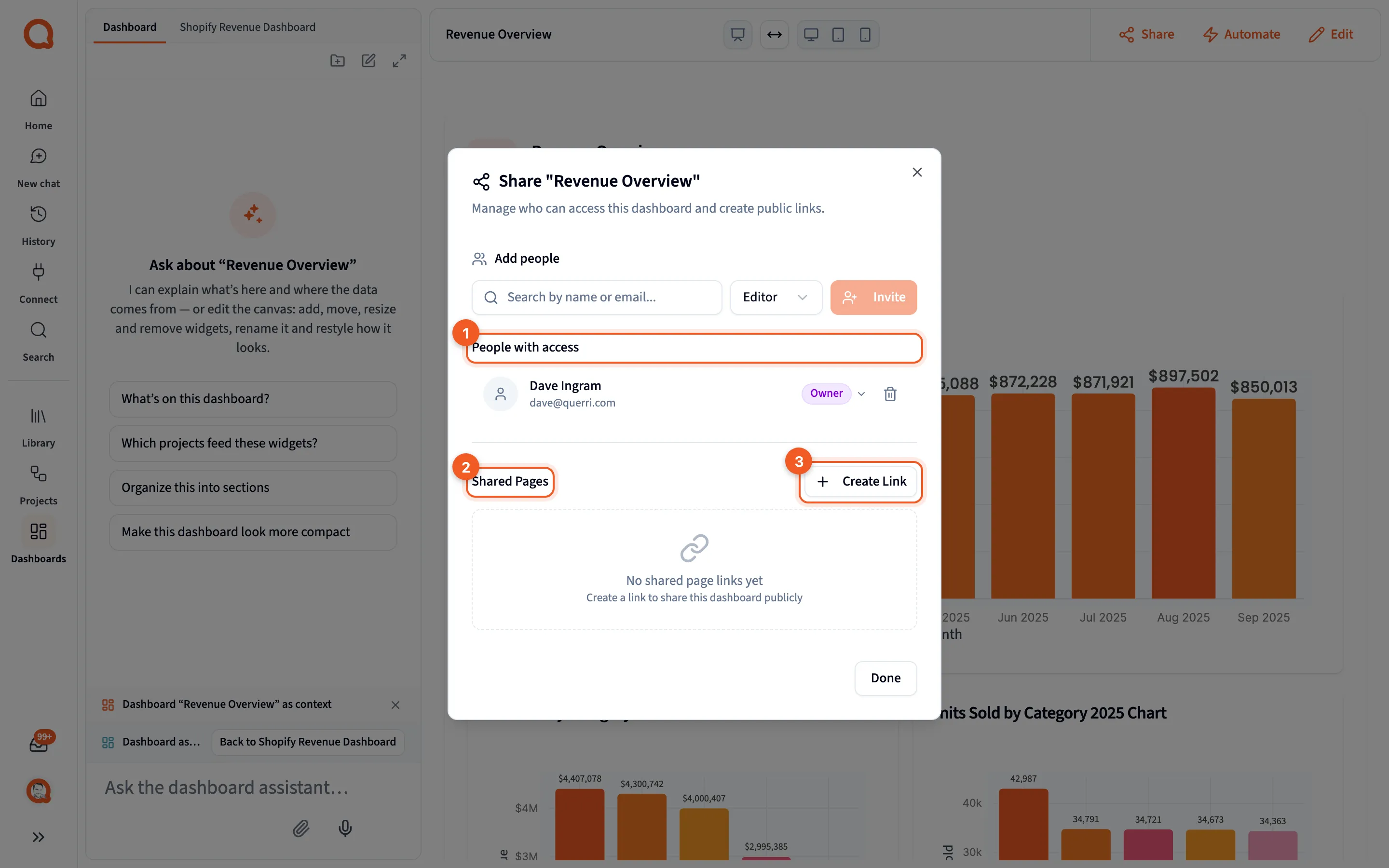
- People with access: who can open the dashboard, and their roles.
- Shared Pages: public links to the dashboard.
- Create Link: publish a new link.
Adding people
Section titled “Adding people”Search by name or email, pick a role, and click Invite. For someone who already has access, the button reads Update. You can invite an email address from outside your organization too.
| Role | What it allows |
|---|---|
| Viewer | Open the dashboard and use its filters. Their filter choices stay in their own browser |
| Editor | Also edit the dashboard, and use Share and Automate. Their filter choices are saved for everyone |
| Owner | Also add and remove people, and manage public links |
New people get Editor unless you pick another role. Editors see the controls for adding people, but only an owner or an admin can add or remove someone.
These roles belong to this one dashboard, separate from workspace roles; see Workspaces and privacy. There’s no option to share with your whole organization at once.
People with access lists everyone who has access, marking you and the dashboard’s creator, with a role menu on each row. Leave this dashboard removes your own access.
Public links
Section titled “Public links”Create Link, under Shared Pages, publishes the dashboard as a page that anyone with the link can open.
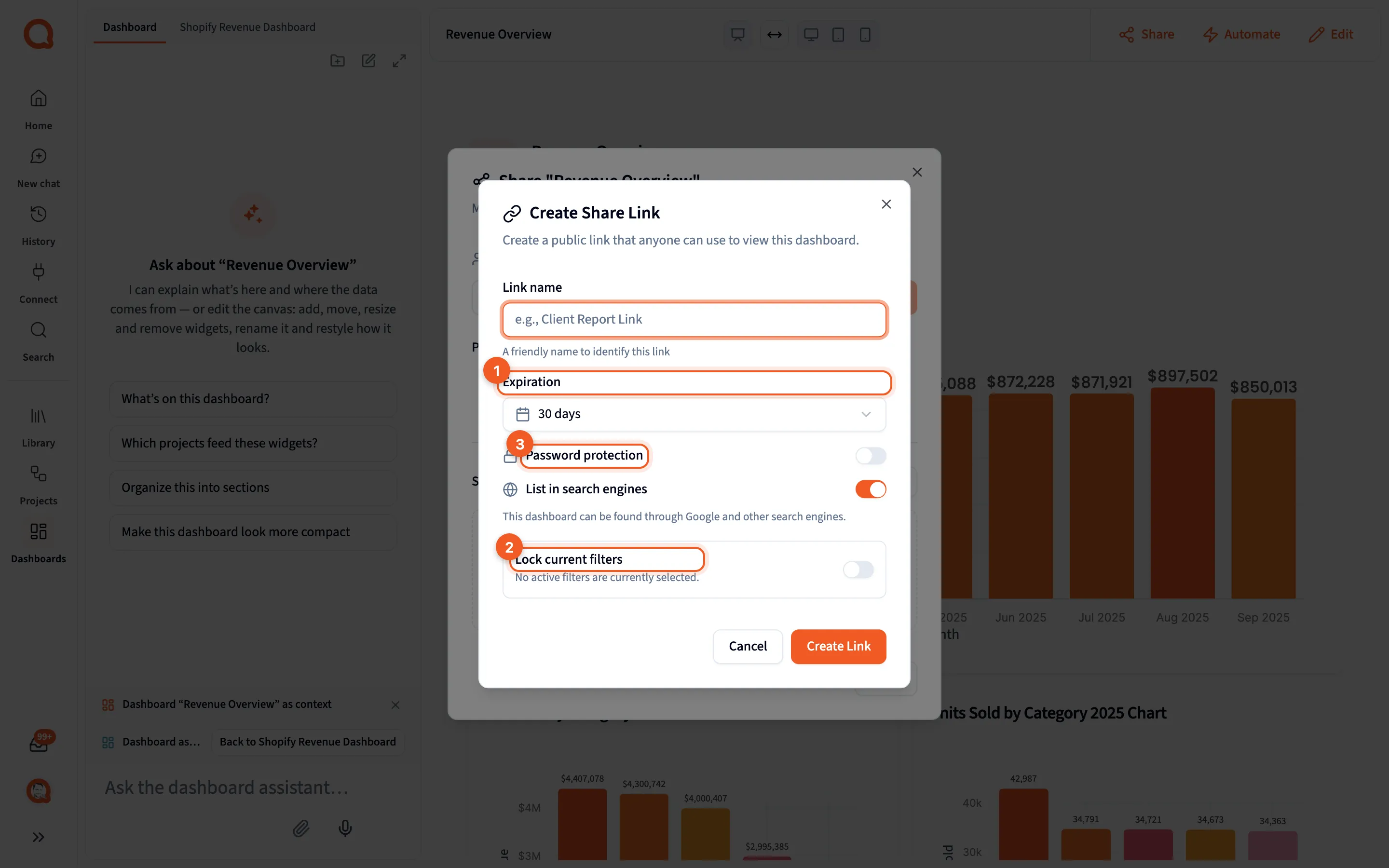
- Expiration: when the link stops working.
- Lock current filters: keep the filters as they are now.
- Password protection: ask visitors for a password.
The form has these options:
- Link name
- Expiration: 7 days, 30 days (the default), 90 days, or Never
- Password protection
- List in search engines: on by default, and turned off when you set a password
- Lock current filters and Hide filter controls
Each link in Shared Pages shows when it expires, with buttons to copy its URL or the HTML to embed it.
- Who manages links: the owner. An admin can let editors manage them too with “Editors can share dashboards”; see Sharing.
- Plan limits: free plans see a prompt to upgrade. Every plan caps how many dashboards you can share this way, and at the cap Querri says “Shared-dashboard limit reached for current plan. Upgrade to add more.”
- What visitors get: a read-only page with no dashboard assistant. Their filter changes stay in their browser, and they see the data the link’s creator is allowed to see. See Dashboard security.
A share page is drawn with the dashboard’s theme and its page frame, worked out on the server, so it looks the same to a visitor as it does to you. At the bottom it carries a Powered by Querri footer.
Present
Section titled “Present”Present in the dashboard’s header opens it at an address of its own, with none of the app around it: no rail, no chat panel and no header, just the page frame and the widgets on the dashboard’s theme. It’s the third way to show a dashboard, and the only one with no link to publish and no embed to configure.
- Who can use it: anyone who can open the dashboard, viewers included. Access is the viewer’s own, so it shows a dashboard to your own people rather than to the public.
- What it doesn’t do: it saves nothing, it isn’t offered inside an embed, and it carries no Powered by Querri footer.
See Present.
Widget embeds
Section titled “Widget embeds”The owner can publish a single widget on its own, for a website or another tool. In edit mode, select the widget and open Share in the properties panel:
- Enable Embed, then Embed URL and Copy Embed HTML
- Dimensions
- Password Protected
- Expiration: Never, 7 days, 30 days or 90 days
Turning Enable Embed back off asks first: Turn off embedding?, with the note “The embed URL stops working for anyone who has it. You can turn it on again later, with a new URL.” and a Turn off button.
Once a dashboard has embeds, the owner sees them listed under Widget Embeds in the Share dialog.
Automate
Section titled “Automate”Automate refreshes a dashboard’s data on a schedule by running the projects that feed it again.
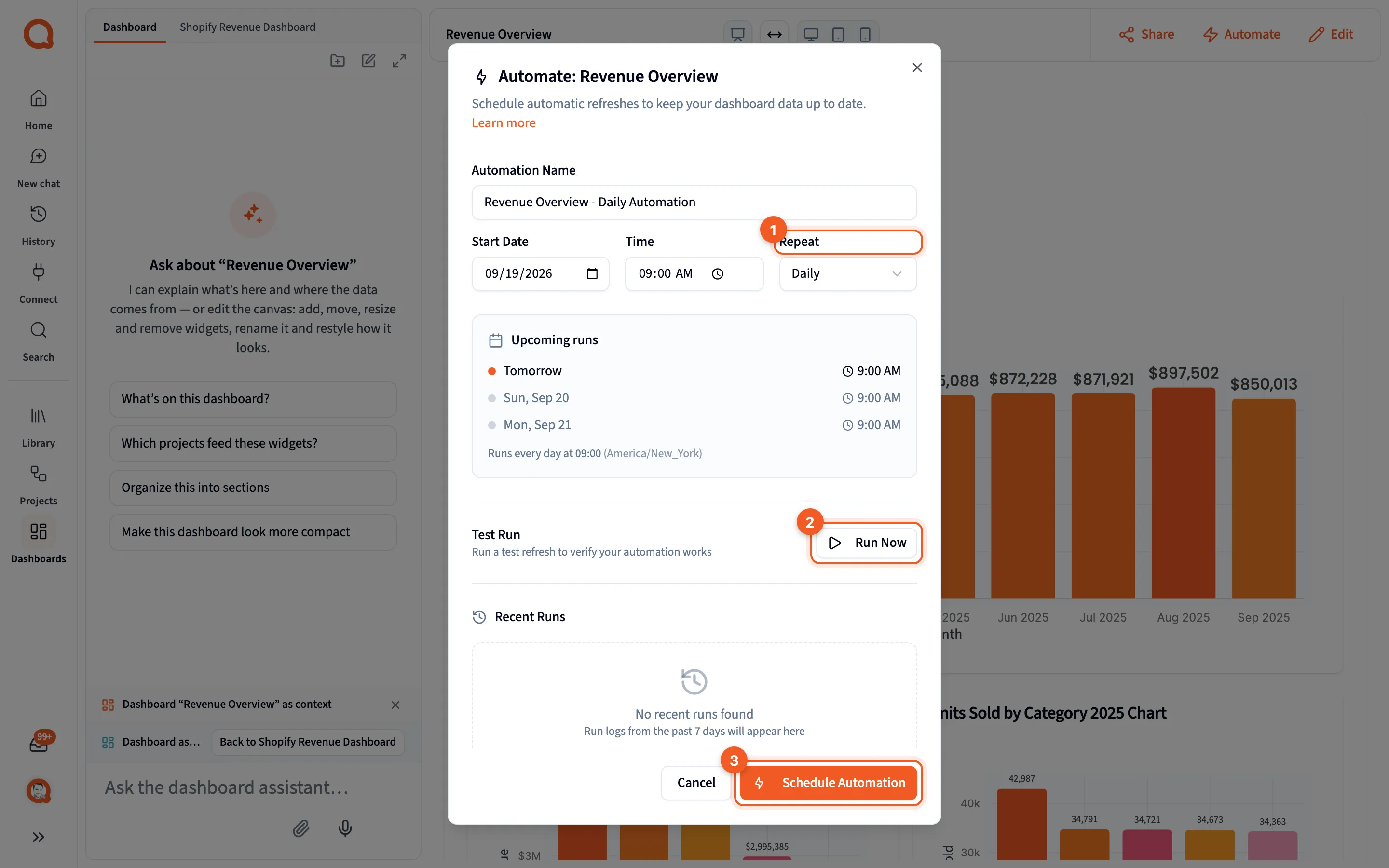
- Repeat: how often it refreshes.
- Run Now: refresh once, now.
- Schedule Automation: save the schedule.
The dialog, Automate: followed by the dashboard’s name, has:
- Automation Name.
- Start Date, tomorrow unless you change it, and Time, 09:00 in your browser’s time zone.
- Repeat: Daily, Weekly (every Monday) or Monthly (on the 1st). There’s no hourly option.
- Run Now, under Test Run, which refreshes once and shows “Refreshing dashboard data…”, then Completed or Failed. A run that takes more than 10 minutes times out.
- Schedule Automation, which saves the schedule. After that, the button reads Update Automation, and Recent Runs lists what ran.
Steps that use AI models, such as Researcher or Categorize, call the models again rather than reusing earlier answers.
Credits: each refresh counts as a Scheduled project run: 1 credit for every 10 steps that ran, and at least 1, at the default rates. Your plan may differ. See Credits.
Related
Section titled “Related”- Dashboards
- Sharing: projects, dashboards and Library items
- Dashboard security
- Credits
- Replace a weekly manual report
- Keep data fresh