
Message delivery
Message Delivery sends your Deliver emails from your organization’s own address, through your own mail server, instead of from Querri’s default sender.
Who can see this: admins only.
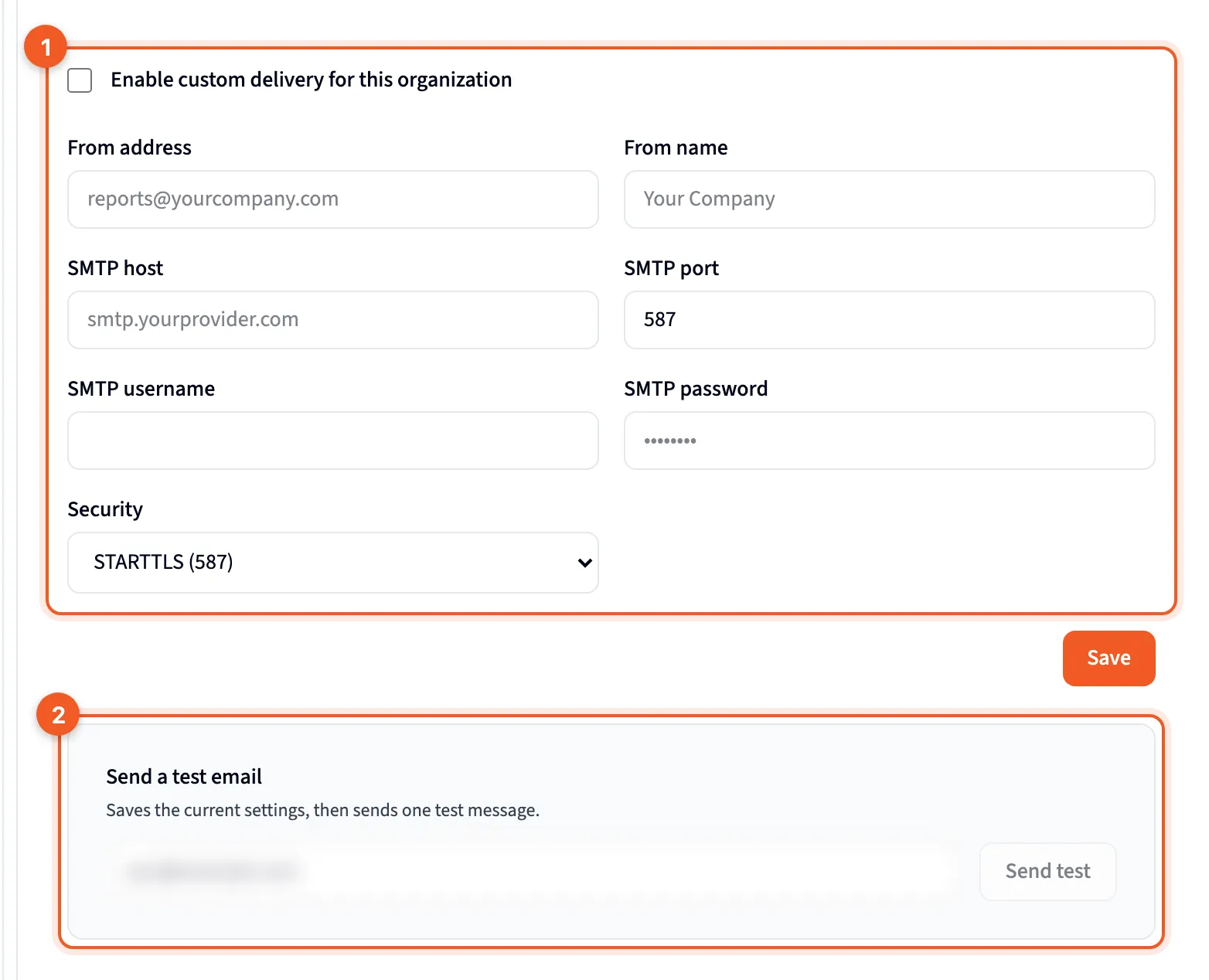
- Enable custom delivery for this organization, with the sender and mail server fields under it.
- Send a test email: check that it works.
It changes only who Deliver emails come from, plus the test email sent from this page. Querri’s other emails keep the default sender. With it turned on, Deliver emails from every project in your organization use your settings.
Set it up
Section titled “Set it up”- Tick Enable custom delivery for this organization.
- Fill in From address and From name. Your mail account has to be allowed to send from that address.
- Fill in SMTP host, SMTP port (587 unless you change it), SMTP username and SMTP password.
- Choose Security: STARTTLS (587), SSL/TLS (465) or None.
- Click Save.
Once a password is saved, the box shows ********, and the saved password is never sent back to your browser. Leave the box alone to keep it.
Send a test
Section titled “Send a test”Send a test email fills in your own address as the recipient, and you can change it. Click Send test.
It saves the current form first, then sends one message, so only test settings you’re ready to keep. The result appears in a line under the card.