
Skills
A skill is a reusable recipe for the assistant. You write down how a piece of analysis should go once, then load that skill into a chat whenever the same kind of question comes up.
Who can see this: everyone in the organization. Anyone can create skills, and only admins can share one with the whole organization. If skills are turned off for your organization, the Skills page, the button in the chat box and the skill pills don’t appear at all.
Read the transcript
Rebuilding the same analysis every month
Every month, someone rebuilds the same analysis from scratch. The questions keep coming back. So should the method.
What is a Querri Skill?
Querri Skills fix that. A skill is a reusable analysis recipe: your terminology, business rules and proven steps, which the agent can apply whenever the question returns.
Save data flow steps as a Skill
In Querri, the easiest way to build one starts with work you’ve already done. Open a project’s data flow, select the steps that worked, and click Save as Skill. From there, Querri drafts the title and description, writes instructions for the data it expects, and turns your steps into an example plan. Review it, then create the skill.
Create a Skill with the form
Prefer to start from scratch? The form asks for a clear title, a description the AI reads on every turn, and optional instructions for your business rules.
Load and share Skills
Then put it to work. Load up to five skills into a chat, and in a project chat, the agent can pick the right one on its own. Share it with your whole org, and one analyst’s recipe becomes the whole team’s default. Teach Querri once. Use it forever.
What’s in a skill
Section titled “What’s in a skill”Every skill has a title and a one-line description. It can also have detailed instructions and an example plan, a list of steps to follow. The description matters most, because it’s what the assistant sees when deciding what a skill is for. Creating and sharing skills goes through each field.
A skill can be limited to project chat or to Librarian chat, or allowed in both. Some skills are only yours, and some are shared with the whole organization.
The Skills page
Section titled “The Skills page”Skills live in Settings, under Assistant › Skills. You can also get there from the chat box, through Manage skills → in the skill loader.
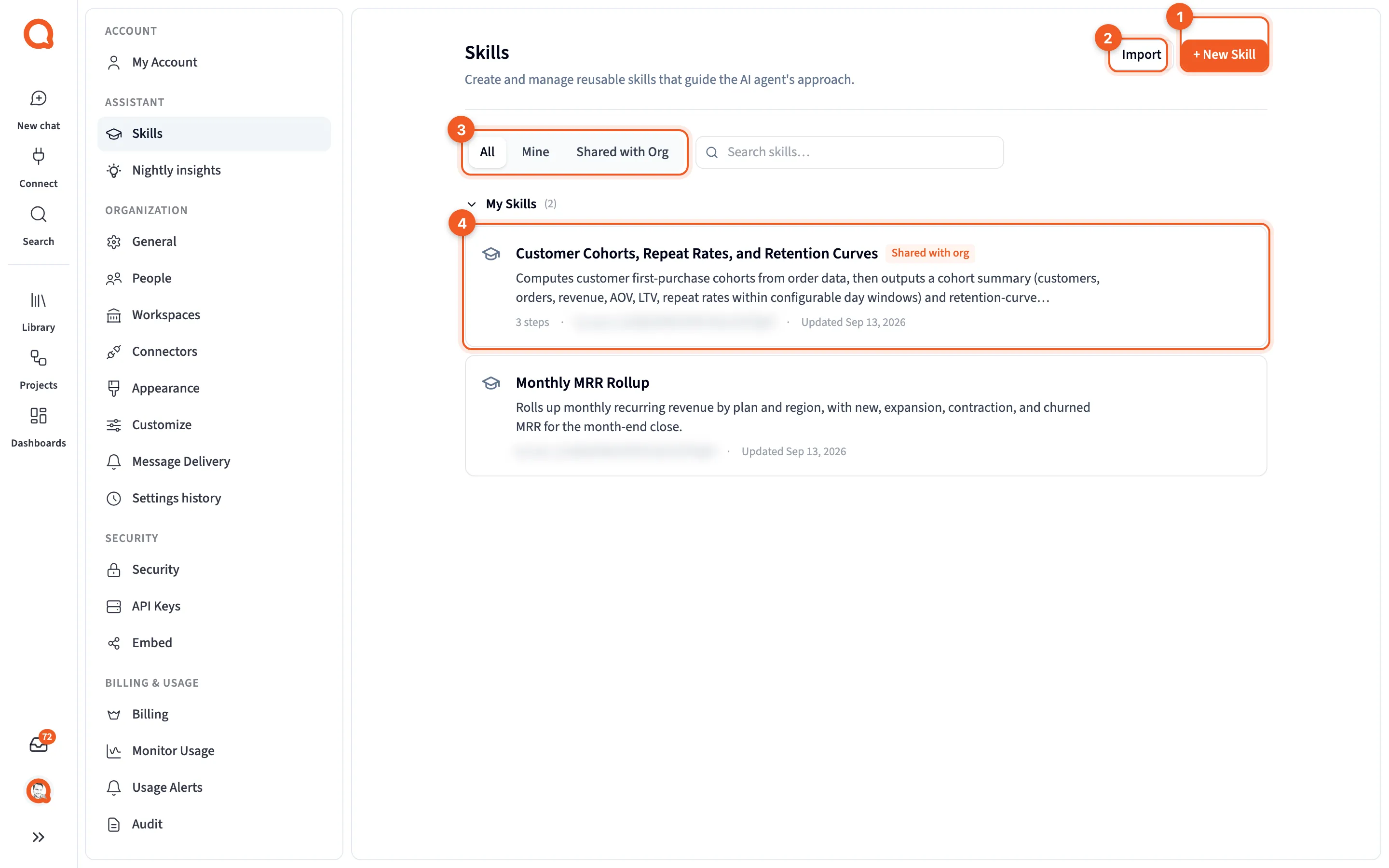
- + New Skill: opens the editor. See Creating and sharing skills.
- Import: adds a skill from a
.qskillfile. See Importing and exporting skills. - All, Mine and Shared with Org: which skills to list. There’s also a Search skills… box.
- A skill card: one skill.
On the All tab, skills are split into My Skills and Shared with Org. Each card shows the skill’s title and description, how many steps its example plan has, and when it was last updated. A Shared with org badge marks shared skills, and a skill limited to one kind of chat carries an “only in” badge.
A card’s buttons show up when you point at the card, or move to it with the keyboard.
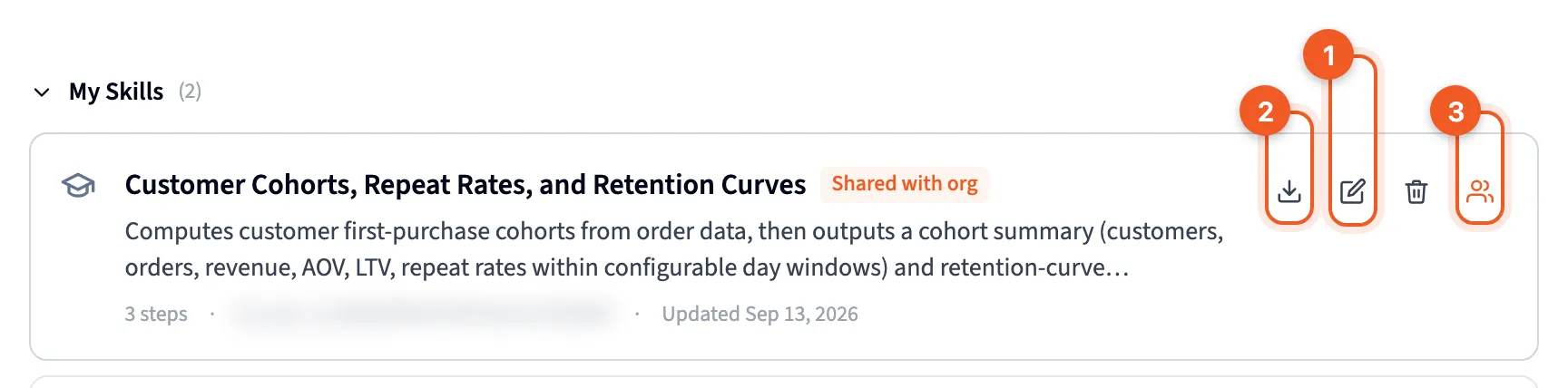
- Edit: opens your own skill in the editor. Your own cards also have Delete, and other people’s skills show View instead.
- Export as .qskill: downloads the skill as a file. It’s there on every skill you can see.
- Share with org or Unshare with org: admins only, on any skill they can see.
With no skills yet, the page explains what skills are for and offers Create your first skill.
Load skills into a chat
Section titled “Load skills into a chat”Skills don’t do anything until they’re loaded into a chat. You can load up to five at a time.
- Open a chat that already has at least one answer. The skills button only shows up once the chat has started.
- Click the graduation cap icon in the chat box, labeled Load skills into context.
- In Load a Skill, search or scroll, then click the skills you want. Mine and Org badges show whether each one is your own or shared.
The dialog counts how many you’ve loaded, out of 5. At five, it asks you to remove one before you add another. If you don’t have the skill you need, Create one takes you to the editor.
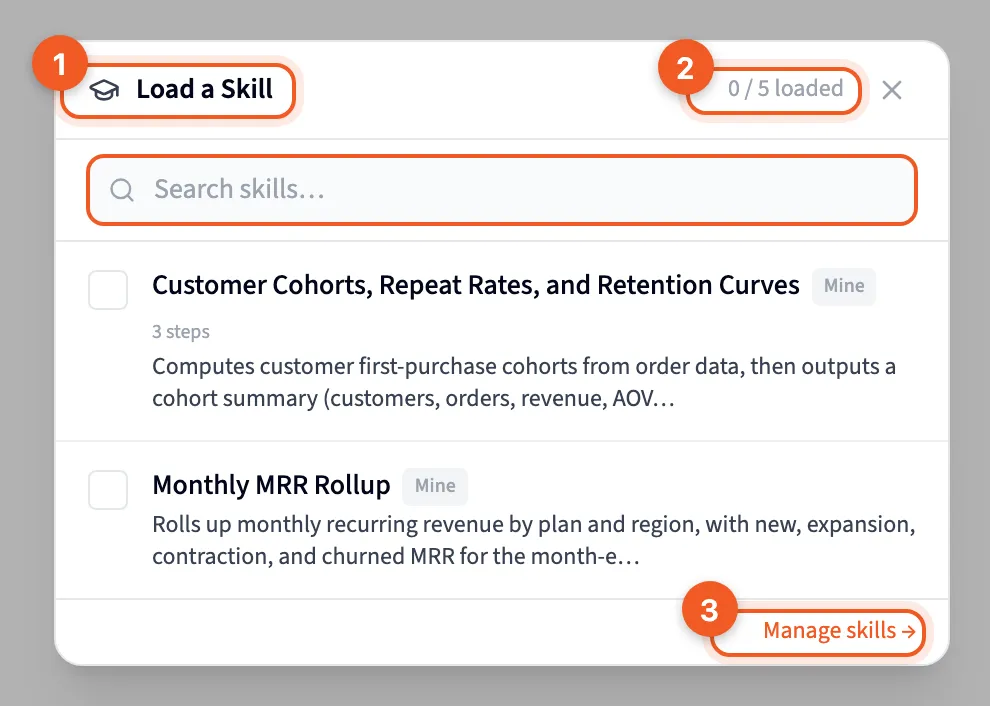
- Load a Skill: the dialog, with a search box and your skills.
- The counter: how many skills are loaded, out of 5.
- Manage skills →: opens the Skills page in Settings.
Each loaded skill shows as a pill above the chat box. Click its ✕ to remove it. Loaded skills belong to that one chat, and they’re remembered in this browser.
Which chat uses a skill, and how
Section titled “Which chat uses a skill, and how”The loader only lists skills allowed in the chat you’re in. If some are hidden, it says so, for example “1 skill isn’t available in this chat.” When you move to a chat where a loaded skill isn’t allowed, Querri takes it off and tells you.
Project chat and Librarian chat treat skills differently:
- Project chat sees the descriptions of the skills available to it and can load one by itself. A skill it loaded has an auto badge on its pill, meaning “The AI loaded this skill automatically”. It can also follow a skill’s example plan.
- Librarian chat uses only the skills you load. It never picks one up by itself, and it ignores example plans.
On a dashboard, the chat panel follows whichever tab is selected. A project tab works like project chat, and the Dashboard tab works like Librarian chat.