
Deliver
A Deliver step emails your results, with files from the project attached, like an Excel workbook or a chart. It’s the only step in Querri that sends email, and it won’t send one by surprise. When Querri builds the step, it only previews the email. The email goes out when you send it, or when the project runs on a schedule.
Who can see this: anyone who can open the project. To add a Deliver step, change it or send it, you need to be able to edit the project.
- Recipients: who gets the email.
- Insert variable…: put a value from your data in the subject or body.
- Attachments: files made by other steps.
- Send now: send it.
When to use it
Section titled “When to use it”Use it when a result has to land in someone’s inbox: the weekly sales numbers, a workbook for finance at month end, a chart for a manager who never opens Querri. Schedule the project, and nobody has to remember to send it.
To send each person their own version, like every sales rep their own pipeline, put the Deliver step inside a Loop.
Ask for it
Section titled “Ask for it”Ask in project chat to email a result. Say who gets it, what the subject and message should say, and what to attach. For example:
Email the revenue by channel chart and an Excel workbook of the 2025 totals to finance@example.com. Use the subject “Revenue by channel” and add a short note that the numbers run through September.
Querri adds a Deliver step after the steps it attaches. Every attachment has to come from a step, so if the workbook doesn’t exist yet, Querri plans a step that makes it, such as an Excel Export.
Or add one yourself: in the Data Flow, click + under the step with your data and pick Deliver.
What happens
Section titled “What happens”Building the step sends nothing. Its message starts with “Preview”, names everyone the email would go to, and ends “Not sent (run with delivery enabled to send).” Check that list before anyone gets the email.
The email is sent when:
- you click Send now on the step
- you click Run Now and tick Deliver Messages, which starts unticked. See Running it again.
- the project runs on its schedule, or you click Test Now in the schedule dialog
- a dashboard built on the project refreshes. See Automate.
Once it’s sent, the message reads “Sent to” the recipients, then how many attachments went with it.
Emails come from Querri’s usual sender. An admin can set up Message delivery to send them from your organization’s own address.
The form
Section titled “The form”Expand on the step opens its form, Email delivery.
- Recipients: addresses, separated by commas or new lines.
- Subject and Body: plain text. The body keeps your line breaks, but there’s no bold, color or HTML.
- Insert variable…: the columns of every step this one draws on. Pick one to add a token like
{{ steps['Revenue by Channel'].net_revenue }}at your cursor. When the email is built, the token becomes that column’s value in the step’s first row. - Source steps: the step it’s built on, marked (primary), plus any you’ve added with + Connect a step…. Connect a step to use its columns or attach what it makes. Steps that come after this one can’t be connected.
- Attachments: click + Add attachment, then pick a step and a format. A chart goes as Image (.png) or Image (.svg), an Excel Export step as its workbook, and any other table as Excel (.xlsx) or CSV (.csv). A file takes its step’s name unless you type a filename, and a filename can use variables too.
Click Save to keep your changes. There’s no refine box on a Deliver step, so change it here or ask in project chat.
A variable that doesn’t match anything stays in the subject or body exactly as you typed it, so you’ll see it in the preview. In Recipients it stops the step, which fails with “Recipient template did not resolve” and lists the columns it could use.
Send now
Section titled “Send now”Send now opens Send email now?, which says how many recipients will get a real email. Click Send. The button is greyed out until there’s at least one recipient, and the result shows under the form after Last:.
It sends the email as it was last saved, so click Save first.
On a Deliver step inside a loop, Send now runs the whole loop again and sends one email per row.
In the Data Flow
Section titled “In the Data Flow”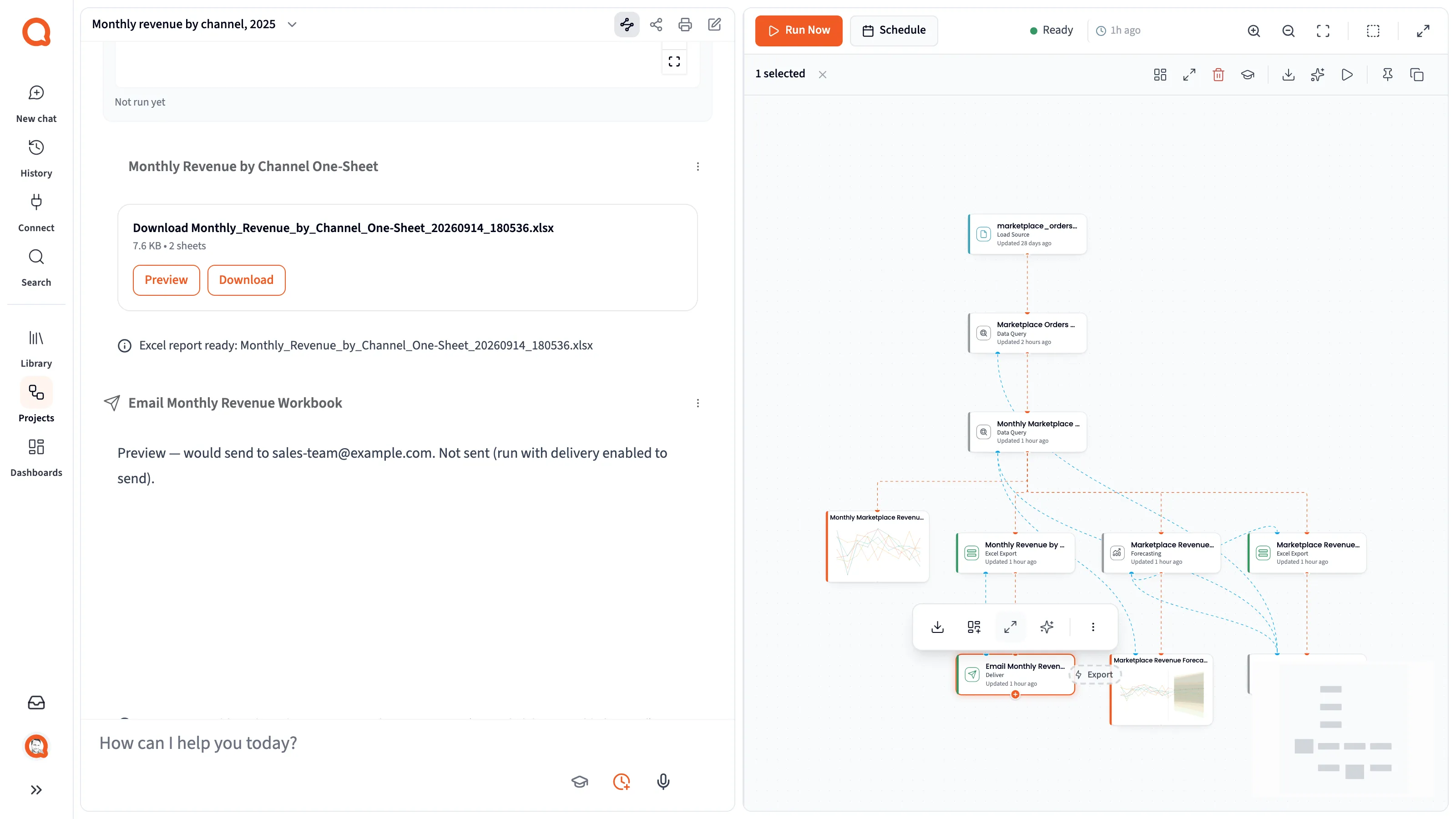
- Deliver: the email’s step.
It has the same colored edge as Excel Export and other export steps, and lines run into it from the steps it uses.
Limits
Section titled “Limits”- An attachment can be up to 10 MB, and an email’s attachments up to 25 MB together. A file over the limit, or one that fails to build, is left out. The email still goes, and the message says how many attachments were skipped.
- Attachments come from steps in the project, not from your computer.
- A variable reads one row: the step’s first row, or inside a loop, the current row. To send a whole table, attach it.
- If the email can’t be sent, the step says “Delivery failed” and who it couldn’t reach.
Credits
Section titled “Credits”Asking for a Deliver step in project chat uses a credit for the question, as usual. The email doesn’t use credits of its own, and running the project yourself doesn’t either, whether you click Send now or Run Now. A scheduled run costs one credit per 10 steps that ran, at least one. Your plan may differ; see How credits are counted on Monitor usage.
- Send the first one to yourself. Put your own address in Recipients, click Save and Send now, then swap in the real list.
- Look at a project’s Deliver steps before you schedule it, click Test Now, or automate a dashboard built on it. Those runs send email without asking.
- Put the one or two numbers people need in the body, and the detail in an attachment.