
Excel Export
Ask for an Excel report and Querri builds a new, formatted workbook from your project’s results, with a sheet for each step you name. It’s the spreadsheet you’d otherwise tidy up by hand before sending it on.
Who can see this: anyone who can open the project. Asking for a report adds a step, so you need to be able to edit the project. People who can only view the project don’t see Preview.
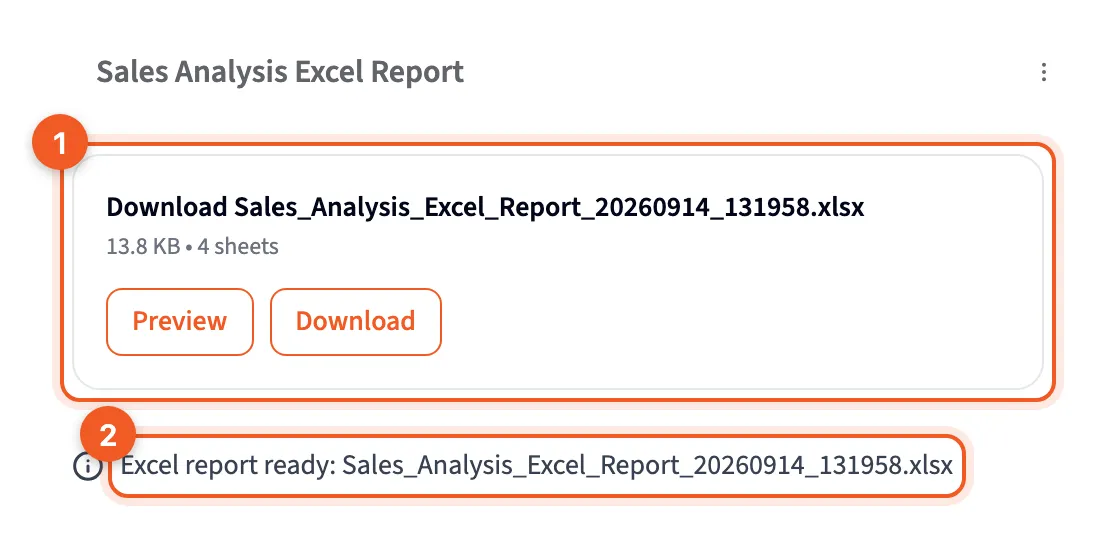
- The card: the file’s name, its size and number of sheets, with Preview and Download.
- Excel report ready: the step’s message, with the file name.
When to use it
Section titled “When to use it”Use it when a result has to leave Querri as a spreadsheet someone will open, check and keep working on: a monthly report for finance, a workbook for a customer. One request makes one file, with as many sheets as you ask for.
If you only need one step’s rows in a file, you don’t need a report. Point at the result card, click Download and pick Excel.
Ask for it
Section titled “Ask for it”Ask in project chat for a formatted Excel report or workbook, and name the steps you want as sheets. Put totals, formulas and any formatting in the same message. For example:
Build a formatted Excel report from this analysis: one sheet for monthly revenue by channel, one for the 2025 totals by channel, and one for refunds by reason, with a SUM formula totals row on each sheet.
That request made one Excel Export step, and a workbook with four sheets and nine formulas. Querri uses steps you already have as the sheets, so it doesn’t rebuild the data first.
Wording matters. “Download this” or “export this” usually gets download buttons for an existing step (CSV, Excel, Parquet) and no new step, though they can include a button that asks for the formatted report.
With no data in the project yet, say for “make a requisition form in Excel”, Querri makes a demo step first.
What’s in the workbook
Section titled “What’s in the workbook”- A sheet for each step, with all of its columns unless you say otherwise. Sheet names are cut to 31 characters, Excel’s limit.
- Borders, alternating row shading, bold colored headers and a frozen top row. Column widths are capped, so long text doesn’t stretch a column across the screen.
- Currency in dollars and cents, ID columns as text, years without decimals, and accounting format when you ask.
- Data bars on revenue, amount and count columns, and color scales on rates, scores and day counts, without being asked.
- Formulas like
SUM,AVERAGEandVLOOKUP, including ones that reach across sheets, when you ask for them. Querri checks them and fixes any that error before you get the file. - An About sheet, always the last tab. It says “This Workbook was generated by Querri”, links back to the project, and lists what’s on each sheet. It counts toward the sheets on the card, which is why three requested sheets show as four.
A model writes the code that builds each file, so the details can vary a little between workbooks.
The step in chat
Section titled “The step in chat”While it works, the step shows progress such as “Generating formatting code…” and “Creating workbook…”. When it’s done, the card reads Download plus the file name, for example “Download Sales_Analysis_Excel_Report_20260914_131958.xlsx”, with the size and sheet count under it. The file is named after the step, then the date and time.
- Preview opens the step full size.
- Download saves the .xlsx file.
In the Data Flow
Section titled “In the Data Flow”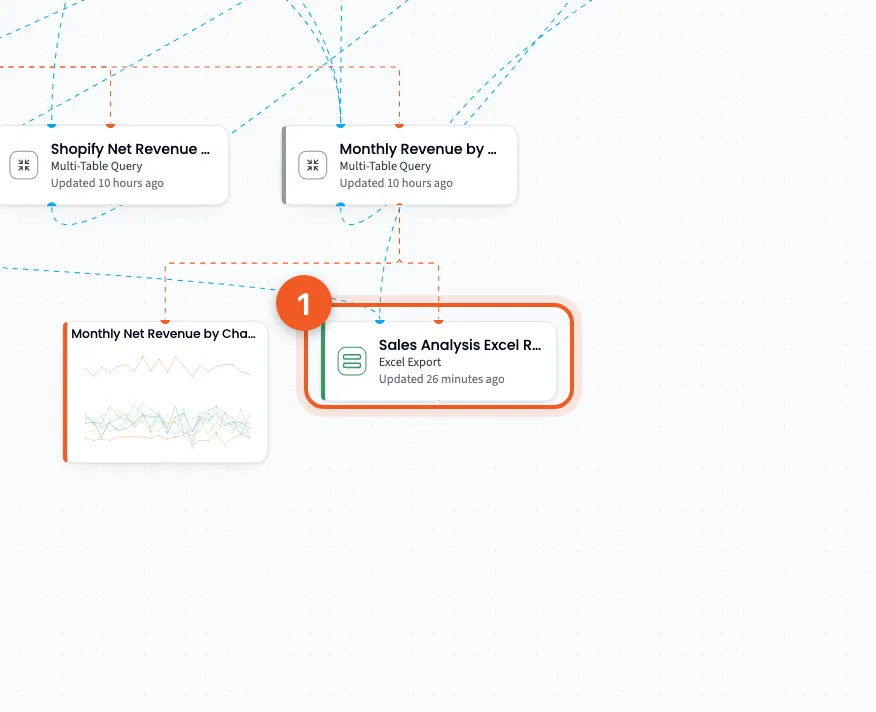
- Excel Export: the workbook’s step.
Lines run into it from the steps it drew on. Point at it for Download Excel, which saves the latest file.
Running it again
Section titled “Running it again”An Excel Export step counts as an export. When you click Run Now, tick Process Exports in Run project to build a fresh workbook, because it starts unticked. A scheduled run includes every export, so it makes a new file each time. See Running it again.
Limits
Section titled “Limits”A step with more than 100,000 rows is cut to its first 100,000, and the step says “Dataset sampled: Exported first 100,000 of” the full count. Past 500,000 rows there’s no file at all. The step says “Export not possible”, and Querri asks how you’d like to narrow the data rather than filtering it on its own.
An empty step makes no file either, so if a filter left nothing, loosen it and ask again.
It always builds a new workbook. It can’t open an Excel file you uploaded and change its cells or formulas.
Credits
Section titled “Credits”Asking for the report uses a credit for the question, as usual. Refining the step afterwards counts as a Step refinement, half a credit. Your plan may differ; see How credits are counted on Monitor usage.
- Name the sheets you want by step. One request, one file.
- If someone will change the numbers in Excel, ask for formulas. Without them, the totals won’t update.
- Summarize big tables before you export them. A sheet of monthly totals gets read; 100,000 rows mostly don’t.
- Skip the formatting Querri adds anyway, like borders and frozen headers, and spend your words on what’s particular to your report.